Wondering how to turn off Apple Intelligence on your iPhone after updating to iOS 27? You’re not alone. If you’ve searched Settings for the old Apple Intelligence switch and can’t find it, there’s a reason.
iOS 27 no longer provides a single switch to disable every Apple Intelligence feature. Instead, Apple lets you turn off Siri AI (Beta), disable AI-generated summaries, switch to Siri Classic, and restrict selected AI features individually.
Whether you want fewer AI suggestions, more control over notifications, or simply prefer the older Siri experience, you can make several useful changes without erasing your iPhone.
In this guide, The Synced Desk explains the actual iOS 27 settings, how to disable the AI features you don’t want, and what remains enabled afterward.
Table of Contents
Quick Answer: How to Turn Off Apple Intelligence on iPhone
If you’re running iOS 27, follow these steps based on what you want to disable:
- Siri AI: Open Settings > Siri, scroll down, and tap Turn Off Siri. You can then turn Siri back on and choose Siri Classic.
- AI notification summaries: Open Settings > Notifications > Summarize Notifications and turn off the feature.
- Priority notifications: Open Settings > Notifications > Prioritize Notifications and switch it off.
- AI summaries in Messages: Open Settings > Apps > Messages and turn off Summarize Messages.
- AI summaries in Mail: Open Settings > Apps > Mail and turn off Summarize Message Previews.
- Other AI capabilities: Open Settings > Screen Time > Content & Privacy Restrictions > Siri and review the restrictions available for your Siri version.
These settings let you disable individual features. They do not necessarily remove all Apple Intelligence processing or downloaded models from your device.
Apple documents these controls in its official iOS 27 Apple Intelligence settings guide.
Why Can’t I Find the Apple Intelligence Off Switch in iOS 27?
If you previously used iOS 18 or iOS 26, you might remember a dedicated Apple Intelligence toggle.
Earlier compatible versions of iOS included an Apple Intelligence & Siri settings page where you could turn the main Apple Intelligence feature off.
Apple changed this approach in iOS 27.
The next generation of Apple Intelligence is integrated throughout supported applications and system features.
As a result, the current iPhone interface focuses on individual controls for Siri, notifications, writing assistance, communication features, and other supported functions.
Does that mean Apple Intelligence is always running?
Not necessarily.
A feature being integrated into iOS does not mean every AI tool continuously processes information.
Different features operate under different conditions, and some require user interaction before performing AI-powered tasks.
However, turning off a few visible AI options is not equivalent to completely removing Apple Intelligence from iOS.
The practical solution is to disable the features you don’t want to use and review the available privacy controls.
1. Turn Off Siri AI (Beta) on iPhone
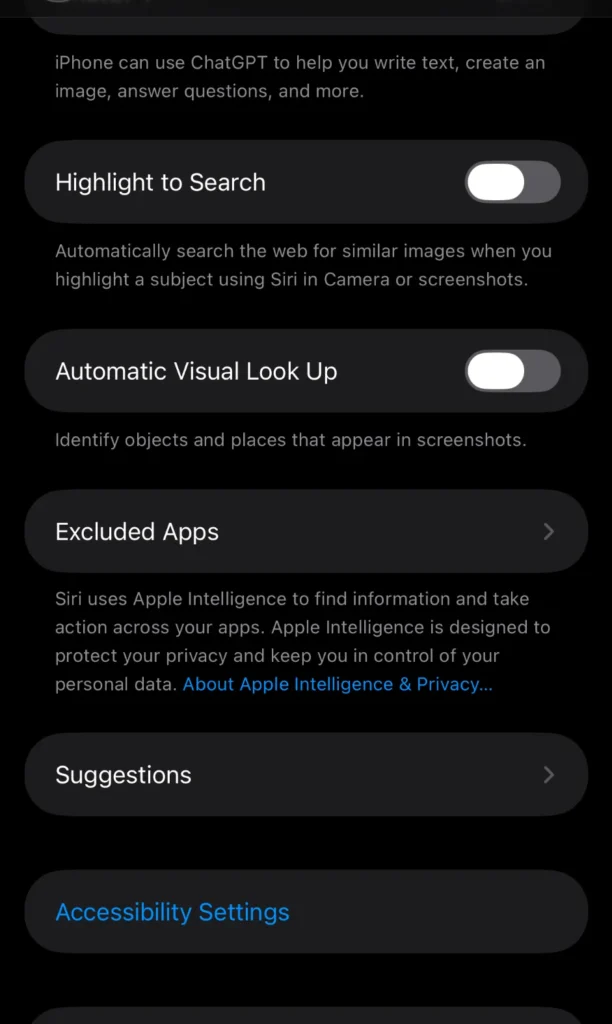
Siri AI is one of the most noticeable Apple Intelligence features in iOS 27.
If you don’t want the conversational AI assistant, Apple’s support documentation provides a method to disable it.
Steps to disable Siri AI
- Open the Settings app.
- Scroll down and tap Siri.
- Scroll toward the bottom of the Siri settings.
- Tap Turn Off Siri.
- Tap Turn Off Siri again to confirm.
This turns off Siri, including the Siri AI experience.
Important: Turning off Siri also removes access to its ordinary voice-assistant functions until you enable Siri again.
If you still want the older Siri experience, follow the next section.
2. Switch From Siri AI to Siri Classic
You don’t have to give up Siri entirely just because you don’t want Siri AI.
Apple provides an option to use Siri Classic instead of the newer AI experience.
How to switch to Siri Classic
- Open Settings > Siri.
- If Siri AI is active, choose Turn Off Siri and confirm.
- Tap Turn On Siri.
- Select Siri Classic when the option appears.
- Follow the onscreen instructions to complete setup.
You can also review the Siri version permitted through Screen Time restrictions.
What can Siri Classic do?
Siri Classic retains supported traditional assistant functions, such as:
- Setting alarms and timers.
- Making phone calls.
- Sending messages.
- Checking weather information.
- Starting supported applications.
- Performing compatible voice commands.
It does not provide the same conversational AI experience as Siri AI.
Who should use this option?
Switching to Siri Classic is a sensible choice if you like basic Siri commands but don’t want the newer conversational interface.
If Siri stops responding after changing settings, see our iPhone Siri Not Working troubleshooting guide.
3. Turn Off Apple Intelligence Notification Summaries
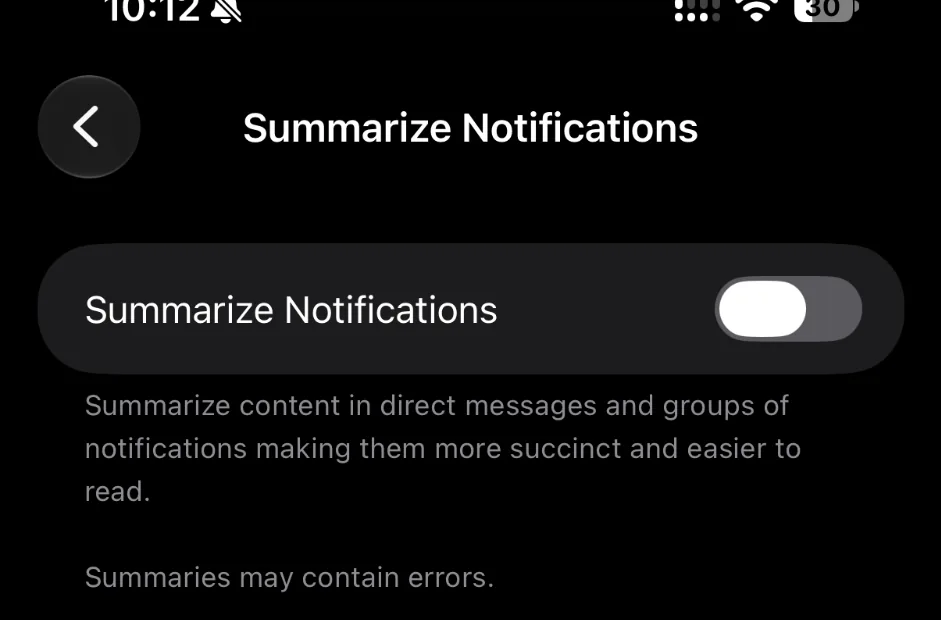
Apple Intelligence can summarize notifications from supported applications.
Some people find these summaries convenient, but others prefer reading the original notifications.
If you want to stop AI-generated notification summaries, you can disable them directly.
Steps to turn off notification summaries
- Open Settings.
- Tap Notifications.
- Select Summarize Notifications.
- Turn off Summarize Notifications.
Your iPhone will no longer use this setting to generate notification summaries.
This does not normally turn off ordinary notifications from your apps.
What if you only want to disable summaries for one app?
Depending on your iOS configuration, you may be able to adjust notification summaries for individual applications.
Review the available app-specific options before switching off the entire feature.
For general problems with missing alerts, read our iPhone Notifications Not Working guide.
4. Disable Priority Notifications
Priority Notifications is another Apple Intelligence feature that can affect how notifications appear.
It uses intelligent processing to identify alerts that may deserve more immediate attention.
If you prefer to manage notifications yourself, you can turn it off.
How to disable Priority Notifications
- Open Settings.
- Select Notifications.
- Tap Prioritize Notifications.
- Turn the option off.
This stops the Priority Notifications feature from using AI to prioritize alerts.
Note: Priority Notifications and Summarize Notifications are separate settings. Turning off one doesn’t necessarily disable the other.
If you want both features disabled, check them individually.
5. Turn Off Apple Intelligence Summaries in Messages
Apple Intelligence can summarize supported message content.
If you’d rather see message previews without AI-generated summaries, adjust the Messages settings.
Steps
- Open Settings.
- Scroll down and select Apps.
- Tap Messages.
- Find Summarize Messages.
- Turn the option off.
This disables the Messages summarization feature.
It does not ordinarily delete your conversations or stop Messages from receiving new texts.
You can still use Messages normally.
Will disabling summaries affect iMessage?
Disabling AI summaries doesn’t mean you’re turning off iMessage.
iMessage and SMS/RCS messaging are separate services from the Apple Intelligence summarization feature.
Your message delivery settings remain independent.
6. Disable Apple Intelligence in the Mail App
Apple Intelligence provides several assistance features in Mail.
These can include email summaries and personalized smart replies.
If you don’t want AI to summarize your emails or suggest responses, you can change those options.
Turn off email summaries
- Open Settings.
- Select Apps.
- Tap Mail.
- Find Summarize Message Previews.
- Turn it off.
Turn off personalized smart replies
- Stay in Settings > Apps > Mail.
- Find Personalize Smart Replies.
- Switch it off.
These are separate settings, so review each one if you want to reduce AI assistance in Mail.
Disabling them does not normally remove your email account or delete messages.
If your Mail app develops a separate syncing or loading issue, our Mail App Not Working on iPhone guide covers those problems.
7. Restrict Writing Tools and Other AI Features Using Screen Time
Apple provides restrictions for certain Siri and Apple Intelligence capabilities through Screen Time.
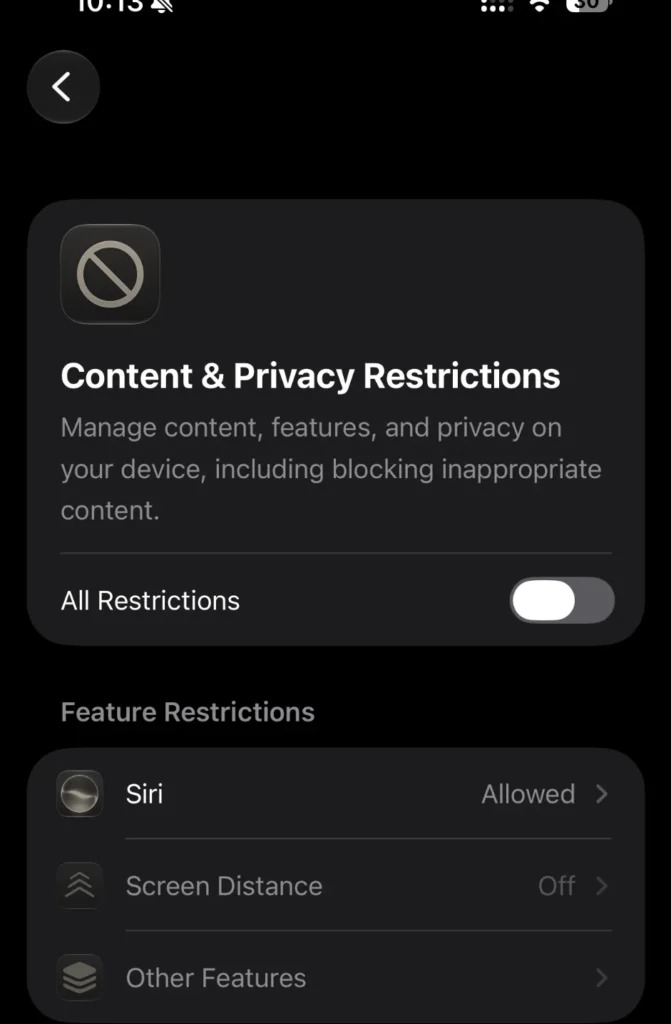
This can be useful if you want more control over AI-assisted writing, image creation, or other supported features.
How to review the restrictions
- Open Settings.
- Tap Screen Time.
- Select Content & Privacy Restrictions.
- Enable the restrictions if they are currently off.
- Open Siri.
- Review the controls available for your configured Siri version.
Depending on the Siri version and device, you may see options relating to:
- Siri Classic or Siri AI.
- Image creation.
- Writing assistance.
- Sensitive topics.
- Other supported Siri and AI capabilities.
Select the available Block or Don’t Allow options for the features you want restricted.
The exact labels can differ between Siri versions and iOS builds, so follow the options actually displayed on your device.
Can Screen Time completely remove Apple Intelligence?
No. Restricting access to selected features is different from uninstalling the underlying operating-system components.
Screen Time can help prevent certain capabilities from being used, but Apple does not describe it as a method for fully removing the AI framework.
If Screen Time restrictions aren’t behaving as expected, see our iPhone Screen Time App Limits Not Working guide.
For the latest settings, consult Apple’s Screen Time and Siri restrictions guide.
8. Turn Off ChatGPT Integration With Apple Intelligence
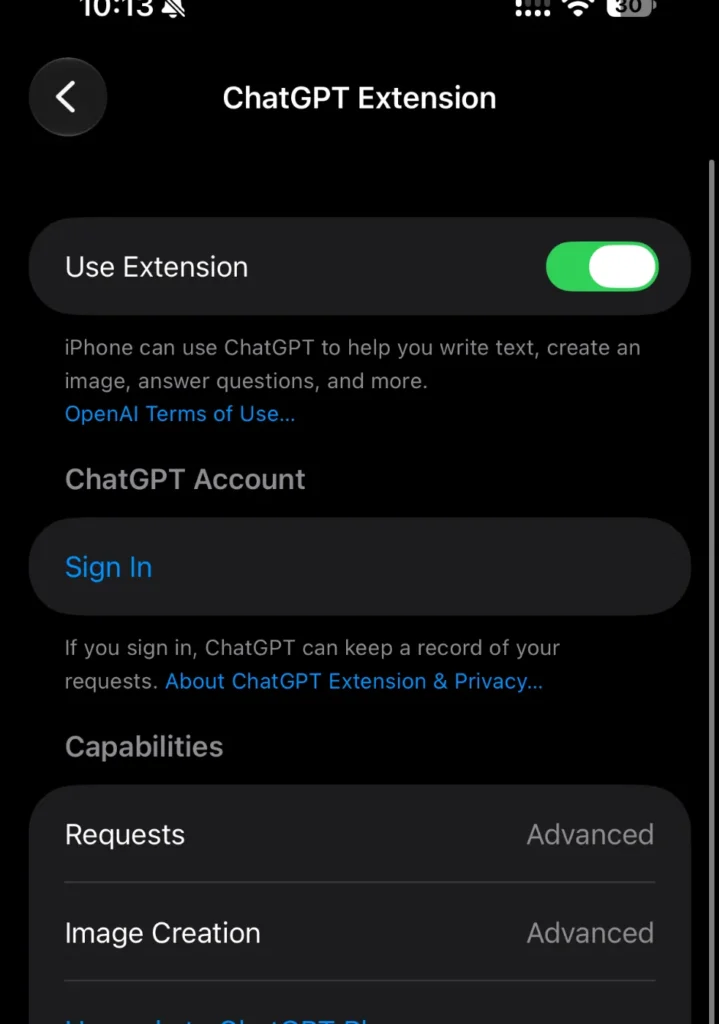
Apple Intelligence can connect with ChatGPT for supported requests.
If you don’t want Siri or other supported Apple features using the ChatGPT extension, Apple provides a separate control.
If you’re using Siri Classic
- Open Settings.
- Tap Siri.
- Select ChatGPT.
- Turn off Use ChatGPT.
If you also want to stop Siri from suggesting ChatGPT setup, turn off Setup Prompts, if available.
If you’re using Siri AI (Beta)
- Open Settings.
- Tap Siri.
- Select Extensions.
- Tap ChatGPT.
- Turn off Use Extension.
Disabling this integration does not necessarily remove the separate ChatGPT application from your iPhone.
It only disables the relevant Apple Intelligence extension.
For additional information, see Apple’s guide to ChatGPT integration.
9. Disable Other Apple Intelligence Suggestions
Apple also offers more specific controls for selected applications.
For example, you can review the following settings.
Voicemail suggestions
Open Settings > Apps > Phone and turn off Suggestions in Voicemail if you don’t want that feature.
Writing prompts in Journal
Open Settings > Apps > Journal and turn off Get Writing Prompts.
Call Context cards
Open Settings > Apps > Phone and review the available Apple Intelligence & Siri settings for call-related suggestions.
The available controls can vary by device, language, region, and software version.
Turning off these individual options gives you more control over which forms of AI assistance appear during everyday use.
Can You Completely Disable Apple Intelligence in iOS 27?
This is the most important question for people who want no AI features at all.
As of November 19, 2026, Apple’s iOS 27 documentation does not provide one universal master switch that completely disables every Apple Intelligence capability.
Instead, Apple documents separate controls for Siri AI, notification summaries, communication assistance, and individual features.
You can turn off or restrict many visible AI functions, but that doesn’t necessarily remove all underlying AI components.
What if you want to avoid AI features entirely?
Use the available restrictions and avoid invoking tools you don’t want.
You can also review app-specific privacy settings and disable unwanted third-party integrations.
However, don’t assume that changing a Siri language, turning off ChatGPT, or blocking one feature will completely remove Apple Intelligence from the operating system.
Those actions affect specific functions, not necessarily every system component.
Does Turning Off Apple Intelligence Save Battery?
It may reduce activity associated with certain features when they’re no longer used, but there is no guaranteed battery-life improvement.
Actual battery consumption depends on several factors, including:
- Which AI features you previously used.
- The number of background tasks.
- Device temperature.
- Your iPhone model.
- Other applications running.
- Battery health and system conditions.
Apple doesn’t guarantee that disabling Siri AI or summaries will increase battery life by a particular percentage.
If you’re experiencing battery drain after an update, start with the broader troubleshooting steps in our iOS 27.2.1 Battery Drain guide.
Avoid claiming that disabling Apple Intelligence will automatically fix overheating or battery problems.
Does Turning Off Apple Intelligence Free Up Storage?
Not necessarily.
Apple Intelligence uses on-device resources, and the models can occupy several gigabytes on supported devices.
However, iOS 27 doesn’t provide the same universal Apple Intelligence shutdown control available in certain earlier releases.
Disabling individual features is not a documented method of guaranteeing that all downloaded Apple Intelligence models will be deleted.
If you need more storage, use Settings > General > iPhone Storage to identify what’s consuming space.
Don’t delete system files or use unofficial cleaning tools to remove AI components.
For related guidance, read our iPhone System Data Taking Up Storage guide.
How Does Disabling Apple Intelligence Affect Privacy?
Apple Intelligence uses both on-device processing and, for some requests, Apple’s Private Cloud Compute infrastructure.
According to Apple, its Private Cloud Compute system is designed to process requests without retaining the submitted data.
If you want to inspect relevant activity, iOS provides an Apple Intelligence Report option.
How to review Apple Intelligence activity
- Open Settings.
- Select Privacy & Security.
- Tap Apple Intelligence Report.
- Choose an available report duration.
- Export the activity report if you want to review it.
The report covers applicable Private Cloud Compute requests. It is not necessarily a complete history of every AI-related activity performed on your device.
Disabling Siri AI or another feature also does not automatically mean that all other Apple Intelligence capabilities stop processing information.
For details, read Apple’s Apple Intelligence privacy explanation.
Frequently Asked Questions
How do I turn off Apple Intelligence on iPhone?
In iOS 27, Apple no longer provides a universal Apple Intelligence off switch. You can disable Siri AI, turn off summaries, switch to Siri Classic, and restrict selected AI capabilities through Screen Time.
Can I completely turn off Apple Intelligence in iOS 27?
Apple’s current documentation does not provide a single setting that fully disables every Apple Intelligence feature. You must manage supported features individually.
How do I disable Siri AI but keep regular Siri?
Open Settings > Siri, turn off Siri AI by choosing Turn Off Siri, then turn Siri back on and select Siri Classic.
How do I remove AI summaries from iPhone notifications?
Open Settings > Notifications > Summarize Notifications, then turn off the feature.
Can I turn off Apple Intelligence in Messages?
You can disable Apple Intelligence message summaries through Settings > Apps > Messages > Summarize Messages.
Does disabling Apple Intelligence delete my photos?
Turning off supported Siri AI or summarization settings does not ordinarily delete photos, messages, or installed apps.
Will turning off Siri AI stop all Apple Intelligence features?
No. Siri AI is only one part of Apple Intelligence. Other supported features may remain available through applications and system settings.
Can I stop Apple Intelligence from using ChatGPT?
Yes. Open Settings > Siri and disable ChatGPT through the relevant extension controls. The exact options depend on whether you’re using Siri Classic or Siri AI.
Will Apple Intelligence turn off automatically if I disable Siri?
Disabling Siri turns off Siri-related functionality, but it does not establish that all other Apple Intelligence features are disabled.
Can I turn Apple Intelligence back on later?
You can generally re-enable the specific features or Siri version you’ve disabled, provided your iPhone continues to meet the requirements.
Final Thoughts
If you want to know how to turn off Apple Intelligence in iOS 27, the most useful thing to understand is that Apple has moved away from one universal on/off switch.
Instead, you can choose which AI-powered functions remain active on your iPhone.
For most readers, the best starting points are disabling Siri AI, switching to Siri Classic, turning off notification and message summaries, and reviewing Screen Time restrictions.
These changes can reduce unwanted AI assistance without requiring you to erase your iPhone or install unofficial software.
The Synced Desk recommends making one change at a time, confirming that it has the intended effect, and leaving unrelated settings unchanged.
Editorial note: This article is based on Apple’s published iOS 27 documentation. Device-menu screenshots should be captured on a real iPhone before publication; not every control has been independently tested across all supported models.
Last fact-checked: November 19, 2026.