Quick Answer: How to Free Up iCloud Storage on iPhone
Wondering how to free up icloud storage on iphone without losing important files? Open Settings > Your Name > iCloud > Storage, review what’s using your cloud space, and start with old device backups, unnecessary iCloud Drive files, and large message attachments. You can also use Apple’s Recommended for You suggestions, where available.
The safest approach is to identify your largest iCloud storage categories first, save copies of important information, and delete only what you no longer need.
Important: Deleting photos, files, or messages from iCloud can remove them from other devices using the same Apple Account. Always verify that important data is backed up independently before deleting it.
This guide explains nine safe ways to free up iCloud storage on an iPhone running iOS 27 or an earlier supported version.
Table of Contents
Why Is My iCloud Storage Full?
Apple provides 5 GB of free iCloud storage with an Apple Account.
That space can be shared between several services, including:
- iCloud device backups
- iCloud Photos
- iCloud Drive
- Messages in iCloud
- iCloud Mail
- Certain app data
- Other supported Apple services
Over time, backups, photos, large attachments, and files can fill your available cloud storage.
For example, an old device backup might remain in iCloud after you’ve stopped using that device.
Similarly, large videos stored in iCloud Photos can consume considerable cloud capacity.
What happens when iCloud storage is full?
When your iCloud account reaches its storage limit, several services may stop updating correctly.
Possible problems include:
- New iCloud backups failing
- New photos and videos not uploading to iCloud Photos
- iCloud Drive files no longer syncing properly
- Other iCloud app data failing to update
- Problems sending or receiving iCloud email
Your existing files do not necessarily disappear because you reach the limit.
However, new uploads, backups, and synchronization may remain interrupted until you make enough space or upgrade your plan.
How to Check What’s Using Your iCloud Storage
Before deleting anything, review the storage breakdown.
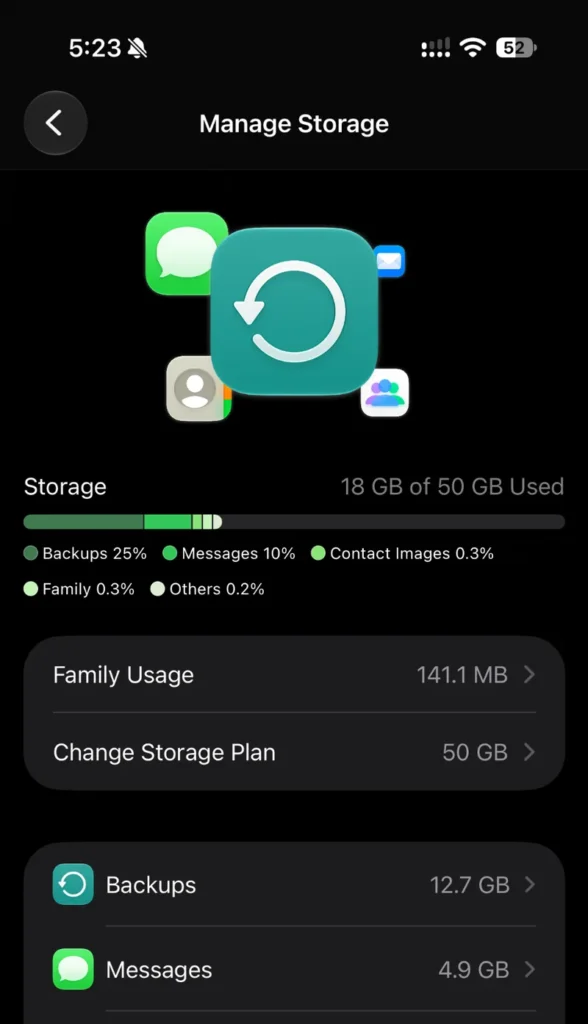
Steps for iOS 27
- Open Settings on your iPhone.
- Tap your name or Apple Account.
- Select iCloud.
- Review the storage information.
- Tap Storage or Manage Account Storage, depending on the screen shown.
- Examine the categories using the most space.
You may see entries for Backups, Photos, Messages, iCloud Drive, and other apps.
Tap a category for additional information or available management options.
Tip: Focus on the largest category first. Removing a few tiny emails will have little effect if old device backups occupy most of your cloud storage.
1. Use Apple’s Recommended for You Feature
Apple includes a storage management feature called Recommended for You on supported iOS versions.
It can identify categories that may be worth reviewing when your iCloud storage is running low.
How to find it
- Open Settings.
- Tap your name.
- Select iCloud.
- Look for Recommended for You.
- Open any recommendations shown.
- Review the suggested action before confirming.
Depending on your account, Apple may recommend reviewing old backups, large files, or other unnecessary content.
What if Recommended for You doesn’t appear?
The feature may not display recommendations when Apple hasn’t identified anything suitable.
You can still manage each storage category manually.
Do not delete recommended content without checking what it contains. An old backup or large file may still be important to you.
2. Delete Old iCloud Backups You No Longer Need
Old device backups are a common source of unnecessary iCloud storage usage.
For example, you may have upgraded to a new iPhone but still have a backup from your previous device.
If that backup is no longer required, removing it may free substantial storage.
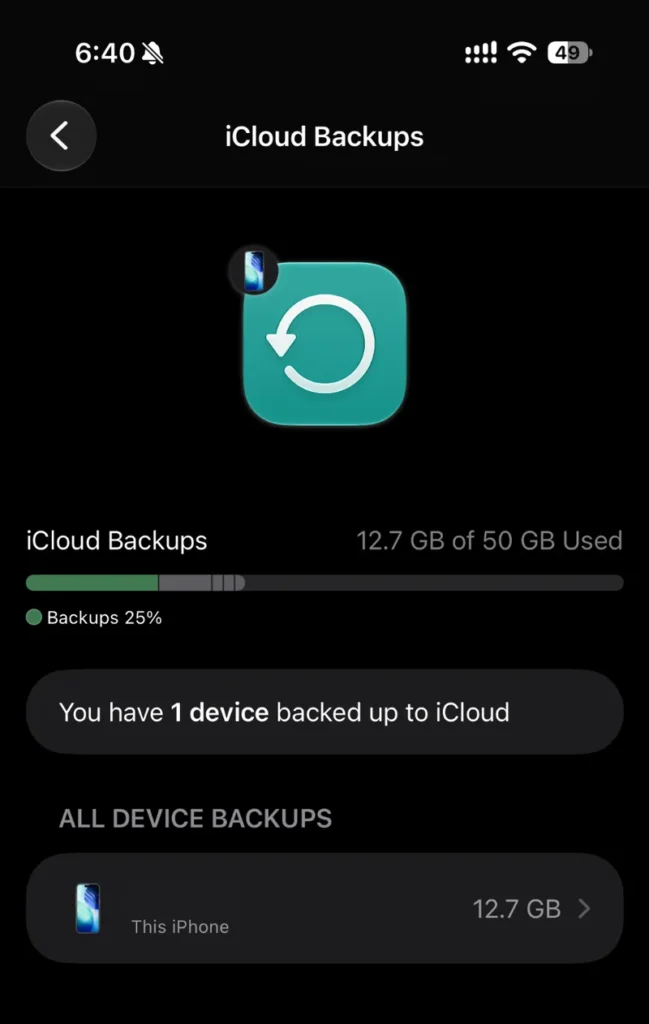
How to find old iCloud backups
- Open Settings.
- Tap your name.
- Go to iCloud.
- Select Storage or Manage Account Storage.
- Tap Backups.
- Review the listed devices.
- Select a backup associated with an old device.
Check the device information carefully before deleting anything.
How to delete an unnecessary backup
If you are completely certain the backup is no longer needed:
- Select the relevant backup.
- Tap Turn Off and Delete from iCloud, if displayed.
- Read the confirmation message.
- Confirm the deletion.
Apple explains that deleting a device backup also turns off iCloud Backup for that device.
Which backups should you keep?
Keep backups that might still be needed to restore an important device.
Be especially cautious with the backup for your current iPhone.
Deleting your current backup may leave you without a recent iCloud restore point until another backup is successfully created.
If possible, maintain a verified alternative backup before removing a current-device backup.
Best practice: Start by reviewing backups from devices you no longer own or use, not the backup of your primary iPhone.
3. Reduce the Size of Your Current iCloud Backup
You don’t always need to delete an entire backup to reduce storage usage.
Apple allows you to exclude certain app data from iCloud Backup.
This can help when an application stores large amounts of information that you don’t need included in your cloud backup.
How to choose which apps to back up
- Open Settings > Your Name > iCloud.
- Tap Storage or Manage Account Storage.
- Select Backups.
- Choose your current iPhone.
- Review the apps included in the backup.
- Turn off backup for an app only if its data is unnecessary or safely stored elsewhere.
- Confirm the action.
When you disable backup for an app, Apple removes that app’s backed-up information from iCloud.
Some apps cannot be excluded.
Which app data should you keep?
Be cautious with applications containing:
- Important documents
- Offline notes
- Unsynchronized files
- Personal records
- Application-specific information
- Data that cannot be downloaded or recreated
Disabling backup for an app can affect what you are able to restore later.
What if iCloud Photos is turned off?
This distinction is particularly important.
If you’re not using iCloud Photos, your device’s photo library may be included in iCloud Backup instead.
In that situation, a large Backups category may partly reflect your photo library.
You can check the backup details to see whether Photo Library is included.
Before excluding photos from backup, make sure important photos and videos are safely saved somewhere else.
Do not disable photo backup merely to reduce the storage number if that backup contains your only recoverable copies.
4. Review Photos and Videos Stored in iCloud
Photos and videos can consume substantial iCloud storage, particularly if your library contains many high-resolution recordings.
If you use iCloud Photos, deleting files you no longer need can free cloud storage.
However, this requires extra caution.
First, check whether iCloud Photos is enabled
- Open Settings.
- Tap your name.
- Select iCloud.
- Tap Photos.
- Check the Sync this iPhone setting.
If synchronization is enabled, your photo library can be kept up to date across devices associated with the same Apple Account.
If it is disabled, deleting local photos may not be the right way to reduce iCloud Photos storage.
Review your backup configuration instead.
How to remove unnecessary iCloud Photos
If iCloud Photos is enabled:
- Open the Photos app.
- Browse your library.
- Select photos or videos you genuinely no longer need.
- Save independent copies of important media.
- Tap Delete.
- Confirm the deletion.
Important warning about synced photos
Deleting a photo from an iCloud Photos library generally removes it from other devices using that same synchronized library.
It is not the same as deleting only a downloaded local copy.
Apple normally provides a Recently Deleted recovery period of up to 30 days, although recovery may be unavailable in certain storage-limit situations.
Apple also says items in the Photos Recently Deleted album do not count toward your iCloud storage.
Don’t permanently delete photos from Recently Deleted simply because you assume it is necessary to reclaim iCloud capacity.
What about Shared Albums in iOS 27?
Apple introduced an important storage consideration in iOS 27.
Photos added to a Shared Album can count toward the iCloud storage of the person who created the album.
Deleting a Shared Album can immediately remove access for participants to items they haven’t saved independently.
If you manage large Shared Albums, review them carefully before deleting anything.
Does Optimize iPhone Storage reduce iCloud usage?
No, not by itself.
Optimize iPhone Storage reduces the space used by local copies on your iPhone while keeping full-resolution originals in iCloud.
It helps with device storage, not necessarily with your iCloud account’s storage limit.
This is why iCloud cleanup and iPhone storage cleanup should be treated as separate tasks.
If your photo library isn’t syncing correctly, see our iCloud Photos Not Syncing on iPhone guide before making major changes.
5. Delete Unnecessary Files From iCloud Drive
iCloud Drive can store documents, PDFs, videos, ZIP archives, and other files.
These may be accessible from multiple Apple devices, but they also consume iCloud storage.
How to review iCloud Drive files
- Open the Files app.
- Tap Browse.
- Select iCloud Drive under Locations.
- Browse your folders.
- Identify files you no longer need.
- Save copies of important documents outside iCloud.
You can use the Files app to review old downloads, exported files, archives, and documents.
How to delete an unnecessary file
- In Files > iCloud Drive, locate the file.
- Tap the More button and choose Select, or touch and hold the individual item.
- Select the unwanted file or folder.
- Tap Delete.
- Confirm the action.
Deleting an iCloud Drive file removes it from iCloud and from other devices syncing that file.
You may be able to recover deleted files through Recently Deleted for a limited period, but you should not rely on recovery as your primary backup method.
Delete vs. Remove Download
These options solve different problems.
Delete: Removes the file from iCloud Drive and therefore reduces cloud storage usage.
Remove Download: Removes the downloaded local copy from your iPhone but keeps the original in iCloud Drive.
If your goal is to free iCloud storage, Remove Download is not the solution.
If your goal is to free iPhone storage, Remove Download may help.
For iCloud files that are failing to sync, check our iCloud Drive Files Not Syncing on iPhone guide.
6. Delete Unnecessary Messages and Large Attachments
If Messages in iCloud is enabled, supported conversations and attachments can use your iCloud storage.
Large videos, photos, and shared documents may contribute significantly.
How to review message attachments
- Open Messages.
- Select a conversation.
- Tap the contact or group name at the top.
- Open Photos or the relevant attachment section.
- Tap Edit, if available.
- Select attachments you no longer need.
- Delete the selected items.
The exact interface can differ by iOS version.
Does deleting messages affect other devices?
Yes, when Messages in iCloud is enabled, deletions can synchronize across devices using the same Apple Account.
Deleting an attachment or conversation may remove it from your other synced devices.
Should you delete entire conversations?
Only if you no longer need their contents.
Conversations may contain valuable records, addresses, photos, or other information.
Removing a few unnecessary large attachments is often a more targeted approach than deleting your entire message history.
Can you automatically delete old messages?
On supported iOS versions, you can adjust how long messages are retained.
Look under:
Settings > Apps > Messages > Keep Messages
A shorter retention period can remove older conversations and attachments automatically.
This setting deletes real message history, so review its consequences before changing it.
7. Clean Up iCloud Mail
If you use an @icloud.com email address, messages and attachments in your iCloud Mail account can occupy cloud storage.
Large attachments are particularly worth reviewing.
How to clean up iCloud Mail
- Open the Mail app.
- Select your iCloud Mail account.
- Review old messages you no longer need.
- Identify unnecessary emails with large attachments.
- Delete the unwanted messages.
- Review your Trash folder.
Apple also provides iCloud Mail Cleanup recommendations on supported configurations.
You may be able to find this feature from the Mail app’s menu under Cleanup Recommendations.
Do deleted emails immediately free storage?
Moving a message to Trash may not immediately remove it permanently.
You may need to remove unnecessary items from Trash, depending on the account’s settings.
Before deleting emails, check whether they contain important receipts, correspondence, or documents.
Do not delete records you may need later simply to recover a small amount of space.
8. Remove Unnecessary Voice Memos From iCloud
If Voice Memos is synchronized through iCloud, recordings can contribute to storage usage.
This may be relevant if you frequently record interviews, lectures, conversations, or personal notes.
How to review Voice Memos
- Open Voice Memos.
- Go to All Recordings.
- Review your recordings.
- Export or save any recording you want to keep.
- Delete recordings that are genuinely unnecessary.
If you need to remove them permanently, review the Recently Deleted section.
Important: Permanently deleted recordings may not be recoverable.
For recordings that are important, save a separate copy before deleting them from a synchronized library.
9. Review Contact Images and Other iCloud App Data
Sometimes smaller categories collectively consume noticeable storage.
On supported recent iOS versions, saved contact photos and posters may contribute to iCloud storage.
Apple introduced this storage accounting for contact images in iOS 26.
How to review Contact Images
- Open Settings.
- Tap your name.
- Select iCloud.
- Open Storage or Manage Account Storage.
- Look for Contact Images, if present.
- Review the available management option.
Apple provides an option to delete contact images from iCloud.
This does not delete the contact itself, but it removes the associated cloud image information.
Only use the option if that content is unnecessary.
What about other apps?
Third-party apps can also store information in iCloud.
Before deleting their cloud data, confirm whether it includes files, settings, or records that cannot be recreated.
Some storage categories are small and may not be worth changing.
Prioritize backups, large files, and other high-usage categories first.
How to Free Up iCloud Storage Without Deleting Photos
You don’t necessarily need to delete your photo library to reclaim iCloud storage.
Start with these options:
- Review backups associated with old devices.
- Exclude unnecessary app data from future backups.
- Remove large, obsolete iCloud Drive files.
- Delete unnecessary Messages attachments.
- Clean up old iCloud Mail messages.
- Archive unused Voice Memos elsewhere.
- Review other cloud app data you no longer need.
The amount of space you can recover depends on which categories are largest.
If Photos occupies most of your iCloud plan, you may need to archive selected media outside iCloud or consider a larger cloud storage plan.
Can you move important files somewhere else?
Yes.
You can export iCloud Drive files, photos, or other supported information to a Mac, compatible external storage, or another independent location.
Before removing the originals:
- Confirm the exported files open correctly.
- Verify important photos and videos are complete.
- Keep a second copy of irreplaceable information where possible.
- Check that the backup location is outside the iCloud Drive folder if the goal is reducing iCloud usage.
Simply moving files to a different folder within iCloud Drive generally does not reduce cloud storage usage.
iCloud Storage vs. iPhone Storage: What’s the Difference?
These are two separate types of storage.
iCloud storage is the cloud capacity associated with your Apple Account.
iPhone storage is the physical capacity built into your phone.
For example, an iPhone with 256 GB of built-in storage can still have a completely full 5 GB iCloud account.
Likewise, an iPhone can be almost full even when plenty of iCloud space remains.
How to check iPhone storage
Open Settings > General > iPhone Storage.
How to check iCloud storage
Open Settings > Your Name > iCloud > Storage.
If your goal is to reclaim physical space on the iPhone rather than iCloud capacity, use our separate guide on freeing up iPhone storage.
What If Your iCloud Storage Is Still Full?
If you’ve safely removed unnecessary backups, files, and attachments but still need additional capacity, you have two main options.
Option 1: Archive more data outside iCloud
Transfer important photos, videos, and documents to a verified external location.
Once the independent copies are safe, you can decide which cloud originals are no longer needed.
This requires careful backup management, but it avoids immediately increasing your subscription cost.
Option 2: Upgrade to iCloud+
Apple offers paid iCloud+ storage plans with larger capacities.
On supported iPhones running iOS 27, you can review your plan through:
Settings > Your Name > iCloud > Manage Account Storage > Change Storage Plan
The precise menu label can vary.
Choose a plan based on your actual storage requirements and the pricing available in your country.
Upgrading increases your available cloud capacity. It does not increase the iPhone’s physical internal storage.
Why Is iCloud Storage Still Full After Deleting Files?
Sometimes the reported storage amount does not immediately reflect your changes.
Possible explanations include:
- You removed a local download instead of the iCloud original.
- A backup or another category still occupies substantial space.
- Another device or service is uploading new data.
- The storage calculation has not refreshed.
- You deleted content from a different Apple Account.
- Your account is still using more space than its plan allows.
What to check
First, reopen Settings > Your Name > iCloud > Storage.
Review the categories again instead of relying on the previous total.
Confirm that the item was deleted from the intended iCloud service.
Then allow time for iCloud to update its storage calculation.
Avoid repeatedly deleting more content before you understand why the total hasn’t changed.
Frequently Asked Questions
How do I free up iCloud storage on iPhone without paying?
Start with old device backups, unnecessary iCloud Drive files, unused backup data, message attachments, iCloud Mail, and other content you no longer need. Review Apple’s Recommended for You suggestions if available.
How do I see what’s taking up iCloud storage?
Open Settings > Your Name > iCloud > Storage or Manage Account Storage. The categories show how much cloud space different services use.
Will deleting an iCloud backup delete my iPhone photos?
Deleting a device backup does not itself delete photos stored locally on the iPhone. However, it removes backed-up data that may be needed for recovery. If your photos were included in that backup, losing the backup could eliminate an important recovery copy.
Does turning off iCloud Photos free iCloud storage?
Not automatically. Turning off synchronization does not necessarily remove existing photos from iCloud. Review Apple’s options carefully before disabling or deleting a photo library.
Does Remove Download free up iCloud storage?
No. Remove Download deletes a local copy from your device while keeping the original in iCloud Drive. To reduce iCloud usage, you must remove unnecessary cloud content itself.
Why is my iCloud storage full even though my iPhone has space?
iCloud and iPhone storage are separate. Your cloud account can reach its limit even while your iPhone has plenty of unused internal storage.
Does buying more iCloud storage increase iPhone storage?
No. iCloud+ increases your cloud storage allowance, not your iPhone’s physical storage capacity.
Can I delete old backups safely?
You can remove backups you no longer need, but first confirm they are not required for restoring a device or recovering important data. Deleting a backup also affects backup availability for that device.
Do deleted iCloud Photos remain in Recently Deleted?
Typically, deleted photos can be recovered for up to 30 days. However, Apple notes that recovery behavior can differ when the iCloud storage limit has been exceeded. Don’t rely on Recently Deleted as a substitute for an independent backup.
How can I stop iCloud from filling up again?
Review your storage categories periodically, keep only necessary device backups, avoid storing unnecessary duplicate files, and manage large attachments. Consider an appropriate storage plan if your genuine storage needs exceed your current allowance.
Final Thoughts
Learning how to free up icloud storage on iphone helps you keep essential cloud services working without immediately purchasing additional storage.
Start by checking which categories use the most space.
Old device backups, unnecessary cloud files, message attachments, and other unused data are reasonable places to begin.
However, never delete important photos, backups, or documents without confirming that you have another safe copy.
For iCloud Photos and iCloud Drive, remember that deleting an item can remove it from every device using the same synchronized account.
The best approach is to reclaim unnecessary cloud space while protecting the information you actually need.
Official Apple References
- Apple: Manage your iCloud storage
- Apple: Archive or make copies of iCloud information
- Apple: iCloud storage vs. device storage
- Apple: Delete files or recover deleted files in Files
- Apple: Buy or upgrade iCloud+ storage
Last reviewed: November 20, 2026. The instructions reflect Apple’s current published guidance, including iOS 27 storage behavior. Settings may vary by iOS version, region, and account configuration.