Have you ever joined a Shared Album on your iPhone and wondered whether all those photos are quietly filling up your storage?
It’s a reasonable concern, especially if you have thousands of family photos, vacation pictures, or videos shared between several people.
The answer isn’t quite as simple as it used to be. Apple changed how Shared Albums use iCloud storage in iOS 27, and older advice you might find online no longer tells the whole story.
Here’s what actually happens to your iPhone storage and iCloud space when you use Shared Albums.
Quick Answer: Do Shared Albums Take Up iPhone Storage?
Shared Albums don’t automatically save every shared photo to your personal iPhone photo library, but they can affect storage. Photos you save from an album may take up space on your device. More importantly, regular Shared Albums created in iOS 27 or later count toward the album owner’s iCloud storage.
There are three important rules:
- Regular Shared Albums created in iOS 27 or later: Photos and videos count toward the album owner’s iCloud storage, including content added by participants.
- Shared Albums created in iOS 26 or earlier: Their contents don’t count toward iCloud storage limits.
- Temporary Shared Albums created in iOS 27 or later: They don’t count toward iCloud storage, but they expire after 30 days.
Apple confirmed these differences in its updated Shared Albums storage limits documentation, published November 19, 2026.
The other important distinction is that iPhone storage and iCloud storage are not the same thing. Let’s look at both.
Table of Contents
Do Shared Albums Use Storage on Your iPhone?
Your iPhone has its own physical storage, such as 128GB or 256GB. This space is used by apps, downloaded files, photos, videos, and system data.
Shared Albums work through iCloud, allowing people to view and contribute photos without manually sending every file through Messages or email.
When you join an album, its contents are not automatically saved as separate photos in your personal Photos library. However, your iPhone may use some temporary or cached data while displaying shared content.
A photo can also take up local storage if you deliberately save it to your own library.
For example, imagine a relative shares 200 vacation photos with you.
You can open the album and look through the pictures without individually saving all 200 images to your personal library.
If you save 30 photos that you want to keep, those saved items can use storage on your iPhone. The exact amount depends on the files and your iCloud Photos settings.
The practical takeaway: Viewing a Shared Album isn’t the same as downloading every photo into your personal library.
Do Shared Albums Count Toward iCloud Storage in iOS 27?
Yes, if you’re the owner of a regular Shared Album created in iOS 27 or later.
This is one of the biggest changes to Shared Albums in recent years.
Previously, people commonly used Shared Albums to share pictures without using their iCloud storage allowance.
Under Apple’s newer rules, regular Shared Albums created in iOS 27 or later store photos and videos in their original formats at full resolution. Their contents count toward the owner’s iCloud storage.
This includes photos and videos uploaded by other participants.
Who pays for the storage?
Suppose you create a new Shared Album and invite three friends.
You upload 100 photos. Your friends add another 150.
Under the iOS 27 rules for newly created regular albums, the content contributed by everyone counts toward your iCloud storage as the album owner.
That doesn’t mean every photo necessarily uses the same amount of space. File sizes vary depending on resolution, format, and whether the item is a photo or video.
It also doesn’t mean that simply viewing someone else’s Shared Album automatically uses an equivalent amount of your own iCloud quota.
Apple’s storage rule concerns the owner of the Shared Album.
This distinction matters when you’re sharing large collections, particularly full-resolution photos and videos.
What Happens to Shared Albums Created Before iOS 27?
Shared Albums created in iOS 26 or earlier follow the older storage rules.
Apple states that photos and videos in these albums do not count toward your iCloud storage limit.
However, older Shared Albums have different technical limitations.
For example, their shared photos are generally reduced to a maximum of 2048 pixels along the longest edge, with some exceptions for panoramic images. Videos are delivered at up to 720p resolution.
Older albums also have limits on the number of items and albums you can share.
By comparison, regular Shared Albums created in iOS 27 or later support full-resolution content, with their capacity depending on the owner’s available iCloud storage.
Important: Apple’s rules distinguish albums by the software version in which they were created, not simply by which iOS version is installed on your phone today.
So you shouldn’t assume every existing Shared Album suddenly counts toward iCloud storage just because you updated your iPhone.
What About Temporary Shared Albums?
Starting with iOS 27, Apple also introduced temporary Shared Albums.
These are designed for sharing photos and videos for a limited period.
They can be useful for events such as weddings, birthdays, trips, or family gatherings where people only need access to an album temporarily.
The key difference is that temporary Shared Albums don’t count toward your iCloud storage limit.
However, they expire after 30 days.
That makes them useful for short-term sharing, but not an appropriate place to keep your only copy of an important photo.
Before a temporary album expires, make sure you and the other participants have saved anything you want to keep.
How to create a temporary Shared Album on iPhone
On iOS 27 or later:
- Open the Photos app.
- Tap Collections.
- Scroll down and open Shared Albums.
- Tap the Add (+) button.
- Give your album a name and select the photos you want to share.
- Open Sharing Options if you need to adjust how people join.
- Turn on Make Album Temporary.
- Finish creating the album.
Apple explains the process in its official Shared Albums guide.
If you want to preserve an album for years instead of 30 days, a regular album may be more suitable, provided you understand the storage implications.
How to Check Whether Photos Are Taking Up iPhone Storage
If you’re concerned about your iPhone filling up, start by checking the storage information on the device itself.
Step 1: Check your iPhone storage
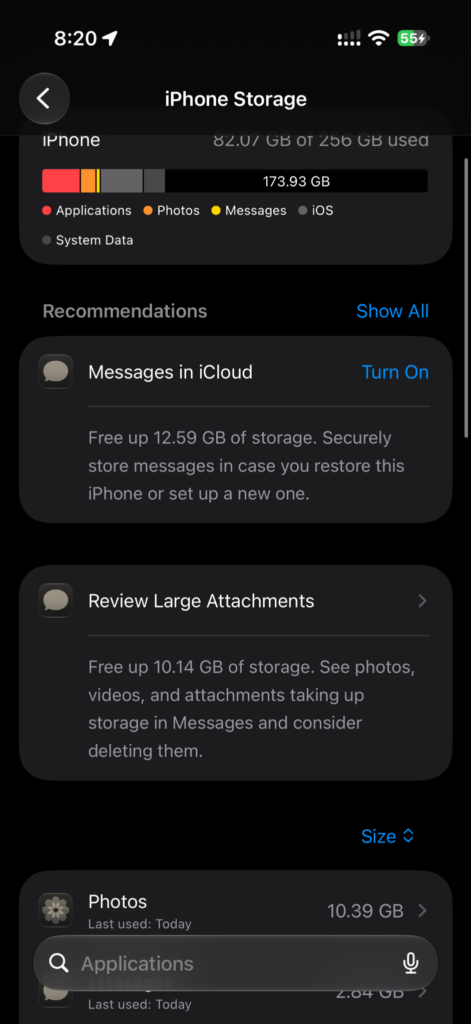
- Open Settings.
- Tap General.
- Select iPhone Storage.
- Wait for the storage breakdown to appear.
- Find Photos in the list of storage categories.
This shows how much space your Photos content uses on your iPhone.
It doesn’t necessarily provide a separate measurement for every Shared Album.
For a closer look at the storage categories, follow our guide on how to check iPhone storage.
Step 2: Check your iCloud storage
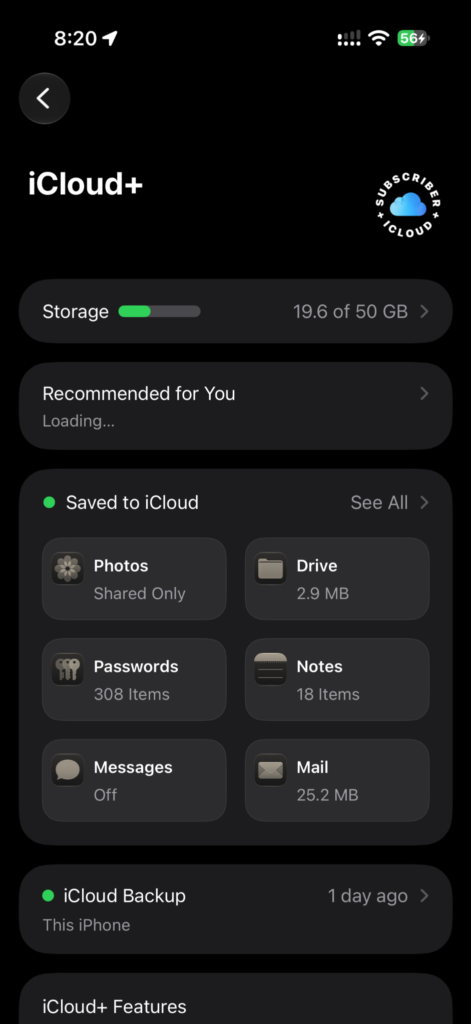
Next, check how much cloud storage is available.
- Open Settings.
- Tap your name at the top.
- Select iCloud.
- Review the storage summary.
- Open the storage details to see how your iCloud space is being used.
The names of individual storage controls may vary slightly between iOS versions.
Remember that iCloud Photos, device backups, files, and other iCloud data can all contribute to your storage usage.
The storage summary does not necessarily separate the exact amount used by each individual Shared Album.
If you’re running out of space, our guide to freeing up iCloud storage on iPhone explains additional options.
Does Saving Photos From a Shared Album Use More Storage?
It can.
When someone shares a photo with you, you can view it in the Shared Album without saving it separately to your personal library.
If you decide to keep it, you can save it to Photos.
Here’s how:
- Open the Photos app.
- Go to Collections and find Shared Albums.
- Open the album containing the photo.
- Tap the image or video you want.
- Tap the Share button.
- Select Save Image or Save Video.
The saved item becomes part of your own photo library.
Depending on your settings, it may use local iPhone storage and may also be uploaded to your personal iCloud Photos library.
If the image was already present in your library, you shouldn’t automatically assume saving it creates a completely separate duplicate.
What matters is whether you’ve actually added another file to your library.
Does Optimize iPhone Storage help?
Yes, if you’re using iCloud Photos.
Apple’s Optimize iPhone Storage option allows full-resolution photos and videos to remain in iCloud while keeping space-saving versions on your device when needed.
This can reduce how much local storage your photo collection requires.
It doesn’t mean that your photos stop counting toward applicable iCloud storage limits.
For additional ways to manage limited device space, see our guide to freeing up storage on iPhone.
Can You Delete Original Photos After Adding Them to a Shared Album?
You should be careful.
Some people treat Shared Albums as a way to back up photos before deleting the originals from their iPhone.
That isn’t always a safe approach.
For albums created in iOS 26 or earlier, Apple used reduced-resolution copies. Those copies might not retain the full quality and information of the original files.
Albums created in iOS 27 or later support full-resolution content, but that doesn’t make a Shared Album a replacement for a properly managed backup.
There are also other risks:
- The album owner or someone with appropriate permissions may delete shared content.
- A temporary Shared Album expires after 30 days.
- Participants can lose access when a regular Shared Album is deleted.
- Deleting photos from your personal library while using iCloud Photos can also remove those photos from other synced devices.
If a photograph matters to you, preserve a reliable copy before deleting anything.
Is a Shared Album the Same as an iCloud Shared Photo Library?
No, and the names can be confusing.
A Shared Album is a collection of photos and videos that people can view and contribute to.
An iCloud Shared Photo Library is a separate Apple feature designed to let a group of people collaborate on a shared photo library.
In an iCloud Shared Photo Library, the organizer’s iCloud storage is used for the shared content.
Shared Albums have their own storage rules depending on when the album was created and whether it’s temporary.
If you’re checking storage usage, make sure you know which feature you’re using before deleting photos or changing settings.
How to Reduce Shared Album Storage Without Losing Important Photos
If you own several Shared Albums and want to manage your storage more carefully, a few simple habits can help.
1. Use temporary albums for short-term sharing
If you’re sharing photos from a one-day event, a temporary album may be a more practical option than keeping a permanent Shared Album.
Just remember the 30-day expiration.
2. Review large albums you own
A regular Shared Album created in iOS 27 or later can use your iCloud quota, including uploads from other participants.
Review collections that contain many full-resolution photos or videos.
3. Save important pictures before deleting an album
Deleting a Shared Album removes access for its participants.
Make sure important photos have been saved somewhere reliable first.
4. Review your personal Photos library
If your main concern is local iPhone storage, checking your personal Photos library and its storage settings may be more useful than deleting a Shared Album.
Avoid deleting files simply because you assume they’re taking up extra space.
Frequently Asked Questions
Do Shared Albums take up space on my iPhone?
They can use some temporary device resources, but Shared Album photos are not automatically saved as individual items in your personal photo library. Photos you deliberately save may use local storage.
Do Shared Albums count toward my iCloud storage?
Regular Shared Albums created in iOS 27 or later count toward the owner’s iCloud storage. Albums created in iOS 26 or earlier and temporary Shared Albums created in iOS 27 or later do not count toward that limit.
Does joining someone else’s Shared Album use my iCloud storage?
Simply joining and viewing another person’s Shared Album doesn’t make you responsible for the album owner’s iCloud storage usage. Saving pictures to your own iCloud Photos library can use your own storage.
Do shared photos lose quality?
It depends on when the album was created. Shared Albums created in iOS 26 or earlier use reduced-resolution copies. Regular Shared Albums created in iOS 27 or later support original-format, full-resolution sharing.
Can I use Shared Albums to free up iPhone storage?
Sharing photos isn’t a guaranteed way to free up local storage. Your original photos may remain in your library, and deleting them without a secure backup can result in data loss.
What happens if I delete a Shared Album?
The shared album and its contents are removed from the shared collection, and participants lose access to items they haven’t saved independently. Save important photos before deleting an album.
Do temporary Shared Albums use iCloud storage?
No. Apple’s iOS 27 temporary Shared Albums don’t count toward iCloud storage, but they expire after 30 days.
Final Thoughts
So, do Shared Albums take up iPhone storage?
The answer depends on which storage you’re talking about.
Viewing photos in a Shared Album doesn’t automatically place every picture in your personal photo library. However, saving shared images can use storage on your iPhone.
For iCloud storage, Apple’s newer rules are more specific. Regular Shared Albums created in iOS 27 or later count toward the owner’s storage quota, while albums created in iOS 26 or earlier and temporary Shared Albums follow different rules.
Before deleting photos to save space, check whether your problem is with local iPhone storage, iCloud storage, or both.
Understanding that difference can help you avoid unnecessary deletions and keep the photos that matter.
Last reviewed: November 22, 2026