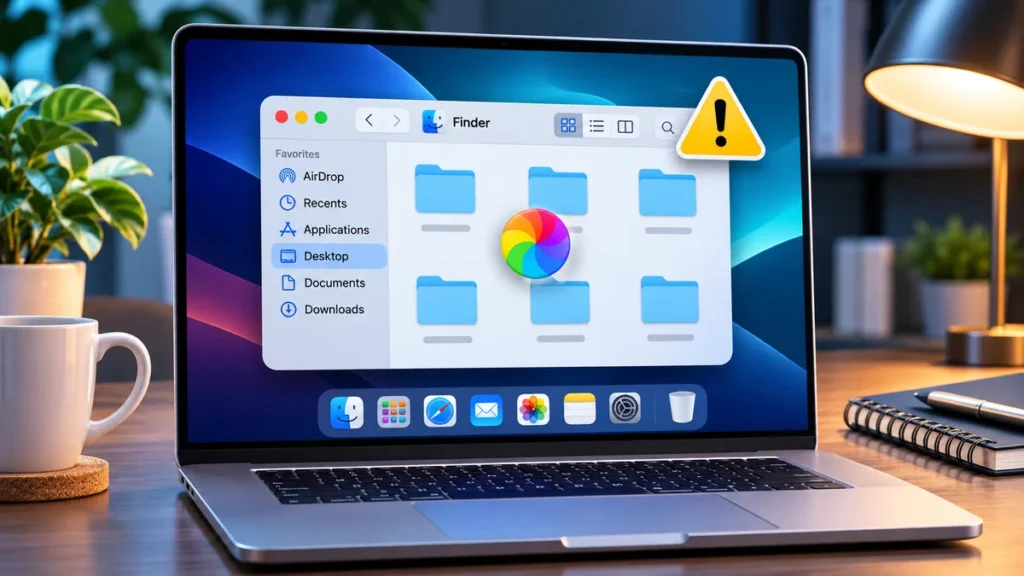
Is your MacBook Finder not responding when you try to open a folder, browse Downloads, or access files on your desktop? You might see the spinning rainbow cursor, a Finder window that refuses to respond, or a desktop that temporarily disappears when Finder restarts.
Finder manages your Mac’s files, folders, desktop, and connected drives. When it freezes, it can feel as though the entire MacBook has stopped working, even when other apps are still running.
The good news is that a Finder freeze doesn’t automatically mean your Mac has a hardware problem. A temporary process issue, problematic folder, external drive, Finder extension, or storage problem may be responsible.
The first thing to determine is whether Finder itself is frozen or whether it only stops responding when you open a particular location. That distinction can save you from unnecessary resets and software changes.
This guide explains 12 practical fixes for Finder problems on MacBook Air and MacBook Pro, including both Apple silicon and Intel models.
Table of Contents
Quick Answer: How to Fix Finder Not Responding on MacBook
If Finder has frozen, try these actions in order:
- Press Option + Command + Esc.
- Select Finder and click Relaunch.
- Open a regular local folder to see whether Finder responds.
- Restart your MacBook if Finder freezes again.
- Check whether the problem started after connecting an external drive.
- Review available storage under System Settings → General → Storage.
- Investigate recently installed Finder extensions or background utilities.
- If the issue continues, test Safe Mode and consider Disk Utility First Aid.
Important: Relaunching Finder closes and reopens Finder windows, but it does not normally delete your files. Even so, avoid interrupting an active file transfer or copy operation if possible.
Why Is Finder Not Responding on My MacBook?
Finder can become unresponsive for several reasons:
- Temporary software problems: A Finder process may stop responding until it is relaunched.
- Problematic folders: A specific directory or file preview may trigger a freeze.
- External storage issues: A slow or failing USB drive can cause Finder to wait for a response.
- Cloud or network delays: iCloud Drive or network locations may take longer to display files.
- Low available storage: A nearly full startup disk can interfere with normal Mac operation.
- Third-party extensions: File managers, cloud storage tools, or Finder extensions may behave unexpectedly.
- Startup software conflicts: Login items and background utilities can contribute to recurring problems.
- Storage errors: File-system problems may affect access to certain files and folders.
Use the symptoms below to choose where to start.
| Finder symptom | First action |
|---|---|
| Finder freezes everywhere | Relaunch Finder |
| Finder freezes when opening one folder | Test another folder |
| Finder freezes after plugging in a drive | Check the external drive |
| Finder stalls when opening cloud files | Check the network or cloud location |
| Finder freezes immediately after login | Review login items and extensions |
| Finder freezes after a macOS update | Check extensions and available updates |
| Finder and several other apps freeze | Check storage, system activity, and the disk |
If the MacBook also experiences unexplained restarts, that is a separate symptom worth investigating.
1. Force Quit and Relaunch Finder
Best for: Finder windows that are frozen while other Mac apps still work.
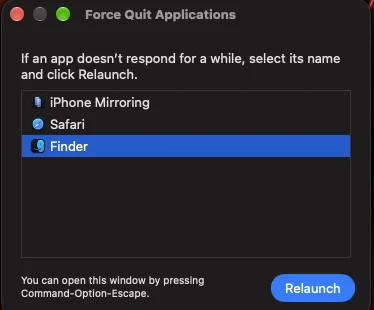
Apple recommends using the Force Quit window to relaunch an unresponsive Finder process.
Unlike most apps, Finder is designed to remain available. That’s why the Force Quit window offers a Relaunch button for Finder.
Follow These Steps
- Press Option + Command + Esc together.
- Wait for the Force Quit Applications window to appear.
- Select Finder from the list.
- Click Relaunch.
- Confirm the action if macOS asks.
- Wait for the desktop and Finder windows to reappear.
Once Finder opens again, try accessing the same folder.
What the result means: If Finder now works normally, the problem may have been a temporary process freeze. If it becomes unresponsive as soon as you open the same location, investigate that folder or connected storage rather than repeatedly relaunching Finder.
If the Force Quit window cannot open, move to the restart instructions below.
2. Check Whether Only One Folder Freezes
Best for: Finder working normally until you open Downloads, Desktop, Documents, or another specific folder.
One unresponsive folder doesn’t necessarily mean that all of Finder is broken.
A folder may contain a problematic file, an inaccessible linked location, or content that takes unusually long to preview.
How to Isolate the Folder
- After Finder is responsive, press Command + N to open a new Finder window.
- Press Shift + Command + H to open your Home folder.
- Check whether files appear and you can select them.
- Open a different local folder.
- Finally, return to the folder that previously caused the freeze.
If the issue occurs only in one folder, try changing the way its contents are displayed.
When you can access the folder, use the Finder View menu to switch to List view and temporarily hide the Preview pane using Shift + Command + P.
What the result means: If other folders work normally, the problem is more likely tied to that folder, its contents, or an extension handling those files.
Do not delete the entire folder just because opening it causes Finder to freeze.
3. Restart Your MacBook
Best for: Finder repeatedly freezing or refusing to relaunch.
Restarting your Mac closes running processes and starts a fresh session.
If Finder relaunches but continues to freeze, a normal restart is a sensible next step.
- Save any open documents in other apps.
- Click the Apple menu.
- Choose Restart.
- Wait for your MacBook to start again.
- Open Finder and test a simple local folder.
If possible, avoid immediately reopening every application and Finder window from the previous session. This makes it easier to determine whether the issue returns on its own.
What the result means: If Finder works after restarting but freezes when you launch a particular utility, that utility becomes a useful troubleshooting lead.
If your entire MacBook repeatedly crashes or restarts unexpectedly, use our separate guide: MacBook Keeps Restarting? 10 Fixes.
4. Check External Drives and Connected Devices
Best for: Finder freezing shortly after connecting a USB drive, external SSD, memory card, or storage accessory.
Finder often communicates with external storage when displaying files and connected volumes.
If a drive stops responding, Finder may appear frozen while trying to access it.
How to Test the Connection
- Note whether the problem began after you connected a device.
- If Finder is responsive, eject the external drive properly before disconnecting it.
- Make sure no file-copying or writing operation is underway.
- Disconnect the nonessential device when it is safe.
- Relaunch Finder and try opening a folder on your Mac’s internal storage.
- If Finder now works, investigate the external device separately.
If the same problem returns whenever the device is connected, check its cable, power supply, and compatibility.
What the result means: Finder working normally without the external device suggests the storage device or its connection deserves attention.
Do not repeatedly unplug a drive during file transfers. An unsafe disconnection can damage files or cause data loss.
5. Check iCloud Drive and Network Locations
Best for: Finder loading local files but hanging when you select iCloud Drive, a shared folder, or a network drive.
Not every slow Finder window indicates a frozen Finder process.
Some files are stored remotely. Opening them can depend on internet access, network availability, and file synchronization.
To narrow down the issue:
- Open a local folder, such as Applications.
- Confirm whether it responds normally.
- Try opening iCloud Drive or your network location.
- If only the remote location is slow, check your Wi-Fi or Ethernet connection.
- Test whether ordinary websites load.
- Try accessing the remote location again after the connection is stable.
For shared drives, verify that the server or other computer is available.
What the result means: If local folders work but remote locations stall, focus on the network or file provider before attempting system-wide Finder repairs.
Don’t disable iCloud Drive or delete synchronized folders as a first troubleshooting step. Changes to cloud syncing require careful handling to protect your files.
If your MacBook has a broader network problem, see MacBook WiFi Not Working? 12 Fixes.
6. Check Your MacBook’s Available Storage
Best for: Finder running slowly alongside other performance or file-management problems.
A nearly full startup disk can make it difficult for macOS to manage files and temporary storage.
Apple provides built-in tools to review how much space is available.
Check Storage
- Open the Apple menu.
- Select System Settings.
- Click General.
- Open Storage.
- Review the available space and storage categories.
If your startup disk is almost full, use the built-in storage recommendations and remove files you no longer need.
Start with large downloads or other items you recognize. Back up important data before deleting it.
What the result means: If you have very little free space and several apps are misbehaving, storage pressure could be contributing to the problem.
There is no need to delete arbitrary system caches or unfamiliar files. Storage cleanup should be deliberate and reversible where possible.
7. Inspect Finder in Activity Monitor
Best for: Finder continuing to freeze after relaunching, especially when your MacBook is also unusually slow.
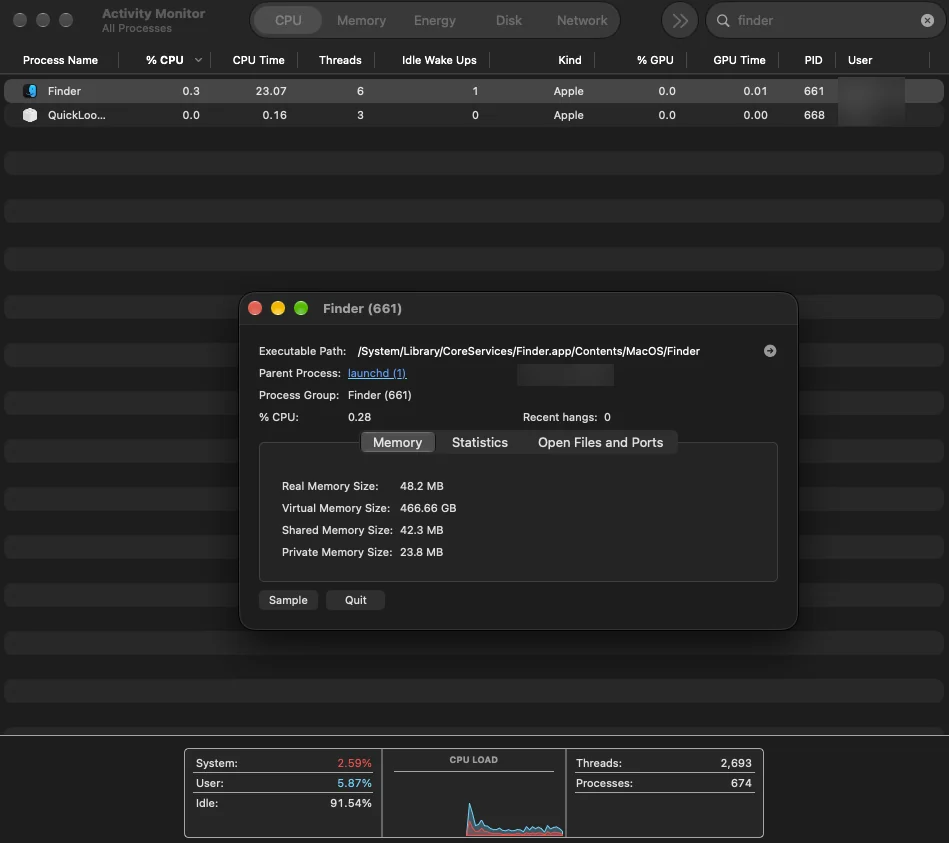
Activity Monitor can show whether Finder is unresponsive and how much CPU or memory different processes use.
Follow These Steps
- Open Activity Monitor from Applications → Utilities.
- Select the CPU tab.
- Use the search field to find Finder.
- Check whether Finder is marked Not Responding.
- Review its activity and compare it with other running processes.
- Check the Memory tab if the whole Mac feels slow.
Apple notes that an unresponsive process may be marked in red with (Not Responding).
High CPU usage by itself does not prove that Finder is broken. File operations, previews, and indexing can use system resources temporarily.
What the result means: If only Finder is unresponsive, continue investigating Finder-related causes. If several applications are affected, consider a broader system or storage issue.
Avoid force-quitting unfamiliar system processes merely because they appear near the top of Activity Monitor.
8. Disable Problematic Finder Extensions
Best for: Finder freezes that began after installing a cloud storage client, file manager, or other utility.
Some third-party apps add features directly to Finder, including contextual commands, file badges, and quick actions.
If an extension is incompatible or malfunctioning, it may interfere with Finder operations.
How to Check Finder Extensions
- Open System Settings.
- Select General.
- Open Login Items & Extensions.
- Scroll to the extensions section.
- Locate Finder or Added Extensions, depending on your macOS version.
- Review third-party Finder extensions.
- Temporarily disable a suspected extension.
- Relaunch Finder and test the problem again.
You may need to open the information control beside an extension category to view individual options.
What the result means: If the problem stops after you disable one extension, check whether an update is available for the related app before enabling it again.
Disable extensions individually whenever possible. This makes it easier to identify the actual cause and avoids unnecessarily disrupting useful functionality.
9. Review Login Items and Background Utilities
Best for: Finder becoming unresponsive immediately after signing in to your MacBook.
Login items are apps or documents that start automatically when you log in.
A recently added utility can contribute to repeated performance problems, especially if it interacts with files, storage, or cloud services.
Check Your Login Items
- Open System Settings.
- Click General.
- Select Login Items & Extensions.
- Review the applications listed under Open at Login.
- Make a note of any recently added third-party apps.
- Temporarily remove a suspected login item.
- Restart your Mac and test Finder again.
If the issue disappears, restore the item only after checking for updates or confirming its compatibility.
What the result means: A Finder freeze that occurs only after a particular app launches may point to a background software conflict rather than Finder itself.
Do not turn off security software, accessibility tools, or managed workplace services without understanding the consequences.
10. Install Available macOS Updates
Best for: Recurring Finder freezes that may involve software compatibility or a recently introduced problem.
Finder is part of macOS, so it is updated through macOS system updates rather than through a separate Finder download.
Apple recommends keeping your Mac on the latest compatible macOS version.
Check for Updates
- Open System Settings.
- Select General.
- Click Software Update.
- Wait for macOS to check for available updates.
- Review the information for any compatible update.
- Back up important data before installation.
- Install the update when convenient.
After updating, reopen Finder and test the same folder or action.
What the result means: If the issue is fixed, it may have been related to software compatibility or an issue resolved by the update. However, not every Finder freeze is caused by macOS itself.
Avoid installing beta software simply to troubleshoot an otherwise stable MacBook.
11. Test Finder in Safe Mode
Best for: Finder freezes that continue after restarts and may involve software loaded during startup.
Safe Mode is a diagnostic startup option. Apple recommends it for identifying problems associated with software that loads as your Mac starts.
The startup instructions depend on whether your MacBook has Apple silicon or an Intel processor.
For Apple Silicon MacBooks
- Shut down your MacBook completely.
- Press and hold the power button until the startup options appear.
- Select your startup disk.
- Hold the Shift key.
- Click Continue in Safe Mode.
- Sign in and test Finder.
For Intel MacBooks
- Shut down or restart your MacBook.
- Turn it on and immediately hold the Shift key.
- Release Shift when the login window appears.
- Sign in and test Finder.
Safe Mode may behave more slowly than a normal startup. Some features may also be temporarily limited.
What the result means: If Finder works in Safe Mode but freezes after a normal startup, investigate third-party extensions, login items, and background services.
Restart normally to leave Safe Mode.
12. Run Disk Utility First Aid if Storage Errors Are Suspected
Best for: Persistent Finder problems accompanied by inaccessible files, disk errors, or other storage-related symptoms.
Disk Utility includes First Aid, which can check and repair certain problems with a storage device’s file-system structure.
This is an advanced step. It is not necessary for every temporary Finder freeze.
Before Running First Aid
Back up important data wherever possible.
If you suspect a physically failing drive, minimize unnecessary operations and prioritize preserving your files.
How to Use First Aid
- Open Disk Utility.
- Choose View → Show All Devices.
- Identify the affected storage device.
- Select the appropriate volume.
- Click First Aid.
- Click Run and follow the onscreen instructions.
- Review the result after the check finishes.
Apple recommends checking volumes first, followed by containers and the storage device.
For thorough repair of your startup disk, Apple recommends running Disk Utility from macOS Recovery. The correct Recovery startup method depends on whether your Mac has Apple silicon or Intel.
What the result means: If First Aid reports errors, follow Apple’s recommended repair process. If it reports a drive is about to fail, back up your data and seek service.
Do not erase or reformat your Mac’s disk just to address a Finder freeze. Erasing storage can permanently remove files.
What If Finder Keeps Freezing After Every Relaunch?
At this point, the pattern of the freeze matters more than repeating the same fix.
Finder Freezes Only When Opening Downloads
Try another local folder. If it works, investigate recent Downloads and Finder preview behavior rather than changing unrelated macOS settings.
Finder Freezes When an External SSD Is Connected
Check the drive’s cable, power, and health. If the issue only occurs with one drive, focus your next troubleshooting steps there.
Finder Freezes Immediately After Login
Review login items and installed Finder extensions. Safe Mode can help determine whether startup software contributes to the issue.
Finder Freezes After a macOS Update
Check for newer compatible updates and verify that third-party Finder extensions are up to date. Test Safe Mode if the problem continues.
Finder and Other Applications Keep Freezing
This may be broader than Finder. Review available storage, Activity Monitor, and possible disk problems before assuming Finder alone is responsible.
Frequently Asked Questions
Why does Finder keep saying Not Responding on MacBook?
Finder may be waiting for a problematic folder, external drive, or extension, or the Finder process may have stopped responding. Start by relaunching Finder and checking whether the freeze occurs everywhere or only in one location.
Is it safe to relaunch Finder on Mac?
Relaunching Finder is an Apple-supported troubleshooting step. It normally reopens Finder without deleting files. However, avoid interrupting active transfers or other file operations because unsaved or incomplete operations may be affected.
Why won’t Finder open on my MacBook?
Finder is normally always running. If clicking its Dock icon does nothing, use Option + Command + Esc, select Finder, and choose Relaunch. Then test whether a new Finder window opens.
Can iCloud Drive make Finder freeze?
Problems with a cloud location can make Finder appear to stall while accessing remote files. If ordinary local folders work, investigate the cloud connection or file-provider software before attempting system-wide fixes.
Why does Finder freeze when I connect an external hard drive?
Finder may be waiting for the drive to respond. A faulty cable, power issue, incompatible accessory, or disk problem may contribute. Test whether Finder responds normally without the device connected, using safe disconnection procedures.
Should I delete Finder preference files or run Terminal commands?
Not as an initial troubleshooting method. Randomly deleting preference files or running commands copied from the internet can remove settings and complicate diagnosis. Start with Apple’s supported relaunch, software, storage, Safe Mode, and disk-checking procedures instead.
Is Finder freezing the same as a MacBook trackpad problem?
No. If the cursor moves and other apps respond but Finder windows are frozen, the problem is more likely related to Finder. If clicking and tracking fail throughout macOS, see MacBook Trackpad Not Working? 12 Fixes.
Final Thoughts
If your MacBook Finder is not responding, start with Apple’s Finder Relaunch option, then check whether the issue affects every folder or only one location.
A single frozen folder, external drive, or cloud location requires a different approach from a system-wide Finder freeze.
Restarting the Mac, checking storage, reviewing Finder extensions, and using Activity Monitor can help narrow down recurring problems. Safe Mode and Disk Utility First Aid are more appropriate when simpler checks don’t explain the behavior.
Most importantly, avoid destructive troubleshooting steps until you understand what is failing and have protected your important files.
If Finder remains unstable, especially alongside storage errors or repeated system crashes, contact Apple Support for device-specific assistance.