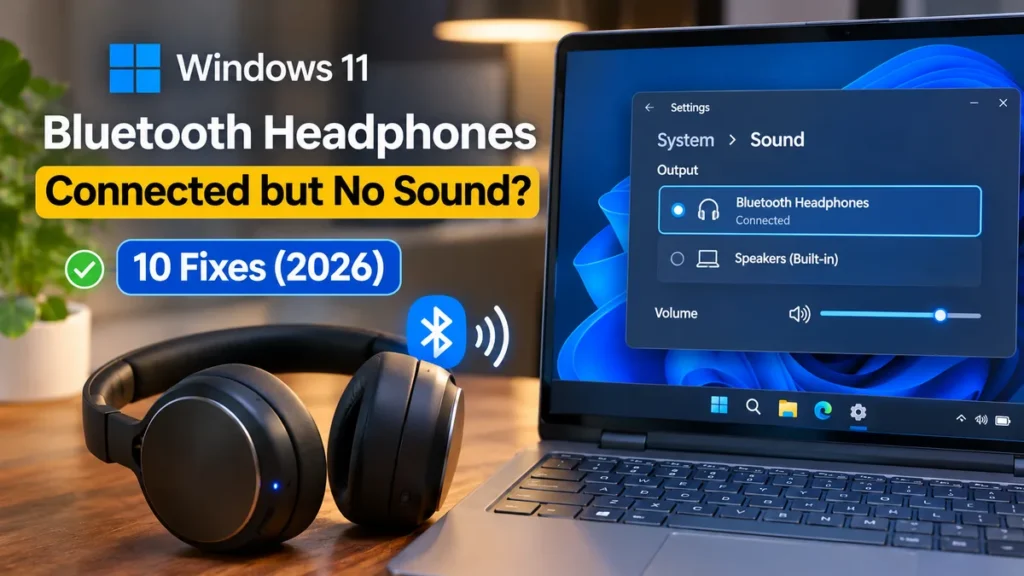
Bluetooth headphones connected but no sound on Windows 11? This frustrating problem can happen when Windows sends audio to the wrong device, an application is muted, or the Bluetooth connection isn’t working properly.
It’s a frustrating problem because Windows recognizes the headphones, yet audio playback doesn’t work as expected.
The good news is that a Bluetooth connection showing Connected doesn’t always indicate a hardware failure. Windows may be sending audio to another device, an application may be muted, or the Bluetooth connection may need to be refreshed.
Quick answer: If your Bluetooth headphones are connected but have no sound on Windows 11, open Settings → System → Sound and select your headphones under Output. Check their volume, make sure your application isn’t muted in Volume mixer, and reconnect the headphones if necessary.
If that doesn’t solve the problem, follow the 10 troubleshooting methods below.
Table of Contents
Why Are My Bluetooth Headphones Connected but Not Playing Sound?
Windows 11 can connect to Bluetooth headphones without automatically routing audio to them.
For example, your headphones may appear under Bluetooth devices while your laptop continues using its built-in speakers.
Other possible causes include:
- Incorrect default audio output device
- Muted headphones or low device volume
- An application using a different audio output
- Temporary Bluetooth pairing problems
- Audio enhancements interfering with playback
- Outdated Bluetooth or audio drivers
- Conflicts when a headset microphone is active
- Compatibility issues after Windows updates
The key is identifying whether the problem affects every application or only one.
Quick test before troubleshooting
Try playing audio from two different sources, such as a browser video and a local audio file.
If one works but the other doesn’t, the problem may involve application-specific audio settings.
If neither works, start with the Windows sound output settings.
1. Check Your Headphones’ Volume, Battery, and Connection
Before changing Windows settings, make sure your headphones themselves are working.
Some Bluetooth headphones have independent volume controls that can remain low even when the Windows volume is high.
Try these steps:
- Increase the volume directly on your headphones.
- Check the Windows volume control.
- Make sure the headphones have sufficient battery charge.
- Turn the headphones off and back on.
- Play a short audio clip.
If the headphones support connecting to multiple devices, disconnect them temporarily from your phone, tablet, or other computer.
Some devices automatically switch their active audio connection when another paired device starts playback.
Useful test: Connect the headphones to your smartphone and play audio.
If they work normally on your phone but not on Windows, focus on the computer’s audio and Bluetooth settings.
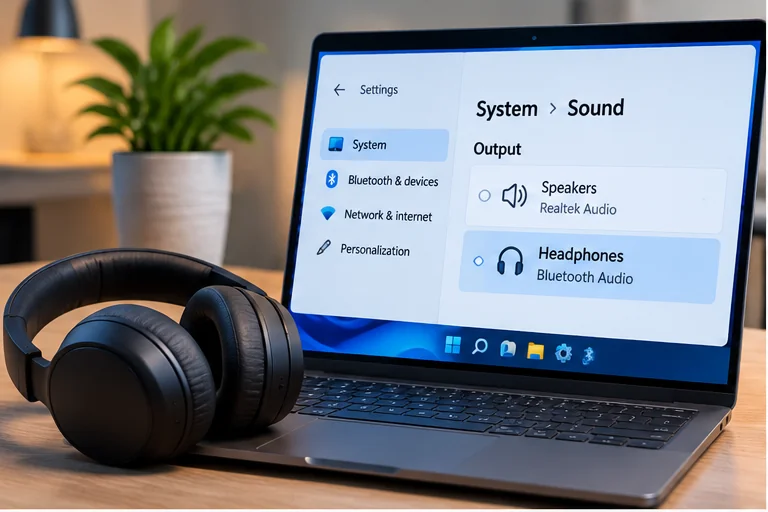
2. Select Your Bluetooth Headphones as the Audio Output
This is one of the most important fixes when Bluetooth headphones are connected but have no sound on Windows 11.
Windows may still be sending audio through its built-in speakers or an external monitor.
To select the correct device:
- Press Windows + I to open Settings.
- Select System → Sound.
- Find the Output section.
- Look for your Bluetooth headphones.
- Select them as the audio output device.
- Play audio again.
You can also click the sound icon in the Windows taskbar and choose the appropriate output device.
If your headphones appear in the Bluetooth device list but not under Sound → Output, continue with the pairing and driver troubleshooting below.
Important: A device being paired is not the same as being selected for audio playback.
3. Check Volume Mixer and Application Audio Settings
Sometimes Windows system sounds work through your headphones, but a particular application remains silent.
This commonly happens with browsers, music applications, games, or communication software.
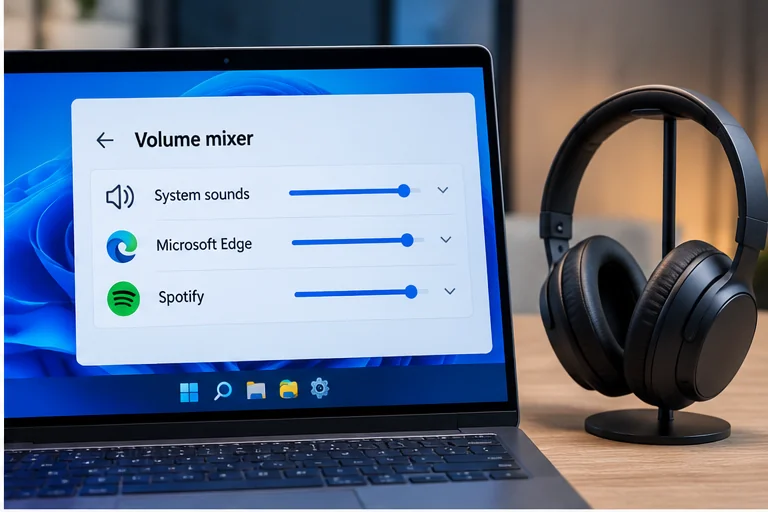
Windows 11 allows individual applications to have separate volume levels and output devices.
To check:
- Open Settings → System → Sound.
- Scroll to Volume mixer.
- Find the application you’re trying to use.
- Make sure it isn’t muted.
- Increase its volume if necessary.
- Check its output device and select your Bluetooth headphones where available.
For example, your browser might be assigned to your laptop speakers while the rest of Windows uses your headphones.
After changing the output, restart the affected application if it doesn’t switch immediately.
If the problem affects only one program, checking Volume mixer is usually more useful than reinstalling Bluetooth drivers.
4. Set Your Headphones as the Default Playback Device
Even when Bluetooth headphones appear under Windows Sound settings, they might not be selected as the default playback device.
To check the traditional Windows sound controls:
- Open Settings → System → Sound.
- Scroll down and select More sound settings.
- Open the Playback tab.
- Locate your Bluetooth headphones.
- Right-click the appropriate playback device.
- Select Set as Default Device, if available.
- Click Apply, then OK.
Make sure you select the headphones rather than another audio device with a similar name.
Some older Bluetooth headsets may expose separate playback and hands-free entries. The available options depend on the headset, Bluetooth adapter, and installed drivers.
Play audio again after selecting the correct playback device.
If your headphones do not appear in the Playback list, check whether they are connected and whether Windows recognizes their audio capability.
5. Turn Bluetooth Off and On, Then Pair Again
Bluetooth connections can occasionally remain in an incomplete or unstable state.
Refreshing the connection may restore audio playback.
First:
- Open Settings → Bluetooth & devices.
- Turn Bluetooth off.
- Wait approximately 10 seconds.
- Turn Bluetooth back on.
- Reconnect your headphones.
If the problem continues, remove the pairing.
Remove and reconnect your headphones
- Open Settings → Bluetooth & devices → Devices.
- Find your Bluetooth headphones.
- Select the three-dot menu beside the device.
- Choose Remove device.
- Put your headphones into pairing mode using the manufacturer’s instructions.
- Select Add device → Bluetooth.
- Choose your headphones from the available devices.
After pairing, check System → Sound → Output again.
Removing a Bluetooth pairing does not erase files on your computer, but you may need to reconnect the device and restore custom settings.
6. Check Whether a Call or Microphone Is Affecting Bluetooth Audio
If your headphones work normally for music but stop playing sound when you open Microsoft Teams, Zoom, Discord, or another calling application, the microphone connection may be involved.
Many traditional Bluetooth headsets use different audio modes for music playback and voice communication.
The higher-quality music mode and the headset’s hands-free calling mode can have different audio capabilities.
This can lead to lower sound quality, unexpected output changes, or audio interruption when a microphone becomes active.
Try these checks:
- Close any active voice calls.
- Quit applications that may be using your headset microphone.
- Play a local audio file.
- Open Settings → System → Sound.
- Check the current output and input devices.
- Reopen your calling application and select the intended speaker and microphone inside its own settings.
If supported, you can temporarily test another microphone, such as the laptop’s built-in microphone, while keeping your Bluetooth headphones selected for output.
Some newer Bluetooth LE Audio configurations support improved audio quality while the microphone is active, but availability depends on both the Windows PC and the headphones.
Don’t disable Bluetooth services or headset components indiscriminately. Doing so may break calling or microphone features.
7. Turn Off Audio Enhancements and Check the Format
Windows audio enhancements may occasionally interfere with headphone playback.
You can test whether disabling them restores sound.
- Open Settings → System → Sound.
- Under Output, select your Bluetooth headphones.
- Find Audio enhancements, if available.
- Set the option to Off.
- Play audio again.
If the problem continues, review the audio format.
Some compatible devices offer a format such as 2 channels, 16 bit, 48000 Hz.
Select a format supported by your device rather than forcing an unavailable option.
If audio stops working after you change the format, restore the previous setting.
Not every Bluetooth headphone exposes the same audio enhancement or format controls in Windows 11.
8. Run the Windows Bluetooth and Audio Troubleshooters
Windows 11 includes automated troubleshooting tools for Bluetooth and sound problems.
Microsoft recommends using the Get Help application for automated diagnostics.
Bluetooth troubleshooter
- Open the Windows Start menu.
- Search for Get Help.
- Open the application.
- Search for Bluetooth troubleshooter.
- Follow the guided diagnostic steps.
Audio troubleshooter
In Get Help, search for audio troubleshooter or sound problems and follow the prompts.
Depending on your Windows build, you may also find troubleshooting options under Settings → System → Troubleshoot.
These tools can help identify problems with audio configuration, connected devices, and Windows services.
If the troubleshooter changes any settings, test the headphones again before proceeding.
For Microsoft’s instructions, see Fix Bluetooth connected but no sound on Windows.
9. Update Your Bluetooth and Audio Drivers
Outdated or incompatible drivers can cause Bluetooth headphones to connect without functioning correctly as an audio device.
Drivers help Windows communicate with the computer’s Bluetooth adapter and audio hardware.
To check for updates:
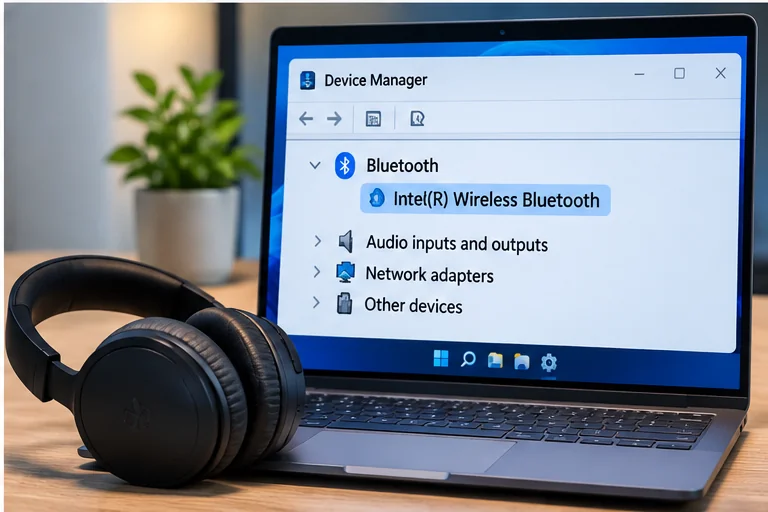
- Right-click the Start button.
- Select Device Manager.
- Expand Bluetooth.
- Locate your Bluetooth adapter.
- Right-click it and select Update driver.
- Choose Search automatically for drivers.
- Follow any instructions shown.
You can also check Sound, video and game controllers for relevant audio drivers.
If Windows doesn’t find an update, visit your PC manufacturer’s official support website and look for Bluetooth or audio drivers specifically for your computer model and Windows version.
For example, Dell, HP, Lenovo, and ASUS provide model-specific driver support.
Avoid third-party driver-updater tools that promise to repair every Bluetooth problem automatically.
If the issue began immediately after a driver update, an available driver rollback may be worth investigating.
10. Update Windows and Restart Audio Services if Needed
Windows updates can include Bluetooth compatibility fixes, driver improvements, and audio-system changes.
To check for updates:
- Open Settings → Windows Update.
- Select Check for updates.
- Review the available updates.
- Install appropriate updates.
- Restart your computer if required.
After restarting, reconnect your Bluetooth headphones and select them as the audio output device.
Advanced option: Restart Windows Audio
If audio remains broken in multiple applications, an experienced user can try restarting the Windows audio service.
- Press Windows + R.
- Type
services.msc. - Press Enter.
- Find Windows Audio.
- Right-click it and select Restart, if available.
- Test playback again.
Restarting audio services can temporarily interrupt active audio applications or meetings, so save your work first.
If the problem began after a Windows update and still persists, review Microsoft’s audio troubleshooting guidance before making broader driver changes.
See Microsoft’s Windows sound troubleshooting guide.
Bluetooth Headphones Connected but No Sound: Quick Fix Table
| Problem | Best place to check |
|---|---|
| Headphones connect but sound plays from speakers | Windows Sound → Output |
| Sound works everywhere except one app | Volume mixer |
| Headphones don’t appear in audio output | Bluetooth pairing and drivers |
| Sound disappears during a call | Headset microphone and call settings |
| Audio stops after a Windows update | Windows and driver compatibility |
| Audio is very quiet or distorted | Volume, enhancements, and format |
| Headphones work on a phone but not the PC | Windows audio settings |
| Headphones disconnect repeatedly | Bluetooth pairing and adapter |
Why Do Bluetooth Headphones Say Connected but Have No Sound?
A Bluetooth connection and an active audio output are related but separate.
Your PC can recognize a paired Bluetooth accessory without necessarily directing its audio to that device.
For that reason, a connected status alone isn’t enough to confirm that playback will work.
Check whether your headphones are:
- Connected to the correct computer
- Available as a Windows audio output
- Selected as the output device
- Unmuted in Windows and the active application
- Compatible with the required Bluetooth audio functionality
If all these conditions are satisfied but audio still fails, troubleshooting the drivers or testing a second computer can help isolate the cause.
Frequently Asked Questions
Why do my Bluetooth headphones connect to Windows 11 but play no sound?
Windows may be using another audio output, the headphones may be muted, or a temporary Bluetooth or driver problem may be interfering with playback. Start by selecting the headphones under Settings → System → Sound.
How do I force Windows 11 to use my Bluetooth headphones?
Open Settings → System → Sound and choose your headphones under Output. If needed, open More sound settings and make them the default playback device.
Why does Bluetooth audio stop working when I open Discord or Teams?
The application may activate your headset microphone, switch audio devices, or use a different Bluetooth audio mode. Check the application’s input and output settings and test playback with the microphone temporarily inactive.
Why are my Bluetooth headphones connected but not showing under Sound Output?
Windows may have established a Bluetooth connection without successfully loading the device’s audio capability. Try re-pairing the headphones and checking Bluetooth and audio drivers.
Can outdated drivers cause Bluetooth headphones to have no sound?
Yes. Driver problems can interfere with the Bluetooth adapter or audio device. Check for Windows updates and drivers from your computer manufacturer’s official website.
Will removing and re-pairing Bluetooth headphones delete my files?
No. Removing a Bluetooth device from Windows clears its pairing information, not your personal documents. You’ll need to pair the headphones again afterward.
Do AirPods work with Windows 11?
Compatible AirPods can pair with a Windows 11 PC as Bluetooth audio devices. Their available features and microphone behavior may differ from those provided when connected to Apple devices.
For other Apple-device Bluetooth problems, see our related guides:
Final Thoughts
If your Bluetooth headphones are connected but have no sound on Windows 11, start by selecting the correct audio output and checking the volume.
Next, inspect application-specific audio settings, refresh Bluetooth pairing, and check for conflicts involving the headset microphone.
Most importantly, avoid reinstalling drivers or resetting Windows before trying the simpler audio settings.
If the headphones work with another device but still fail on your PC, updated drivers or manufacturer-specific Bluetooth troubleshooting may be necessary.
Following these steps can help you identify whether the problem lies with Windows audio settings, the Bluetooth connection, or the headphones themselves.