Ethernet connected but no internet on Windows 11? Your computer recognizes the wired connection, but websites won’t load, applications cannot connect, or Windows displays a “No internet” message.
This problem can happen even when the Ethernet cable is plugged in correctly and the network adapter appears to be working.
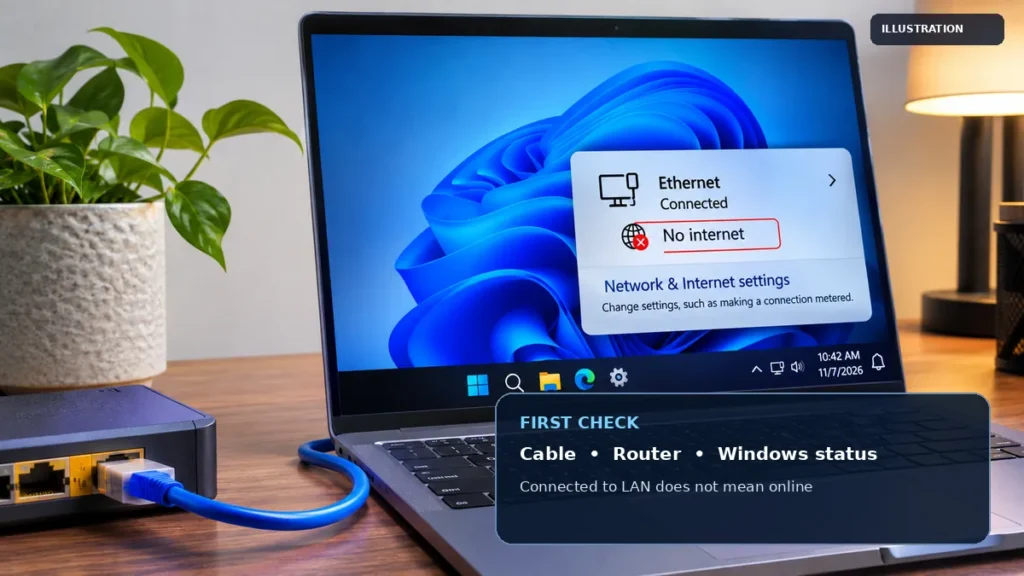
A wired connection only establishes communication between your computer and the local network. Your router and internet service provider must also provide a working connection to the internet.
Fortunately, many Ethernet connection problems can be resolved without reinstalling Windows or replacing hardware.
Quick answer: If Ethernet is connected but has no internet access on Windows 11, check the Ethernet cable and router first. Next, open Settings → Network & internet → Ethernet, run the Network and Internet troubleshooter, and verify that your IP address and DNS settings are correct. If necessary, refresh the network connection and update the Ethernet adapter driver.
Follow the 10 fixes below, starting with the simplest checks.
Table of Contents
Why Is Ethernet Connected but No Internet on Windows 11?
An Ethernet connection lets your Windows PC communicate with a router, switch, modem, or another network device through a cable.
However, an active Ethernet connection doesn’t guarantee that your computer can access the internet.
Several problems can interrupt internet access while the physical network connection remains active.
Common causes include:
- A loose, damaged, or faulty Ethernet cable
- Router or modem connection problems
- An internet service provider outage
- Incorrect IP address or DNS settings
- A temporary Windows network configuration issue
- VPN or proxy configuration problems
- Outdated or incompatible Ethernet drivers
- Faulty Ethernet ports or USB adapters
The important question is whether the problem affects only your Windows PC or every device connected to the same router.
That distinction can help you identify the cause before making unnecessary changes.
1. Check the Ethernet Cable and Router Port
The first thing to check is the physical Ethernet connection.
A cable can appear properly connected even when a damaged connector or unreliable connection causes networking problems.
Follow these steps:
- Disconnect the Ethernet cable from your computer.
- Check the cable and connector for visible damage.
- Reconnect the cable firmly.
- Make sure the other end is connected to a suitable LAN port on your router or network switch.
- Check whether the Ethernet connection status changes.
- If available, test another Ethernet cable.
If your PC uses a USB-to-Ethernet adapter or docking station, try another compatible USB port.
You can also test a direct connection to the router if your setup allows it.
Important: Avoid connecting your computer to the router’s WAN or Internet port when that port is intended for the modem or upstream connection.
If replacing the cable solves the problem, you probably don’t need to change Windows network settings.
2. Check Whether Other Devices Have Internet Access
Before troubleshooting Windows, determine whether the problem is limited to your computer.
Try connecting a smartphone or another computer to the same router.
For example:
- Connect your phone to the router’s Wi-Fi network.
- Turn off cellular data temporarily so the phone doesn’t use its mobile connection.
- Open a website.
- Check whether the page loads normally.
If other devices also have no internet
The problem may involve your router, modem, or internet service provider.
Check for an outage or contact your ISP if necessary.
If other devices work normally
The problem is more likely to involve your Windows PC, Ethernet cable, network port, or a device-specific network configuration.
You can also try connecting the affected PC to another known-working network.
This helps determine whether the issue follows the computer or stays with the original network.
Tip: Testing another device first can save considerable time because it prevents you from resetting Windows settings when the internet provider is responsible.
3. Restart Your Router and Modem
A router can maintain a local Ethernet connection even when its internet connection stops working.
Restarting your network equipment may restore normal communication with your internet provider.
For a typical home setup:
- Disconnect the router from power.
- If you have a separate modem, disconnect its power as well.
- Wait approximately 30 seconds.
- Reconnect the modem first.
- Allow its connection indicators to stabilize.
- Reconnect the router.
- Wait until the network is ready.
- Test the Ethernet connection again.
If you have a combined modem-router unit, you may only need to restart that device.
Avoid pressing the router’s factory reset button.
A factory reset can erase the Wi-Fi name, password, ISP configuration, and other customized settings.
If your router continues reporting an internet or WAN connection failure, check with your service provider.
Microsoft also recommends restarting networking equipment when troubleshooting Ethernet connections.
Read Microsoft’s Ethernet troubleshooting instructions.
4. Check Windows Network Status and Run the Troubleshooter
Windows 11 includes built-in tools that can help identify network configuration problems.
Start by checking what Windows reports.
- Press Windows + I to open Settings.
- Select Network & internet.
- Choose Ethernet.
- Review the connection status and available network properties.
If Windows indicates that the network requires attention, review the reported issue before changing anything.
Run the network troubleshooter
Microsoft recommends the automated Network and Internet troubleshooter in the Get Help application.
To run it:
- Open the Windows Start menu.
- Search for Get Help.
- Open the application.
- Search for Connect to network and internet.
- Select Run network diagnostics.
- Follow the troubleshooting instructions.
The tool may detect certain connection, adapter, or configuration problems.
If it suggests a fix, review the change and test your connection afterward.
The troubleshooter cannot resolve every hardware fault or ISP outage, but it’s a sensible early step.
5. Disable and Re-enable the Ethernet Adapter
Sometimes the Ethernet adapter remains connected but doesn’t function correctly due to a temporary software or connection state.
Disabling and enabling the adapter can refresh it without deleting its driver.
Try the following:
- Press Windows + I.
- Open Network & internet.
- Select Advanced network settings.
- Find your Ethernet adapter.
- Select Disable.
- Wait approximately 10 seconds.
- Select Enable.
- Check whether internet access returns.
If you use a USB Ethernet adapter, reconnecting the adapter may also help.
Important: Disabling the adapter immediately disconnects your PC from that network.
If you’re connected to a work computer remotely, this could end your session.
Avoid making this change on a remotely administered computer unless you have another way to reconnect.
If the Ethernet connection returns but websites still won’t load, check the IP configuration next.
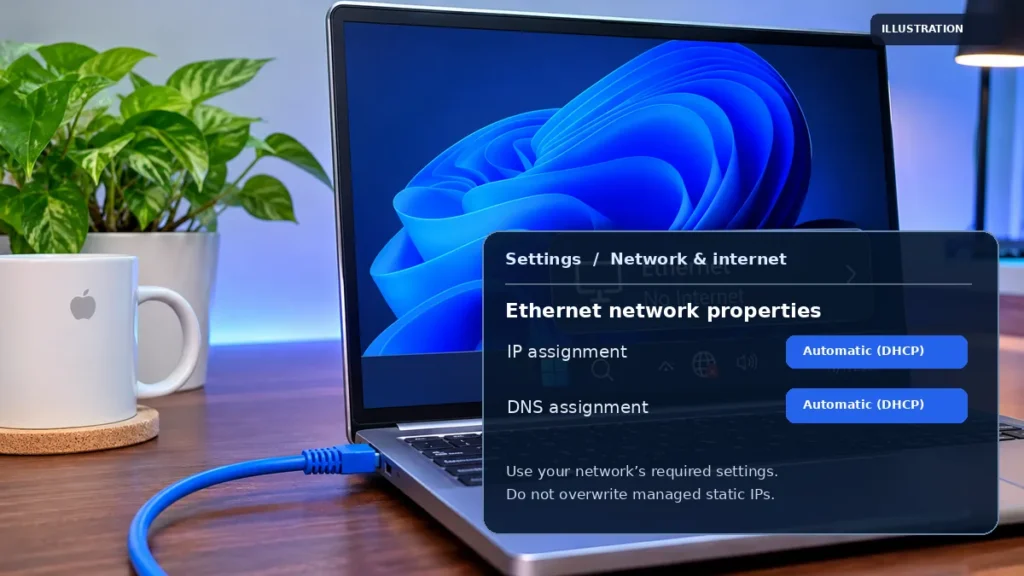
6. Check Your IP Address and DHCP Settings
Windows needs a valid IP configuration to communicate with your local network and reach the internet through the router.
Most home networks use DHCP, which automatically provides the computer with an IP address and other network settings.
If Windows doesn’t receive a usable IP configuration, internet access may fail.
Check your IP address
- Open Settings → Network & internet → Ethernet.
- Find the network properties.
- Look for IPv4 address.
- Check the address and other connection information.
You can also open Command Prompt and run:
ipconfig
Look for the Ethernet adapter’s IPv4 address and Default Gateway.
A self-assigned address beginning with 169.254 can indicate that Windows didn’t obtain an IPv4 address from DHCP.
However, some networks use manually assigned addresses, so don’t assume every unusual-looking address is wrong.
Check automatic IP assignment
For a typical home network:
- Open Settings → Network & internet → Ethernet.
- Locate IP assignment.
- Select Edit.
- Choose Automatic (DHCP) if your network uses automatic configuration.
- Save the setting.
Warning: Workplaces, schools, and specialized networks may require static IP addresses.
Don’t replace an intentionally configured static address without recording the existing settings and checking with the network administrator.
Microsoft generally recommends DHCP for networks designed to assign addresses automatically.
7. Check DNS, Proxy, and VPN Settings
If your Ethernet connection works but websites fail to load, DNS or another network configuration may be responsible.
DNS translates website names into IP addresses.
For example, a web browser needs to resolve a domain name before it can contact the corresponding website.
Test whether DNS may be the problem
Open Command Prompt and run:
nslookup example.com
If the command reports a DNS resolution error, investigate the configured DNS server or network connection.
You can also try:
ping 1.1.1.1
A successful response suggests that some IP connectivity exists, although a successful ping alone doesn’t prove that all internet services work.
Some networks block ping traffic, so a failed ping is not conclusive evidence of an outage.
Review DNS assignment
- Open Settings → Network & internet → Ethernet.
- Find DNS server assignment.
- Select Edit, if necessary.
- For a typical home network, choose Automatic (DHCP) unless you intentionally use a custom DNS provider.
- Save your changes.
Check proxy and VPN settings
If you use a VPN, temporarily disconnect it and test the connection, provided doing so is permitted.
To review Windows proxy settings:
- Open Settings → Network & internet → Proxy.
- Check whether a manual proxy server is configured.
- Disable an unintended manual proxy only if you’re sure it isn’t required.
If the problem disappears when the VPN or proxy is disabled, investigate that application’s configuration.
Don’t remove organization-managed VPN, DNS, or security settings without consulting IT support.
8. Reset TCP/IP and Refresh Your Network Configuration
If Ethernet remains connected but has no internet, Windows network commands may help repair a damaged TCP/IP configuration or refresh DHCP and DNS information.
Microsoft provides several commands for this purpose.
Before proceeding, save your work and be aware that these commands may interrupt network connections.
Open Command Prompt as administrator
- Open the Start menu.
- Search for Command Prompt.
- Select Run as administrator.
- Approve the permission prompt.
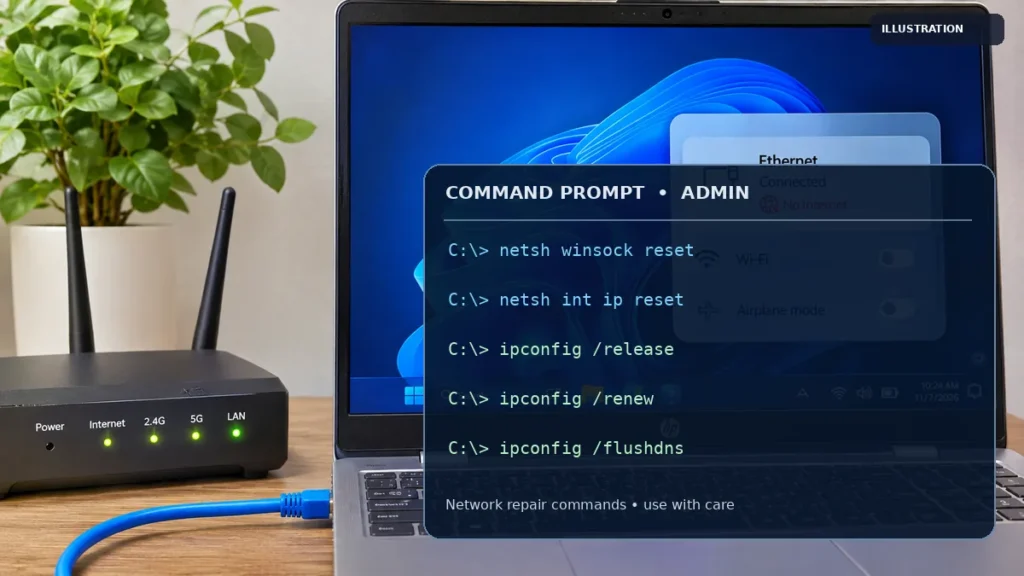
Run the following commands one at a time:
netsh winsock reset
netsh int ip reset
ipconfig /release
ipconfig /renew
ipconfig /flushdns
Press Enter after each command.
Here’s what they do:
| Command | Purpose |
|---|---|
netsh winsock reset | Resets the Windows Winsock catalog |
netsh int ip reset | Resets TCP/IP configuration components |
ipconfig /release | Releases DHCP-assigned IP configuration |
ipconfig /renew | Requests renewed DHCP configuration |
ipconfig /flushdns | Clears the DNS resolver cache |
After running the commands, restart Windows and test the connection.
Important: These commands are intended for appropriate troubleshooting scenarios. Releasing an IP address can disconnect your computer, and TCP/IP resets may affect customized network configurations.
If you use a static IP address, company VPN, or managed network, consult your administrator before making these changes.
9. Update or Reinstall the Ethernet Driver
An Ethernet driver allows Windows to communicate with the computer’s wired network adapter.
If the driver is incompatible or malfunctioning, Windows may have difficulty establishing a proper connection.
Driver problems can sometimes appear after Windows updates or hardware changes.
Check the driver
- Right-click Start.
- Select Device Manager.
- Expand Network adapters.
- Find the wired Ethernet adapter.
- Right-click it.
- Select Update driver.
- Choose Search automatically for drivers.
If Windows cannot find a newer driver, check your PC manufacturer’s official support website.
Look for the network driver that matches your exact computer model and Windows 11 version.
Some devices use Intel, Realtek, or other network adapters, but drivers must still match the installed hardware.
Reinstalling the driver
If updating doesn’t help, Microsoft also describes uninstalling the Ethernet adapter driver and restarting Windows.
Before attempting this:
- Download the correct driver as a backup if possible.
- Make sure you have another way to obtain drivers if the network stops working.
- Save your work.
- Avoid uninstalling unrelated network devices.
After restarting, Windows will attempt to detect the adapter and reinstall an appropriate driver.
If the adapter is still missing, you may need to install the manufacturer’s driver manually.
Don’t use unfamiliar driver-download utilities.
For additional guidance, consult Microsoft’s Ethernet connection troubleshooting page.
10. Use Windows Network Reset as a Last Resort
If you’ve tried the earlier fixes and Windows 11 still reports Ethernet connected but no internet, Network Reset may help restore the default network configuration.
However, this is a more disruptive step.
Network Reset removes installed network adapters and resets their configurations. Windows then reinstalls the adapters during the restart process.
You may need to set up VPN clients, virtual network adapters, Wi-Fi connections, and other custom networking software afterward.
How to reset network settings
- Press Windows + I.
- Open Network & internet.
- Select Advanced network settings.
- Choose Network reset.
- Select Reset now.
- Confirm the action.
- Allow Windows to restart.
- Check whether the Ethernet connection works.
Before performing a Network Reset, record any important static IP addresses, DNS servers, proxy configurations, and VPN details.
If the computer belongs to your employer or school, contact the IT administrator first.
Network Reset should be the last step, not the first troubleshooting method.
If the Ethernet connection still fails after a reset, further investigation of the router, adapter, operating system, and ISP may be necessary.
Ethernet Connected but No Internet: Quick Troubleshooting Table
| Symptom | What to check |
|---|---|
| Ethernet connected but websites won’t load | DNS, VPN, proxy, and IP configuration |
| Ethernet works on other devices | Windows PC settings and Ethernet adapter |
| No devices can access the internet | Router, modem, and ISP |
| Ethernet suddenly stopped after an update | Network driver compatibility |
| Ethernet disconnects intermittently | Cable, port, and USB adapter |
| Windows shows an invalid IP configuration | DHCP and IP assignment |
| Ethernet works after restarting the router | Possible router or modem issue |
| Network reset does not solve the problem | Hardware, router, ISP, or advanced configuration |
Ethernet Connected vs. Internet Connected: What’s the Difference?
An Ethernet connection and a working internet connection are not the same thing.
Ethernet connected means your computer has established a wired connection with a local network device.
Internet connected means your computer can also communicate with resources beyond the local network through a working internet connection.
For example, your Windows PC may connect to a home router through Ethernet even while the router has lost its connection to the internet provider.
This is why Windows network troubleshooting should examine both the local connection and the connection beyond the router.
If another device accesses the internet normally through the same router, investigate the affected PC.
If every device fails, the issue is more likely to involve shared networking equipment or the internet provider.
Frequently Asked Questions
Why is Ethernet connected but no internet on Windows 11?
Your computer may have a functioning wired connection to the local network but lack usable internet access. Possible causes include router problems, ISP outages, invalid network settings, DNS issues, VPN interference, or Ethernet driver problems.
Why does Windows 11 say Ethernet connected but websites don’t load?
Windows may have a working local network connection while DNS resolution, proxy configuration, routing, or internet access is failing. Test another website and device, then check DNS and network settings.
Can a bad Ethernet cable cause internet problems?
Yes. Damaged cables or connectors can interrupt a wired connection or cause unreliable communication. Try another known-working cable before changing advanced settings.
Does flushing DNS fix Ethernet connection problems?
Flushing DNS can help when stale or incorrect cached DNS information contributes to name-resolution problems. It won’t repair a damaged cable, failed network adapter, or ISP outage.
How do I reset Ethernet on Windows 11?
Open Settings → Network & internet → Advanced network settings and disable then re-enable the Ethernet adapter. For a more extensive reset, use Network reset, but only after trying less disruptive fixes.
Can an Ethernet driver cause a no-internet problem?
Yes. Faulty or incompatible drivers can prevent a network adapter from working correctly. Check Device Manager and use drivers supplied by your computer manufacturer.
Should I use a static IP address to fix Ethernet?
Not normally. For most home networks, Automatic (DHCP) is appropriate. A static IP address should only be used when your network requires one and the correct configuration is known.
Will Network Reset delete my files?
Network Reset is designed to reset network adapters and settings rather than erase personal documents. However, it can remove custom networking configurations and require VPN or other network software to be configured again.
Why does Wi-Fi work but Ethernet doesn’t?
If Wi-Fi works through the same router, the internet provider and router are likely functioning at least partially. The problem may involve the Ethernet cable, router LAN port, wired adapter, or Windows Ethernet configuration.
Final Thoughts
If Ethernet is connected but has no internet on Windows 11, begin by checking the cable, router, and other devices.
Then investigate Windows Ethernet status, DHCP and DNS settings, network diagnostics, and the Ethernet adapter driver.
Avoid immediately resetting Windows or uninstalling network drivers.
A careful troubleshooting process can help you identify whether the issue originates from the computer, router, cable, or internet service provider.
For related connectivity troubleshooting, see our guides:
- iPhone Connected to Wi-Fi but No Internet? 10 Fixes
- MacBook Wi-Fi Not Working? 12 Best Fixes
- iPhone Personal Hotspot Not Working? 12 Fixes
You can also consult Microsoft’s official Ethernet troubleshooting documentation for additional Windows-specific assistance.