Mac screen sharing not working when you need to present in Google Meet or Zoom, or connect to another Mac? You might see a black screen, a missing Share button, a permission warning, or a connection that never starts.The right fix depends on which kind of screen sharing you’re using. Meeting apps need permission to capture what’s on your screen. Apple’s built-in Screen Sharing feature is different: it lets another computer view or control your Mac across a network. This guide covers both, starting with the fastest checks.
Quick Answer: How to Fix Mac Screen Sharing Not Working
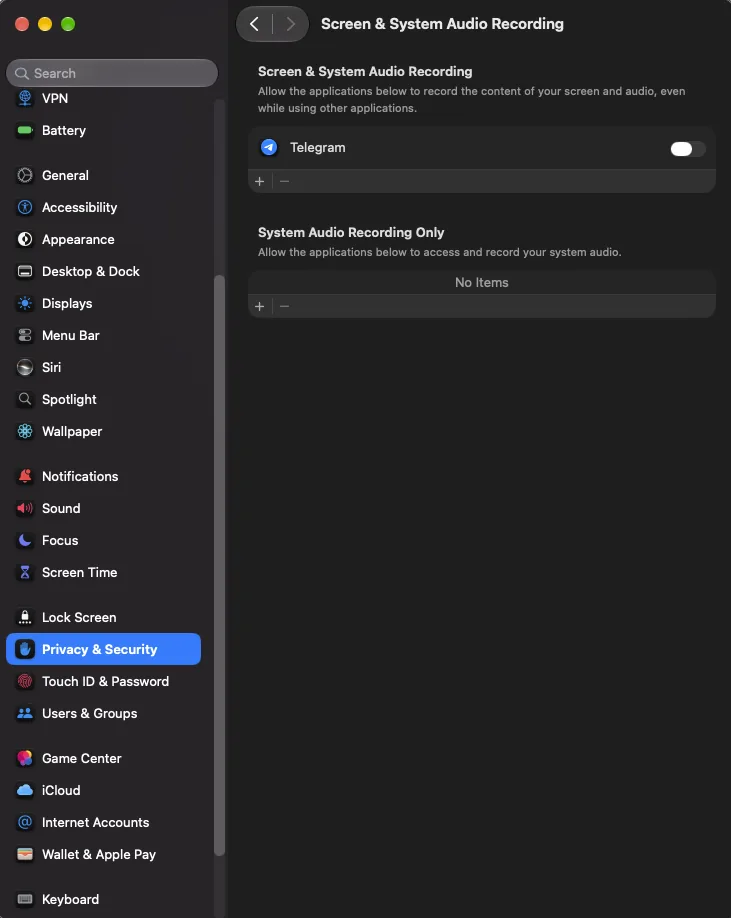
Sharing in Zoom, Google Meet, or another meeting app? Open System Settings → Privacy & Security → Screen & System Audio Recording, allow the app or browser you’re using, quit and reopen it if prompted, then select the correct screen or window in your meeting. On older versions of macOS, this setting may be called Screen Recording.
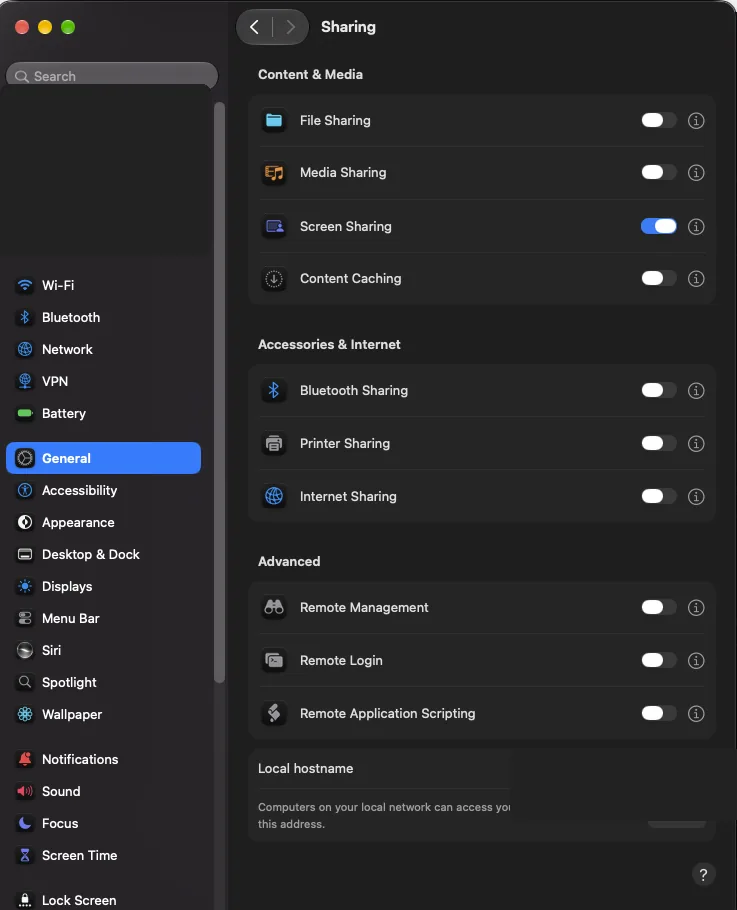
Trying to control another Mac? On the Mac you want to access, open System Settings → General → Sharing, turn on Screen Sharing, and confirm your user account is allowed. Make sure both Macs are awake and, for a straightforward local connection, on the same network.
Which Screen Sharing Problem Do You Have?
| What you see | Start here |
|---|---|
| Zoom or Meet says screen-sharing permission is missing | Fix 2: macOS screen permission |
| Participants see a black screen or the wrong app | Fix 4: choose the right share source |
| Google Meet can’t present a tab, window, or desktop | Fix 5: Google Meet |
| Zoom’s Share Screen button is disabled | Fix 6: Zoom meeting controls |
| Screen Sharing can’t find or connect to a second Mac | Fix 7: enable remote sharing |
| Remote sharing connects but access is denied | Fix 8: allowed users |
Table of Contents
- Quick answer
- Choose your problem
- 1. Quit and reopen the sharing app
- 2. Allow Screen & System Audio Recording
- 3. Check permissions for the exact app
- 4. Share the correct display or window
- 5. Fix Google Meet screen sharing
- 6. Fix Zoom screen sharing
- 7. Enable remote Screen Sharing on Mac
- 8. Allow the correct users to connect
- 9. Check network, sleep, and firewall
- 10. Update macOS and retry
- Black screen troubleshooting
- Frequently asked questions
- Official references
1. Quit and Reopen the App or Screen Sharing Session
Start with a clean session. If a meeting app was open before macOS received permission to capture the screen, it may not pick up the change until it restarts.
- Stop presenting in the meeting, if a share is active.
- Quit Zoom, Chrome, Safari, Teams, or the app you’re actually using. On Mac, choose the app’s menu → Quit; merely closing the window might leave it running.
- Open the app again, rejoin the meeting, and try to share a specific window.
- If you’re using Apple’s Screen Sharing app, disconnect the remote session and reconnect.
What this tells you: If a fresh session works, the problem was likely temporary rather than a permanent hardware issue. If not, check permissions next.
2. Allow Screen & System Audio Recording on Your Mac
This is the most important check for sharing through meeting apps. macOS limits which apps and websites can capture the contents of your screen, even when those apps have camera and microphone access.
- Click the Apple menu → System Settings.
- Open Privacy & Security.
- Select Screen & System Audio Recording. On some earlier macOS versions, look for Screen Recording.
- Enable the app that is presenting: for example, Zoom when using Zoom’s app or Google Chrome when presenting Google Meet from Chrome.
- If macOS asks you to quit and reopen the app, do so. Return to the meeting and try again.
Apple documents this under Control access to screen and system audio recording on Mac. Don’t grant the permission to unfamiliar apps you don’t trust.
3. Check Permissions for the Exact App or Browser
Allowing one browser doesn’t automatically authorize another. For example, turning on Chrome’s screen permission doesn’t solve a Share button problem in the Zoom desktop app or Safari.
- Google Meet in Chrome: check Chrome under macOS screen-capture permissions.
- Zoom desktop app: check Zoom, not your browser.
- Other browser-based meetings: verify which browser actually launched the call and respond to any browser or macOS capture prompt.
If your app isn’t listed, open that app, attempt a screen share, and follow the permission prompt. Apple also provides an add-app control in the privacy settings on supported versions. Avoid changing permissions for unrelated apps just to troubleshoot this one.
Quick test: Create a private test meeting, try sharing one ordinary Finder window, and confirm the other side can see it. This is safer and clearer than testing with personal documents or a full desktop containing notifications.
4. Select the Correct Screen, Window, or Browser Tab
Sometimes screen sharing is working but showing the wrong thing. A window share may be blank if the window has been minimized, closed, or replaced, while sharing the entire screen can show private notifications.
- In your meeting, choose Share Screen or Present now.
- Select the exact display, app window, or Chrome tab you want participants to view.
- Bring that window to the front and make sure it contains normal, visible content.
- Stop and restart sharing after switching displays or apps if the preview remains frozen.
On a MacBook connected to an external monitor, double-check whether you’re presenting the built-in display or the external one. If your external screen itself isn’t detected, our MacBook external monitor troubleshooting guide covers that separate issue.
5. Fix Google Meet Screen Sharing Not Working on Mac
If the failure happens specifically in Google Meet, check both the macOS permission and Google’s meeting/browser controls.
- Update your browser; Google recommends a current Chrome version for the fullest screen-sharing feature support.
- In Chrome, open your Meet call and choose Present now, then select A tab, A window, or Your entire screen.
- When macOS asks for screen-recording access, click Allow. If you previously denied it, use the macOS privacy steps in Fix 2.
- Quit and relaunch Chrome if the system requests a restart, then rejoin and present again.
- If a particular tab fails, try presenting a different test tab to separate a site-specific problem from a Mac permission issue.
Google’s official screen-sharing troubleshooting guide also explains that a Chrome tab, window, and entire screen support different features. If viewers cannot hear your audio, that is a separate audio-sharing question, not necessarily a screen-sharing failure.
6. Fix Zoom Share Screen Not Working on Mac
Zoom can block screen sharing for two very different reasons: the Mac hasn’t allowed Zoom to capture the display, or the meeting host/account has restricted who can share.
- In System Settings → Privacy & Security → Screen & System Audio Recording, make sure Zoom is allowed.
- Fully quit and reopen the Zoom desktop app.
- Rejoin your meeting and check whether the Share Screen button is available.
- If the button is disabled, ask the host whether participants are allowed to share. A host- or organization-controlled setting cannot be repaired by changing macOS permissions.
- If you are the host, review the meeting’s screen-sharing restrictions in Zoom’s controls or web settings.
Zoom explains these two layers in its screen-sharing help and macOS permissions guide.
7. Turn On Screen Sharing on the Mac You Want to Access
This fix is for Apple’s built-in remote Screen Sharing feature, not Zoom or Google Meet. You must enable remote sharing on the Mac whose desktop you want to view or control.
- On the remote/target Mac, open System Settings → General → Sharing.
- Find Screen Sharing and click its info button.
- Turn on Screen Sharing, then choose who can access the Mac.
- If Remote Management is on, understand that Apple doesn’t let you enable both features at once. Use the appropriate one for your setup instead of blindly switching off a managed service.
- On the Mac you’re connecting from, open the Screen Sharing app from Applications → Utilities or Spotlight and try connecting.
Apple’s Screen Sharing setup guide explains the available access options. Turn sharing off again when you no longer need remote access, particularly on shared computers.
8. Make Sure Your User Account Is Allowed to Connect
If the other Mac is visible but refuses your connection, the problem may be authorization rather than Wi-Fi.
- On the target Mac, return to General → Sharing → Screen Sharing and open its details.
- Check Allow access for. If set to Only these users, make sure the intended account is included.
- Confirm that you are entering the correct account credentials when the Screen Sharing app asks you to sign in.
- Try connecting again using the computer shown under Network or by entering the correct host address in the Screen Sharing app.
Do not switch to All users simply to bypass a permission error, especially on a shared, school, or work Mac. Add only the account that genuinely needs access.
9. Check the Network, Sleep State, VPN, and Firewall
Apple recommends verifying that both Macs are awake and on the same network when troubleshooting local Screen Sharing connections.
- Wake and unlock the target Mac, then temporarily keep it awake during testing.
- Check System Settings → Network on both Macs and verify they’re connected to the intended network.
- If possible, test on the same trusted home or office network rather than an isolated guest Wi-Fi network.
- If a VPN is in use, test only if your network policy permits you to temporarily disconnect it.
- Review System Settings → Network → Firewall → Options if incoming connections are blocked. Prefer allowing the necessary trusted service rather than permanently disabling the firewall.
For more general connectivity checks, see our MacBook Wi-Fi troubleshooting guide. Apple also covers Mac-to-Mac screen-sharing failures and firewall settings.
10. Update macOS and the Sharing App, Then Restart
When permissions and connection settings look correct, the next sensible step is updating supported software and restarting. Don’t reinstall macOS or reset your entire Mac just because a single sharing app fails.
- Save your work and close open meetings.
- Go to System Settings → General → Software Update and install any compatible macOS update you are comfortable applying, after backing up important files.
- Update Chrome, Zoom, or the meeting application from its official update mechanism.
- Restart the Mac. For a Mac-to-Mac connection, restart both computers if you control them.
- Test with a simple Finder window or a local Screen Sharing session before troubleshooting a complex presentation.
Apple’s macOS update instructions explain where to find supported updates. If a Mac is unexpectedly restarting on its own, troubleshoot that separately with our MacBook keeps restarting guide.
Mac Screen Sharing Shows a Black Screen: What to Check
A black share preview does not automatically mean your Mac display or camera has failed. Try sharing an ordinary Finder window as a controlled test. If that works, the problem is more likely tied to the particular app, window, or protected content you selected.
- Only one window is black: bring it to the front and try sharing another window. Some protected video content intentionally cannot be captured.
- Every app window is black: recheck macOS capture permission, quit the meeting app fully, and relaunch it.
- Remote Mac appears black or disconnects: check that the target Mac is awake, permissions are valid, and the network connection is stable.
- External display is black: determine whether the external monitor is working locally before changing screen-sharing settings.
If you’re trying to show your iPhone on a Mac, that’s a different feature. See our iPhone Mirroring troubleshooting guide rather than enabling Screen Sharing for a second Mac.
Frequently Asked Questions
Why can’t I screen share on my Mac even after allowing permission?
Make sure you authorized the exact app or browser you’re using, fully quit and reopened it, and selected a share source. Zoom or Meet host restrictions can also block screen sharing independently of your Mac’s privacy settings.
Where did Screen Recording permission go on newer macOS versions?
Look under System Settings → Privacy & Security → Screen & System Audio Recording. Older versions may label this setting Screen Recording. The precise name and prompt can vary with macOS.
Is Apple’s Screen Sharing setting required for Zoom or Google Meet?
No. The General → Sharing → Screen Sharing switch controls remote access to your Mac. Zoom and Google Meet typically need screen-capture authorization under Privacy & Security instead.
Why does Google Meet share a Chrome tab but not the entire screen?
Chrome tabs, windows, and entire-screen captures use different share choices and can have different feature support. Recheck the browser’s macOS screen permission and choose the intended source in Meet. Google’s official help recommends an updated Chrome browser.
Can I use Mac Screen Sharing with a Mac on another Wi-Fi network?
The easiest supported setup is on the same local network. Remote access across different networks may require additional networking or an approved remote-access service. Avoid exposing remote-control access directly to the public internet without proper security controls.
Should I turn off the Mac firewall to fix screen sharing?
Not as a routine fix. First confirm that sharing is enabled, the correct user is allowed, and the network is right. Review the firewall’s app and service settings if necessary rather than leaving the firewall disabled.
Final Thoughts
For meeting apps, the first place to check when Mac screen sharing is not working is Privacy & Security → Screen & System Audio Recording. Then restart the app and verify you’re sharing the correct display or window. For the built-in Mac Screen Sharing app, focus instead on General → Sharing, user permissions, and a stable network connection.
Work through the fix that matches your symptom before making bigger changes. In most cases there’s no reason to erase settings, reset the Mac, or install an unknown screen-recording utility.