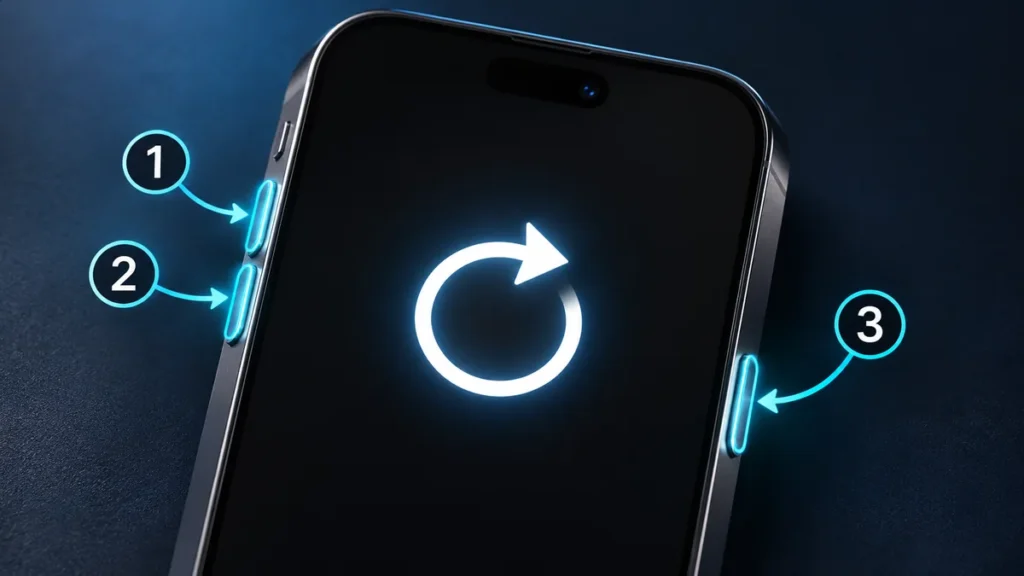
iPhone force restart not working? Maybe your iPhone is frozen, the screen stays black, or you’re pressing the physical buttons but the Apple logo never appears.
A force restart is one of Apple’s recommended troubleshooting steps when an iPhone becomes unresponsive. However, the procedure must be performed in the correct sequence, and it won’t resolve every software or hardware problem.
Sometimes the issue is as simple as releasing the Side button too early. In other cases, a depleted battery, damaged button, faulty display, or serious iOS problem may prevent the device from restarting normally.
Fortunately, there are several checks you can try before considering a factory restore or professional repair.
In this guide, we’ll explain 8 practical fixes for an iPhone force restart not working, including the correct button combination, battery checks, hardware troubleshooting, and recovery mode using a Mac or Windows computer.
These instructions cover recent iPhones, including the iPhone 17 Pro, with additional guidance for older models.
Quick Answer: How to Force Restart an iPhone
For an iPhone 8 or later, including the iPhone 17 Pro:
- Press and quickly release Volume Up.
- Press and quickly release Volume Down.
- Immediately press and hold the Side button.
- Keep holding until the Apple logo appears.
- Release the Side button.
The Apple logo may take longer than 10 seconds to appear.
Important: Press the buttons in sequence. Do not hold all three buttons simultaneously.
A force restart doesn’t intentionally erase your photos, apps, messages, or other personal data.
If the correct sequence still doesn’t work, check the buttons, charging system, and display before attempting more advanced recovery.
For official instructions, see Apple’s Force Restart iPhone guide.
Table of Contents
Why Is My iPhone Force Restart Not Working?
Several issues can interfere with the procedure.
Common causes include:
- Using the wrong button combination
- Not pressing the volume buttons quickly enough
- Releasing the Side button too early
- A phone case obstructing the buttons
- A faulty or stuck Side button
- An excessively depleted battery
- A display that isn’t functioning properly
- An iOS startup problem
- Hardware damage following a drop or liquid exposure
The most useful first step is to identify whether your iPhone is frozen, completely powered off, or running with a black display.
These situations can look similar but require different troubleshooting.
Fix 1: Use the Correct Force Restart Button Sequence
The most common mistake is using the wrong button sequence.
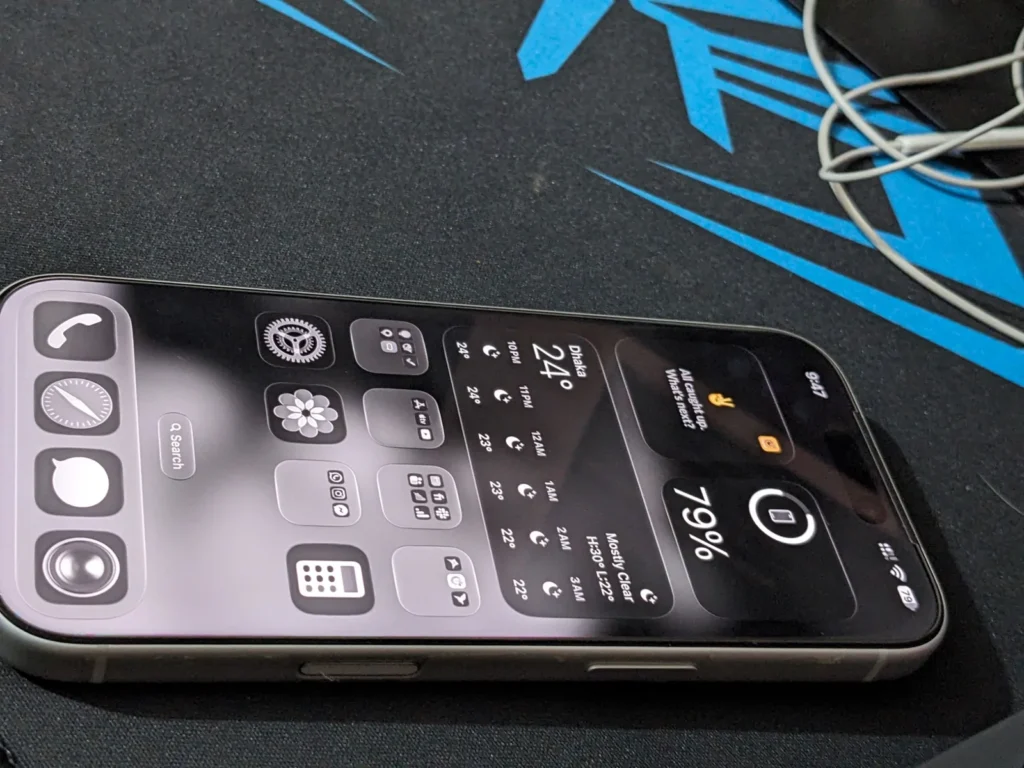
On an iPhone 17 Pro, the correct combination uses both volume buttons and the Side button.
Steps for iPhone 8 and Later
- Press and release Volume Up quickly.
- Press and release Volume Down quickly.
- Press and hold the Side button.
- Continue holding while waiting for the Apple logo.
- Release the button when the logo appears.
Should You Hold the Volume Buttons?
No.
For these iPhone models, the first two presses should be quick.
Only the Side button is held continuously during the final step.
Why Isn’t My iPhone Restarting?
If you pause too long between actions or release the Side button too early, the sequence may not register as intended.
Try the exact sequence again.
If the phone repeatedly ignores the buttons, continue to the physical button checks below.
Fix 2: Hold the Side Button Long Enough
Sometimes the force restart sequence is correct, but the Side button isn’t held long enough.
Apple explains that the Apple logo may take longer than 10 seconds to appear.
What Should You Do?
After pressing and releasing Volume Up and Volume Down:
- Press and hold the Side button.
- Keep holding while the screen remains black.
- Wait for the Apple logo.
- Release the button when it appears.
Don’t release the Side button simply because nothing happened within the first few seconds.
What If You See the Power-Off Slider?
You may have pressed the wrong combination.
On recent Face ID iPhones, holding the Side button together with a Volume button normally brings up the shutdown controls.
That’s different from the three-step force restart sequence.
Return to the beginning and perform the sequence correctly.
What If the Apple Logo Never Appears?
A blank screen doesn’t automatically prove the restart failed.
A display problem can prevent you from seeing the logo even when the device is functioning.
Check for charging, sounds, vibrations, or other signs of life.
Fix 3: Check the Physical Buttons and Remove the Case
The force restart procedure depends on working hardware buttons.
If one of the required buttons cannot register a press, the sequence may fail.
How to Check
- Remove your iPhone case.
- Inspect the Volume Up and Volume Down buttons.
- Examine the Side button.
- Check for visible debris.
- Gently test whether the buttons move normally.
- Avoid excessive pressure.
Apple recommends removing cases or protective films that might obstruct a button and cleaning around it with a soft cloth.
What If the Side Button Doesn’t Work?
A physically faulty Side button may prevent a hardware force restart.
On a responsive iPhone, AssistiveTouch can provide an ordinary software restart, but it cannot reliably substitute for the hardware procedure when iOS is completely frozen.
What If the Button Is Stuck?
Don’t insert sharp tools into the button opening.
Avoid using lubricants, excessive heat, or force.
If the button remains damaged or intermittent, arrange professional inspection.
For button-specific troubleshooting, see Apple’s official iPhone button guidance.
Fix 4: Charge Your iPhone and Try Again
A severely depleted battery can prevent an iPhone from responding normally.
If the screen is completely black and the phone doesn’t vibrate, ring, or show a charging indicator, check the power supply.
How to Test Charging
- Connect your iPhone to a reliable charger.
- Use a compatible charging cable.
- Check that the charging port is free of obvious obstructions.
- Allow the device to charge.
- Try the correct force restart sequence again.
Apple recommends charging an iPhone that won’t turn on for up to one hour before trying again.
What If a Low-Battery Symbol Appears?
Follow Apple’s guidance to continue charging for approximately 30 minutes or until the device starts.
What If the iPhone Still Doesn’t Charge?
Try a suitable cable, power adapter, and outlet.
Don’t continue using damaged charging equipment.
Our iPhone Not Charging troubleshooting guide explains additional charging checks.
What If the iPhone Gets Unusually Hot?
Disconnect power if it’s safe to do so and seek professional assistance.
Don’t attempt to force restart a device that appears physically damaged, swollen, or unsafe.
Fix 5: Check Whether the Screen Is Actually Working
An iPhone may appear completely frozen when the real problem involves its display.
For example, the phone could remain powered on while the screen shows nothing.
Look for Signs of Activity
Check whether your iPhone:
- Rings when someone calls
- Produces notification sounds
- Vibrates
- Responds to supported accessories
- Is detected by a trusted computer
These signs may indicate that the device is still operating.
However, they don’t conclusively identify the defect.
What If the Screen Is Black but the Phone Is On?
Investigate a possible display or system problem rather than assuming the force restart buttons are broken.
Our iPhone Black Screen but Still On guide explains the distinction.
What If Touch Doesn’t Work?
A force restart may help certain temporary software freezes.
However, a physically damaged touchscreen can remain unresponsive afterward.
See our iPhone Touchscreen Not Working guide for additional checks.
Fix 6: Restart Normally and Check for iOS Updates
If your iPhone still responds to touch, you may not need a force restart.
A normal restart is generally preferable when the device is working well enough to use the interface.
Restart Through Settings
- Open Settings.
- Tap General.
- Scroll down and select Shut Down.
- Drag the power-off slider.
- Turn your iPhone on again using the Side button.
If the Side button is physically broken, avoid shutting down the phone without a reliable way to turn it back on.
Restart Through AssistiveTouch
If AssistiveTouch is enabled:
- Tap the floating AssistiveTouch button.
- Select Device.
- Tap More.
- Choose Restart, if available.
- Confirm.
This is a normal software restart, not a substitute for a hardware force restart when the operating system is frozen.
Check for an iOS Update
If your device is functioning:
- Open Settings.
- Select General.
- Tap Software Update.
- Check for a compatible update.
- Back up important information.
- Install the update if appropriate.
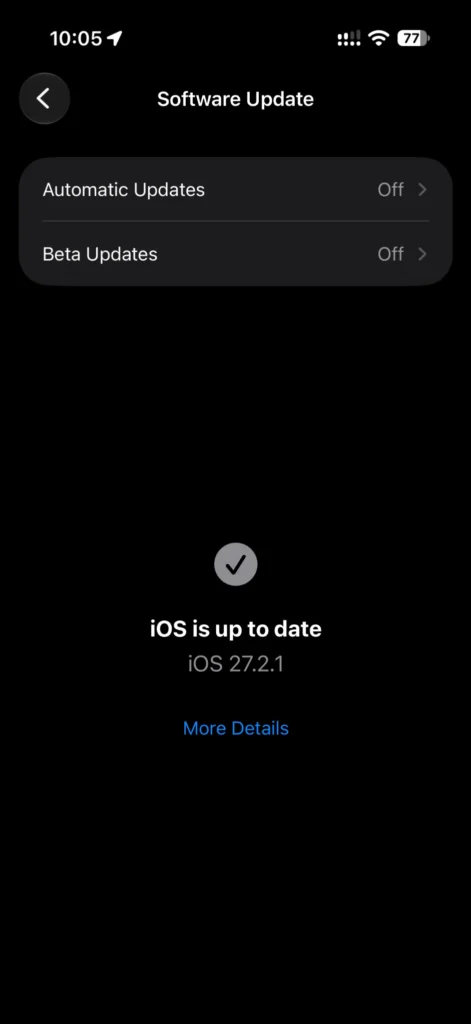
An update may fix certain software issues, but it cannot repair damaged buttons or hardware.
Fix 7: Use Recovery Mode and Try Update
If your iPhone is stuck on the Apple logo, repeatedly fails to start, or displays a recovery screen, you may need computer-assisted troubleshooting.
Apple supports recovery mode for particular startup and update failures.
Important: Recovery mode is not necessary for every failed force restart. It requires working physical controls and may involve risks to your data.
What You Need
- A compatible USB cable
- A Mac or Windows computer
- Finder on a supported Mac
- The Apple Devices app on a supported Windows PC
How to Enter Recovery Mode on iPhone 8 or Later
- Connect your iPhone to the computer.
- Open Finder on your Mac or Apple Devices on your Windows PC.
- Press and quickly release Volume Up.
- Press and quickly release Volume Down.
- Press and hold the Side button.
- Keep holding even if the Apple logo appears.
- Release when the Connect to Computer recovery screen appears.
This differs from a regular force restart.
For an ordinary force restart, release the Side button when the Apple logo appears.
For recovery mode, keep holding until the recovery screen appears.
What Should You Choose on the Computer?
If Finder or Apple Devices offers Update and Restore, choose Update first when appropriate and available.
Update attempts to reinstall iOS while preserving personal data.
However, data preservation is not guaranteed if the process fails or further repair becomes necessary.
Restore erases the iPhone.
Don’t select Restore unless you understand the consequences and have considered your backup situation.
The normal Finder overview screenshot demonstrates where the device appears, not the recovery-mode prompt itself.
For complete instructions, follow Apple’s recovery mode guide.
What If Recovery Mode Doesn’t Work?
If the Side button is physically damaged, you may be unable to enter recovery mode using the normal procedure.
If the computer doesn’t detect the iPhone, check the cable and USB connection.
When recovery remains unavailable, seek professional assistance instead of repeatedly attempting a factory restore.
Fix 8: Contact Apple Support for Hardware Problems
If you’ve confirmed the correct button sequence, charged the device, and checked the physical controls, persistent failure may require professional diagnosis.
When Is Service Necessary?
Consider contacting Apple if:
- The Side button doesn’t register presses.
- One or both volume buttons are physically damaged.
- The iPhone won’t turn on after charging and troubleshooting.
- The display remains black despite other signs of activity.
- The iPhone repeatedly freezes during startup.
- Recovery mode fails or isn’t accessible.
- The device has suffered a significant impact or liquid exposure.
Will Apple Repair or Replace the iPhone?
That depends on the diagnosed problem.
A defective button, damaged display, battery issue, or internal hardware fault may require different service procedures.
Repair eligibility and costs depend on warranty coverage, device condition, location, and available service options.
Start with Apple’s official iPhone Support page.
Avoid opening the device yourself or shorting physical button contacts.
iPhone Force Restart Not Working on iPhone 17 Pro
The iPhone 17 Pro uses the standard three-button force restart sequence.
- Quickly press and release Volume Up.
- Quickly press and release Volume Down.
- Hold the Side button.
- Release it when the Apple logo appears.
The Camera Control and Action button aren’t part of this sequence.
If your iPhone 17 Pro doesn’t respond, check the Side button, battery charge, and display.
The same general procedure applies to many recent iPhones without a Home button.
How to Force Restart Older iPhones
Not every iPhone uses the same combination.
iPhone 8 and Later
Press Volume Up, release; press Volume Down, release; then hold the Side button until the Apple logo appears.
iPhone 7 and iPhone 7 Plus
Press and hold Volume Down and the Side button simultaneously.
Release when the Apple logo appears.
iPhone 6s and Earlier
Press and hold the Home button and the Side or Top button simultaneously.
Release when the Apple logo appears.
If you’re unsure which model you have, identify it before attempting the procedure.
Using the wrong model’s combination may prevent the restart from working.
Force Restart vs Normal Restart vs Factory Reset
These three operations are different.
Normal Restart
You turn the iPhone off through its supported controls and turn it back on.
This is appropriate when the device remains responsive.
Force Restart
You use a hardware button sequence to restart an unresponsive device.
A force restart doesn’t intentionally erase your personal information.
Factory Reset
A factory reset erases the device’s content and settings.
This is a separate, much more disruptive operation.
Don’t factory reset an iPhone simply because the force restart sequence didn’t work once.
What If My iPhone Is Stuck on the Apple Logo?
Sometimes the Apple logo appears but the iPhone never finishes starting.
A one-time restart failure is different from a persistent startup loop.
If the device shows a progress bar during an update or data transfer, follow Apple’s instructions for that specific situation.
If the progress bar hasn’t moved for at least an hour, Apple provides computer-based recovery instructions.
Recovery mode may help reinstall iOS.
However, persistent failure can require repair, and a Restore operation erases data.
Can AssistiveTouch Force Restart a Frozen iPhone?
Not in the same way as the hardware button sequence.
AssistiveTouch can restart an iPhone while iOS is responsive enough to process the command.
If the entire operating system is frozen, the AssistiveTouch interface may not respond.
A true hardware force restart still depends on the supported physical button sequence.
If those buttons are damaged, seek professional service.
Frequently Asked Questions
Why is my iPhone force restart not working?
Possible reasons include incorrect button timing, releasing the Side button too early, a depleted battery, damaged physical buttons, a faulty display, or a more serious startup problem.
How long should I hold the Side button?
Hold it until the Apple logo appears. Apple notes that this can take longer than 10 seconds.
Does force restarting an iPhone erase data?
No. A normal force restart isn’t intended to erase photos, apps, messages, or personal files.
What if the Apple logo never appears?
Check the button sequence, charging condition, and physical controls. If the device still doesn’t respond, professional assistance may be required.
Can I force restart iPhone without the Side button?
The standard hardware procedure requires the Side button on recent iPhones. AssistiveTouch provides a normal software restart only while the device remains responsive.
Does the iPhone 17 Pro use a different force restart method?
No. It uses Volume Up, Volume Down, and then a sustained Side button press.
Can I force restart while charging?
Yes, the hardware sequence can be attempted while the device is connected to a suitable charger. Charging first may help if the battery is depleted.
Is recovery mode the same as force restart?
No. Recovery mode connects the iPhone to a computer for software recovery procedures, while a force restart simply attempts to restart the device.
Will recovery mode delete my data?
Entering recovery mode doesn’t itself erase your information. However, selecting Restore erases the device, and unsuccessful recovery attempts can still create data-loss risks.
When should I contact Apple Support?
Seek service when the physical buttons are damaged, the iPhone won’t start after appropriate charging and troubleshooting, or the device remains unresponsive despite the supported recovery steps.
Final Thoughts
If your iPhone force restart is not working, begin by checking the button sequence.
On modern iPhones, quickly press Volume Up, quickly press Volume Down, and then hold the Side button until the Apple logo appears.
If that fails, inspect the physical buttons, check the battery, and consider whether the display is working.
For an iPhone that still responds to touch, try a normal software restart.
If the phone is stuck during startup, Apple’s computer-based recovery options may help, but choose Update before considering an erase-and-Restore procedure when appropriate.
And if the buttons are damaged or the device remains completely unresponsive, professional inspection is the safest next step.
A failed force restart doesn’t automatically mean your iPhone is permanently damaged, but repeated attempts won’t repair a hardware fault.