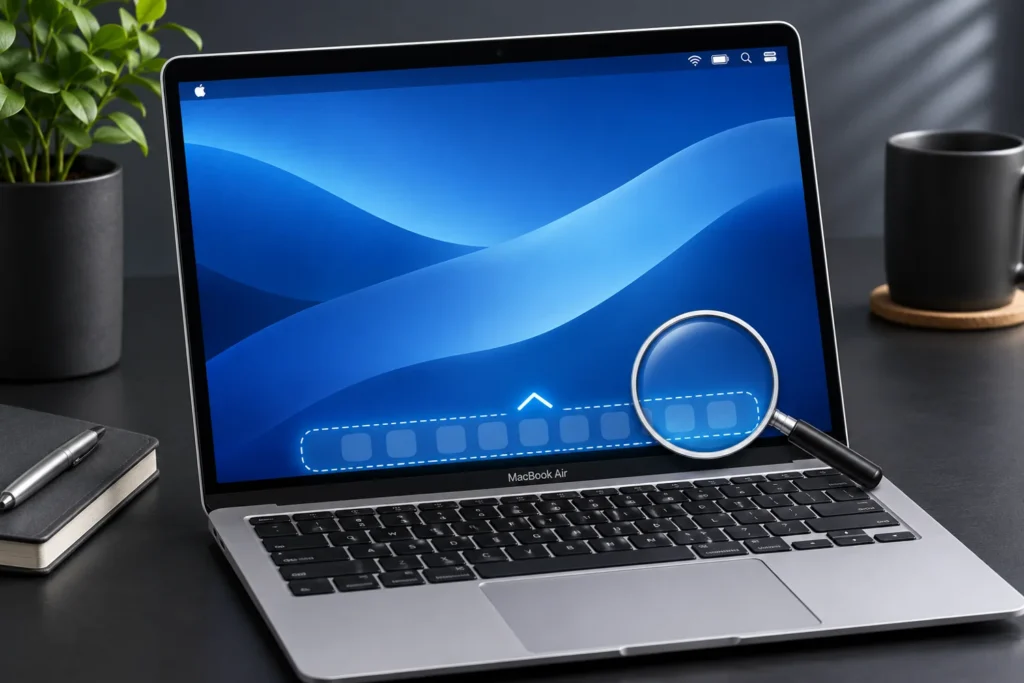
Is your Mac Dock missing, even though your desktop and apps are working normally? Perhaps the row of app icons suddenly disappeared from the bottom of your MacBook screen, or the Dock only appears when you move your mouse.
A missing Dock does not necessarily mean something is wrong with macOS. The Dock may be hidden automatically, positioned along another edge, or temporarily unavailable because an app is running in full-screen mode.
Sometimes the Dock process itself stops responding.
Fortunately, you can usually restore the Dock without resetting your Mac, deleting files, or reinstalling macOS.
In this guide, we’ll walk through 9 practical fixes for a Mac Dock that is missing, covering MacBook Air, MacBook Pro, iMac, and other compatible Macs.
Quick Answer: How to Get the Dock Back on Mac
If your Mac Dock is missing, start with these steps:
- Move your pointer to the bottom, left, and right edges of the screen.
- Press Option + Command + D to toggle Dock visibility.
- Open System Settings → Desktop & Dock.
- Turn off Automatically hide and show the Dock.
- Exit full-screen mode and check whether the Dock returns.
- If the Dock remains unavailable, restart the Dock process or your Mac.
Apple confirms that macOS lets you hide the Dock automatically, change its position, and control its visibility with a keyboard shortcut.
Official reference: Apple’s Desktop & Dock settings guide.
Table of Contents
Why Is My Mac Dock Missing?
The Dock is the row of app icons normally positioned along the bottom of your Mac’s desktop.
It provides quick access to Finder, Safari, other applications, minimized windows, and the Trash.
Several things can make it appear to disappear.
Automatic hiding: macOS may hide the Dock until your pointer reaches its edge.
Changed position: The Dock may have moved to the left or right side of your screen.
Full-screen applications: Full-screen mode normally keeps the Dock hidden until you reveal it.
Multiple monitors: The Dock may appear on a different connected display depending on your configuration.
Temporary software problems: The Dock process may become unresponsive or fail to display correctly.
Missing app icons: Sometimes the Dock is still present, but individual applications have been removed from it.
Identifying which situation applies will help you avoid unnecessary troubleshooting.
1. Move Your Pointer to the Screen Edges
Before changing anything, check whether the Dock is simply hidden.
macOS supports automatic Dock hiding. When enabled, the Dock stays off-screen until you move the pointer to the appropriate edge.
What to Do
- Return to your desktop.
- Move your pointer to the very bottom edge of the screen.
- Keep it there briefly.
- If nothing appears, try the left and right edges.
- Watch for the row of application icons.
If the Dock appears when you reach an edge, it is probably functioning normally.
The next step will make it remain visible.
What if nothing appears?
Continue to the keyboard shortcut and System Settings checks.
2. Turn Off Automatically Hide and Show the Dock
If your Mac Dock keeps disappearing, the automatic hiding setting is one of the first things to investigate.
You can disable it in System Settings.
How to Make the Dock Stay Visible
- Click the Apple menu in the top-left corner.
- Select System Settings.
- Click Desktop & Dock in the sidebar.
- Find the Dock section.
- Locate Automatically hide and show the Dock.
- Turn the setting off.
Return to your desktop and check the Dock.
If automatic hiding was the cause, the Dock should now stay visible during ordinary desktop use.
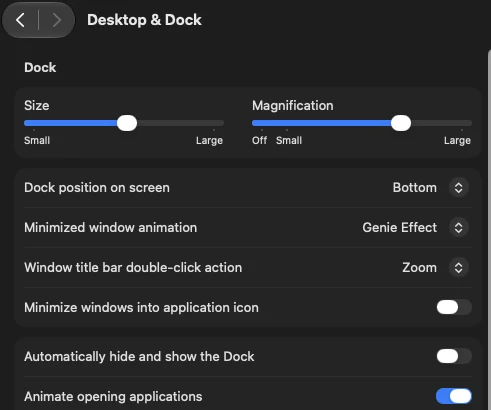
Important: Disabling this setting does not necessarily make the Dock permanently visible over every full-screen application.
Apple documents these controls in its Desktop & Dock settings instructions.
3. Use the Keyboard Shortcut to Restore the Dock
There is a quicker way to toggle Dock visibility without navigating through Settings.
Press:
Option + Command + D
This is Apple’s documented keyboard shortcut for showing or hiding the Dock.
How to Test It
- Open the desktop or a regular application window.
- Press and hold Option and Command.
- Press D.
- Release the keys.
- Check whether the Dock appears.
If the Dock was hidden, the shortcut may bring it back.
Pressing the same combination again toggles its visibility.
This shortcut is particularly useful when the Dock disappears unexpectedly but the rest of macOS still works.
You can verify it in Apple’s official Mac keyboard shortcuts reference.
4. Exit Full-Screen Mode
Sometimes the Mac Dock is missing only while you’re using a particular application.
That can be normal.
When Safari, Chrome, a video player, or another application occupies the entire screen, macOS may hide the Dock to provide more space.
Try This
- Move your pointer toward the top of the screen.
- Reveal the window controls if they are hidden.
- Move your pointer over the green window button.
- Choose the option to exit full-screen mode, if available.
- Return to the normal desktop and check the Dock.
You can also try moving the pointer toward the Dock’s configured screen edge while remaining in full-screen mode.
If the Dock appears normally outside full-screen applications, your Mac probably does not have a Dock malfunction.
See Apple’s guide to using full-screen apps for additional details.
5. Check the Dock Position and External Monitors
If the Dock disappeared after connecting a monitor, changing display settings, or rearranging your workspace, check where macOS is displaying it.
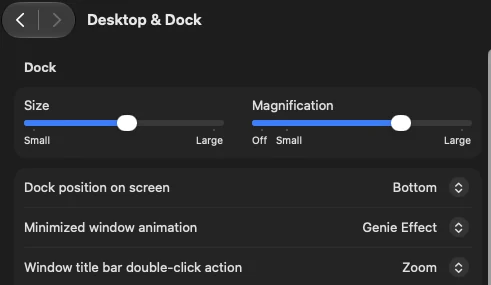
The Dock can be positioned along the bottom, left, or right edge.
Check Its Position
- Open System Settings.
- Select Desktop & Dock.
- Find Dock position on screen.
- Choose Bottom.
- Move your pointer toward the bottom edge again.
If you’re using multiple displays, move the pointer to the bottom edge of each display and check where the Dock appears.
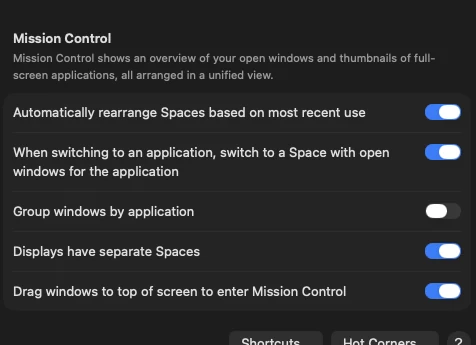
Also review the Displays have separate Spaces option in Desktop & Dock’s Mission Control settings.
Apple explains that this setting affects whether the Dock is available across multiple displays.
Do not change your entire display arrangement until you’ve tested the simple visibility and positioning settings.
6. Restart the Dock Process
If the Dock remains missing despite having the correct settings, the Dock process may have stopped responding.
macOS runs the Dock as a system process. Restarting that process can help when it becomes temporarily unresponsive.
This is a more advanced step, so try the previous fixes first.
How to Restart the Dock Using Terminal
- Open Finder.
- Select Applications → Utilities.
- Open Terminal.
- Enter the following command:
killall Dock
- Press Return.
- Wait for macOS to relaunch the Dock process.
Your Dock may disappear briefly and then reappear.
This command restarts the Dock process rather than deleting your documents or reinstalling macOS.
However, it is a troubleshooting step, not a guaranteed solution for every missing-Dock problem.
Important: Enter only the command shown. Do not add sudo, delete Dock preference files, or run unrelated reset commands.
If Finder is also freezing and you cannot open Applications, see our MacBook Finder Not Responding guide.
7. Restart Your Mac
If restarting the Dock process does not help, restart macOS normally.
A restart closes running processes and starts a fresh session, which may resolve temporary software behavior.
Steps
- Save any documents you’re working on.
- Open the Apple menu.
- Select Restart.
- Allow your Mac to start normally.
- Sign in and check whether the Dock returns.
If the Dock works immediately after restarting but disappears again after opening a specific application, that application or a related utility may deserve closer investigation.
Do not repeatedly force your Mac to shut down when an ordinary restart is available.
8. Check Whether Only Your Dock Icons Are Missing
Sometimes the Dock itself hasn’t disappeared.
Instead, one or more application icons are missing.
For example, Safari may no longer appear in the Dock, even though the app remains installed.
How to Restore an App Icon
- Open Finder.
- Select Applications.
- Locate the application you want.
- Drag its icon into the applications section of the Dock.
Alternatively, open the application normally, Control-click its Dock icon, and choose Options → Keep in Dock.
Removing an icon from the Dock does not normally uninstall the application.
If you cannot drag an application into the Dock, our Mac Drag and Drop Not Working guide explains how to troubleshoot dragging problems.
Can’t locate the application?
Press Command + Space and search for the app using Spotlight.
If Spotlight itself is malfunctioning, read our Mac Spotlight Search Not Working guide.
9. Update macOS and Check for Software Conflicts
If your Mac Dock is still missing after restarting, check whether a compatible macOS update is available.
Check for Updates
- Open System Settings.
- Select General.
- Click Software Update.
- Review any available update.
- Back up important files before installing a significant update.
- Install the update if appropriate.
- Restart and check the Dock again.
An update may resolve certain software issues, but it does not guarantee a fix.
What if the Dock Still Doesn’t Appear?
Consider whether you recently installed a Dock customization utility, window manager, or application that changes macOS interface behavior.
Temporarily disable a suspected third-party utility and test again.
You can also try Safe Mode to investigate software that loads during startup.
On an Apple silicon Mac:
- Shut down the computer.
- Hold the power button until startup options appear.
- Select the startup disk.
- Hold Shift.
- Choose Continue in Safe Mode.
If the Dock works in Safe Mode but repeatedly disappears during normal startup, investigate login items and recently installed utilities.
See Apple’s Safe Mode instructions.
Mac Dock Missing After an Update
If the problem began immediately after a macOS update, don’t assume that the update has permanently damaged your Mac.
First, review Dock visibility settings and restart the Dock process.
Check whether the problem occurs in ordinary desktop use, full-screen applications, or both.
If the Dock remains missing across restarts, test Safe Mode and investigate recently installed software.
Avoid deleting system files or resetting your entire Mac just to restore the Dock.
Frequently Asked Questions
Why did my Mac Dock suddenly disappear?
The Dock may be hidden automatically, moved to another screen edge, or temporarily unavailable in full-screen mode. A software problem can also make it disappear unexpectedly.
What is the shortcut to show the Dock on Mac?
Press Option + Command + D. This toggles Dock visibility on supported macOS versions.
How do I keep the Dock visible all the time?
Go to System Settings → Desktop & Dock and turn off Automatically hide and show the Dock. Full-screen applications can still affect its visibility.
Will restarting the Dock delete my apps?
No. Restarting the Dock process does not normally delete installed applications or personal documents.
Why is my Dock missing on my second monitor?
Dock visibility across multiple displays depends on your Dock position and Mission Control display settings. Check the edges of both screens and review Displays have separate Spaces.
Can I restore the Dock without restarting my Mac?
Yes. Start by checking automatic hiding, using Option + Command + D, and exiting full-screen mode. If the Dock process is unresponsive, restarting that process may help.
Final Thoughts
If your Mac Dock is missing, begin with the simplest explanation: it may just be hidden.
Move your pointer to the screen edges, press Option + Command + D, and check the automatic hiding option under Desktop & Dock settings.
If that doesn’t help, investigate full-screen mode, external monitors, and whether individual app icons have disappeared.
For a Dock that remains completely unavailable, restarting the Dock process or macOS may help.
Most importantly, there is no reason to erase your Mac or remove important system files as an early troubleshooting step.
Start with reversible changes and move to more advanced checks only when necessary.