Windows 11 version 25H2 failed to install on your PC? Maybe Windows Update downloaded the feature update but displayed an installation error, got stuck at a percentage, or restarted only to undo the changes.
This can happen because of corrupted update files, insufficient storage, incompatible drivers, or problems with Windows servicing components.
The good news is that you can troubleshoot most of these possibilities without immediately resetting your PC.
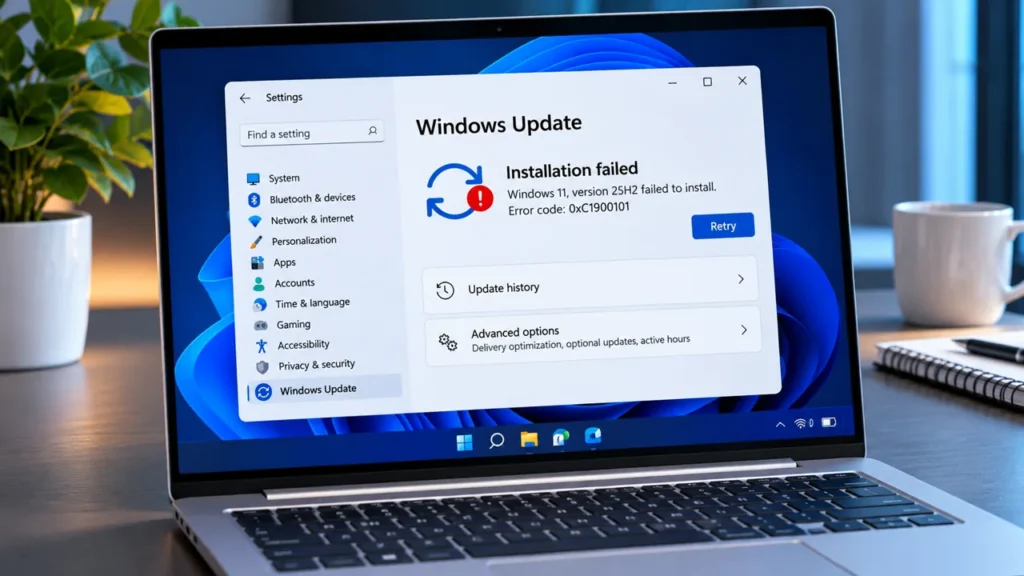
In this guide, you’ll learn nine practical fixes for Windows 11 version 25H2 installation errors, including what to do with error codes such as 0xC1900101, 0x800f0922, and 0x80070002.
Updated for November 2026: Windows 11 version 26H2 is now available for eligible devices. We’ll also explain when upgrading to the newer release makes more sense than repeatedly trying to install 25H2.
Quick Fix: Windows 11 Version 25H2 Failed to Install
If Windows 11 version 25H2 fails during installation, try these steps first:
- Restart your computer.
- Open Settings → Windows Update → Update history and check the error code.
- Run the Windows Update troubleshooter.
- Install any available cumulative updates.
- Check that your system drive has enough free space.
- Update outdated drivers, especially if you see error 0xC1900101.
- Retry Windows Update after restarting.
If these steps don’t work, continue with the system repair methods below.
Important: Back up important files before performing advanced repairs or attempting another major Windows upgrade.
Table of Contents
Why Does Windows 11 Version 25H2 Fail to Install?
Windows 11 version 25H2 was released in September 2025. For PCs already running Windows 11 version 24H2, Microsoft provides the upgrade through an enablement package.
This is a relatively small update because versions 24H2 and 25H2 share much of their underlying operating system.
However, installation can still fail when the computer isn’t properly prepared.
Some common causes include:
- Missing cumulative update prerequisites.
- Damaged Windows Update downloads.
- Corrupted system files.
- Insufficient storage space.
- Incompatible hardware drivers.
- Interference from security or background software.
- Windows Update services not functioning correctly.
- Compatibility safeguards that delay a feature update.
Microsoft documents the 24H2-to-25H2 enablement process in its official KB5054156 support article.
Before changing system settings, identify the exact installation error and the Windows version currently installed.
Fix 1: Check Your Windows 11 25H2 Installation Error Code
The first step is to identify what actually failed.
Windows Update usually records an error code when an installation cannot complete.
To find it:
- Press Windows + I to open Settings.
- Select Windows Update.
- Click Update history.
- Look under failed feature updates or other relevant update-history entries.
- Find the Windows 11 version 25H2 installation attempt.
- Write down the displayed error code.
Different codes suggest different troubleshooting approaches.
Common Windows 11 installation errors:
- 0xC1900101: Often indicates an incompatible or malfunctioning driver.
- 0x800f0922: Can involve update connectivity or insufficient space in a system partition.
- 0x80070002: May indicate missing files or an unsuccessful update operation.
- 0x80070070: Usually means insufficient disk space.
- 0x800f081f: Can indicate missing files required to repair Windows components.
- 0x80240034: May involve an incomplete download or interrupted update.
An error code helps narrow the investigation, but it doesn’t always identify one definite cause.
Microsoft provides additional explanations in its Windows upgrade and installation error guide.
Check Your Current Windows Version
Press Windows + R, type winver, and press Enter.
A window will display the installed Windows version and OS build.
If you already have version 25H2 or 26H2, you don’t need to repeat an old 25H2 feature upgrade.
Fix 2: Restart Your PC and Check Basic Requirements
A pending restart or temporary update-service problem can interfere with installation.
Before trying complex repairs:
- Save your open files.
- Select Start → Power → Restart.
- Wait for Windows to load completely.
- Connect your laptop to a power source.
- Check that your internet connection is stable.
- Disconnect unnecessary USB storage devices and peripherals.
- Open Windows Update and try again.
Don’t disconnect hardware that’s essential for using your computer.
If you rely on Wi-Fi and the wireless option has disappeared, follow our guide to fixing the Windows 11 Wi-Fi option missing before downloading the upgrade again.
For wired connections that appear connected but have no internet access, see our Ethernet connected but no internet troubleshooting guide.
Tip: If Windows Update says that your device isn’t ready for a feature update because of a compatibility safeguard, don’t try to bypass the restriction. Wait for a compatible update or follow your device manufacturer’s guidance.
Fix 3: Run the Windows Update Troubleshooter
Windows 11 includes a built-in troubleshooter designed to identify common Windows Update problems.
This is one of the safest methods to try before repairing system components manually.
Steps
- Press Windows + I.
- Open System → Troubleshoot.
- Select Other troubleshooters.
- Find Windows Update.
- Click Run, if available.
- Follow the instructions in the Get Help application or troubleshooter.
- Apply any recommended fixes.
- Restart your PC.
- Try the installation again.
Some recent Windows 11 releases open automated troubleshooting through Microsoft’s Get Help app.
The troubleshooter can help identify common problems involving update services or components.
Microsoft explains the process in its official Windows Update Troubleshooter guide.
If the troubleshooter reports that it couldn’t fix the issue, proceed to the next method.
Fix 4: Install the Latest Windows 11 Updates First
This step is particularly important when upgrading from Windows 11 version 24H2 to 25H2.
Microsoft’s 25H2 enablement package has cumulative-update prerequisites.
If the necessary servicing updates are missing, the feature update may not install successfully.
Steps
- Open Settings → Windows Update.
- Click Check for updates.
- Install available security and cumulative updates.
- Restart when requested.
- Return to Windows Update.
- Check for additional updates.
For the Windows 11 25H2 enablement package, Microsoft specifies version 24H2 with KB5064081 or a later cumulative update as a prerequisite.
A newer cumulative update generally includes earlier servicing improvements.
Don’t download unfamiliar enablement packages from third-party websites. Use Windows Update or Microsoft’s official distribution channels.
If your device is offered Windows 11 version 26H2 instead, read the dedicated section below before trying to force an older upgrade.
Fix 5: Free Up Storage Space Before Installing 25H2
Insufficient free storage can interrupt a Windows feature update.
Windows needs space to download installation files, prepare system changes, and complete the upgrade.
Check Available Storage
- Open Settings.
- Select System → Storage.
- Review the available space on your Windows installation drive.
- Open Temporary files.
- Review items that can safely be removed.
- Select the appropriate files and confirm cleanup.
Be careful with the Downloads folder, Recycle Bin, and previous Windows installation files. These may contain files you still need or data required for rollback.
As a practical precaution, aim to leave around 20 GB or more available if possible, although the actual requirement varies by upgrade method and device.
You can also uninstall applications you no longer use or move large personal files to external storage.
After freeing space, restart the PC and retry Windows Update.
If you see error 0x80070070, storage is an especially important place to investigate.
Fix 6: Update Problematic Drivers to Resolve Error 0xC1900101
If Windows 11 version 25H2 fails with an error beginning with 0xC1900101, Microsoft identifies driver incompatibility as a common cause.
An outdated or incompatible storage, graphics, chipset, or other hardware driver can interrupt the upgrade.
Check Drivers in Device Manager
- Right-click the Start button.
- Select Device Manager.
- Look for devices displaying warning symbols.
- Expand the relevant hardware category.
- Right-click the affected device.
- Select Update driver.
- Follow the available instructions.
If Windows doesn’t find a newer compatible driver, visit your computer manufacturer’s official support website.
For example, Dell, HP, Lenovo, ASUS, Acer, and other manufacturers provide model-specific driver downloads.
Make sure you select the correct model and Windows version.
Avoid using random driver-updater utilities.
Additional check: If Windows began showing Bluetooth problems after an update, our Bluetooth toggle missing in Windows 11 guide explains how to inspect and update Bluetooth adapters.
If the 25H2 installation still rolls back with 0xC1900101, note the full error code and contact your PC manufacturer or Microsoft Support. Advanced installation logs may be necessary to identify the failing driver.
Fix 7: Repair Corrupted System Files Using DISM and SFC
Damaged Windows system files can prevent Windows Update from installing properly.
Microsoft recommends the Deployment Image Servicing and Management tool (DISM) and System File Checker (SFC) for certain system-file problems.
Step 1: Open Command Prompt as Administrator
- Open the Start menu.
- Type Command Prompt.
- Right-click the result.
- Select Run as administrator.
- Approve the User Account Control prompt.
Step 2: Run DISM
Enter this command:
DISM.exe /Online /Cleanup-Image /RestoreHealthPress Enter and allow the process to finish.
DISM checks and repairs the Windows component store. It may require an internet connection to obtain repair files.
Do not interrupt the operation just because the progress appears to pause.
Step 3: Run System File Checker
After DISM finishes, type:
sfc /scannowPress Enter.
SFC checks protected system files and attempts to repair corruption.
When the scan finishes, read the results and restart your PC.
Then return to Windows Update and try installing the feature update again.
Microsoft documents this order in its official DISM and System File Checker instructions.
These commands are legitimate Windows repair tools, but they won’t resolve every driver or compatibility problem.
Fix 8: Reset the Windows Update Download Cache
Sometimes an incomplete or corrupted update download causes repeated installation failures.
If the basic troubleshooting methods haven’t helped, clearing the Windows Update download cache may allow Windows to download the files again.
Steps
- Save your work and make sure Windows isn’t currently installing an update.
- Press Windows + R.
- Type
services.mscand press Enter. - Find the Windows Update service.
- Right-click it and select Stop, if available.
- Open File Explorer.
- Navigate to
C:\Windows\SoftwareDistribution. - Clear the contents of this Windows Update cache folder, following the required administrator prompts.
- Return to the Services window.
- Start the Windows Update service again.
- Restart your computer and check for updates.
You may need administrator permissions.
Important: Only work inside the exact SoftwareDistribution location. Do not delete the Windows directory or unrelated system folders. Some cached update information may need to be downloaded again.
If Windows refuses to stop the service or remove the files, don’t force-delete locked files. Use Microsoft’s Windows Update troubleshooting instructions or seek technical assistance.
This method doesn’t guarantee a successful 25H2 upgrade, but it can help when the problem involves damaged update downloads.
Fix 9: Repair Windows Using the Built-In Reinstall Option
If Windows 11 version 25H2 still fails to install, repairing the existing Windows installation may help.
Windows 11 offers a recovery feature called Fix problems using Windows Update.
According to Microsoft, this option reinstalls the current Windows version while preserving installed apps, personal files, and settings.
Steps
- Open Settings.
- Select System → Recovery.
- Find Fix problems using Windows Update.
- Click Reinstall now, if available.
- Review the instructions.
- Keep your PC connected to power and the internet.
- Allow Windows to complete the repair installation.
- Restart when prompted.
This feature repairs the version currently installed. It doesn’t automatically mean you’re installing 25H2 or 26H2.
Once the repair finishes, return to Windows Update and check for available feature updates.
The option may be unavailable on some managed computers or older Windows builds.
For more details, see Microsoft’s guide to reinstalling the current Windows version.
Before proceeding: Back up important files. Don’t confuse this repair option with a clean installation or a reset that removes applications.
Should You Install Windows 11 26H2 Instead of 25H2?
As of November 2026, Windows 11 version 26H2 is available for eligible computers.
Microsoft released this version on September 29, 2026.
For computers running supported versions of Windows 11, version 26H2 may now appear as the available feature update.
In fact, Microsoft provides a 26H2 enablement package for eligible systems running versions 24H2 and 25H2.
Check for the Newer Update
- Open Settings → Windows Update.
- Select Check for updates.
- Look for Windows 11, version 26H2.
- If the update is offered and your device meets the requirements, select Download & install.
- Follow the instructions and restart when requested.
If Windows Update offers 26H2, there’s usually no reason to force 25H2 first on an otherwise compatible personal PC.
However, upgrading to 26H2 won’t automatically fix problems caused by faulty hardware, corrupted system files, or incompatible drivers.
Don’t bypass an active compatibility safeguard. For work or school devices, follow your organization’s approved update schedule.
You can monitor Microsoft’s Windows 11 release health dashboard to check documented issues.
For supported x64 PCs, Microsoft also offers the official Windows 11 Installation Assistant. It downloads the current Windows 11 release rather than acting as a dedicated 25H2 installer.
Try the normal Windows Update method first.
What If Windows 11 25H2 Gets Stuck at 100%?
A progress indicator reaching 100% doesn’t always mean installation has finished.
Windows may still be finalizing the update or preparing a restart.
If the computer remains responsive, allow the installation to continue and follow any restart instructions.
Avoid repeatedly forcing shutdowns while Windows is actively applying updates.
If Windows ultimately displays an error or restores the previous version, check Update history and use the troubleshooting method associated with the recorded error code.
If the PC becomes genuinely unresponsive for an extended period, consult the device manufacturer’s support instructions before attempting recovery.
Windows 11 25H2 Failed to Install After Restart
If the update downloads successfully but fails after restarting, the cause may differ from a simple download error.
A driver conflict, servicing problem, or installation compatibility issue may be responsible.
Start by checking the complete error code in Update history.
If it begins with 0xC1900101, prioritize the driver checks in Fix 6.
If the error suggests missing or corrupted system files, try the DISM and SFC steps in Fix 7.
For complicated upgrade failures, Windows Setup may generate diagnostic information through Microsoft’s SetupDiag utility. See the official SetupDiag documentation for advanced investigation.
Frequently Asked Questions
Why does Windows 11 version 25H2 keep failing to install?
Common causes include damaged Windows Update components, missing prerequisites, insufficient disk space, incompatible drivers, and system-file corruption. The error code can help narrow down the cause.
How do I fix Windows 11 25H2 install error 0xC1900101?
Start by updating your computer’s hardware drivers through Windows Update and the manufacturer’s support website. Disconnect unnecessary peripherals and check the full error code if the installation continues to fail.
Can I install Windows 11 26H2 instead of 25H2?
Yes, if your device is eligible and Windows Update offers version 26H2. Microsoft supports upgrading eligible Windows 11 24H2 and 25H2 systems through the newer enablement package.
Does reinstalling Windows through Windows Update delete files?
Microsoft’s supported Fix problems using Windows Update repair feature is designed to preserve personal files, applications, and settings. Still, creating a backup is recommended before major recovery operations.
Why is Windows 11 25H2 not showing in Windows Update?
The update might have been replaced by a newer offered release, delayed by a compatibility safeguard, or restricted by your organization’s update policies. Check your current version with winver before troubleshooting.
Is Windows 11 version 25H2 still supported in 2026?
Yes. As of November 2026, Windows 11 version 25H2 remains within Microsoft’s published support lifecycle. However, version 26H2 is the newer general-availability feature update.
Final Thoughts
If Windows 11 version 25H2 failed to install, don’t immediately reset your computer or download unofficial installation tools.
Start by reviewing the installation error code, running the Windows Update troubleshooter, installing pending updates, and checking storage and drivers.
If the problem continues, repair corrupted system files and consider Microsoft’s built-in Windows recovery features.
Finally, check whether your computer is eligible for Windows 11 version 26H2. In November 2026, the newer feature update may be a more sensible upgrade path than repeatedly attempting 25H2.
Using Microsoft’s supported update and recovery tools is the safest way to troubleshoot the problem while protecting your files and keeping Windows secure.