
Is your Mac stuck on white screen when you turn it on? Maybe your MacBook Air shows a completely white display, your MacBook Pro freezes at the Apple logo, or your iMac refuses to reach the login screen.
A white screen during startup doesn’t automatically mean your Mac is damaged.
Sometimes macOS is still completing an update or checking the startup disk. Other times, corrupted system files, an incompatible startup item, disk problems, or a hardware issue can prevent the computer from starting normally.
Fortunately, several Apple-supported troubleshooting methods can help.
In this guide, you’ll learn 10 practical ways to fix a Mac stuck on a white screen, covering MacBook Air, MacBook Pro, iMac, Mac mini, and other compatible Macs.
We’ll explain the differences between Apple silicon and Intel Macs, how to enter Safe Mode, and how to use macOS Recovery without accidentally erasing your files.
Quick Fix: Mac Stuck on White Screen
If your Mac is stuck on a white screen, try these steps in order:
- Check whether macOS is still completing an update.
- If the computer is genuinely frozen, shut it down using the power button.
- Disconnect unnecessary external devices and accessories.
- Turn the Mac on again.
- Try starting in Safe Mode.
- Use macOS Recovery to access Disk Utility.
- Run First Aid on your startup disk.
- Reinstall macOS without erasing the drive if necessary.
- Use Apple Diagnostics if a hardware problem is suspected.
Important: Don’t erase your Mac or repeatedly interrupt a macOS installation. Start with the least disruptive methods.
Apple’s official instructions for a Mac that starts up to a blank screen recommend restarting, using macOS Recovery, repairing the startup disk, and considering macOS reinstallation or service if the problem persists.
Table of Contents
Why Is My Mac Stuck on a White Screen?
Your Mac goes through several stages when starting up.
It powers on, locates the startup disk, loads macOS, and eventually displays the login screen or desktop.
A problem at one of these stages can interrupt startup.
Common possibilities include:
Incomplete macOS update: An update or installation might still be working, or it may have encountered an error.
Startup disk problems: Errors involving the startup disk’s file system can prevent macOS from loading correctly.
Incompatible software: Certain system extensions or applications that launch automatically may interfere with startup.
External device problems: USB hubs, storage drives, and other accessories can sometimes cause startup issues.
Incorrect startup disk selection: The Mac may be attempting to start from an unavailable or unsuitable disk.
Display problems: A faulty display or external monitor configuration can sometimes resemble a startup failure.
Hardware failure: Internal storage, display hardware, or logic board problems may prevent the Mac from starting normally.
The most important clue is what appears on the screen and when it appears.
A white screen with an Apple logo is different from a completely blank white screen with no visible controls.
Fix 1: Check Whether Your Mac Is Still Completing an Update
Before forcing your Mac to shut down, determine whether an update is still progressing.
During macOS installation, a progress bar can move slowly or appear unchanged for an extended period.
Your Mac may also alternate between an Apple logo and a blank screen during installation.
This is sometimes normal.
What to Do
- Check whether the Apple logo or a progress bar is visible.
- Think about whether you recently started a macOS update.
- Keep your MacBook connected to a compatible power adapter.
- Allow an active installation to continue.
- Avoid repeatedly closing the lid or forcing restarts.
- Only move to recovery steps when startup has clearly stopped progressing.
Apple explains that updates can remain on the Apple logo or progress bar for much longer than ordinary startup.
See Apple’s instructions for a Mac stuck on the Apple logo.
When Should You Try Another Fix?
If the computer isn’t performing an update and remains unresponsive, try the next step.
If you suspect an installation has failed, don’t erase the startup disk just because the progress bar stopped moving.
A repair through macOS Recovery is usually a more appropriate next step.
Fix 2: Force Restart Your Mac Safely
If your Mac is completely unresponsive, turning it off and restarting can clear a temporary startup problem.
Apple recommends pressing and holding the power button for up to 10 seconds when the computer cannot shut down normally.
Steps
- Confirm that your Mac is not actively completing an update.
- Press and hold the Power button for up to 10 seconds.
- Wait until the computer turns off.
- Release the button.
- Press the Power button again to start the Mac.
- Observe whether the white screen returns.
On MacBooks with Touch ID, the Touch ID button is also the power button.
Press it down rather than lightly touching the fingerprint sensor.
What if the White Screen Comes Back?
If the same blank display reappears, don’t repeatedly force the computer to shut down.
Continue with the following steps to investigate startup devices, disk errors, and software conflicts.
If your Mac also restarts unexpectedly or repeatedly returns to the Apple logo, our guide to MacBook keeps restartingexplains how to troubleshoot restart loops and possible kernel panics.
Fix 3: Disconnect External Devices and Check the Display
External devices can occasionally interfere with startup.
For example, a malfunctioning USB-C hub, external storage device, or display adapter may contribute to unusual startup behavior.
Disconnect Nonessential Accessories
- Turn off your Mac.
- Disconnect USB hubs and docking stations.
- Disconnect external hard drives and USB flash drives.
- Remove nonessential adapters and peripherals.
- Keep essential power and input devices connected.
- Start the Mac again.
If your Mac starts successfully, reconnect accessories one at a time to identify whether one triggers the problem.
Check External Displays
If your Mac uses an external monitor, check whether the blank screen appears on the built-in display, the external monitor, or both.
Make sure the monitor is powered on and using the correct input.
Try disconnecting the external display and starting the Mac using its built-in screen, if available.
For a desktop Mac without a built-in screen, check the display cable and use another compatible monitor if one is available.
Important: A monitor that fails to display an image doesn’t necessarily indicate that macOS itself has failed.
Do not open the computer or disconnect internal display components.
Fix 4: Check Your Mac’s Startup Disk
Sometimes macOS cannot locate the correct startup volume.
Your Mac may have multiple startup disks or an external disk that is no longer available.
You can use the built-in startup selection process to check which system is available.
Apple Silicon Macs (M1, M2, M3, M4 and Later)
- Shut down your Mac completely.
- Press and hold the Power button.
- Keep holding until Loading startup options appears.
- Release the button.
- Review the available startup disks.
- Select the appropriate macOS startup disk if available.
- Click Continue to try starting from that disk.
Intel-Based Macs
- Shut down the computer.
- Press the Power button.
- Immediately press and hold Option (⌥).
- Wait until Startup Manager appears.
- Select the correct startup disk.
- Press Return or use the displayed Continue control.
If your Mac starts normally afterward, check System Settings → General → Startup Disk and confirm the intended default startup disk.
What If No Startup Disk Appears?
If your internal drive doesn’t appear, the problem may involve the storage device or macOS installation.
Use Recovery and Disk Utility to investigate.
Don’t format the disk as a first troubleshooting step.
Apple explains these startup procedures in its Mac startup troubleshooting guide.
Fix 5: Start Your Mac in Safe Mode
Safe Mode helps identify problems caused by software that loads during startup.
It performs certain system checks and prevents some nonessential software from loading.
If your Mac starts successfully in Safe Mode but fails during normal startup, a software conflict becomes a possible explanation.
How to Enter Safe Mode on Apple Silicon
For MacBook Air, MacBook Pro, iMac, and other compatible Macs with M-series chips:
- Shut down your Mac.
- Press and hold the Power button.
- Wait for Loading startup options.
- Select your startup disk.
- Press and hold Shift.
- Click Continue in Safe Mode.
- Sign in when prompted.
You should see Safe Boot indicated on the login screen or in the menu bar.
How to Enter Safe Mode on Intel Macs
- Turn off your Mac.
- Press the Power button.
- Immediately press and hold Shift.
- Continue holding Shift until the login window appears.
- Sign in.
- Look for the Safe Boot indicator.
What if Your Mac Works in Safe Mode?
If Safe Mode works, review recently installed applications, startup utilities, and login items once your desktop is accessible.
On recent macOS versions, login items can be reviewed under System Settings → General → Login Items & Extensions.
Disable or remove suspected nonessential applications one at a time, then test normal startup.
Don’t delete unfamiliar system files or disable important security software without understanding its purpose.
Restart normally to exit Safe Mode.
Read Apple’s official Safe Mode instructions for the latest model-specific steps.
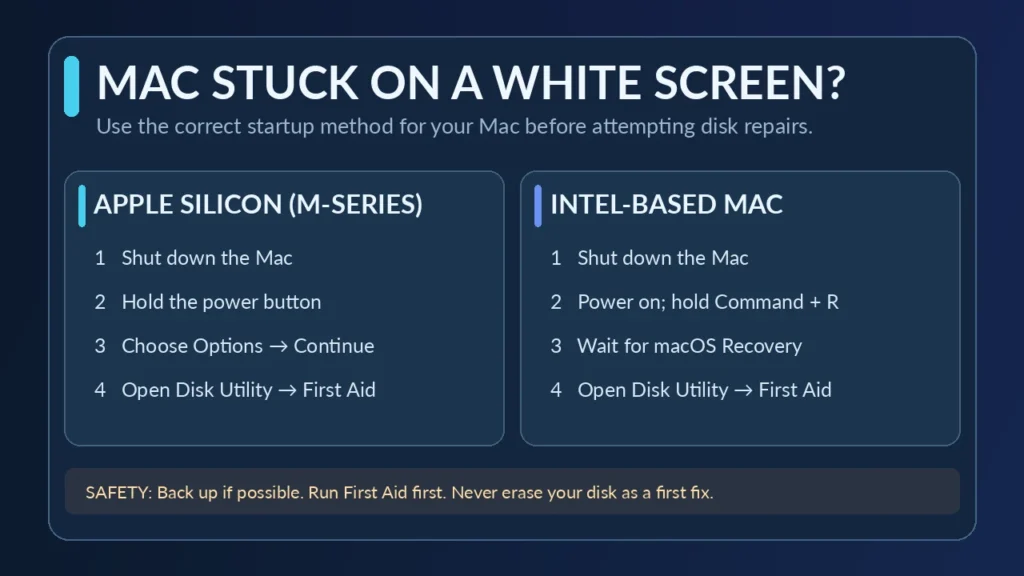
Fix 6: Repair Your Startup Disk With Disk Utility First Aid
If your Mac is stuck on a white screen because of startup disk errors, Disk Utility may be able to identify and repair the problem.
Apple includes First Aid in Disk Utility to check storage volumes, containers, and devices.
Step 1: Enter macOS Recovery
For Apple silicon Macs:
- Shut down your Mac.
- Hold the Power button until startup options appear.
- Select Options.
- Click Continue.
- Complete the authentication steps if requested.
For Intel Macs:
- Shut down your Mac.
- Turn it on.
- Immediately hold Command (⌘) + R.
- Release the keys when an Apple logo or spinning globe appears.
- Complete the recovery prompts.
Step 2: Open Disk Utility
When the macOS Recovery utilities appear:
- Select Disk Utility.
- Click Continue.
- Choose View → Show All Devices.
- Locate your startup disk and its volumes.
- Select the last volume listed under the relevant device.
- Click First Aid → Run.
- Continue upward through the volumes, containers, and finally the storage device, following Apple’s recommended order.
Your Mac may show volumes such as Macintosh HD and Macintosh HD – Data.
The layout can differ by macOS version and disk configuration.
Step 3: Restart Your Mac
Once First Aid completes:
- Review the results.
- Quit Disk Utility.
- Choose Restart from the Apple menu.
- Check whether macOS loads normally.
What if First Aid Cannot Repair the Disk?
If Disk Utility reports unrepairable errors or doesn’t show the internal storage device, professional service or data recovery may be necessary.
Do not erase the disk if you need files that haven’t been backed up.
Erasing deletes data and should only be considered after understanding the consequences and recovery options.
See Apple’s official Disk Utility First Aid instructions.
Fix 7: Reset NVRAM on an Intel-Based Mac
Some Intel Macs store particular startup settings in NVRAM, including settings associated with startup disk selection and display behavior.
If your Intel Mac repeatedly chooses the wrong startup disk or experiences certain startup-related problems, resetting NVRAM may be worth trying.
Steps for Intel Macs
- Shut down the computer.
- Press the Power button.
- Immediately press and hold Option + Command + P + R.
- Keep the keys pressed for approximately 20 seconds.
- Release the keys.
- Allow your Mac to start.
The exact startup behavior may vary between Intel Mac models.
You may need to reselect your startup disk or adjust some settings afterward.
Important for Apple Silicon Users
Do not follow Intel NVRAM reset instructions on an M1, M2, M3, M4, or newer Apple silicon Mac.
These Macs manage startup settings differently, and Apple’s Intel keyboard-reset procedure is not applicable.
If your Apple silicon Mac remains stuck on a white screen, use Safe Mode, macOS Recovery, and Disk Utility instead.
See Apple’s Mac startup key combinations reference.
Fix 8: Review Software Updates and Startup Items If the Mac Boots
If the white screen disappears and your Mac starts successfully, don’t stop investigating if the issue has happened repeatedly.
Check for compatible macOS updates and recently installed software.
Check for macOS Updates
- Open the Apple menu.
- Select System Settings.
- Choose General → Software Update.
- Review available updates.
- Back up important files.
- Install an appropriate supported update if available.
- Restart and observe the next startup.
An update may fix certain software problems but won’t repair defective hardware.
Review Login Items
If the white screen appeared after installing a utility, VPN client, security extension, or other software:
- Open System Settings.
- Select General → Login Items & Extensions.
- Review applications that launch automatically.
- Identify any recently installed third-party utilities.
- Temporarily disable a suspected nonessential item.
- Restart and test again.
If Finder becomes unresponsive after the Mac finally reaches the desktop, our MacBook Finder Not Responding guidecovers that separate problem.
Similarly, if the desktop appears but the Dock is missing, see our guide to restoring a missing Mac Dock.
These desktop issues are different from a Mac that cannot complete startup.
Fix 9: Reinstall macOS Without Erasing Your Files
If your Mac is still stuck on a white screen after the earlier troubleshooting methods, reinstalling macOS from Recovery may help repair a damaged system installation.
Apple explains that a standard macOS reinstall through Recovery is designed not to remove personal data or installed apps.
However, you should still create a backup when possible because failures can occur.
Reinstall macOS on Apple Silicon
- Shut down your Mac.
- Press and hold the Power button.
- Wait for startup options.
- Select Options → Continue.
- Authenticate if prompted.
- Choose Reinstall macOS.
- Click Continue.
- Select your existing macOS installation disk when prompted.
- Follow the onscreen instructions.
Reinstall macOS on Intel Macs
- Turn off the computer.
- Turn it on while holding Command + R.
- Wait for macOS Recovery.
- Select Reinstall macOS.
- Continue through the installation process.
- Select the existing macOS disk.
- Follow the instructions.
Important Precautions
Don’t select Erase, Erase Mac, or an option that formats your startup disk unless you’ve deliberately chosen a destructive recovery procedure.
Keep your Mac connected to power.
Do not close the lid or interrupt installation while it is running.
The installer may restart the computer several times and briefly display a blank screen.
Recovery may also require a working internet connection.
If the Mac cannot connect to the internet and the problem appears network-related, our MacBook Wi-Fi Not Working guide covers connectivity troubleshooting for Macs that can reach their normal desktop.
Use Apple’s official macOS reinstallation guide for the complete procedure.
Warning: If important files haven’t been backed up and Disk Utility reports serious storage failures, consider professional data recovery advice before attempting further changes.
Fix 10: Run Apple Diagnostics and Check for Hardware Problems
If your Mac remains stuck on a white screen after appropriate software troubleshooting, a hardware issue becomes another possibility.
Apple includes a diagnostic utility that can help identify certain hardware faults.
Apple Diagnostics for Apple Silicon
- Shut down your Mac.
- Disconnect nonessential accessories.
- Keep the computer connected to a reliable power source.
- Press and hold the Power button.
- Release it when startup options appear.
- Press and hold Command + D until the Mac restarts into Diagnostics.
- Follow the onscreen instructions.
Apple Diagnostics for Intel Macs
- Shut down the Mac.
- Press the Power button.
- Immediately hold D.
- Release the key when diagnostics starts or you’re asked to select a language.
- Follow the instructions.
If the D shortcut doesn’t work, Apple documents Option + D as another possibility on supported Intel Macs.
What Should You Do With the Results?
Apple Diagnostics may provide reference codes if it detects a hardware issue.
Write down any codes.
If the diagnostic identifies a fault, contact Apple or an authorized repair provider.
A clean diagnostic result doesn’t guarantee that every hardware component is working perfectly.
If the Mac cannot enter Recovery or Diagnostics at all, you may need additional help.
For Macs with Apple silicon or the Apple T2 Security Chip, Apple sometimes recommends a firmware revive or restore using another compatible Mac. A revive is intended to preserve data, while a restore erases the Mac.
Do not attempt firmware restoration without understanding Apple’s model-specific requirements.
Read Apple’s official Diagnostics instructions.
MacBook Air Stuck on White Screen
If your MacBook Air is stuck on a white screen, identify whether it has Apple silicon or an Intel processor.
Modern MacBook Air models use Apple’s M-series chips.
For an M1, M2, M3, or newer Apple silicon MacBook Air, the appropriate startup-recovery method begins by holding the Power button until startup options appear.
Don’t use Intel-only startup combinations such as Command + Option + P + R as a general fix.
If the MacBook Air can open Recovery, use Disk Utility First Aid before considering macOS reinstallation.
If even the recovery interface is unavailable, contact Apple Support.
MacBook Pro Stuck on White Screen After Update
A MacBook Pro may temporarily show a white or blank screen during a macOS update.
If installation is still active, allow it to continue.
If the computer repeatedly fails to finish startup:
- Disconnect unnecessary accessories.
- Test Safe Mode.
- Open macOS Recovery.
- Run Disk Utility First Aid.
- Consider a standard macOS reinstall if the startup problem persists.
Do not assume that the update permanently damaged the MacBook.
For Touch Bar-equipped models, a black or unresponsive Touch Bar is a separate symptom. See our MacBook Pro Touch Bar Not Working guide.
Mac Stuck on White Screen With Apple Logo
If your Mac shows a white screen with the Apple logo and a progress bar, macOS may be checking the disk or completing startup tasks.
This can be normal for a limited period.
A macOS upgrade can also remain on the progress bar longer than usual.
However, if the computer never reaches the login screen and clearly stops progressing, Apple recommends checking accessories, using Recovery, repairing the startup disk, and considering reinstallation.
Avoid repeatedly forcing shutdowns during a potentially active installation.
Mac Stuck on White Screen Without Apple Logo
A completely blank white screen with no Apple logo can indicate a different issue.
First, determine whether the Mac is actually turning on and whether the display works.
Try disconnecting external displays and peripherals.
Then test whether startup options or macOS Recovery can appear.
If your Mac can display the Recovery interface, the screen is at least capable of showing that environment.
If it cannot display any recovery or diagnostic interface, hardware or firmware troubleshooting may be required.
Contact Apple Support before attempting destructive recovery procedures.
Mac White Screen With Cursor After Login
If your Mac reaches the login screen but then shows a white background with a movable cursor, the issue may involve the desktop session rather than the earliest stages of startup.
Try a normal restart.
If the issue repeats, use Safe Mode and investigate third-party software or login items.
If Finder or desktop components are failing after login, focus on those components rather than immediately reinstalling macOS.
A white screen after login is not necessarily the same as a Mac that cannot locate its startup disk.
Frequently Asked Questions
Why is my Mac stuck on a white screen?
Possible causes include an incomplete macOS update, startup disk errors, incompatible startup software, external-device problems, or hardware faults. The correct fix depends on whether your Mac can enter Safe Mode or Recovery.
How do I fix a white screen on MacBook Air?
Start by confirming that an update isn’t still in progress. Restart, disconnect unnecessary accessories, then try Safe Mode and Disk Utility First Aid through the correct Apple silicon or Intel startup procedure.
Will reinstalling macOS delete my files?
A standard macOS reinstall through Recovery is designed to retain personal files and applications. However, you should back up important data when possible, and avoid any erase or format option.
How do I start an M1 MacBook in Recovery Mode?
Shut down the MacBook. Press and hold the Power button until startup options appear. Select Options, click Continue, and follow the authentication prompts.
Does Command + R work on an M1 Mac?
No. The usual Command + R startup shortcut is for Intel-based Macs. On Apple silicon, hold the Power button until startup options appear.
Can a damaged startup disk cause a white screen?
Yes. Disk errors can prevent macOS from loading correctly. Disk Utility First Aid can check and sometimes repair certain file-system issues.
How do I fix a Mac white screen without losing data?
Start with a restart, accessory checks, Safe Mode, and Disk Utility First Aid. Avoid erasing the drive. If necessary, follow Apple’s standard macOS reinstallation procedure and back up your files when possible.
Should I reset NVRAM on an M1 Mac?
No. Apple’s traditional NVRAM keyboard reset applies to Intel-based Macs. Apple silicon Macs manage startup settings differently.
Why is my Mac stuck on a white screen after an update?
The installation might still be completing, or a startup-related problem may have interrupted it. Confirm whether the update is active before using Recovery or repair procedures.
When should I take my Mac for repair?
Consider professional service if the computer cannot enter Recovery, Disk Utility cannot detect the internal disk, Apple Diagnostics reports a fault, or the screen remains unusable after appropriate software troubleshooting.
Final Thoughts
If your Mac is stuck on a white screen, begin by determining whether macOS is still starting normally or whether the computer has genuinely frozen.
A temporary blank screen during an update isn’t automatically a sign of damage.
For persistent problems, disconnect unnecessary accessories, restart carefully, and use the correct Safe Mode and macOS Recovery procedures for your Mac.
Disk Utility First Aid can help identify certain startup disk problems.
If the issue continues, reinstalling macOS without erasing the startup disk may help restore normal operation.
When Recovery is unavailable or hardware faults are suspected, Apple Diagnostics and professional support are appropriate next steps.
Most importantly, protect your personal files. Don’t erase the drive or use unsupported reset commands simply because the screen is white.
Last reviewed: November 13, 2026.