Want to capture a video of something happening on your Google Pixel? Learning how to screen record on Google Pixel is easy because the phone includes a built-in screen recorder. You don’t need to download a third-party app.
Whether you’re demonstrating an Android feature, recording gameplay, saving a tutorial, or showing someone a technical problem, you can record what’s happening on your phone’s display.
Google Pixel also provides additional recording options. On supported devices, you can capture device audio, record your microphone, show your screen touches, record a single app instead of the entire screen, and even include a selfie-camera overlay.
In this guide, you’ll learn how to use the Google Pixel screen recorder in seven easy steps, where to find saved recordings, how to record audio, and what to do if screen recording isn’t working.
These instructions apply to compatible Pixel phones, although some features depend on your Android version and device model.
Quick Answer: How to Screen Record on Google Pixel
To screen record on Google Pixel:
- Swipe down twice from the top of your screen.
- Find and tap Screen record in Quick Settings.
- Choose whether to record a single app or the entire screen, if that option is available.
- Enable audio recording or screen touches if needed.
- Tap Start.
- Wait for the countdown, then perform the actions you want to record.
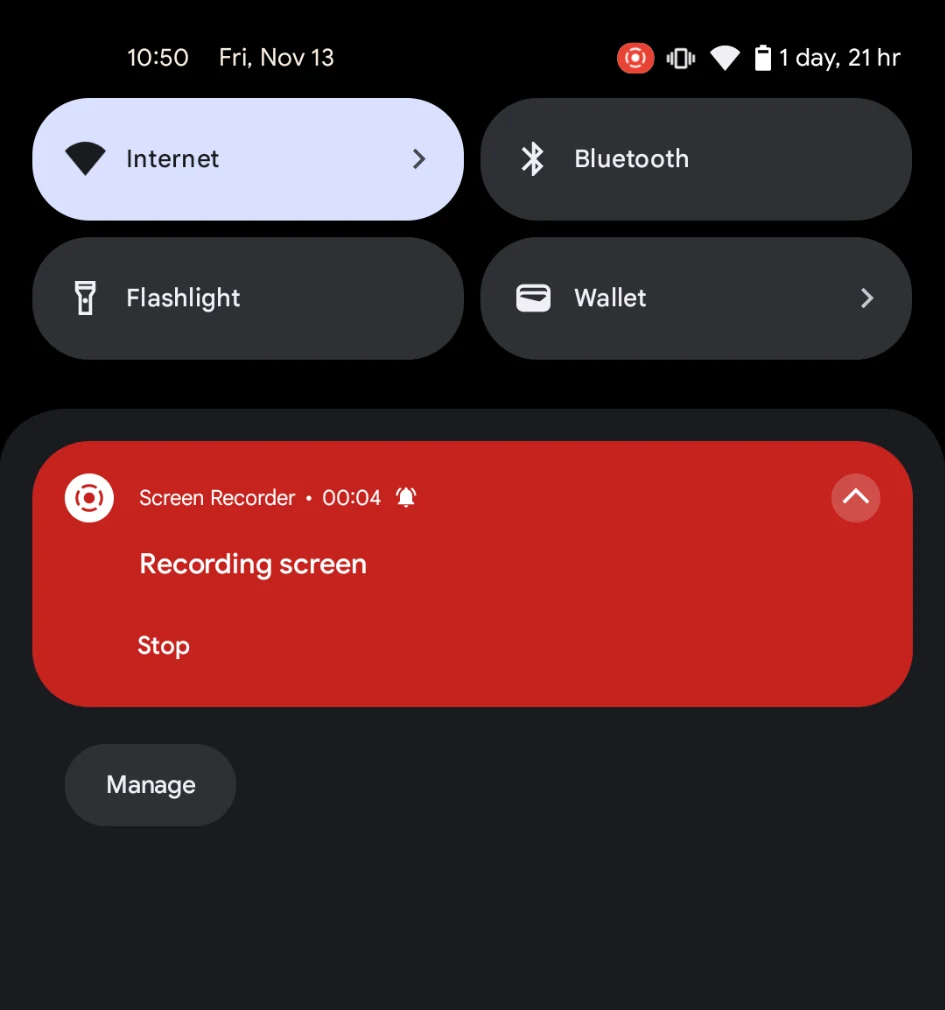
- Swipe down and tap the screen-recording notification or Stop control to finish.
Your Pixel automatically saves the recording as a video.
You can normally find it in Google Photos → Collections → On this device → Movies.
Google confirms this process in its official Pixel screen recording guide.
Important: Before recording, close any private conversations and hide notifications containing sensitive information.
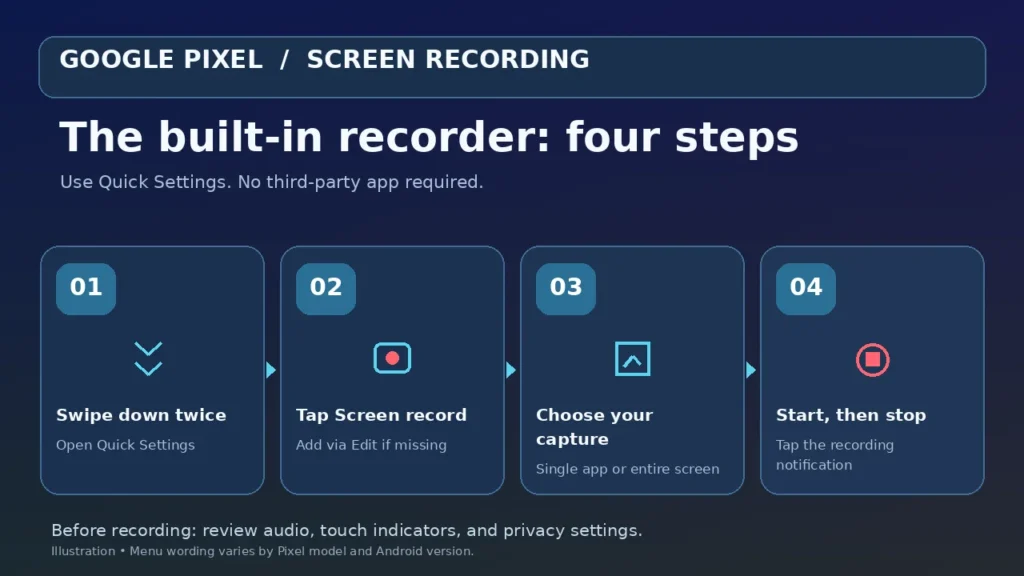
Table of Contents
Does Google Pixel Have a Built-In Screen Recorder?
Yes. Google Pixel phones running compatible Android versions include a built-in screen recorder.
You don’t need a separate screen recording application for ordinary recording tasks.
The feature is accessible through Android Quick Settings.
With it, you can capture activities such as:
- Demonstrating how to use an application.
- Recording an Android settings tutorial.
- Showing a technical issue to customer support.
- Capturing permitted gameplay.
- Explaining steps during a video demonstration.
- Recording actions with microphone narration.
- Creating a video with a selfie-camera overlay on supported devices.
However, certain apps restrict screen or audio recording for privacy, security, or content-protection reasons.
Screen recording also differs from the Pixel Recorder app, which is primarily for capturing audio rather than a video of your display.
Let’s go through the full process.
How to Screen Record on Google Pixel: Step-by-Step
Step 1: Open Quick Settings
First, unlock your Google Pixel.
Swipe down from the top edge of the screen.
Then swipe down again to expand the Quick Settings panel.
This area contains shortcuts for features such as Wi-Fi, Bluetooth, Airplane mode, and screen recording.
Depending on your Android version, the arrangement and appearance of these controls may vary.
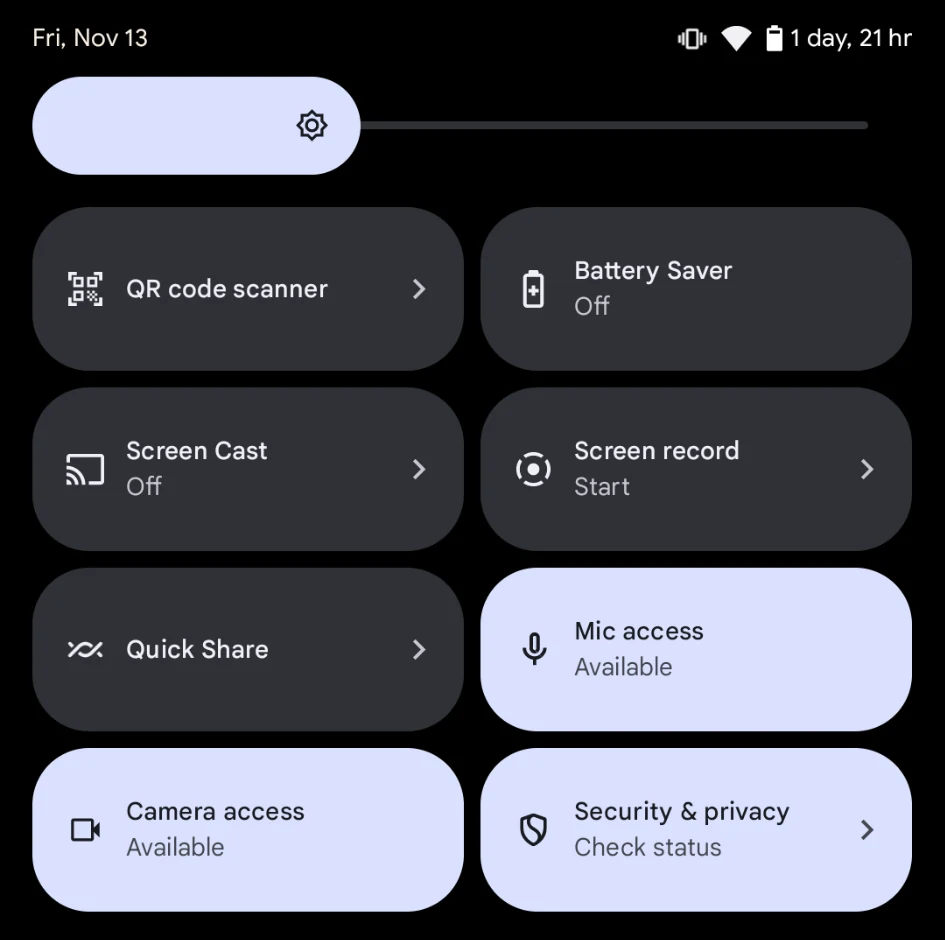
Step 2: Find Screen Record
Look for a tile labeled Screen record.
You may need to swipe horizontally to another page of Quick Settings.
Tap the tile when you find it.
Your Pixel will open the available recording options.
Step 3: Choose What You Want to Record
On supported Pixel software, the recorder allows you to choose between:
A single app: Records the selected application’s screen content rather than everything happening on your phone.
Entire screen: Records the visible display as you navigate between apps and other screens.
Select the option that best suits your purpose.
If you’re demonstrating a single application, recording only that app can help avoid capturing unrelated notifications or other screen content.
If you need to demonstrate navigation through multiple apps or Android Settings, choose the entire screen.
Step 4: Configure Screen Recording Audio
Before starting, review the audio options.
Depending on your Pixel version, you may see separate controls for device audio and microphone audio, or an audio-selection menu.
Available options can include:
Device audio: Captures supported sound generated by the phone.
Microphone: Captures your voice and surrounding sounds through the microphone.
Device audio and microphone: Records supported internal audio together with microphone narration.
You can also leave audio recording disabled when you only need a silent demonstration.
Not every application permits its internal sound to be recorded.
We’ll explain the audio options in more detail below.
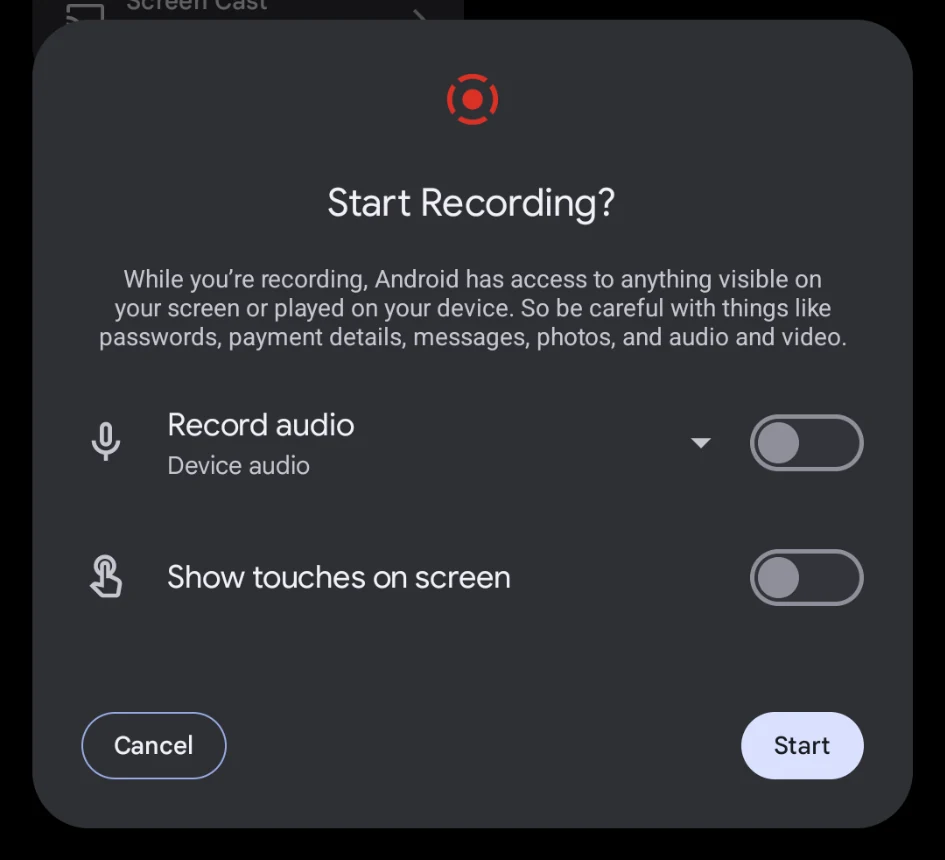
Step 5: Enable Touch Indicators if Needed
If you’re creating a tutorial, consider enabling Show touches on screen, where available.
This makes taps easier for viewers to follow.
The option is particularly helpful for:
- Android troubleshooting videos.
- App walkthroughs.
- Settings tutorials.
- Demonstrating navigation gestures.
You don’t need touch indicators for ordinary gameplay recordings or videos where the visual content is self-explanatory.
On some newer Pixel configurations, additional screen recording options may also include a selfie-camera overlay.
Step 6: Start Recording
Once your settings are ready, tap Start.
Your Pixel displays a short countdown before recording begins.
Wait for the countdown to finish.
Then perform the actions you want to capture.
For example, if you’re recording a tutorial showing how to change a Pixel setting, open the appropriate settings page and demonstrate each step.
Try to keep your movements deliberate so the resulting video is easy to understand.
Avoid opening account information, private messages, or payment applications while recording your entire screen.
Step 7: Stop and Save the Screen Recording
When you’re finished:
- Swipe down from the top of the display.
- Find the active screen-recording notification or recording controls.
- Tap the available Stop control.
- Allow the recording to finish saving.
- Open Google Photos to locate the video.
On supported newer interfaces, you may also be able to use the recording indicator in the status bar to access recording controls.
You don’t need to manually export the video just to save it locally.
Tip: After recording, play the video once to confirm that it includes the intended screen content and audio.
Google Pixel Screen Record Option Missing: How to Add It
If you cannot find Screen record in Quick Settings, it may simply be on another Quick Settings page or not currently included among your active tiles.
Add Screen Record to Quick Settings
- Swipe down twice from the top of the screen.
- Check the available Quick Settings pages.
- Find the Edit control.
- Tap Edit.
- Look for the Screen record tile among the available controls.
- Touch and hold the tile, if required.
- Drag it into your active Quick Settings area.
- Finish editing.
- Return to Quick Settings.
- Tap Screen record.
The exact editing method may vary by Android release.
If the tile is already available on another page, you may only need to move it somewhere more convenient.
What if Screen Record Still Doesn’t Appear?
Check that your Pixel is running a supported Android version.
Then restart the device and review available software updates.
If the phone is managed by your employer or school, recording functionality may be restricted.
Don’t attempt to bypass administrator restrictions or install unknown apps solely to force screen capture.
Google documents adding recording controls in its official Android screen recording instructions.
How to Screen Record on Google Pixel With Internal Audio
Sometimes you need to capture the sound coming from an app or game rather than just a silent video.
For example, you might want to demonstrate an app’s notification sound or record supported gameplay audio.
Steps
- Open Quick Settings.
- Tap Screen record.
- Locate the audio controls.
- Enable recording audio.
- Choose Device audio if your Pixel provides that option.
- Tap Start.
- Play the audio you want to capture.
- Stop the recording.
- Open the saved video and check the sound.
Why Is There No Internal Audio?
Not every application allows its sound to be captured by the screen recorder.
Protected media, calling applications, and certain other services may restrict internal audio capture.
The recording can therefore show the display while its audio track remains silent.
If this happens, test a different app that permits ordinary audio recording.
If the other app records sound normally, the original application may be restricting audio capture.
Don’t attempt to bypass protected audio restrictions.
How to Screen Record on Google Pixel With Microphone Audio
If you’re creating a tutorial, microphone narration can help explain what you’re doing.
Your Pixel can record your voice while capturing supported screen content.
Steps
- Open the Screen record menu.
- Enable the microphone recording option.
- Select device audio as well if you need both and your device supports it.
- Tap Start.
- Speak clearly while demonstrating the steps.
- Stop the recording.
- Play the saved video.
Tips for Better Microphone Audio
Record in a relatively quiet environment.
Avoid covering your phone’s microphone.
If your narration is too quiet, move closer to the device without blocking the screen.
Use a short test recording before creating a longer tutorial.
If you connect a Bluetooth headset or external microphone, test the actual recording to confirm which microphone the phone uses.
The recorder’s behavior may vary with connected audio devices.
How to Record One App Instead of the Entire Pixel Screen
Recording a single app is useful when you want to show a specific task while avoiding unrelated content.
Google’s Pixel support documentation describes a single-app recording option.
Steps
- Open Quick Settings.
- Tap Screen record.
- Choose A single app when prompted.
- Tap Start recording.
- Select the app from the available app selector.
- Perform the actions you want to capture.
- Stop the recording using the supported recording controls.
The exact options may vary between Pixel software versions.
Why Use Single-App Recording?
This mode is useful for showing a tutorial inside one application.
It can help reduce accidental exposure of unrelated screen content when you switch away from that app.
However, you should still check the finished video before sharing it.
App notifications, account details, and other sensitive content within the recorded app may remain visible.
How to Screen Record With the Selfie Camera on Google Pixel
Some newer Pixel software versions support recording the display and a front-camera video together.
This is useful for reaction videos, narrated lessons, and tutorials where viewers should see your face while you demonstrate an app.
Google calls this feature a selfie-camera recording overlay.
Steps
- Open Quick Settings.
- Tap Screen record.
- Review the recording options.
- Enable Record device audio and Record microphone if needed.
- Turn on Show selfie camera, if available.
- Tap Start.
- Wait for the countdown.
- Begin demonstrating your screen.
- Stop when finished.
On supported versions, you can also move or resize the selfie-camera overlay.
Google notes that front-camera zoom isn’t supported by this particular recording feature.
What if Show Selfie Camera Is Missing?
Your phone may not support the option, or it may require a newer supported software version.
Don’t assume every Pixel has the same recorder interface.
Use the standard screen-recording controls if the selfie overlay isn’t available.
Read Google’s Pixel recording documentation for the current supported options.
Where Are Screen Recordings Saved on Google Pixel?
After stopping a recording, your Pixel normally saves the resulting video to local storage.
You can find it in Google Photos.
Find a Saved Screen Recording
- Open Google Photos.
- Tap Collections.
- Select On this device.
- Open Movies.
- Locate your screen recording.
- Tap the video to play it.
If you have many videos, check the recent items or relevant local folders.
Can You Find Recordings in Files?
Yes. The Files app or another file manager may also show locally saved recordings.
The exact folder arrangement can vary depending on Android version and file-management software.
Are Pixel Screen Recordings Automatically Backed Up?
Not necessarily.
A locally saved video isn’t automatically guaranteed to be backed up to your Google Account.
Check your Google Photos backup and device-folder settings if you want the recording to be stored online.
Important recordings should be backed up using a method you trust.
How to Edit a Screen Recording on Google Pixel
After recording, you may want to remove an unnecessary beginning or ending.
Google Photos offers video-editing features on supported configurations.
Basic Editing Steps
- Open Google Photos.
- Find your screen recording.
- Open the video.
- Tap Edit.
- Find the trimming controls.
- Adjust the beginning or ending of the clip.
- Review the result.
- Save a copy if that option is available.
Available editing tools depend on your Google Photos version.
For tutorials, it’s often helpful to remove long pauses and unnecessary setup screens.
Before Sharing the Recording
Watch the entire video once.
Check for personal information, unwanted notifications, and accidentally captured conversations.
Editing the beginning or ending won’t remove sensitive details appearing in the middle of the video.
If necessary, remove those sections using a suitable editor or record a new, cleaner version.
How to Share Google Pixel Screen Recordings
You can share a saved recording through supported applications or create a shareable link when appropriate.
Steps
- Open Google Photos.
- Locate the screen recording.
- Tap Share.
- Select the application or sharing method.
- Review the intended recipients.
- Send the video or approved sharing link.
Screen recordings can be much larger than ordinary screenshots.
Some messaging or email services restrict attachment size.
Google recommends using an appropriate Photos sharing link when a video is too large to send as a regular attachment.
If you’re recording a Pixel problem for technical support, capture only the information needed to demonstrate it.
For example, a short video can show a notification problem described in our Android Notifications Not Showing guide.
You can also document repeatable calling-interface problems while following our Google Pixel WiFi Calling troubleshooting guide, without recording private conversations.
Google Pixel Screen Recorder Not Working: 7 Fixes
If the built-in screen recorder won’t start, stops unexpectedly, or doesn’t save the expected video, try these checks.
Fix 1: Restart Your Pixel
Restart the phone normally, reopen Quick Settings, and try a short recording.
This can help with temporary software problems.
Fix 2: Check Available Storage
Video files can consume substantial storage.
Open Settings → Storage and review your available space.
If your storage is almost full, remove unneeded files or move them to a safe backup location.
Avoid deleting important photos or recordings without verifying that copies exist.
Fix 3: Check Recording Permissions and Restrictions
If a managed or protected application prevents screen recording, the restriction may be intentional.
Try recording an ordinary, non-sensitive screen such as your home screen.
If that works, the restriction may be associated with the original app.
Fix 4: Check Your Audio Configuration
If your video has no sound, verify that the relevant audio option was enabled before starting.
Choose the appropriate device audio or microphone setting.
Then create a short test video.
Don’t assume audio is enabled automatically for every recording.
Fix 5: Install Supported Android Updates
Open Settings → System → Software updates.
Review available updates and install an appropriate supported version.
Restart when requested.
Fix 6: Test a Different App
Try recording an ordinary app or Settings screen.
If screen recording works there but not in another app, the original application may have restrictions or compatibility issues.
Fix 7: Check for Overheating or Recording Interruptions
If a recording stops during a long or demanding task, check whether the phone is unusually hot, nearly out of storage, or experiencing other performance problems.
Allow the device to cool if needed.
Close unnecessary applications and try a shorter recording.
Avoid forcing long recordings when your phone displays an overheating warning.
Why Is Google Pixel Screen Recording Black?
A screen recording may appear black or partially blank when an application blocks screen capture.
This can happen with protected streaming content, financial applications, or other privacy-sensitive interfaces.
How to Check
Try recording a normal Settings page.
If that recording looks correct, the screen recorder itself may be working.
The protected app may be intentionally limiting capture.
Avoid using tools intended to bypass application security or copyright protections.
Why Does Google Pixel Screen Recording Have No Sound?
If the video is visible but silent, several possibilities exist.
You may have disabled audio before recording.
You may have chosen microphone recording when you needed device audio.
The application might prohibit internal audio capture.
An external audio device may also affect which sounds are available to record.
Start by creating a short test recording using the correct audio option.
If microphone audio works but internal device audio doesn’t, check whether the specific application allows internal audio capture.
Why Does Pixel Screen Recording Stop Automatically?
Unexpected recording interruptions can have several causes, including low available storage, temporary system problems, overheating, or an application that doesn’t permit capture.
Check the phone’s notifications for relevant warnings.
Restart if appropriate, confirm available storage, and test a short recording on a normal screen.
If short recordings work while longer recordings repeatedly fail, investigate device conditions during extended use.
How to Screen Record Gameplay on Google Pixel
The built-in Pixel recorder can capture permitted gameplay without requiring a separate recording application.
Steps
- Launch the game.
- Open Quick Settings.
- Tap Screen record.
- Choose the appropriate screen and audio settings.
- Tap Start.
- Return to the game after the countdown.
- Record your gameplay.
- Stop using the recording controls.
If the game uses significant processing resources, recording may add extra workload.
For smoother results, close unnecessary background apps and check that enough storage is available.
Remember that some games restrict recording of particular scenes or audio.
Google Pixel Screen Recording vs. Screenshot
A screenshot and screen recording serve different purposes.
Screenshot: Captures a single still image.
Screen recording: Captures activity over time as a video.
Use screenshots to save a specific error message or settings page.
Use screen recordings to demonstrate animations, several steps, or a problem that happens repeatedly.
Both features are built into supported Google Pixel phones.
Frequently Asked Questions
How do I screen record on Google Pixel?
Swipe down twice, tap Screen record, choose your recording options, then tap Start. Stop the recording using the screen-recording notification or supported Stop control.
Does Google Pixel have a built-in screen recorder?
Yes. Supported Google Pixel phones include a screen recorder in Android Quick Settings.
How do I screen record on Google Pixel with sound?
Enable audio recording before tapping Start. Choose supported device audio, microphone audio, or both according to your needs.
Where do Pixel screen recordings go?
Open Google Photos → Collections → On this device → Movies to locate saved screen recordings.
How do I stop screen recording on Google Pixel?
Swipe down to access the active recording notification and select the available Stop control. Some newer interfaces also provide a recording indicator with additional controls.
Can I record only one app on Google Pixel?
Yes, on supported software. Select A single app in the recorder, start recording, and choose the application you want to capture.
Can Google Pixel record its screen and selfie camera together?
Certain supported Pixel configurations offer a Show selfie camera option. Availability depends on the device and software.
Why can’t I find Screen record in Quick Settings?
The tile may be on another Quick Settings page or need to be added through Edit. You can also check Android updates and device-management restrictions.
Can I screen record a phone call on Google Pixel?
Don’t assume the screen recorder can capture call audio. Calling apps and Android may restrict audio capture, and recording conversations can be subject to consent laws.
Can I record Netflix or other streaming content?
Some streaming services protect video and audio from screen capture. A black screen or missing audio may be intentional.
Can I screen record on Pixel without an app?
Yes. The built-in Android screen recorder doesn’t require installing additional software.
Does screen recording use mobile data?
Recording locally doesn’t inherently require mobile data. Uploading, sharing, or backing up the resulting video may use Wi-Fi or cellular data.
Does recording the screen notify other people?
The built-in recorder doesn’t automatically notify everyone whose content appears on your display. However, particular applications may implement their own capture detection or restrictions. Follow applicable privacy rules and obtain consent where appropriate.
Final Thoughts
Once you understand how to screen record on Google Pixel, capturing a video tutorial or demonstrating an Android problem becomes straightforward.
Open Quick Settings, select Screen record, choose the appropriate options, and start your recording.
For more control, use supported device audio, microphone narration, touch indicators, or single-app recording.
When you’re finished, stop the recording and find the saved video in Google Photos.
Before sharing, always check that you haven’t captured private information or restricted content.
With Google’s built-in recorder, you can create useful screen videos without installing unnecessary third-party applications.
Last reviewed: November 13, 2026.