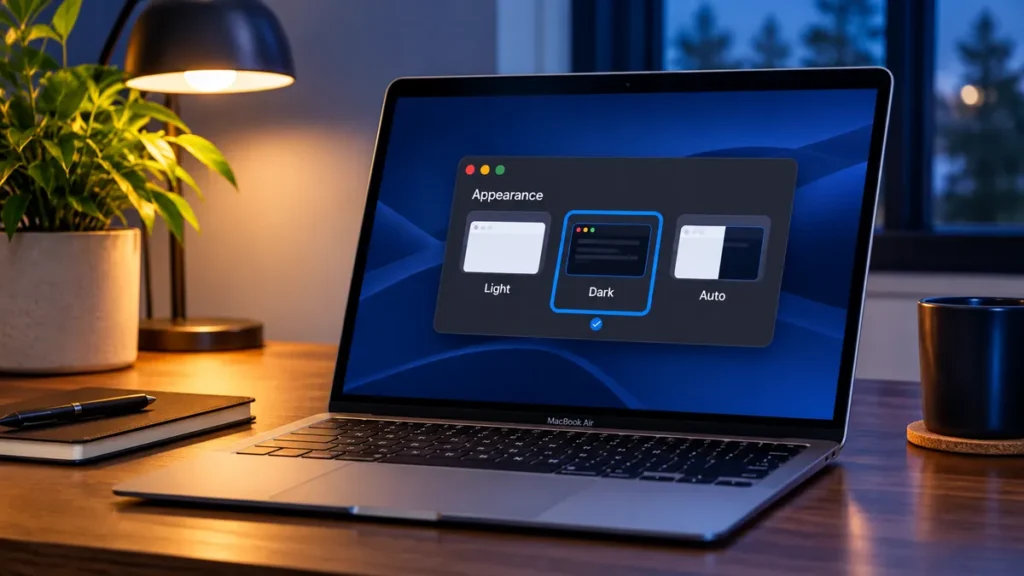
Want to know how to turn on dark mode on Mac? Whether you’re using a MacBook Air, MacBook Pro, iMac, or Mac mini, you can switch from the bright default interface to a darker appearance in just a few clicks.
Mac Dark Mode changes the appearance of supported menus, windows, system controls, and applications. It can make the interface more comfortable to use in a dimly lit room, especially when you prefer dark backgrounds instead of bright white windows.
You can enable Dark Mode manually, switch it quickly through Control Center, or let macOS change between Light and Dark appearances automatically.
In this guide, we’ll walk through three easy ways to turn on Dark Mode on Mac, explain how automatic appearance works, and troubleshoot situations where applications or websites don’t follow your chosen theme.
The instructions cover modern macOS versions, including macOS 27, Tahoe, Sequoia, Sonoma, and Ventura, with additional guidance for older Macs.
Table of Contents
Quick Answer: How to Turn On Dark Mode on Mac
The easiest way to enable Dark Mode is through System Settings.
- Click the Apple menu in the upper-left corner.
- Select System Settings.
- Click Appearance in the sidebar.
- Find the Light, Dark, and Auto appearance options.
- Select Dark.
Your Mac should immediately switch to a dark appearance.
You don’t need to restart your Mac, install third-party applications, or change any system files.
For a quicker option, open Control Center from the menu bar, expand Display, and click Dark Mode.
Apple confirms both methods in its official Mac Dark Mode guide.
What Is Dark Mode on Mac?
Dark Mode is a macOS appearance setting that changes supported interface elements from lighter backgrounds to darker colors.
When you enable it, you’ll notice changes in several places:
- System Settings windows.
- Finder windows and sidebars.
- The Dock and menu bar appearance.
- Built-in applications such as Calendar and Notes.
- Supported third-party applications.
- Websites that follow your system’s color preferences.
Dark Mode doesn’t necessarily turn every application or website black.
Some programs have their own appearance controls, while websites may use independent light or dark themes.
For example, a website with a fixed white background can remain bright even when your Mac is using Dark Mode.
It’s also important to understand that Dark Mode isn’t the same as reducing display brightness.
Dark Mode changes interface colors, while brightness controls how much light your display produces.
Method 1: Turn On Dark Mode on Mac Using System Settings
System Settings is the most reliable place to manage your Mac’s appearance.
This method is recommended if you want Dark Mode to remain enabled rather than switch automatically.
Step 1: Open the Apple Menu
Move your pointer to the upper-left corner of the screen.
Click the Apple logo.
A menu will appear with options such as About This Mac, System Settings, Sleep, and Restart.
Step 2: Select System Settings
Click System Settings.
The settings application will open.
If you’re using an older macOS version, such as Monterey, the equivalent application is called System Preferences.
We’ll cover that interface later.
Step 3: Open Appearance Settings
Look at the sidebar inside System Settings.
Scroll down if necessary and click Appearance.
The Appearance panel contains settings for the overall visual style of macOS.
Depending on your version, it may also include accent colors, icon appearance, highlight colors, and other customization options.
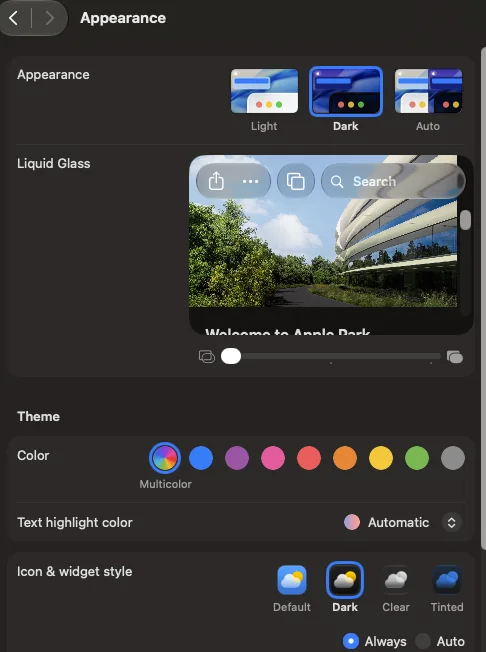
Step 4: Select Dark
Near the top of the Appearance panel, look for these options:
Light: Keeps the interface in a light color scheme.
Dark: Uses a dark color scheme until you change it.
Auto: Switches between Light and Dark appearances automatically.
Click Dark.
You should immediately notice that System Settings and other supported interface elements use darker backgrounds.
Step 5: Check the Result
Open Finder or another built-in application.
Confirm that the application now uses a dark appearance.
You can also check the menu bar and Dock.
There’s normally no need to restart your Mac.
If an individual application still looks bright, it may have its own theme or appearance settings.
Best for: Mac users who want Dark Mode enabled continuously.
Method 2: Enable Mac Dark Mode Quickly From Control Center
If you regularly switch between Light and Dark Mode, Control Center provides a convenient shortcut.
You don’t have to open the full System Settings application every time.
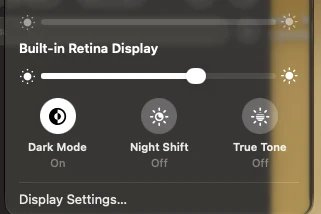
Steps
- Look at the menu bar near the upper-right corner of your Mac’s screen.
- Click the Control Center icon.
- Find Display.
- Click the Display control or its disclosure button to expand the options.
- Select Dark Mode.
- Check that your Mac has switched appearance.
The exact layout can vary slightly depending on your macOS version.
If Dark Mode is already active, clicking the control again can return the Mac to a light appearance.
Why Use Control Center?
This approach is helpful when you’re moving between different environments.
For example, you might prefer Light Mode during the day and Dark Mode at night.
Instead of navigating through several menus, you can make the change from the menu bar.
This is also useful when you temporarily need to view an application in a different appearance.
Apple’s official Mac appearance instructions include the Control Center method.
Best for: People who frequently switch between Light and Dark Mode.
Method 3: Automatically Switch Between Light and Dark Mode
If you prefer a brighter interface during the day and a darker one in the evening, macOS includes an automatic appearance option.
This setting changes the appearance according to the Night Shift schedule or, when no such schedule is configured, sunrise and sunset times.
How to Enable Automatic Dark Mode
- Open the Apple menu.
- Select System Settings.
- Click Appearance.
- Find the Light, Dark, and Auto options.
- Select Auto.
- Close System Settings.
Your Mac will now manage its appearance automatically.
How Does Auto Dark Mode Work?
Apple’s current documentation explains that Auto uses your Night Shift schedule when one is configured.
If you haven’t set a Night Shift schedule, Auto switches based on sunrise and sunset.
The transition may not happen immediately at the expected time.
Apple notes that your Mac must be idle for at least one minute before the automatic appearance change takes place.
Therefore, if you’re actively using your Mac exactly when sunset occurs, you may notice a slight delay.
Can You Customize When Dark Mode Starts?
macOS doesn’t provide a separate custom Dark Mode scheduling panel in the standard Appearance settings.
However, its Auto appearance option can follow your configured Night Shift schedule.
To review that schedule:
- Open System Settings.
- Click Displays.
- Select Night Shift.
- Open the Schedule menu.
- Choose Custom or Sunset to Sunrise, depending on your preference.
- Set the supported scheduling options.
Then return to Appearance and select Auto.
Keep in mind that Night Shift also changes display color temperature when activated. It isn’t simply an appearance scheduler.
For more information, see Apple’s Night Shift settings guide.
Best for: Users who want macOS to alternate between Light and Dark appearances without switching manually every day.
How to Turn On Dark Mode on Older Macs
If you’re using macOS Monterey or an earlier supported version, the interface may look different.
Instead of System Settings, open System Preferences.
Steps for Older macOS Versions
- Click the Apple menu.
- Select System Preferences.
- Open General.
- Look for the Appearance options.
- Select Dark.
On supported versions such as macOS Mojave and later, Dark Mode is built into macOS.
Some older releases offer different automatic appearance options.
If your Mac doesn’t show Dark Mode, check its installed macOS version under Apple menu → About This Mac.
An older system may not support the same appearance controls as recent macOS releases.
How to Turn Off Dark Mode on Mac
Turning off Dark Mode is just as simple as enabling it.
Steps
- Open System Settings.
- Select Appearance.
- Click Light.
Your Mac should return to a light appearance immediately.
Alternatively, open Control Center → Display and toggle Dark Mode off if the control is available.
If you want automatic switching instead of keeping the interface permanently light, select Auto.
Switching between these options doesn’t delete your documents or affect installed applications.
How to Make Mac Dark Mode Automatic at Night
Many people prefer to use a dark interface during evening hours.
If that’s your goal, select Auto in Appearance settings.
You can then review the Night Shift schedule in Display settings.
Suggested Setup
- Open System Settings → Displays → Night Shift.
- Review the available scheduling options.
- Choose Sunset to Sunrise if you want the timing based on local sunset.
- Return to System Settings → Appearance.
- Select Auto.
Your Mac will use the applicable schedule to decide when to switch appearance.
Location Services may be necessary for accurate sunset and sunrise scheduling.
If the appearance doesn’t change at the expected moment, allow your Mac to become idle briefly.
Can You Set Different Start and End Times?
Custom Night Shift scheduling is available on supported Macs.
However, because Night Shift also adjusts display colors, changing its schedule affects more than the appearance preference.
If you only want an always-dark interface without automatic switching or warmer screen colors, selecting Dark is the simpler choice.
Mac Dark Mode vs. Night Shift: What’s the Difference?
Dark Mode and Night Shift are related display features, but they do different things.
Dark Mode
Dark Mode changes the color scheme of supported macOS interface elements.
Menus, windows, controls, and compatible applications use a darker appearance.
It doesn’t necessarily change the color temperature of the display.
Night Shift
Night Shift adjusts the display toward warmer colors.
It reduces the cooler appearance of the screen and can make the display more comfortable for some people in low-light environments.
Night Shift doesn’t automatically turn every bright application interface dark.
Can You Use Both?
Yes.
You can enable Dark Mode and Night Shift together.
For example, you may prefer a dark interface combined with warmer display colors while working at night.
The best combination depends on personal preference, ambient lighting, and the work you’re doing.
If you’re editing photographs or performing color-sensitive work, be aware that Night Shift changes the colors shown on your display.
How to Make Mac Apps Use Dark Mode
After enabling macOS Dark Mode, many compatible applications automatically follow the system setting.
However, not every application behaves the same way.
Finder and Built-In Applications
Finder and many built-in Apple apps follow macOS appearance settings.
Open Finder after selecting Dark in System Settings to see whether the background and interface have changed.
Safari and Websites
Safari’s interface can follow the Mac’s appearance.
However, the webpages inside Safari depend on each website’s design and appearance preferences.
A website that supports system-based dark appearance may automatically change.
Another website might continue showing a white background.
This doesn’t necessarily mean Dark Mode is broken.
Chrome and Other Browsers
Other browsers may follow your system appearance for their application interface.
Individual webpages may still use independent themes.
Check the browser’s own appearance settings if its interface doesn’t match macOS.
Third-Party Applications
Applications such as messaging tools, code editors, and productivity software may provide their own theme options.
If an application stays light:
- Open the application.
- Find Settings or Preferences.
- Look for Appearance or Theme.
- Select Dark or System Default if available.
- Restart the application only if the developer recommends it.
Avoid installing unfamiliar extensions simply to change the appearance of a single website.
Why Is Dark Mode Not Working on Mac?
If you select Dark in System Settings but the interface doesn’t change as expected, try the following troubleshooting steps.
1. Check That Dark Is Actually Selected
Open System Settings → Appearance.
Confirm that Dark is selected rather than Light or Auto.
When Auto is enabled, your Mac can return to Light Mode based on its configured schedule.
If you want Dark Mode all day, choose Dark.
2. Check Whether Only One App Is Affected
Open Finder or System Settings.
If those applications appear dark but another program remains bright, the issue may involve that particular application.
Look for its independent appearance setting.
3. Close and Reopen the Affected Application
Sometimes an application doesn’t immediately update its appearance.
Save your work.
Quit the application normally and reopen it.
Check whether it now follows the system setting.
4. Restart Your Mac
If several supported applications fail to respond to an appearance change, restart your Mac.
Click the Apple menu and select Restart.
After restarting, open System Settings → Appearance and confirm your selection.
A restart isn’t normally necessary, but it can help with temporary interface problems.
5. Check for macOS Updates
Software issues may occasionally affect system appearance behavior.
Open System Settings → General → Software Update.
Check whether your Mac has an appropriate update available.
Review the update details and back up important files before installing a major release.
Don’t assume that an appearance problem requires reinstalling macOS.
6. Check Automatic Appearance Timing
If Dark Mode changes back to Light unexpectedly, confirm whether Auto is enabled.
Auto is supposed to change the appearance according to the applicable schedule.
Choose Dark if you don’t want automatic switching.
Why Are Some Websites Still White in Mac Dark Mode?
This is normal for websites that don’t follow the system’s appearance preference.
Dark Mode changes supported macOS elements, but it doesn’t force every website to use a dark design.
Some websites have a built-in dark theme.
Others allow you to select a theme from account or website settings.
If a website remains bright, look for its theme or appearance option.
You can also check whether your browser has a compatible, trusted appearance extension, but this isn’t necessary for using macOS Dark Mode itself.
Avoid granting broad website permissions to unfamiliar extensions without reviewing their privacy policies.
Does Dark Mode Save Battery on MacBook?
The battery impact depends on your MacBook’s display technology, brightness, applications, and usage.
On an OLED display, showing more black pixels can reduce display power consumption in certain situations.
However, most MacBook models, including the M1 MacBook Air, use LCD technology rather than OLED.
Therefore, switching to Dark Mode on an M1 MacBook Air should not be expected to produce a large battery-life improvement by itself.
For battery conservation, reducing excessive display brightness, managing background activity, and using appropriate power settings are generally more practical steps.
If your MacBook is experiencing unusually high battery consumption, see our other Mac troubleshooting guides for more targeted solutions.
Can You Change the Appearance of Mac Icons and Widgets?
Yes, on recent macOS versions.
In macOS 26 and macOS 27, Apple includes separate controls for icon and widget appearance.
You can find them under System Settings → Appearance.
Depending on your version, you may see styles such as Default, Dark, Clear, and Tinted.
These options affect the appearance of supported icons and widgets.
They are separate from the main Light, Dark, and Auto appearance controls.
For example, you may prefer Dark Mode for application windows while choosing another icon style.
Apple explains the available options in its Appearance settings documentation.
Does Dark Mode Change the Mac Screen Saver?
Not necessarily.
Your Mac’s appearance settings and screen saver controls serve different purposes.
Dark Mode changes the color scheme of supported interface elements.
The screen saver displays selected visuals after a configured period of inactivity.
Some wallpapers and visual elements may respond to the current appearance, but the screen saver is configured separately.
If you want to adjust when your screen saver begins, read our How to Change Screen Saver Time on Mac guide.
Likewise, Dark Mode is different from Focus and Do Not Disturb settings. If you want to control notifications instead of interface colors, see our How to Turn Off Do Not Disturb on Mac guide.
Frequently Asked Questions
How do I turn on Dark Mode on MacBook Air?
Open System Settings → Appearance and select Dark. This works on supported MacBook Air models, including the M1 MacBook Air running a compatible macOS version.
How do I turn on Dark Mode on MacBook Pro?
Click the Apple menu, select System Settings, open Appearance, and choose Dark. You can also use Control Center → Display → Dark Mode.
Is Dark Mode available on all Macs?
Dark Mode is supported in macOS Mojave and later, although its settings and related appearance features vary by macOS version.
Can I make Dark Mode turn on automatically?
Yes. Select Auto under System Settings → Appearance. Your Mac switches according to the applicable Night Shift or sunset and sunrise schedule.
Why is my Mac still white after enabling Dark Mode?
Some applications and websites have independent appearance settings. Check whether Finder and System Settings use Dark Mode before troubleshooting an individual application.
Does Dark Mode affect Safari?
Safari’s interface can follow the macOS appearance setting. Websites may remain bright if they don’t support or follow a dark theme.
Is there a keyboard shortcut for Dark Mode on Mac?
macOS doesn’t provide a universal dedicated keyboard shortcut for toggling Dark Mode by default. The built-in Control Center option is a convenient alternative.
Does Dark Mode reduce blue light?
Dark Mode changes interface colors, but it isn’t the same as Night Shift. Night Shift changes the display’s color temperature toward warmer tones.
How do I disable Dark Mode permanently?
Open System Settings → Appearance and select Light. Avoid choosing Auto if you don’t want the appearance to switch automatically.
Final Thoughts
Knowing how to turn on dark mode on Mac gives you more control over how your computer looks throughout the day.
For a permanently dark interface, open System Settings → Appearance and choose Dark.
If you switch frequently, use the Dark Mode control in Control Center.
And if you prefer automatic changes between day and night, select Auto and review your Night Shift schedule.
Remember that some applications and websites use independent appearance settings, so not every screen will necessarily become dark.
Whichever option you choose, macOS lets you change the appearance without installing extra software, modifying system files, or restarting your Mac.