
If you’re wondering how to delete iPhone Google search history, the first thing to understand is that Google searches can be stored in more than one place. Deleting your Safari history, for example, does not necessarily erase searches saved to your Google Account.
The good news is that you can remove individual searches, today’s activity, a custom date range, or your entire saved Google Search history without resetting your iPhone.
Quick answer: Open the Google app, tap your profile picture, choose Search history, then tap Delete and select the time period you want to erase. If you don’t use the Google app, you can manage saved activity directly at Google My Activity.
This guide covers five methods for removing Google searches and browser history from your iPhone, including what each method actually deletes.
Table of Contents
Where Is Google Search History Stored on iPhone?
Before deleting anything, it’s important to identify where your history is saved.
Your iPhone may contain several different types of browsing and search information.
| History type | Where it’s saved | How to remove it |
|---|---|---|
| Google Search activity | Your Google Account, when activity saving is enabled | Google app or My Activity |
| Google app recent searches | The app or device, in some situations | Google app privacy settings |
| Chrome browsing history | Chrome, and potentially synced devices | Chrome’s browsing-data controls |
| Safari browsing history | Safari, potentially synced through iCloud | Safari history settings |
These records are related, but they’re not identical.
For example, clearing Safari history can remove a record of visiting Google Search results, while the search itself may still appear in your Google Account activity.
Similarly, deleting Google Account searches does not automatically erase every website you’ve visited in Chrome.
Important: If you want to clear everything relevant to your Google searches on one iPhone, you may need to complete more than one method below.
How to Delete iPhone Google Search History: 5 Proven Methods
Method 1: Delete Google Search History From the Google App
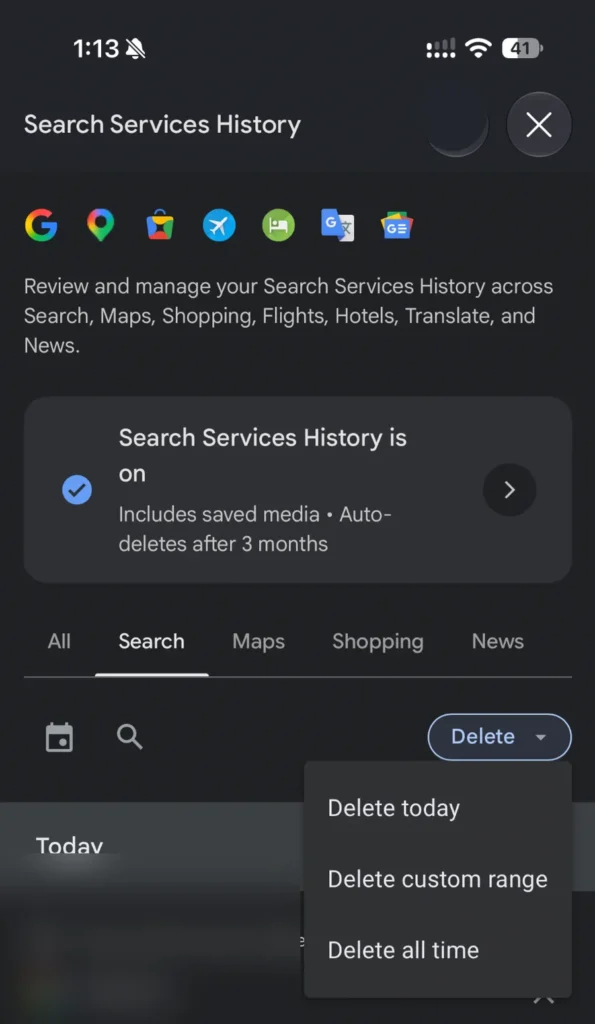
This is the most direct method if you use the Google app on your iPhone.
Google lets you remove individual searches, selected dates, or your entire Search history.
Steps:
- Open the Google app.
- Tap your profile picture or initial in the upper-right corner.
- Select Search history.
- Find the Delete control.
- Choose the option that matches what you want to remove.
Depending on the current app interface, available options include:
- Delete today: Remove today’s saved searches.
- Delete custom range: Remove activity from selected dates.
- Delete all time: Remove all saved Google Search history for the selected account.
Confirm the deletion when prompted.
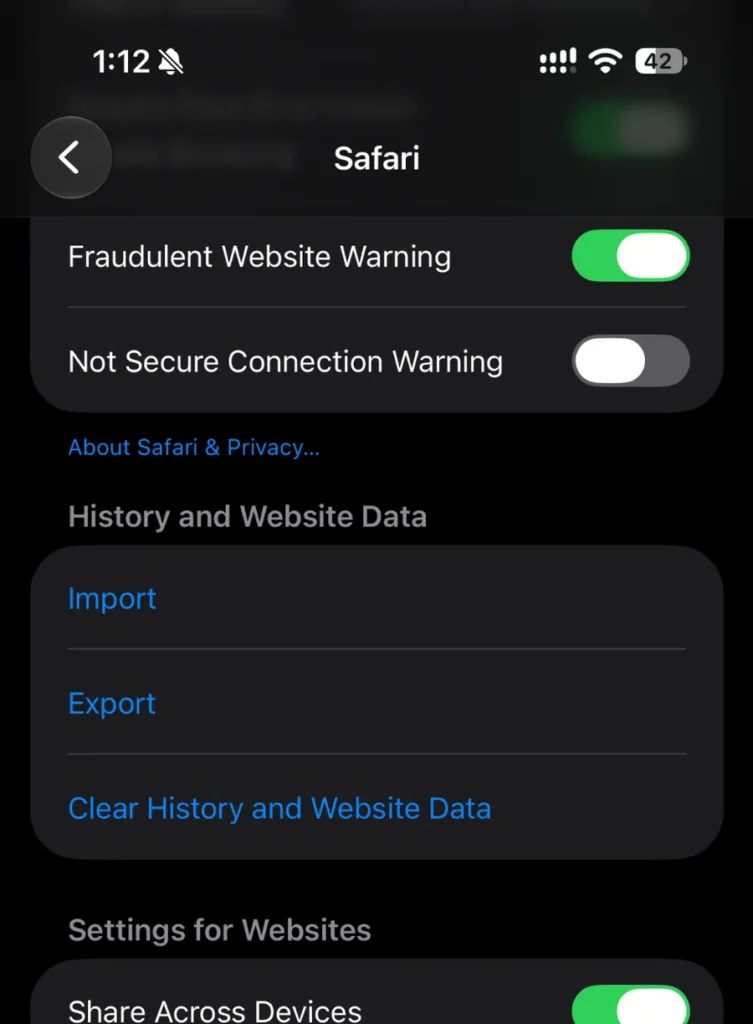
Your selected activity should disappear from Google Search history after processing.
Google periodically updates its account and app settings, so the exact menu layout may look slightly different on your iPhone.
You can verify the current procedure through Google’s official iPhone Search history instructions.
Remember: Deleting saved Google Search history is not the same as clearing Safari or Chrome history.
Method 2: Delete Google Search History Through My Activity
You don’t need to install the Google app to remove searches saved to your Google Account.
Google provides a dedicated activity-management website.
This is particularly useful when you perform Google searches through Safari or Chrome.
Steps:
- Open Safari or Chrome on your iPhone.
- Visit myactivity.google.com.
- Sign in to the correct Google Account.
- Review the saved activity.
- Use the available filters to select the Search product if you only want to remove Google Search activity.
- Tap Delete.
- Select the relevant date range.
- Review the confirmation screen and delete the selected activity.
Be careful with the Delete → All time option on the main My Activity page.
Without filtering, it can affect activity from multiple Google products, not just Google Search.
If your goal is only to remove searches, select the Google Search product or use the Google app’s dedicated Search history page first.
You can also delete a single activity record from My Activity without removing everything else.
Google documents this process in its official activity-deletion guide.
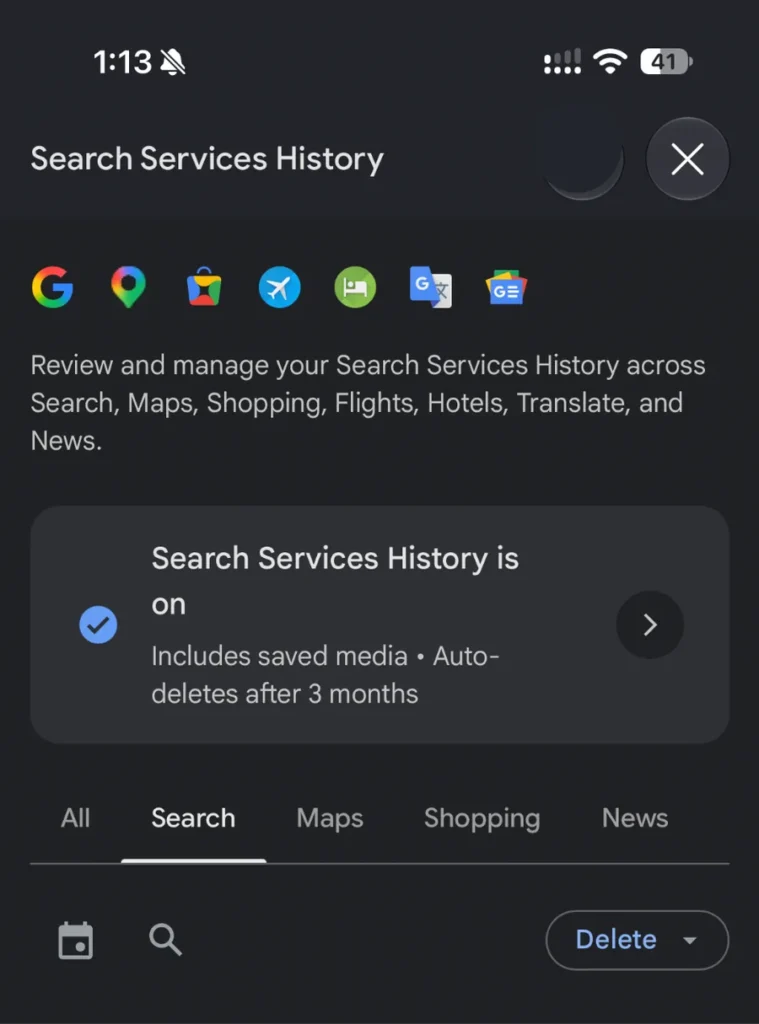
Method 3: Clear Recent Searches Stored in the Google App
Sometimes searches or suggestions continue appearing in the Google app even after you’ve removed activity from your account.
One possible explanation is that the app has saved recent searches on the device.
Google explains that searches performed while signed out may be stored locally.
To clear locally saved Google app history:
- Open the Google app.
- Tap your profile picture or account icon.
- Open Settings.
- Select Privacy & Safety, if available.
- Look for Clear app history.
- Confirm Clear all.
Depending on the app version, another available route may be to tap the search bar, select View all, and choose Clear all or remove individual recent searches.
These options may vary as Google updates its interface.
Important distinction: Clearing locally stored history doesn’t necessarily delete activity already saved to a signed-in Google Account.
If you’re unsure, check My Activity separately.
Also, Google may continue displaying popular searches and other suggestions that aren’t part of your personal search history.
Method 4: Delete Google Searches and Browsing History in Chrome
If you use Chrome as your iPhone browser, websites and Google searches you’ve visited may appear in Chrome’s browsing history.
To clear those records:
- Open Chrome on your iPhone.
- Tap the three-dot More menu.
- Select Delete Browsing Data.
- Review the selected Time Range.
- Choose All time if you want to remove the available full browsing history.
- Tap Browsing Data and check the types of information selected.
- Select Browsing History, and review any additional categories before deletion.
- Confirm your selection and tap Delete Browsing Data.
Chrome may initially show a shorter time range, such as 15 minutes. Make sure you change it if you intend to erase older records.
Avoid selecting cookies, passwords, or other data types unless you actually want to remove them.
Google also allows you to delete selected history entries without removing the entire browser history.
Open Chrome → More → History → Edit, select the entries, and delete them.
What this affects: Chrome browsing history. If Chrome history sync is enabled, deletion may also affect synced Chrome history on your other signed-in devices.
What it doesn’t necessarily affect: Google Search activity independently saved in your Google Account.
See Google’s official Chrome browsing history guide for current instructions.
Method 5: Clear Google Search History From Safari on iPhone
If you search Google through Safari, your browsing activity may appear in Safari’s history.
You can remove those records through iPhone settings.
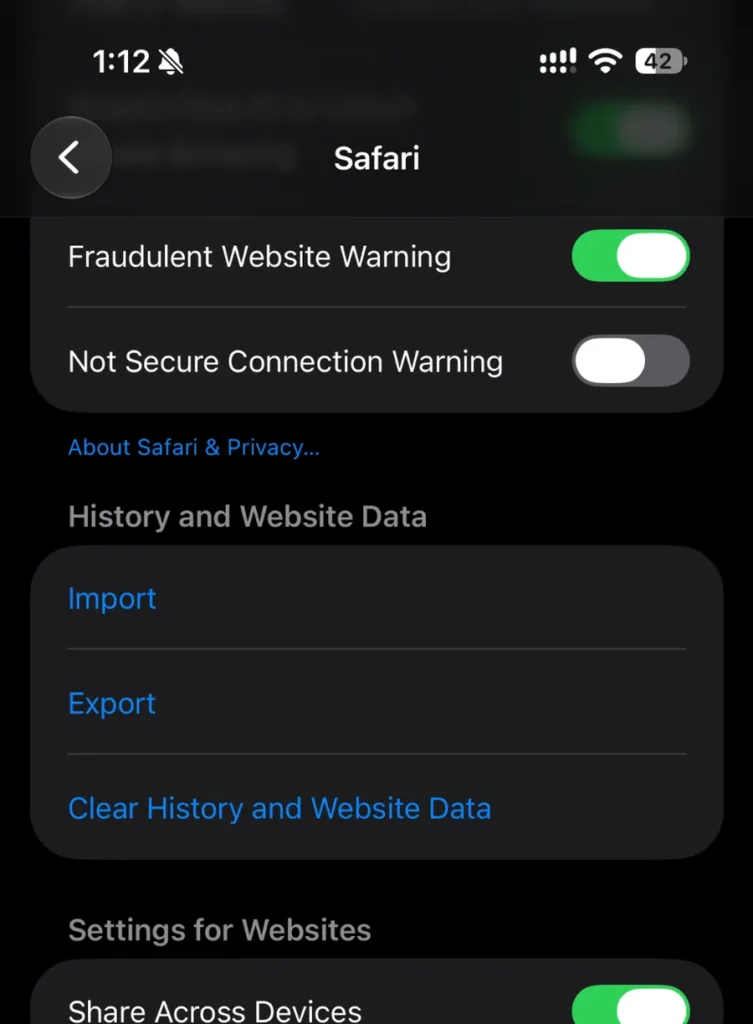
Steps for recent iOS versions:
- Open Settings.
- Tap Apps.
- Select Safari.
- Scroll to Clear History and Website Data.
- Choose the appropriate time range.
- Confirm by tapping Clear History.
On supported versions, you can also open Safari, navigate to its History controls, and choose the available Clear History option.
Apple notes that clearing Safari history can also remove associated website data such as cookies.
This may sign you out of websites.
It does not normally remove saved AutoFill information.
If you want to retain most of your browsing history, you can instead delete selected websites from Safari’s History view.
Crucial point: Clearing Safari history does not automatically delete Google Search activity saved to your Google Account.
If you were signed in to Google while searching, check Method 1 or Method 2 as well.
You can find Apple’s current steps in its Safari history and website data guide.
If Safari fails to load websites after clearing website data, see our related guide: iPhone Safari Not Loading Websites? 12 Fixes to Try.
How to Delete Just One Google Search on iPhone
You don’t have to remove all your history to get rid of one unwanted search.
Google offers individual activity deletion.
Using the Google App
- Open Google.
- Tap your profile picture.
- Select Search history.
- Find the search you want to remove.
- Tap the delete control beside that entry.
- Confirm if prompted.
Using My Activity
- Visit myactivity.google.com.
- Sign in to your Google Account.
- Find the individual activity, using a date or product filter if necessary.
- Tap the corresponding Delete control.
This is preferable when you want to preserve the rest of your history for convenience or reference.
Deleted activity generally cannot be restored through the normal Google Search history interface.
How to Automatically Delete Google Search History
If you don’t want to manually clear your history regularly, you can configure automatic deletion for saved Google activity.
Google offers retention periods for supported Web & App Activity data.
To configure automatic deletion on an iPhone:
- Open the Google app.
- Tap your profile picture.
- Select Search history.
- Open Controls.
- Find the automatic-deletion setting under Web & App Activity.
- Select Auto-delete.
- Choose an available retention period.
- Confirm your selection.
Google documents retention options such as 3, 18, or 36 months.
You can also access these settings through your Google Account’s Data & privacy → History settings area.
Automatic deletion isn’t the same as immediately removing every past record. Review the screen carefully to understand what will be deleted and when.
This setting also doesn’t replace the need to manage separate Safari or Chrome browsing records.
How to Stop Google From Saving Future Searches
Deleting past activity and preventing future activity from being saved are separate decisions.
If you want Google to stop saving eligible searches to Web & App Activity:
- Open the Google app.
- Tap your profile picture.
- Choose Search history.
- Open Controls.
- Find Web & App Activity.
- Tap Turn off.
- Choose Turn off, or Turn off and delete activity, depending on your preference.
Read the confirmation carefully.
The second option may delete previously saved activity in addition to stopping future saving.
You can also manage the setting through your Google Account at myaccount.google.com.
What About Incognito or Private Browsing?
Chrome’s Incognito mode and Safari’s Private Browsing can help prevent browsing history from being saved in the normal local browser history.
However, private browsing doesn’t make you completely anonymous.
If you sign in to a Google Account during a private session, activity may still be associated with that account, depending on the services and activity settings involved.
Your internet provider, school, workplace, or visited websites may also have separate records.
For stronger control, review both your Google Account activity settings and the privacy features in your browser.
Why Does My Google Search History Still Show After Deleting It?
If previously deleted searches remain visible, don’t immediately assume the deletion failed.
Several explanations are possible.
You’re Signed Into a Different Google Account
Many people use separate personal, work, or school Google Accounts.
You may have cleared history for one account while viewing search suggestions from another.
Open the Google app or My Activity and verify the account currently selected.
You Cleared Safari but Not Your Google Account
This is one of the most common misunderstandings.
Safari history and Google Account activity are different records.
Clear the relevant Google Search history through the Google app or My Activity.
You Cleared Google Account History but Not Chrome History
Chrome can keep its own record of visited pages.
If you’re seeing old websites in Chrome’s History menu, clear those entries through Chrome.
The Google App Has Local Search History
Some searches can remain stored on the device, particularly when using the Google app while signed out.
Use the available local history controls in the Google app.
Suggestions Aren’t Always Personal History
Not every suggestion that appears while typing is a previously saved search.
Google can display autocomplete predictions, trending queries, and other suggestions.
Those may continue appearing even after your personal history has been deleted.
Another Device Hasn’t Synced Yet
Google says deleted account activity can temporarily remain visible on a device that is offline.
Reconnect that device to the internet and check again.
If the activity still appears in My Activity, review which account and activity type you’re viewing.
What Happens When You Delete Google Search History?
Deleting search history can improve control over records associated with your account or browser.
However, it’s important to understand the scope.
Deleting Google Account Search history:
- Removes selected Google Search activity from the account’s visible history.
- Can reduce the use of that history for personalization.
- Doesn’t automatically clear independent Chrome or Safari browsing history.
- Doesn’t erase your Gmail messages, Google Photos library, or iPhone files.
Deleting Chrome browsing history:
- Removes selected browser history records.
- May also affect history on synced Chrome devices.
- Doesn’t necessarily erase separate Google Account Search activity.
Deleting Safari history and website data:
- Removes selected Safari history and associated website data.
- May sign you out of websites by removing cookies.
- Doesn’t normally delete photos, contacts, or saved AutoFill data.
- Doesn’t erase Google Search history stored separately in your Google Account.
Google also explains that certain records may be retained for limited purposes, such as legal or operational requirements, even after user-facing activity deletion.
For that reason, avoid treating the Delete button as a promise that every possible record of online activity has disappeared everywhere.
Google Search History vs. Browser History: Which Should You Delete?
The right choice depends on your goal.
| Your goal | Recommended action |
|---|---|
| Remove Google searches associated with your account | Google app Search history |
| Remove Google searches without installing the app | My Activity, filtered to Search |
| Remove recent searches saved locally in Google app | Google app history/privacy controls |
| Remove pages visited through Chrome | Chrome Delete Browsing Data |
| Remove pages visited through Safari | Safari Clear History |
| Stop eligible searches being saved in future | Web & App Activity controls |
If your main concern is saved Google Account searches, start with the first two methods rather than clearing every browser’s data unnecessarily.
Frequently Asked Questions
How do I delete all Google search history on my iPhone?
Open the Google app, tap your profile picture, select Search history, then choose Delete → Delete all time. Confirm the action. This removes the selected Google Search history from the relevant account, not every independent browser record.
Can I delete Google search history without the Google app?
Yes. Open Safari or Chrome and visit myactivity.google.com. Sign in, filter for Google Search if appropriate, then delete the selected activity.
Does deleting Google search history on iPhone delete it on other devices?
When you delete Google Search activity stored in your Google Account, that saved activity is removed from the account and should no longer appear as account history on other devices once changes are reflected. Local browser records can still remain separately.
Does deleting Safari history delete Google search history?
Not necessarily. Safari history and Google Account Search activity are managed separately.
Will clearing Chrome history also clear Google Search history?
No, not necessarily. Chrome browsing history and Google Account Search activity can be separate. Check My Activity if you want to remove searches saved to your Google Account.
How can I delete Google searches from just today?
In the Google app, open Search history and choose the available Delete today option. You can also use date filters in Google My Activity.
Why do old searches still appear after deletion?
They may be saved in another Google Account, stored in local app or browser history, or shown as autocomplete suggestions rather than your personal search history.
Can deleted Google search history be recovered?
Google does not provide an ordinary undo or restore feature for activity you intentionally delete from your Google Account. Make sure you have selected the correct entries before confirming.
Does deleting Google history remove saved passwords?
Deleting only Google Account Search history doesn’t remove your saved passwords. Browser clearing menus have separate data categories, so review those options before deleting browser data.
Is Google Incognito mode the same as deleting search history?
No. Incognito mode affects how your browser saves local browsing activity during a private session. Deleting search history removes records previously saved in the selected location. Neither guarantees complete anonymity.
Final Thoughts
Knowing how to delete iPhone Google search history gives you more control over your online activity without requiring a device reset or reinstalling apps.
For most people, the Google app’s Search history page or Google’s My Activity website is the best starting point.
If you also want to remove previously visited websites, review Chrome and Safari history separately.
Finally, consider whether automatic deletion or turning off Web & App Activity better matches your privacy preferences.
The most important distinction is simple: Google Account search history, Google app history, Chrome history, and Safari history are not automatically the same thing. Delete the records that match your goal, and avoid erasing unrelated data unnecessarily.