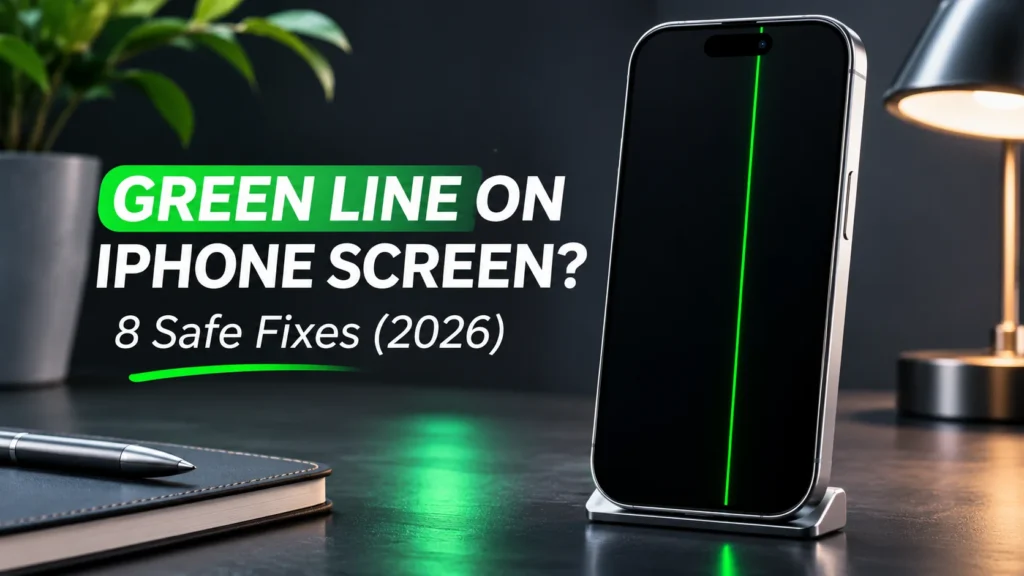
A green line on iPhone screen can be alarming, especially when it appears suddenly and stays visible while you use your phone.
You might notice a thin, bright green vertical line running from the top of the display to the bottom. Sometimes the line appears after a drop, a screen replacement, or a software update. In other cases, it appears without an obvious cause.
But does that mean your iPhone’s display is permanently damaged?
Not necessarily. A temporary software or graphics issue can occasionally cause unusual visual artifacts. However, a persistent green line is often a sign of a physical display problem that ordinary software troubleshooting cannot repair.
In this guide, you’ll learn eight safe steps to identify the problem, understand when screen repair may be necessary, and avoid troubleshooting methods that could make things worse.
Table of Contents
Quick Answer: How to Fix a Green Line on iPhone Screen
If you notice a green line on your iPhone display, try these steps:
- Identify when and where the green line appears.
- Take a screenshot and inspect it on another device.
- Restart your iPhone.
- Check the display without a case, screen protector, or connected accessories.
- Install the latest compatible iOS update.
- Check the display’s repair history, if applicable.
- Back up your important data.
- Contact Apple Support or an Apple Authorized Service Provider if the line remains.
Important: If a bright green line stays in exactly the same position across apps, the Lock Screen, and after restarting, a display hardware issue becomes more likely.
Don’t press, bend, heat, freeze, or hit your iPhone to remove the line.
Why Is There a Green Line on My iPhone Screen?
Several different problems can produce unusual lines or colors on a smartphone display.
The most important distinction is whether the problem comes from the physical display or from the software or graphics being rendered.
1. Display Panel Damage
Modern iPhone displays contain complex electronic components responsible for controlling individual pixels.
Damage to the display panel or its driving circuitry can result in abnormal lines, discoloration, or areas that no longer display images correctly.
A thin green vertical line that remains in the same position is consistent with some types of display hardware failure.
The external glass may look completely normal even when the display underneath is malfunctioning.
2. Damage After a Drop or Impact
An iPhone does not necessarily need to have visibly shattered glass to experience internal display damage.
A hard impact or bending force may affect the display assembly.
If the line appeared immediately after dropping your phone, that history is useful information for a repair technician.
3. Liquid Exposure
Moisture or liquid damage can cause electronic problems, including display malfunctions.
If your iPhone was recently exposed to liquid and is behaving abnormally, avoid charging it until it is safe to do so.
A damaged or wet device should be assessed professionally rather than subjected to repeated charging and restart attempts.
4. Software or Graphics Issues
Some visual artifacts may be related to software rendering or temporary system problems.
These can sometimes disappear after a restart or software update.
However, the fact that a green line appeared after an iOS update does not prove that the update caused the problem.
5. Problems Following a Previous Repair
If your iPhone display was previously replaced, the condition of the replacement screen and the quality of the repair may be relevant.
Apple provides a Parts and Service History feature on supported devices that can help you review certain repairs.
A repair history does not automatically establish the cause of the current green line, but it may provide useful context.
1. Identify When the Green Line Appears
Before trying to fix anything, observe the problem carefully.
Open different screens on your iPhone:
- Home Screen
- Lock Screen
- Settings
- Photos
- Safari
- Another application you use regularly
Look for the following details.
Is the line always in the same position?
A stationary vertical line visible across unrelated screens may indicate a display fault.
Does the line disappear when switching apps?
If the issue appears only inside one application, investigate that application before assuming the entire display is damaged.
Does the line appear on both light and dark backgrounds?
Try viewing a plain white background and a dark background.
This can help make a faint line more visible.
Does the line appear during startup?
If the same physical line is visible during startup and remains after the device finishes booting, that strengthens the possibility of a hardware problem.
Record what you observe so you can describe it accurately to Apple Support.
If your screen is flickering instead of displaying a single stationary line, see our related guide: iPhone Screen Flickering? 12 Proven Fixes.
2. Take a Screenshot to Help Identify the Problem
One useful test is comparing the image captured by iOS with what you physically see on the display.
How to Take the Screenshot
On an iPhone with Face ID:
- Open a screen where the green line is clearly visible.
- Press the Side button and Volume Up button at the same time.
- Release both buttons quickly.
- Open Photos and locate the screenshot.
- Send the screenshot to another device or view it on a computer.
Inspect the screenshot on the second screen rather than relying only on your affected iPhone.
What the Results May Mean
The line appears on your iPhone but not in the screenshot viewed elsewhere.
This suggests the problem may be in the physical display or its signal path rather than the image being rendered by iOS.
The green line appears inside the screenshot on another device.
This indicates the artifact was captured in the rendered image. A software, graphics, or image-content problem becomes more relevant.
Neither result is a definitive hardware diagnosis by itself.
Take a Photograph as Well
If possible, use another phone or camera to photograph the green line on your iPhone.
A real photograph is useful because it records how the physical display looks, including defects that screenshots may not capture.
Keep the image for a technician.
Do not deliberately press or flex the screen to reproduce the problem.
3. Restart Your iPhone
A normal restart can help rule out a temporary software issue.
To restart a modern iPhone with Face ID:
- Press and hold the Side button and either Volume button.
- Wait until the power-off slider appears.
- Drag the slider to switch off the device.
- Wait approximately 30 seconds.
- Press and hold the Side button until the Apple logo appears.
After restarting, check whether the green line is still visible.
If the line disappears and does not return, a temporary software or display-control issue may have been involved.
If the same stationary line remains, do not repeatedly restart the phone expecting the display to repair itself.
What If the iPhone Is Unresponsive?
If the screen is frozen and you cannot perform a normal restart, a force restart may be appropriate.
For most modern iPhones:
- Press and quickly release Volume Up.
- Press and quickly release Volume Down.
- Press and hold the Side button until the Apple logo appears.
A force restart is intended for an unresponsive device. It isn’t a special repair procedure for damaged OLED pixels.
See Apple’s official force restart instructions.
If the force restart itself is failing, our iPhone Force Restart Not Working guide covers that separate problem.
4. Check the Screen, Case, Protector, and Accessories
Apple recommends basic physical checks when an iPhone screen is not behaving normally.
These include checking for debris or water, removing accessories, and inspecting screen protectors.
Follow These Steps
- Disconnect charging cables and other accessories.
- Inspect the exterior screen for visible cracks or damage.
- Remove the case if it interferes with inspection.
- Check whether the screen protector is cracked, scratched, or discolored.
- If safe, gently clean the display using an appropriate soft, lint-free cloth.
- Check whether the green line remains.
A damaged screen protector can sometimes produce a visual mark that looks like a display problem.
However, a bright electronic green line extending through the image usually cannot be explained by an ordinary surface scratch.
If the actual display panel is damaged, removing a case or protector will not repair it.
Avoid placing pressure on the glass while checking.
You can also consult Apple’s screen troubleshooting guidance.
5. Update iOS if a Compatible Update Is Available
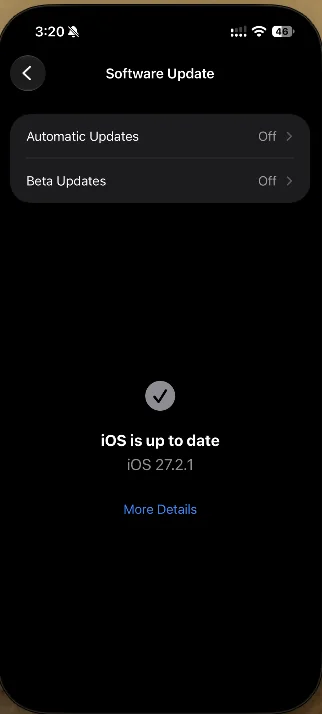
If the green line may be software-related, installing an available iOS update is a reasonable troubleshooting step.
Apple releases updates that can address bugs, improve compatibility, and fix security issues.
How to Update Your iPhone
- Make sure you have a current backup.
- Connect your iPhone to Wi-Fi.
- Connect it to power if appropriate.
- Open Settings.
- Tap General.
- Select Software Update.
- Install the latest compatible stable update offered.
After installation, inspect the display again.
Can an iOS Update Fix a Green Line?
It depends on the cause.
A software-related graphics artifact might disappear after updating.
But a physically damaged OLED panel, display driver, or display connection cannot ordinarily be repaired by installing iOS.
Don’t repeatedly downgrade, erase, or restore the operating system simply because a physical-looking green line persists.
See Apple’s iOS update instructions.
If your iPhone was recently dropped, exposed to liquid, or is also showing other hardware symptoms, prioritize professional assessment rather than experimenting with repeated updates.
6. Check Parts and Service History
If your iPhone was previously repaired, review its Parts and Service History.
On supported iPhone models, Apple provides information about certain replaced components.
How to Check
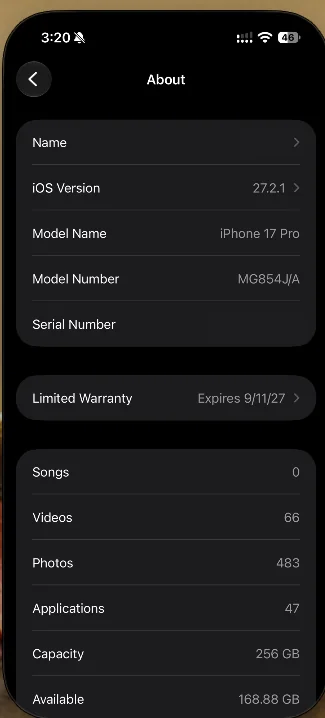
- Open Settings.
- Tap General.
- Select About.
- Look for Parts and Service History.
- Review the display information if that section is present.
You may see information such as Genuine, Used, Unknown, or another relevant service status, depending on the device and repair.
If your phone has not had a recorded repair, the section may not appear.
An Unknown Part message does not automatically prove that the green line was caused by the replacement display. It simply tells you that Apple cannot verify or identify the part as expected under certain conditions.
If the line began after a previous screen replacement, inform your repair provider.
Apple explains this feature in its iPhone Parts and Service History documentation.
7. Back Up Your iPhone Before the Screen Becomes Worse
A persistent green line can sometimes be accompanied by other display problems, such as flickering, dark patches, or loss of touch response.
If you can still operate your iPhone, creating a backup is an important precaution.
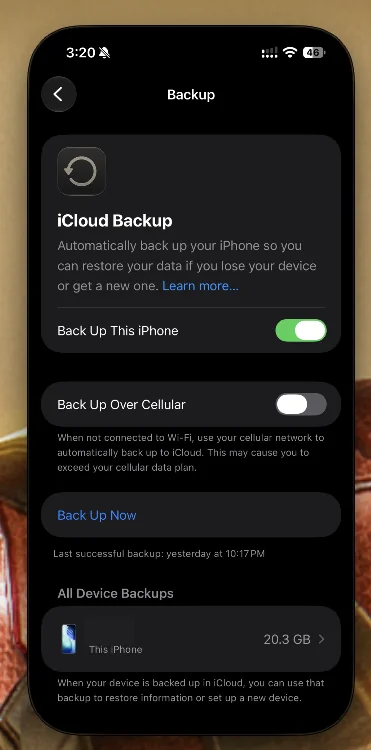
Back Up Using iCloud
- Open Settings.
- Tap your Apple Account name.
- Select iCloud.
- Tap iCloud Backup.
- Choose Back Up Now.
- Keep the iPhone connected until the backup finishes.
Check the most recent successful backup date.
You can also create a backup using a compatible Mac or PC.
If the screen becomes difficult to use later, having a recent backup may make transferring your information to another device easier.
Read Apple’s guide to backing up an iPhone.
Should You Factory Reset Your iPhone?
A factory reset is not a sensible first response to a persistent green hardware line.
Erasing the device removes data and settings but cannot physically repair a defective screen.
Only consider a full restore when an appropriate support professional recommends it for a suspected software issue and your information is safely backed up.
8. Arrange Professional iPhone Screen Diagnosis and Repair
If the green line remains after the reasonable checks above, arrange a professional assessment.
This is especially important when the line:
- Remains in the same position across apps.
- Is visible during startup.
- Appeared after an impact.
- Is becoming brighter, wider, or more numerous.
- Appears alongside flickering or dead pixels.
- Is accompanied by unreliable touch response.
A technician can determine whether the display assembly or another component needs repair.
Will Apple Replace an iPhone Screen With a Green Line?
Apple may offer screen repair or replacement depending on the diagnosis, model, warranty status, and service eligibility.
A green line does not automatically qualify every device for a free repair.
Apple’s standard limited warranty covers qualifying manufacturing defects, while accidental damage is generally treated differently. AppleCare coverage and local consumer protection laws may also affect your options.
Check your coverage before booking service.
Use Apple’s official iPhone Screen Repair page to explore service options.
How Much Does Green Line Repair Cost?
The cost depends on several factors:
- Your iPhone model.
- Whether the screen needs replacement.
- Your coverage and warranty status.
- Whether other damage is present.
- The repair provider and service location.
Apple provides model-specific estimates through its repair website, but the final cost may depend on inspection.
Avoid relying on a generic repair price quoted without knowing the model and condition of the device.
Can You Keep Using an iPhone With a Green Line?
Some iPhones remain usable despite a display line.
However, the underlying problem might worsen, and the device may eventually become difficult to operate.
Back up important data and seek repair before losing reliable access to the screen.
If the device shows signs of significant physical or liquid damage, stop using it and seek professional guidance.
Green Line vs. Green Tint vs. Screen Flickering
These problems may look similar, but they are not identical.
Green Vertical Line
Usually appears as a narrow, stationary line stretching through part or all of the display.
A persistent line can suggest a physical display fault.
Green Screen Tint
Affects a larger area of the display, sometimes making most of the screen look green.
Its possible causes can differ from those of a single narrow line.
Screen Flickering
Involves visible changes in brightness or image stability.
If the display flashes, pulses, or repeatedly changes brightness, see our dedicated iPhone Screen Flickering guide.
Dark or Black Spots
Appear as darker patches rather than bright vertical lines.
Our iPhone Dark Spot on Screen guide explains how to distinguish surface marks from display defects.
Identifying the right symptom helps avoid unnecessary troubleshooting.
Does a Green Line Mean Your iPhone Display Is Permanently Damaged?
Not every visual problem is permanent.
A transient rendering problem may disappear after a restart or software update.
However, when a green vertical line stays fixed in the same location, appears across unrelated apps, and does not show in screenshots viewed on another display, a physical display problem is a strong possibility.
Professional inspection is needed to confirm the cause.
It’s also important to remember that the absence of cracked glass does not guarantee that the display assembly is undamaged.
What Not to Do With a Green Line on iPhone Screen
Avoid common internet suggestions that could make a hardware issue worse.
Don’t press or massage the green line. Pressure can further damage the display.
Don’t heat the screen with a hair dryer. Excess heat can damage the phone and its battery.
Don’t place the iPhone in a freezer. Temperature extremes and condensation can create additional problems.
Don’t hit, twist, or bend the device. These actions may cause new internal damage.
Don’t install unknown display repair applications. An app cannot physically repair a damaged OLED panel.
Don’t erase your phone without a backup. You could lose important information without fixing the underlying display issue.
Use safe diagnosis and authorized service options instead.
Frequently Asked Questions
Why did a green line suddenly appear on my iPhone?
A green line may appear because of a physical display fault or, less commonly, a temporary rendering issue. The timing alone does not establish the cause.
Can a green line on iPhone screen disappear by itself?
A temporary software artifact might disappear. But a persistent line caused by physical display damage generally requires hardware repair rather than waiting for it to fix itself.
Will restarting my iPhone remove a green line?
Restarting may help when the line is caused by a temporary software issue. It will not repair a physically damaged display panel.
Why is there a green line after an iOS update?
The problem may become noticeable after updating, but that doesn’t prove the update caused it. Check whether the line appears across apps, during startup, and in screenshots before drawing conclusions.
Does Apple fix the green line issue for free?
Not automatically. Repair eligibility depends on the diagnosis, warranty, AppleCare coverage, applicable service programs, and consumer rights.
Can I fix a green line without replacing the screen?
Sometimes, if the cause is software-related. A confirmed display panel defect may require replacing the affected hardware.
Is the green line covered by AppleCare?
Coverage depends on the particular AppleCare plan, the type of damage, and the service diagnosis. Check your coverage and applicable service terms.
Can I use my iPhone if it has one green vertical line?
It may remain usable, but a persistent display fault could worsen. Back up important data and arrange a professional assessment.
Does a screenshot reveal a damaged display?
Not always. Screenshots capture rendered screen content, not physical defects in the display panel. Comparing a screenshot on a second device can help with troubleshooting, but it isn’t definitive by itself.
Final Thoughts
A green line on iPhone screen should be investigated carefully, but there’s no need to immediately erase your phone or try risky repair tricks.
Start by identifying whether the line remains across different screens. Compare a screenshot on another device, restart your iPhone, check for updates, and review any relevant repair history.
If the line stays fixed and does not respond to basic troubleshooting, a physical display issue is more likely.
Back up your information and contact Apple Support or an Apple Authorized Service Provider for proper diagnosis.
Taking the right steps early can protect your data and help you avoid unnecessary repairs or damage.
Last reviewed: November 18, 2026.