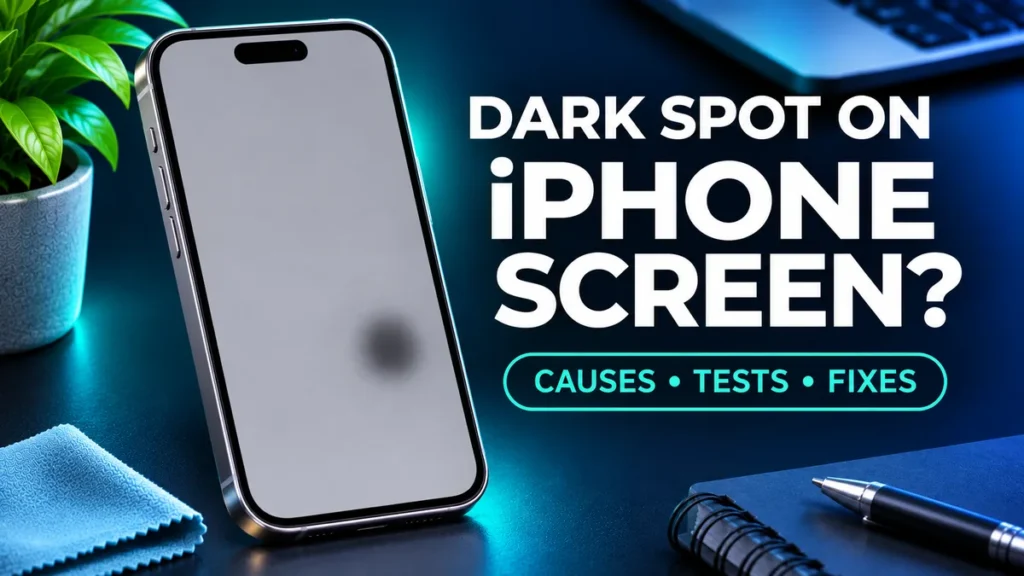
Noticed a small black circle, gray shadow, or blurry dark patch on your iPhone display? Maybe the rest of the screen works normally, but one area remains darker no matter which app you open.
An iPhone dark spot on screen can have several possible causes, ranging from dirt or damage on a screen protector to a problem with the underlying display panel.
Sometimes the spot is simply part of an image or an app’s interface. In other cases, it may indicate dead pixels, damage to the OLED display, or another hardware defect.
The important thing is to determine whether the spot exists in the displayed content or in the physical screen itself.
Fortunately, several simple checks can help you distinguish these situations without opening your iPhone or attempting unsafe repairs.
In this guide, we’ll explain 7 safe checks for a dark spot on your iPhone screen, how to test for display defects, and when professional screen repair may be necessary.
These instructions apply to modern iPhones, including the iPhone 17 Pro, although display technology varies by model.
Quick Answer: How to Check a Dark Spot on iPhone Screen
If a black or dark patch appears on your iPhone screen, try these steps:
- Display a plain white or light-gray background and inspect the area.
- Take a screenshot and view it on another device.
- Clean the screen and inspect any screen protector.
- Change the brightness, switch between Light and Dark appearance, and restart the iPhone.
- Check whether the spot appears in multiple apps.
- Look for physical damage, pressure marks, or signs of a previous screen repair.
- Use available Apple display diagnostics or arrange professional inspection if the spot remains.
The most useful test is comparing a screenshot with the physical display.
If a dark patch is visible on your iPhone but absent from the screenshot viewed on another device, that strongly suggests the problem lies with the display surface or hardware rather than the image being rendered.
However, the test doesn’t identify which display component has failed.
Safety warning: If the screen is lifting from the frame, the phone is unusually hot, or you suspect battery swelling or internal damage, stop using and charging the device and seek professional assistance. Don’t press the screen back into place.
Apple’s official iPhone display repair page explains how to obtain professional help.
Table of Contents
What Causes a Dark Spot on an iPhone Screen?
A dark mark may appear for several reasons.
Understanding the possible causes is important because not every mark requires the same solution.
1. Dead or Nonfunctioning Pixels
A display contains millions of individual picture elements called pixels.
If some pixels stop displaying the intended light or color, they may appear as small dark points.
A tiny cluster of affected pixels may be noticeable against a bright background.
However, a large circular black patch usually deserves broader display inspection rather than being automatically classified as a single dead pixel.
2. OLED Display Damage
Modern iPhones, including the iPhone 17 Pro, use OLED display technology.
In an OLED panel, individual pixels produce their own light.
Damage to part of the panel or its associated circuitry can affect the appearance of a localized area.
Possible symptoms include dark patches, abnormal colors, lines, or areas that no longer display content correctly.
A persistent black area after physical impact may indicate display damage, but its appearance alone doesn’t identify the exact component.
3. Pressure or Impact Damage
Dropping an iPhone or putting excessive pressure on the screen can damage internal display layers even when the outer glass remains intact.
For example, the display could develop an abnormal patch after being crushed in a bag or struck against a hard surface.
A screen protector may survive an impact while the underlying display is damaged.
This is why the absence of visible cracks doesn’t guarantee that the panel is undamaged.
4. Screen Protector Problems
A scratched, dirty, poorly attached, or damaged screen protector can create visual artifacts.
Trapped particles and adhesive defects may appear as dots, shadows, or cloudy areas.
These problems can sometimes be resolved by cleaning or safely replacing the protector.
However, removing a protector won’t repair damage beneath the actual display glass.
5. Image Retention or Burn-In
OLED displays can experience persistent image retention or burn-in under certain conditions.
Burn-in generally resembles a faint outline or shadow of previously displayed interface elements.
For example, a static navigation bar or other frequently displayed content might leave a visible pattern.
However, a solid black circular spot isn’t the classic appearance of ordinary OLED burn-in.
Don’t assume burn-in is the cause of every dark mark.
6. Moisture or Internal Hardware Damage
Liquid exposure can damage electronic components, including parts associated with the display.
A phone may develop abnormal patches, lines, or other screen defects after exposure.
If you suspect internal liquid damage, avoid home repair attempts and seek professional assessment.
7. Software or Displayed-Content Artifacts
Sometimes a mark isn’t a hardware defect at all.
An image, video, app overlay, accessibility setting, or software rendering problem may create something that resembles a dark spot.
Testing the same area across different content helps distinguish these possibilities.
Check 1: Test the Screen Against a Plain Background
This is the safest and easiest place to start.
A solid background makes dark patches easier to see.
How to Perform the Test
- Open a plain white image in Photos.
- Display it full-screen.
- Set the screen to a comfortable, moderate brightness.
- Look carefully for dark spots or uneven patches.
- Repeat using a light-gray image.
- If useful, compare the result with a black background.
What Should You Look For?
Check whether the spot:
- Remains in the same location.
- Changes color or intensity.
- Appears against white and gray backgrounds.
- Looks like a small dot or a larger blurry patch.
- Remains visible when you change the displayed image.
A dark spot that remains in exactly the same physical area across different backgrounds is more concerning for a screen-related defect.
Why Test Multiple Colors?
Some display problems are easier to see against specific colors.
For example, a dark pixel may be obvious against a white background but nearly invisible against black.
Uneven brightness may become more noticeable against gray.
Testing more than one background makes it easier to identify unusual display behavior.
Avoid staring at a bright white screen at maximum brightness for extended periods.
Check 2: Use the Screenshot Test
This is one of the most useful ways to investigate a suspected physical screen defect.
A screenshot records the digital image generated by the iPhone.
It doesn’t normally capture a physically damaged pixel or patch in the display panel.
How to Perform the Screenshot Test
- Open a screen where the dark spot is clearly visible.
- Press Side Button + Volume Up to capture a screenshot.
- Open the screenshot in Photos.
- Transfer the screenshot to another device, such as your MacBook.
- Open the file on that second device.
- Compare it with the physical iPhone screen.
Result 1: The Dark Spot Doesn’t Appear in the Screenshot
If you can see the spot on the physical iPhone screen but not in the screenshot viewed on another device, the issue may involve:
- The physical display panel
- Dead or malfunctioning pixels
- Internal display damage
- Surface contamination or a screen protector
This result strongly suggests that the spot isn’t part of the rendered image.
However, it doesn’t conclusively establish which physical component is responsible.
Result 2: The Dark Spot Appears in the Screenshot
If the mark appears in the captured image on another device, investigate the displayed content or a software-rendering issue.
For example, an image, wallpaper, app interface, or graphical effect might contain the dark area.
Try another application or change the wallpaper.
If the mark appears only in one image or app, the issue is less likely to be a physical panel defect.
Important: Don’t Judge the Screenshot Only on the iPhone
If your iPhone has a physical display defect, the spot may remain visible while you’re looking at the screenshot on that same damaged display.
You need to inspect the screenshot on another screen to make the comparison meaningful.
Check 3: Clean the Display and Inspect the Screen Protector
Before assuming the display is damaged internally, inspect its exterior.
Fingerprints, dirt, residue, and accessories can sometimes resemble a screen defect.
How to Clean the Screen Safely
- Disconnect charging cables.
- Turn off your iPhone.
- Use a clean, soft, lint-free microfiber cloth.
- Gently wipe the screen.
- Avoid pressing firmly on the dark area.
- Turn the phone on and repeat the background test.
If necessary, follow Apple’s guidance for cleaning with a slightly damp cloth.
Don’t spray liquid directly onto the screen.
Avoid abrasive cleaners, sharp tools, and excessive pressure.
For detailed instructions, see Apple’s official iPhone cleaning guide.
What About a Screen Protector?
Inspect your protector for:
- Dust trapped underneath
- Bubbles or uneven adhesive
- Scratches
- Cracks
- Surface discoloration
If the protector is damaged and can be removed safely, follow its manufacturer’s instructions.
Don’t force off a strongly adhered or cracked protector.
What If Cleaning Doesn’t Help?
If the dark patch remains completely unchanged, repeated cleaning is unlikely to help.
Move on to the next checks rather than rubbing the area more aggressively.
Check 4: Adjust Brightness and Appearance
Some screen abnormalities become more noticeable at certain brightness levels.
Changes in appearance may help you identify the nature of the problem.
However, adjusting brightness doesn’t repair damaged display hardware.
Test Different Brightness Levels
- Open Settings.
- Tap Display & Brightness.
- Move the brightness slider to a moderate level.
- Observe the affected area.
- Try a slightly higher or lower brightness level.
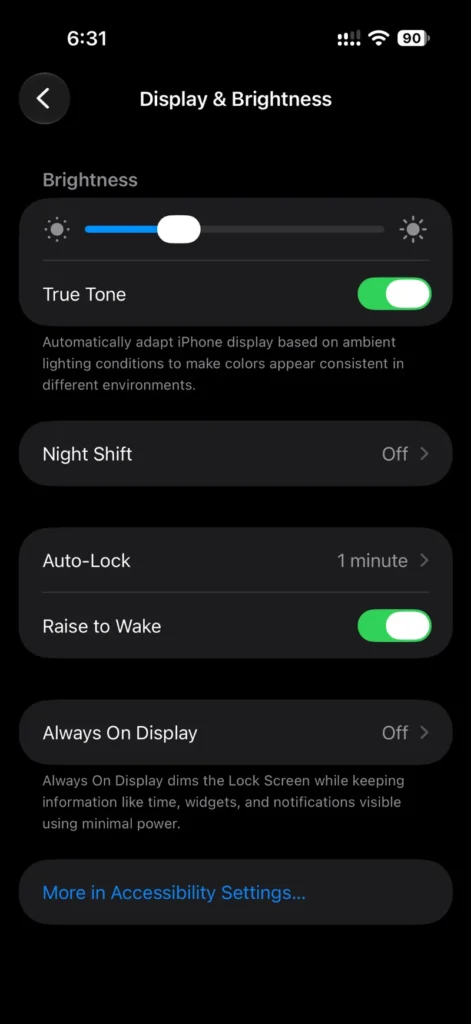
Switch Between Light and Dark Mode
Under Display & Brightness, switch between Light and Dark appearance.
Observe whether the spot becomes easier or harder to see.
If a patch is particularly noticeable on light backgrounds, it may be related to how pixels or portions of the panel display brightness.
However, this alone doesn’t prove physical damage.
Restart Your iPhone
Restarting can help distinguish a temporary software issue from a persistent symptom.
On an iPhone 17 Pro:
- Press and hold the Side button and either Volume button.
- Drag the power-off slider.
- Wait approximately 30 seconds.
- Press the Side button to restart.
- Recheck the display.
If the spot disappears after restarting and doesn’t return, a temporary software or display-rendering problem may have contributed.
If the same patch remains in the exact location, continue investigating the display.
Does True Tone Cause Black Spots?
True Tone adjusts the overall display appearance based on surrounding lighting.
It doesn’t normally create a solid black patch in one small area.
If your problem is broader color unevenness or dimming rather than a distinct dark spot, see our iPhone Screen Keeps Dimming guide.
Check 5: Compare Different Apps and Screen Content
A dark spot may be part of an app’s interface rather than the screen itself.
To check, move between unrelated applications.
Try These Simple Tests
- Open Settings and view a light-colored screen.
- Open Photos and display a plain image.
- Open Safari and visit a normal webpage.
- Return to the Home Screen.
- Rotate the device where supported.
- Observe the spot’s position.
What Does a Fixed Spot Suggest?
If the dark patch remains in the same physical location regardless of the content underneath it, a screen-surface or panel problem becomes more likely.
If the dark area moves with a particular image or interface element, investigate the app or content instead.
Check for App-Specific Problems
If a dark shape appears only in one application:
- Close and reopen the app.
- Review the app’s display options.
- Check for an available app update.
- Test whether the issue appears elsewhere.
Avoid factory-resetting your iPhone for a problem limited to one application’s visual interface.
What If the Entire Screen Goes Black?
A small dark patch is different from an entirely black screen.
If your whole display turns black while the phone continues making sounds or vibrating, see our iPhone Black Screen but Still On troubleshooting guide.
That article covers a different problem and explains how to distinguish an unresponsive screen from an iPhone that has completely shut down.
Check 6: Inspect Physical Damage and Previous Screen Repairs
A persistent dark spot deserves closer examination when it appears after a drop, impact, or display replacement.
Look for Physical Warning Signs
Inspect the iPhone without applying pressure.
Check for:
- Cracked or chipped glass
- Uneven gaps around the frame
- A screen that appears raised
- Unusual discoloration
- Touchscreen failures near the dark patch
- Lines extending from the affected area
- Changes in the spot’s size
A defect may be internal even when the front glass looks normal.
Does a Previous Screen Replacement Matter?
Yes.
A previously replaced display can develop problems related to damage, installation, parts quality, or later hardware faults.
However, the fact that a screen was replaced doesn’t automatically establish that the replacement caused the current symptom.
How to Check Parts and Service History
On supported iPhones:
- Open Settings.
- Tap General.
- Select About.
- Scroll to Parts and Service History, if present.
- Review any available display-related information.
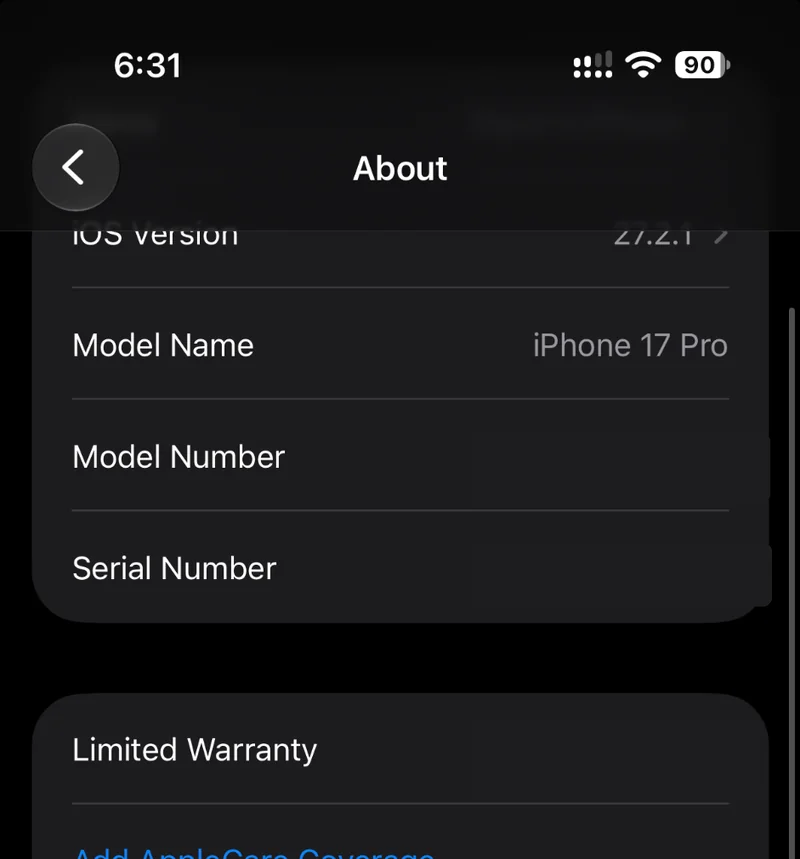
Apple’s documentation explains that this section can identify certain display replacement information.
See About genuine iPhone displays.
What If the Spot Appeared After Dropping the Phone?
If the dark spot appeared immediately after an impact, physical display damage becomes a stronger possibility.
Don’t press the affected area or try to massage the pixels.
If you notice screen lifting, unusual heat, or other signs of internal damage, stop using the device and arrange professional service.
Check 7: Use Apple Display Diagnostics or Arrange Service
If the spot persists after the previous tests, a display diagnostic or professional examination may be appropriate.
Apple supports display-related hardware testing on compatible devices.
Apple’s Display Pixel Anomalies Test
Apple’s newer diagnostics documentation describes a Display pixel anomalies test for supported iPhones.
It displays different colors and patterns and allows you to mark visible display abnormalities.
On supported configurations, this test is available through the device’s Recovery Assistant diagnostics experience.
The exact entry process and available options depend on the model and software version.
If your iPhone offers this feature, follow Apple’s current instructions rather than experimenting with undocumented button combinations.
See Apple’s official iPhone diagnostics guide.
What If the Test Shows an Abnormality?
A diagnostic result can provide useful information, but it isn’t necessarily a complete explanation of the physical cause.
For example, an affected pixel region may require inspection of the display panel.
A technician can determine what service is appropriate.
When Should You Contact Apple Support?
Consider service if:
- The dark spot remains visible across multiple apps and backgrounds.
- The screenshot comparison suggests a physical display defect.
- The spot appeared after an impact.
- The affected area is growing.
- Touch response is failing near the spot.
- Lines or colored patches appear.
- The screen is physically damaged.
- Cleaning and basic software checks don’t help.
You can begin through Apple’s iPhone screen repair service.
Will Apple Replace the Screen?
That depends on the diagnosis.
A persistent panel defect may require display replacement, but not every visual issue requires the same repair.
Repair cost and coverage depend on the iPhone model, warranty status, service location, and any applicable AppleCare plan.
Don’t assume a fixed price without getting an estimate for your specific device.
Black Spot vs Dead Pixel vs OLED Burn-In
These symptoms can look similar, but they aren’t identical.
Dead Pixel
A dead or malfunctioning pixel is a small display element that doesn’t produce the expected output.
It may appear as a very small black dot.
A cluster of affected pixels can create a larger visible mark.
Black Display Patch
A larger dark or black area may involve multiple affected pixels or a broader display problem.
If it appears after an impact or continues changing, professional inspection is sensible.
OLED Burn-In
Burn-in often resembles a persistent shadow or outline of content that was displayed repeatedly.
It doesn’t always look like a round black mark.
Surface Contamination
A mark caused by dirt or a damaged screen protector exists outside the display panel.
It may change after safe cleaning or accessory removal.
You cannot reliably identify the exact cause from appearance alone. Use the background and screenshot tests first.
Can a Black Spot on an iPhone Screen Spread?
Sometimes a damaged display area can become worse over time.
For example, a display affected by physical impact may later show additional black areas, lines, or touch problems.
However, not every small dark spot will grow.
A stable dead pixel and a progressively damaged panel can behave differently.
What Should You Monitor?
Keep track of:
- The approximate size of the spot
- Whether it changes shape
- Whether new lines appear
- Whether touch input remains normal
- Whether the phone becomes unusually warm
You can photograph the display with another device to document changes.
Don’t repeatedly press on the spot to test whether it moves.
If the affected area is growing or the device shows signs of internal damage, arrange professional assessment.
Can You Fix Dead Pixels Using an App?
Be cautious about applications claiming to repair every dark spot or dead pixel.
Some tools rapidly change screen colors in an attempt to address certain pixel behavior.
However, they can’t reliably repair physically damaged display circuitry or a broken OLED panel.
A color-flashing tool is not an approved substitute for display diagnostics.
Avoid apps that require aggressive flashing, heating, pressure, or other potentially harmful techniques.
If you suspect a genuine hardware defect, professional service is the safer option.
Should You Press or Massage a Dark Spot?
No.
Some online suggestions recommend pressing or massaging the screen to remove dark patches.
This is not a safe general repair technique.
Applying pressure can damage the display further, especially if the panel has already suffered an impact.
Don’t use your fingers, a pen, or another object to push on the affected area.
Similarly, avoid heating the screen with a hair dryer or attempting to open the phone.
These methods can create additional risks without resolving the underlying problem.
Dark Spot on iPhone Screen After Screen Replacement
If a dark spot appeared after your display was replaced, contact the repair provider.
A technician may need to examine the replacement panel and installation.
Check Your Repair Information
If the screen was replaced recently, gather:
- The date of repair
- The service receipt
- Any applicable repair warranty
- Photos showing the defect
- Relevant Parts and Service History information
Could a Nongenuine Display Be Responsible?
Apple warns that some nongenuine displays may have compatibility or performance problems.
However, a dark spot does not prove that the display is nongenuine.
A genuine display can also experience damage or failure.
A proper inspection is needed to determine the cause.
What If the Dark Spot Also Affects Touch?
If you cannot tap, swipe, or interact with the affected region, the problem involves more than appearance.
For example, a display defect may occur alongside a touch-sensing failure.
You can perform basic checks such as restarting the phone and removing obstructive accessories.
However, avoid excessive pressure.
Our iPhone Touchscreen Not Working guide covers broader touch-response problems.
If the spot and touch failure appeared together after physical damage, professional inspection is particularly appropriate.
What If the Dark Spot Comes with Flickering or Lines?
Dark patches accompanied by flickering, colored lines, or intermittent screen changes deserve more attention.
The symptoms may involve the display panel, associated circuitry, software, or other hardware issues.
Compare the behavior across applications and take a screenshot.
If the issue is primarily flashing or rapidly changing brightness, our iPhone Screen Flickering troubleshooting guideexplains additional checks.
For a persistent fixed dark spot, however, avoid repeatedly changing unrelated display settings once the basic tests indicate physical damage.
Should You Back Up Your iPhone Before Repair?
Yes, when the device is safe to use and the screen is functioning sufficiently.
Before professional display service, back up important information.
You can use iCloud Backup or a computer-based backup.
If you use a Mac:
- Connect the iPhone using a compatible cable.
- Open Finder.
- Select the iPhone under Locations.
- Review the available backup options.
- Start a backup if appropriate.
You may need to unlock the iPhone and authorize the computer.
If the phone is unsafe to operate because of suspected battery damage, don’t continue using it simply to create a backup. Tell the service provider about the situation.
Frequently Asked Questions
Why is there a dark spot on my iPhone screen?
Possible causes include dead pixels, OLED panel damage, a damaged screen protector, physical impact, or an image-rendering problem. A background test and screenshot comparison can help narrow down the cause.
Can a black spot on an iPhone screen be fixed?
Sometimes. Surface dirt or accessory-related problems may be resolved without repair. A true display-panel defect may require professional service or replacement.
Will a black spot on my iPhone screen spread?
It depends on the cause. Some display damage may worsen, while other defects remain stable. A growing spot deserves prompt inspection.
Can restarting an iPhone remove a dark spot?
Restarting may resolve some temporary software or rendering issues, but it won’t repair physically damaged OLED pixels or display components.
How do I know whether my iPhone screen has dead pixels?
Display a uniform bright image, look for small dark points, and compare a screenshot on another screen. A supported Apple display diagnostic can provide further information.
Why doesn’t the dark spot show in my screenshot?
Physical display defects aren’t normally captured in screenshot files. If the spot is visible on the iPhone but absent from the screenshot viewed elsewhere, a physical display or surface issue becomes more likely.
Can screen protectors cause dark spots?
Yes. Dirt, bubbles, adhesive irregularities, and damage to a protector can create visible artifacts. Inspect it before assuming the underlying display is broken.
Can I fix an OLED dark spot by applying pressure?
No. Applying pressure isn’t a safe repair method and could worsen damage.
Is a black spot the same as screen burn-in?
Not necessarily. Burn-in usually resembles a persistent shadow of interface elements, while a fixed black patch may have a different cause.
Does iPhone 17 Pro use an OLED display?
Yes. The iPhone 17 Pro has a Super Retina XDR OLED display, according to Apple’s technical specifications.
Should I replace my iPhone if it has one black spot?
Not automatically. First determine the cause and obtain a repair assessment. A display replacement may be sufficient if the defect is limited to the screen.
Does Apple repair dark spots on iPhone screens?
Apple and authorized service providers can inspect display problems and advise on appropriate repair options. Coverage and cost depend on the diagnosis and service terms.
Final Thoughts
If you’re dealing with an iPhone dark spot on screen, don’t immediately assume the entire device is damaged.
Start by displaying a plain background, checking the physical screen, and comparing a screenshot on another device.
Next, inspect the screen protector, clean the exterior safely, and test whether the mark appears across different apps.
If the dark spot disappears after removing surface contamination or an accessory, you may not need hardware repair.
However, a persistent mark that remains in the same physical location, especially after an impact, may indicate a genuine display defect.
Avoid pressing, heating, or opening the screen.
When safe troubleshooting doesn’t resolve a persistent dark patch, a professional display diagnosis is the most reliable next step.