Apple Intelligence downloading for hours or stuck on your iPhone? You might see a message about downloading support for Apple Intelligence and Siri, or find that certain AI features are still unavailable after updating to iOS 27.
This doesn’t automatically mean something is wrong with your iPhone. Apple Intelligence uses on-device AI models, and some features require additional resources to become available. Siri AI (Beta) also has its own activation process.
However, a download that repeatedly fails or never seems to progress deserves a closer look.
In this guide, we’ll explain how long Apple Intelligence can take to download, why it sometimes gets stuck, and eight practical ways to troubleshoot it without immediately resetting your iPhone.
Table of Contents
Quick Answer: What to Do When Apple Intelligence Is Downloading
If Apple Intelligence appears stuck downloading, start with these checks:
- Confirm whether the message refers to Apple Intelligence models or Siri AI (Beta).
- Connect your iPhone to reliable Wi-Fi.
- Keep the iPhone connected to a charger while downloading.
- Check that enough device storage is available.
- Make sure your device language and Siri language are supported and match.
- Install the latest compatible iOS update.
- Restart your iPhone if the download remains unresponsive.
- Check whether Siri AI is still awaiting beta access or is unavailable in your region.
Important: Apple has not published one universal download completion time. A large model download, beta-access delay, and failed download are not necessarily the same problem.
Why Is Apple Intelligence Downloading on My iPhone?
Apple Intelligence combines features built into iOS with AI models that can run on your device.
These models help provide capabilities such as Writing Tools, photo editing, intelligent suggestions, and other supported features.
With iOS 27, the next generation of Apple Intelligence is integrated into the operating system on compatible devices. Certain resources may still need to download, particularly when setting up Siri AI or changing supported languages.
Several situations can affect this process:
- A slow or unstable internet connection.
- Insufficient free storage.
- A newly installed software update.
- A device or Siri language change.
- Unsupported features or regional restrictions.
- A Siri AI beta waitlist.
- A temporary software or download problem.
The solution depends on which situation applies to your device.
How Long Does Apple Intelligence Take to Download?
There is no fixed amount of time that applies to every iPhone.
Apple does not guarantee that Apple Intelligence or Siri AI downloads will finish within a particular number of minutes.
The download experience can depend on your internet connection, the required model resources, your iPhone model, and whether Siri AI beta access is available.
For example, Siri AI can require an activation step before its models begin downloading. During periods of high demand, Apple may place users on a waitlist.
This means someone waiting for beta access may not be experiencing an ordinary download failure at all.
What should you do?
Keep your iPhone connected to a reliable Wi-Fi network and power, and allow the download to continue.
If the same downloading message remains after an extended period, including overnight, use the troubleshooting steps below. An overnight check is a practical diagnostic suggestion, not an official Apple completion deadline.
1. Check What Is Actually Downloading
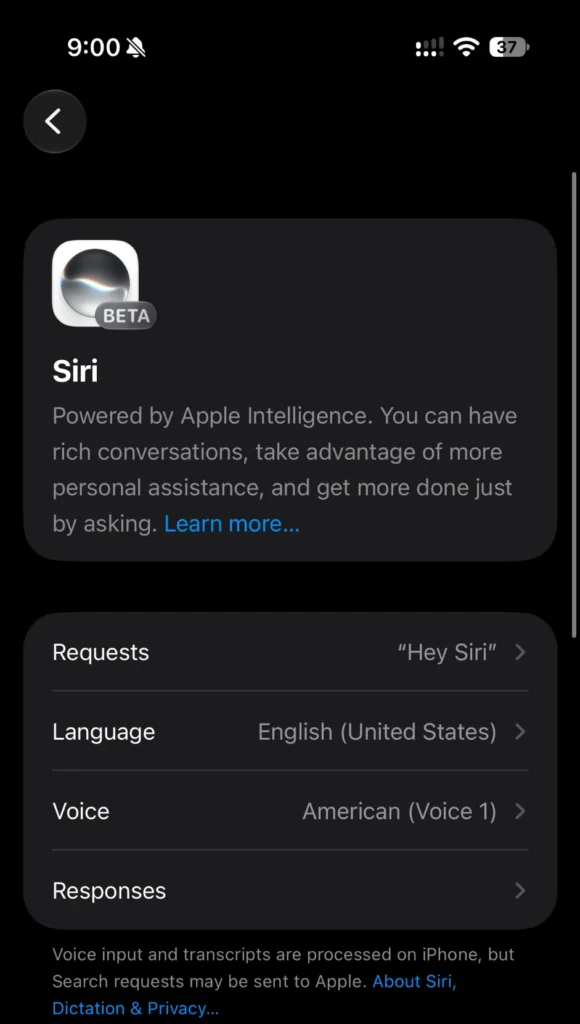
Before changing settings, identify the message your iPhone is displaying.
There are three different situations worth distinguishing.
Apple Intelligence resources are downloading
Your device may be preparing or updating AI resources needed for supported features.
This can happen around a system update or when language resources change.
Siri AI is downloading
Siri AI (Beta) uses a separate activation process.
On iOS 27, eligible users can open Settings > Siri > Try Siri AI (Beta), when that option is available.
Apple says Siri AI begins downloading automatically after the setup process or when beta waitlist access becomes available.
An iOS software update is downloading
If the progress appears in Settings > General > Software Update, you may be looking at the operating system update itself.
That’s a different process from downloading Apple Intelligence resources.
Identifying the correct issue matters because deleting an iOS update will not necessarily solve a Siri AI model download problem.
2. Connect to a Reliable Wi-Fi Network
A stable internet connection is one of the first things to check when Apple Intelligence is downloading slowly.
Apple has previously recommended keeping devices on Wi-Fi and connected to power during AI model downloads.
Try the following:
- Open Settings > Wi-Fi.
- Confirm that your iPhone is connected to a reliable network.
- Open Safari and load a website to check whether the connection works.
- Move closer to your router if the connection is weak.
- Avoid switching between different networks unnecessarily while the download is progressing.
If you’re using public Wi-Fi, make sure you’ve completed any required sign-in page.
A network can appear connected while still restricting internet access.
If your iPhone frequently loses its Wi-Fi connection, use our iPhone Wi-Fi Keeps Disconnecting troubleshooting guide.
Expected result: Once your internet connection is stable, pending model downloads may be able to continue.
3. Keep Your iPhone Connected to Power
If your device is downloading substantial AI resources, keeping it connected to power is a sensible precaution.
Apple has recommended Wi-Fi and power for the fastest experience when downloading earlier Apple Intelligence models.
Here’s what to do:
- Connect your iPhone to a reliable charger.
- Confirm that charging has started.
- Keep Wi-Fi connected.
- Allow the device time to complete its background activity.
- Check the relevant settings again later.
You don’t need to keep opening and closing Settings every few minutes.
If your iPhone becomes unusually hot, disconnect it from power if necessary and allow it to cool before continuing.
You can also read our iPhone overheating after iOS 27.2.1 guide if the device develops a separate overheating problem.
Expected result: Keeping the iPhone powered and connected may reduce interruptions during background downloads.
4. Check Your Available iPhone Storage
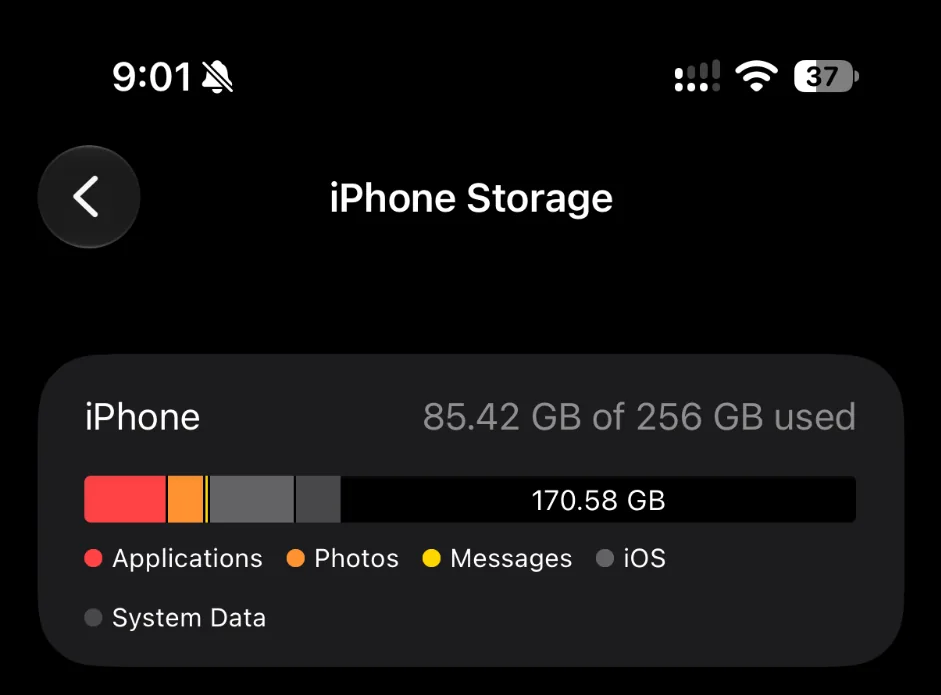
Insufficient device storage can interfere with downloading or installing new resources.
This is particularly relevant to Apple Intelligence because its on-device models can occupy several gigabytes.
According to Apple’s November 2026 requirements for the next generation of Apple Intelligence:
- Supported iPhone 17 Pro models and newer designated devices can require up to 14 GB of on-device storage.
- Other supported iPhones can require up to 8 GB.
Apple also explains that storage usage may temporarily exceed the normal requirements during or shortly after an update while newer models replace older ones.
These figures describe model storage requirements, not a guaranteed download size.
How to check your iPhone storage
- Open Settings.
- Tap General.
- Select iPhone Storage.
- Wait for the storage information to load.
- Review how much space is available.
If your storage is nearly full, consider removing unused downloads or offloading applications that you don’t need immediately.
Avoid deleting important photos, files, or app data without checking that you have backups.
Also, do not assume that the System Data category is entirely unnecessary. iOS uses some of that space for legitimate system functions.
If your iPhone shows unusually large system storage, see our iPhone System Data Taking Up Storage guide.
Expected result: Additional available storage removes one potential obstacle to installing AI model resources.
5. Check Your iPhone and Siri Languages
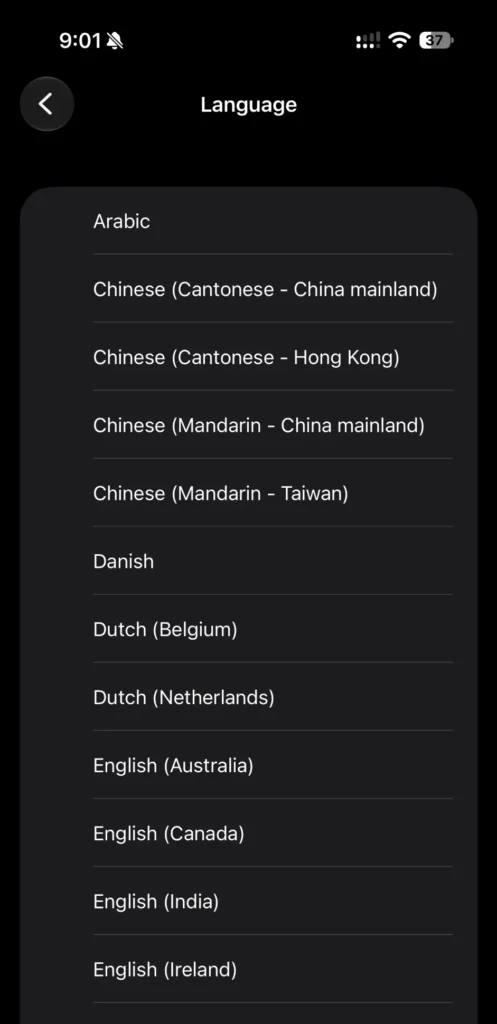
Apple Intelligence has language requirements.
For compatible devices, the device language and Siri language must be set to the same supported language.
If you change Siri’s language, some Apple Intelligence functionality may temporarily become unavailable while the relevant resources download.
Check your iPhone language
- Open Settings.
- Select General.
- Tap Language & Region.
- Review your preferred device language.
Check your Siri language
- Return to Settings.
- Open Siri.
- Select the available language settings.
- Confirm that Siri uses a language supported by the feature you’re trying to access.
For users in the United States, English (US) is a straightforward supported option.
However, don’t change your preferred language simply because a download is slow. First determine whether your existing language is already supported.
Apple Intelligence supports more languages than the separate Siri AI beta, so a language supported by one feature is not necessarily supported by every feature.
Expected result: Matching supported languages eliminates one possible cause of missing or delayed AI functionality.
6. Install the Latest Compatible iOS Update
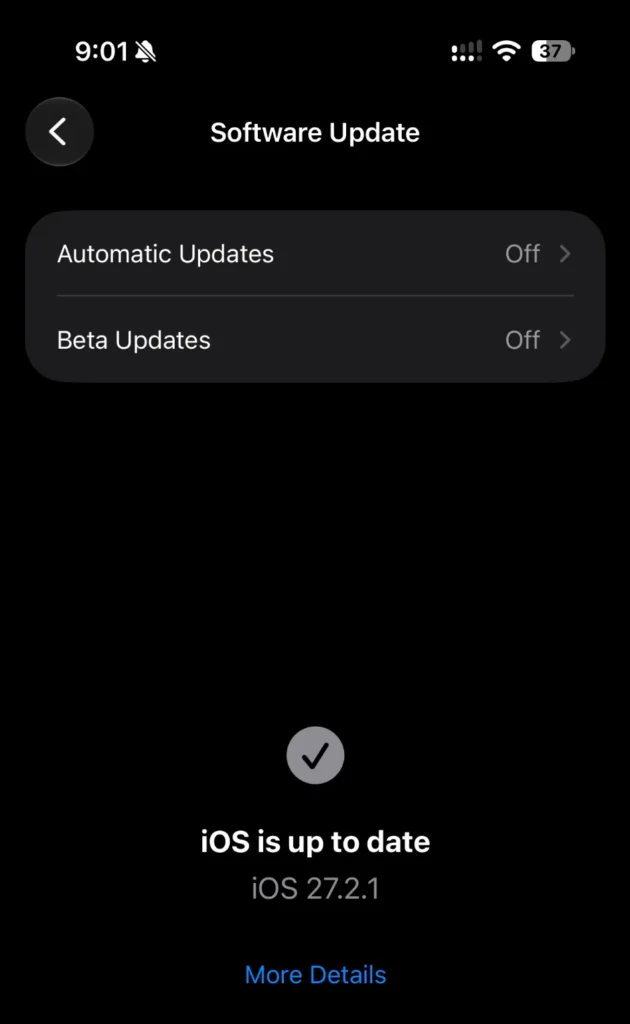
Software updates can improve system stability and address bugs.
If Apple Intelligence is downloading indefinitely, check whether a newer compatible iOS version is available.
How to check for updates
- Open Settings.
- Tap General.
- Select Software Update.
- Wait while your iPhone checks for updates.
- Review any compatible update offered.
- Back up important information before installing.
If an update is available, follow the onscreen instructions.
Do not attempt to downgrade your iPhone or install unofficial software to resolve an ordinary Apple Intelligence downloading message.
After updating, reconnect to Wi-Fi and power, then allow background activity to continue.
Expected result: Your iPhone will be running the latest compatible stable software available through Apple’s update system.
7. Restart Your iPhone If Downloading Remains Stuck
If you’ve checked Wi-Fi, storage, languages, and software, but the downloading message still appears unchanged, a normal restart is a reasonable next step.
Restarting can clear some temporary software issues.
Restart an iPhone with Face ID
- Press and hold the Side button and either Volume button.
- Wait for the power-off slider.
- Drag the slider to turn off your iPhone.
- Wait until the device shuts down.
- Press and hold the Side button to turn it on again.
After restarting, unlock the device with your passcode.
Reconnect to Wi-Fi if necessary, then check the relevant feature again.
A restart does not guarantee that a stalled download will resume, but it is less disruptive than erasing or resetting your device.
Avoid repeatedly restarting the iPhone while it is actively installing an iOS software update.
8. Check Siri AI Beta Access and Regional Availability
One important iOS 27 detail is the difference between Apple Intelligence and Siri AI.
The next generation of Apple Intelligence is integrated into compatible devices, but Siri AI (Beta) has an additional activation process.
To check for Siri AI:
- Open Settings.
- Tap Siri.
- Look for Try Siri AI (Beta).
- Follow the onscreen instructions if the option is available.
Apple says a waitlist may apply during periods of high demand.
If you’re waiting for access, repeatedly restarting your iPhone will not necessarily make that approval happen sooner.
Siri AI also has additional language and regional restrictions.
For example, Apple’s November 2026 guidance identifies English, French, Japanese, Korean, Portuguese, and Spanish as supported initial Siri AI languages.
Access varies by region and platform.
Check Apple’s official Siri AI availability and activation guidance before assuming that a missing feature is a software failure.
Which iPhones Support Apple Intelligence?
Apple Intelligence is not available on every iPhone that supports iOS 27.
Compatible iPhone categories include:
- iPhone 15 Pro and iPhone 15 Pro Max.
- iPhone 16 models.
- iPhone 17 and later supported models, including the iPhone 17 Pro.
- The supported iPhone Air and newer iPhone families.
The standard iPhone 15 and iPhone 15 Plus do not support Apple Intelligence.
If your iPhone isn’t eligible, waiting longer or resetting settings will not make its hardware compatible.
Some individual AI features have additional hardware requirements, so check feature-specific support before troubleshooting.
What Should You Avoid When Apple Intelligence Is Stuck?
Several aggressive troubleshooting steps are unnecessary as first attempts.
Don’t erase your iPhone immediately. A model download delay alone is not sufficient reason to delete your personal data.
Don’t repeatedly change Siri languages. A language change may require additional resources to download.
Don’t repeatedly disable and re-enable features without understanding the result. On systems where disabling Apple Intelligence removes its models, enabling it again can require another download.
Don’t assume Siri AI waitlist delays are network errors. Access approval and downloading are different processes.
Don’t install third-party repair utilities just because an AI resource is downloading slowly. Start with supported device settings and Apple’s official guidance.
If the download remains unresolved despite the appropriate checks, contact Apple Support and describe the exact message on your screen.
Frequently Asked Questions
Why does my iPhone say Apple Intelligence is downloading?
Some Apple Intelligence resources may need to download or update after a software or language change. Siri AI (Beta) can also require an additional model download following activation or waitlist approval.
How long should Apple Intelligence take to download?
Apple does not provide a universal completion time. Internet quality, device requirements, background activity, and Siri AI beta availability can affect how long the process takes.
Can I use Apple Intelligence without Wi-Fi?
Some features may continue to work after the necessary resources have been installed, depending on the feature. For initial model downloads, a reliable Wi-Fi connection is recommended.
Does Apple Intelligence take up iPhone storage?
Yes. Apple’s iOS 27 guidance lists model storage requirements of up to 14 GB for certain newer devices and up to 8 GB for other eligible models. Temporary storage usage can be higher during updates.
Will restarting my iPhone delete Apple Intelligence?
A normal restart doesn’t ordinarily erase installed apps, photos, or downloaded system resources. It may help with temporary issues, but it isn’t guaranteed to fix a stalled download.
Is Siri AI the same as Apple Intelligence?
No. Apple Intelligence is the wider collection of AI-powered features integrated into supported Apple devices. Siri AI is a separate conversational assistant powered by the next generation of Apple Intelligence and has its own beta activation and availability rules.
Why is Apple Intelligence not available on my iPhone 15?
The standard iPhone 15 and iPhone 15 Plus do not meet Apple Intelligence’s hardware requirements. The iPhone 15 Pro and iPhone 15 Pro Max are supported.
Final Thoughts
If Apple Intelligence downloading appears stuck on your iPhone, begin with the basics: verify a reliable Wi-Fi connection, connect to power, check storage, and make sure your language and software settings meet Apple’s requirements.
For iOS 27, remember that general Apple Intelligence features and Siri AI (Beta) can have different availability and downloading processes.
There’s no guaranteed time limit for completing every download, and a Siri AI waitlist isn’t necessarily a malfunction.
Work through the least disruptive fixes first. If the problem continues, Apple’s support team can help you investigate the specific message and device configuration.
Last reviewed: November 19, 2026