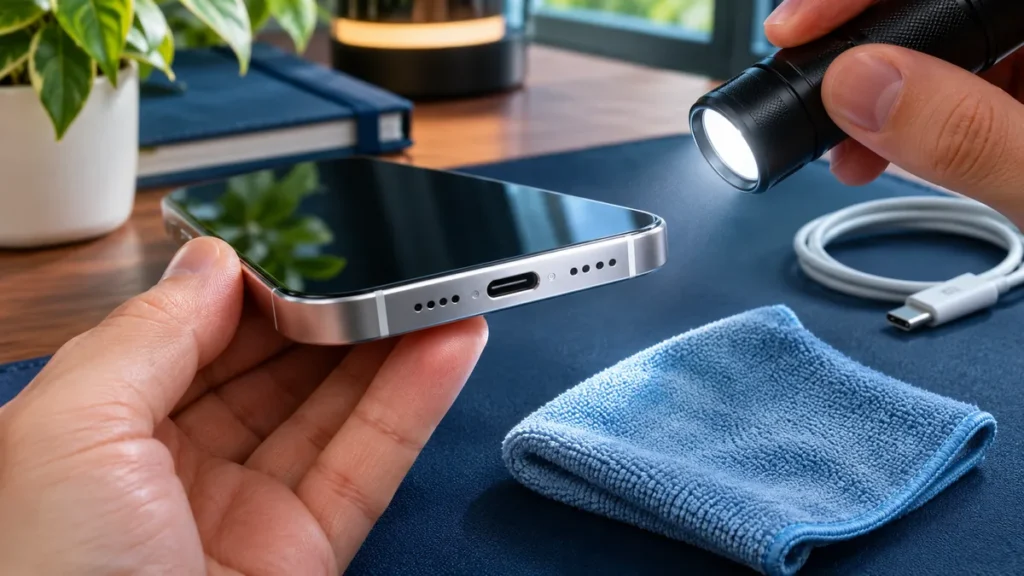
Quick Answer: How to Clean iPhone Charging Port Safely
If you’re wondering how to clean iphone charging port without damaging it, start by disconnecting the charger, turning off your iPhone, and inspecting the port with a flashlight. Gently wipe dust from the outside of the opening with a clean, dry, lint-free cloth. Avoid inserting sharp objects, cotton swabs, or cleaning liquids into the port.
If lint is packed inside the USB-C or Lightning connector, professional cleaning is safer than digging it out yourself.
Important: A charging port that looks dirty is not always the reason your iPhone won’t charge. Check your cable, adapter, and charging settings before assuming the port needs cleaning.
Table of Contents
Why Does an iPhone Charging Port Get Dirty?
Your iPhone’s charging port is exposed to dust, pocket lint, and other small particles during everyday use.
Even if you keep your phone in a case, the connector opening may remain exposed.
Common sources of debris include:
- Pocket lint from clothing
- Dust from bags and desks
- Loose fabric fibers
- Dirt from outdoor environments
- Residue around frequently used charging cables
Over time, debris can collect near the connector opening or become packed farther inside.
This may prevent a charging cable from seating properly or create an unreliable connection.
However, dirt is only one possible cause of charging problems.
A damaged cable, faulty adapter, moisture alert, or worn connector can produce similar symptoms.
Signs Your iPhone Charging Port Might Need Cleaning
Before cleaning anything, check whether the symptoms suggest physical debris.
1. The charging cable doesn’t fit properly
A compatible cable should connect without excessive force.
If the plug suddenly seems unable to seat fully, visible debris or physical damage may be interfering with the connection.
Never push harder to force it into place.
2. Charging disconnects when the cable moves
An intermittent connection can result from debris, a damaged cable, or worn connector contacts.
Try a different known-working cable before blaming the port.
3. The iPhone charges only at a certain angle
If charging works only when the cable is tilted, there may be a physical connection issue.
Repeatedly bending the cable can make the problem worse.
4. The connector looks dusty
Visible lint or dirt around the charging opening is a reason to inspect the area.
It does not necessarily mean the internal connector requires cleaning.
5. Wired charging fails but wireless charging works
If your iPhone supports wireless charging and charges normally on a compatible wireless charger, the problem may involve the wired charging path.
The cable, power adapter, port, or internal charging components could be responsible.
Wireless charging working does not prove that the port is dirty.
How to Clean iPhone Charging Port Safely: 5 Steps
The following process focuses on safe inspection and exterior cleaning.
It deliberately avoids scraping the internal contacts or inserting objects into the connector.
Apple recommends checking and removing debris when troubleshooting charging problems, but its public instructions do not provide a universal procedure for scraping inside the port.
For firmly lodged debris, professional service is the safer approach.
Step 1: Disconnect Your Charger and Turn Off the iPhone
Before inspecting your charging port:
- Disconnect the charging cable.
- Unplug the charger from its power source.
- Remove your iPhone case if it obstructs the connector.
- Turn off your iPhone.
- Move to a clean, dry, well-lit surface.
Turning off the phone helps you avoid accidental interaction with the device while handling the connector.
Do not attempt cleaning if the iPhone or charging cable is wet.
If the device is unusually hot, smells burnt, or shows physical damage, stop and seek professional assistance.
Step 2: Inspect the Port With a Flashlight
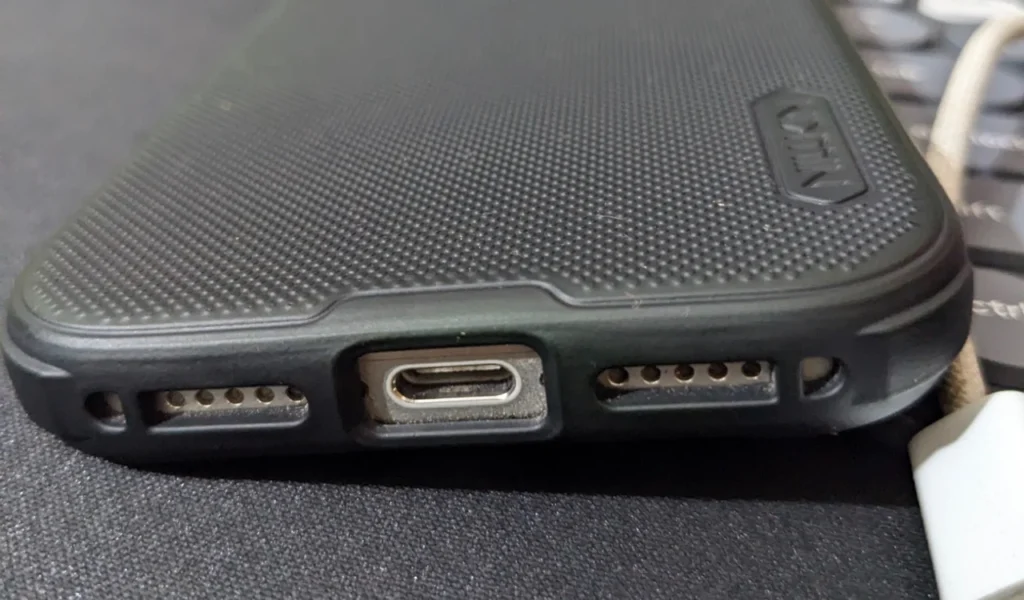
Use a small flashlight or another phone’s light to examine the charging opening.
Hold your iPhone so you can clearly see the port without touching its internal components.
Look for:
- Lint near the opening
- Loose dust around the connector
- Visible obstructions
- Bent or damaged connector components
- Discoloration or suspected corrosion
You do not need to insert anything to perform this inspection.
If the inside of the port is difficult to see, do not force a tool into it.
Tip: On USB-C iPhones, the thin central connector tongue is part of the port’s normal structure. Do not mistake it for debris or attempt to move it.
Step 3: Gently Clean the Outside of the Port
For dust on the external rim or surrounding phone surface:
- Use a clean, dry, soft, lint-free cloth.
- Gently wipe the area around the charging opening.
- Keep the cloth outside the port.
- Avoid pressing dust farther into the connector.
- Inspect the opening again using your flashlight.
A microfiber cloth suitable for cleaning electronics is a practical choice.
This can remove surface dust and fingerprints without exposing the internal connector to unnecessary pressure.
Do not push the cloth or its fibers into the charging port.
If compacted lint is visible deeper inside, stop rather than attempting to dig it out.
Step 4: Inspect and Clean the Charging Cable
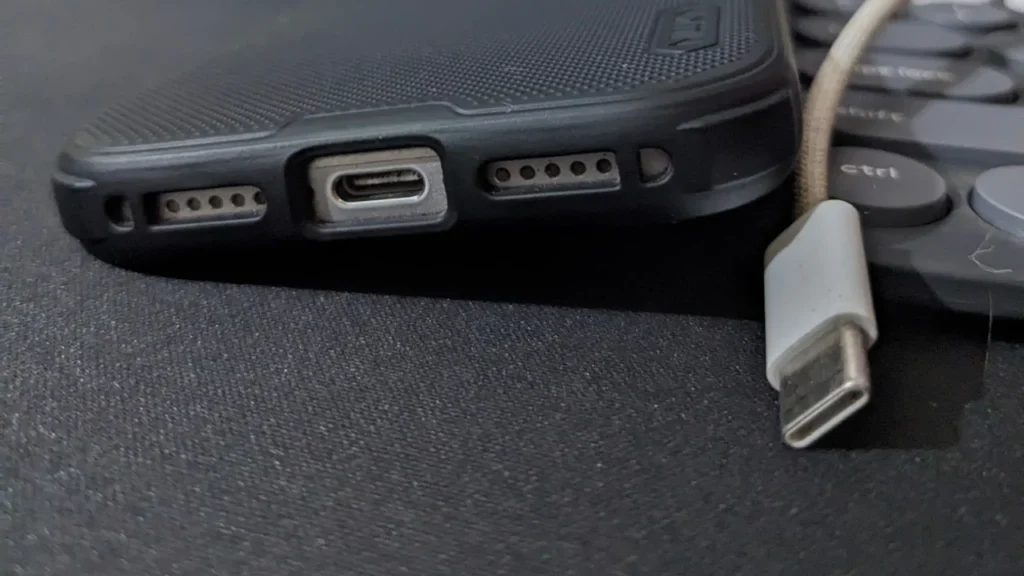
Sometimes the problem comes from the charging cable rather than the iPhone.
A dirty, damaged, or worn cable connector can create intermittent charging problems.
First, unplug the cable from both your iPhone and the power adapter.
Inspect the connector for:
- Visible debris
- Bent or damaged metal components
- Corrosion or discoloration
- Frayed cable insulation
- Signs of overheating
For an otherwise undamaged connector, gently wipe accessible external surfaces using a soft, dry, lint-free cloth.
Apple advises avoiding liquids and cleaning products on Lightning and USB-C cable connectors.
Do not attempt to repair a damaged plug by bending its contacts back into position.
If the cable appears damaged, discontinue using it.
For information about compatible chargers, see our iPhone 18 Pro Max Charger guide, which explains USB-C charging accessories for that model.
Step 5: Reconnect and Test Charging
Once everything is completely dry and free of visible external debris:
- Turn on your iPhone.
- Connect a known-working, compatible charging cable.
- Plug the adapter into a reliable wall outlet.
- Insert the connector normally without forcing it.
- Check whether the charging symbol appears.
- Allow the phone time to charge if the battery is very low.
If charging works normally, no further cleaning may be necessary.
If the cable still doesn’t seat correctly, disconnect it and avoid repeated forceful attempts.
If the phone remains unresponsive or charging is intermittent, consult our iPhone Not Charging: 12 Fixes to Try guide.
That article covers broader charging problems involving cables, adapters, software, temperature, and batteries.
What Should You Never Use to Clean an iPhone Charging Port?
Many online tutorials recommend inserting household tools into charging connectors.
Some methods may appear effective, but they can also damage small internal components.
For a safety-first cleaning approach, avoid the following.
Metal needles, pins, and paper clips
Metal objects can scratch or bend internal connector contacts.
They may also create electrical risks if used improperly.
Never insert a SIM-eject tool or paper clip into a charging port.
Toothpicks and sharp wooden tools
Wooden tools are sometimes suggested because they are not metal.
However, a toothpick can still apply excessive pressure, break, or leave fragments inside the connector.
Avoid using one to scrape internal contacts.
Cotton swabs and tissues
Cotton swabs and paper products can shed fibers.
Apple specifically warns against inserting foreign objects such as cotton swabs or paper towels into wet connectors.
For this guide, keep all cloths and fibers outside the port opening.
Compressed air
Do not use compressed air to blast dust out of an iPhone connector.
Apple advises against compressed air when cleaning iPhones and drying wet charging connectors.
Water and cleaning liquids
Do not pour water, rubbing alcohol, contact cleaner, or other liquids into the port.
Moisture can interfere with charging and potentially damage connector components.
Disinfecting the external surfaces of an iPhone is a different process from cleaning its charging port.
Hair dryers and excessive heat
Never use a hair dryer, heater, or heat gun to dry the charging connector.
Heat can damage the device and does not reliably solve moisture problems.
How to Clean a USB-C Port vs. a Lightning Port
The safest basic approach is similar for both connector types: inspect the opening, avoid forcing accessories, and clean only accessible external surfaces.
However, the connectors have different physical designs.
USB-C charging ports
iPhone 15 models and later use USB-C.
The connector has a central tongue with delicate contacts.
Avoid pressing against or trying to scrape around this internal component.
If debris is packed behind the tongue, professional cleaning is preferable to attempting to reach it with a household tool.
Lightning charging ports
Many older iPhones, including iPhone 14 models and earlier, use Lightning.
The opening has a different internal contact arrangement.
Although there is no USB-C-style central tongue, the contacts can still be damaged by scraping or excessive force.
Never assume that a Lightning port is safe to clean with a sharp object simply because its shape is different.
What If Your iPhone Says Liquid Detected?
A liquid-detection warning should not be treated as ordinary dust or lint.
If your iPhone reports moisture in the Lightning or USB-C connector:
- Disconnect the charging cable immediately.
- Do not attempt to clean inside the connector.
- Hold the iPhone with the port facing downward.
- Gently tap it against your hand to help remove excess liquid.
- Leave the device in a dry area with airflow.
- Follow Apple’s guidance before reconnecting accessories.
Apple says you may retry after at least 30 minutes when following the liquid-alert instructions, but complete drying can take up to 24 hours.
For broader liquid exposure, Apple’s handling guidance can recommend a longer initial drying period.
If the alert reappears, stop wired charging and allow more drying time.
Do not use rice, compressed air, heating appliances, or cotton swabs.
Can you use wireless charging while the port is wet?
On compatible iPhones, Apple says wireless charging can be used when the back of the device is dry.
The wireless charging surface and the charger must also be suitable for safe use.
Avoid wired charging while moisture remains in the connector.
Apple provides an emergency override option for certain liquid-detection alerts, but using it can risk corrosion or permanent connector damage. It should not be used as an ordinary troubleshooting shortcut.
What If the iPhone Still Won’t Charge After Cleaning?
If your phone continues to have charging problems, the cause might not be dirt.
Try these checks before assuming the port needs replacement.
Test a different cable
Use a compatible charging cable that works with another device.
If the replacement cable charges your iPhone normally, the original cable may be defective.
Try a different adapter and outlet
A faulty power adapter or outlet can prevent charging even when the port is clean.
Try a known-working charger connected directly to a wall outlet.
Check for charging limits
On iPhone 15 and later, a configured Charge Limit can intentionally stop charging at a selected percentage.
A phone that stops near its configured charge limit does not necessarily have a dirty port.
Check the charging settings before attempting hardware cleaning.
Restart your iPhone
A temporary software issue may prevent charging status from updating correctly.
Restart your device and test the charger again.
Seek professional service
Contact Apple Support or an authorized service provider if:
- The cable repeatedly fails to fit.
- The connector looks bent or damaged.
- You suspect corrosion.
- Charging only works when holding the cable at an angle.
- The phone continues to display liquid-detection alerts after adequate drying.
- Multiple known-working cables and chargers fail.
A technician can evaluate the connector and determine whether cleaning, repair, or replacement is appropriate.
How Often Should You Clean an iPhone Charging Port?
There is no universal cleaning schedule.
Most users do not need to clean the charging port internally as part of regular maintenance.
A better routine is to inspect the opening occasionally and keep the exterior free of dust.
You can reduce debris accumulation by:
- Keeping your phone in a clean pocket or bag
- Avoiding loose lint and dust around charging cables
- Inspecting charging accessories periodically
- Keeping the phone away from sand and fine particles
- Avoiding unnecessary insertion and removal of damaged cables
Avoid repeatedly scraping or probing a connector that is functioning normally.
Prevention is safer than frequent invasive cleaning.
Frequently Asked Questions
What is the safest way to clean an iPhone charging port?
Disconnect the charger, turn off the iPhone, inspect the port with a flashlight, and gently clean dust from the outside of the opening using a dry, lint-free cloth. Seek professional service if debris is packed inside.
Can I use a toothpick to clean my iPhone charging port?
A toothpick can break or damage internal connector components. This guide does not recommend inserting toothpicks or other household objects into the port.
Is it safe to use compressed air?
No. Apple advises against using compressed air when cleaning an iPhone or attempting to dry its charging connector.
Can I put rubbing alcohol inside my iPhone charging port?
Do not pour or spray rubbing alcohol or other cleaning liquids into the connector. Cleaning the outside of an iPhone is different from cleaning its electrical contacts.
Why is my iPhone charging port loose?
A loose connection may result from a worn cable, damaged connector, or debris preventing a proper fit. Test another compatible cable and seek service if the problem continues.
Can a dirty charging port stop an iPhone from charging?
Yes. Apple identifies debris or a dirty charging port as possible causes of charging problems. However, faulty cables, adapters, moisture protection, and hardware damage can also prevent charging.
How do I know whether my charging port is damaged?
Warning signs include visible bent components, corrosion, burning smells, overheating, repeated connection failures, or a cable that no longer seats correctly. Professional inspection is appropriate when physical damage is suspected.
Does cleaning an iPhone charging port improve charging speed?
Removing an obstruction may restore a reliable connection, but cleaning does not increase the charging capability of the iPhone, cable, or adapter. Slow charging can have other causes.
Is cleaning different on an iPhone 17 Pro?
The iPhone 17 Pro uses USB-C. Its port should be handled carefully, particularly around the central connector tongue. The same safety-first inspection and exterior cleaning principles apply.
Final Thoughts
Knowing how to clean iphone charging port safely is less about finding the strongest cleaning tool and more about avoiding unnecessary damage.
Begin with a visual inspection, keep moisture and objects out of the connector, and use a clean, dry, lint-free cloth on exterior surfaces.
If lint is firmly packed inside the port, professional cleaning is safer than trying to remove it with a needle, toothpick, or other household object.
Remember that not every charging problem is caused by dirt. Testing a known-working cable and adapter can help you identify the real issue before spending money on unnecessary repairs.
Official Apple References
- Apple: If your iPhone or iPod touch won’t charge
- Apple: If you see a liquid-detection alert on your iPhone
- Apple: How to clean your Apple products
- Apple: Important handling information for iPhone
Last updated: November 20, 2026. This guide focuses on low-risk inspection and exterior cleaning, not internal connector repair. The safety recommendations are based on Apple’s published handling and charging guidance.