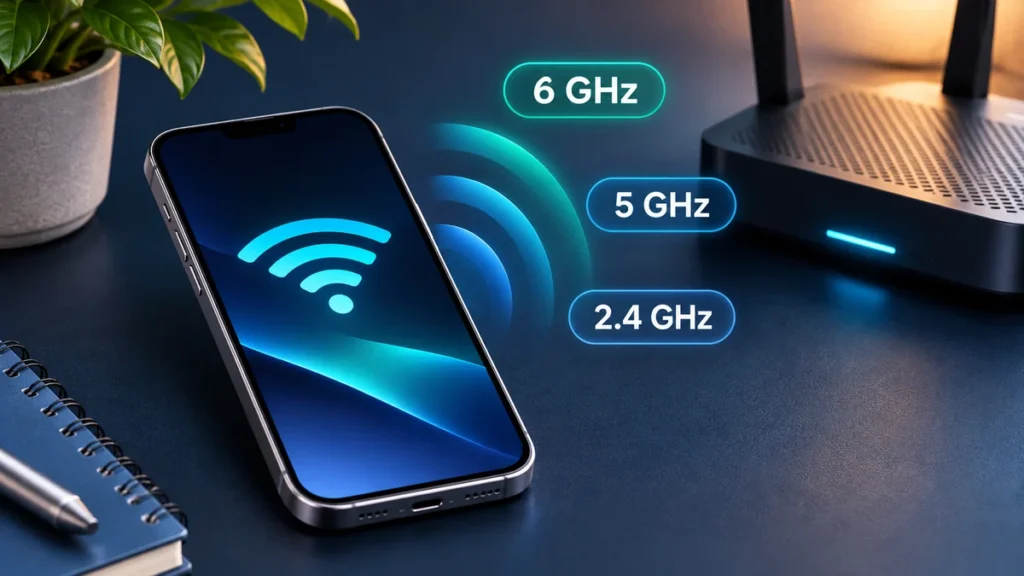
Quick Answer: How to Check Your WiFi GHz on iPhone
Wondering how to check your wifi ghz on iphone to find out whether you’re connected to 2.4 GHz, 5 GHz, or 6 GHz?
Open Settings > Wi-Fi to identify your connected network. However, iOS does not normally display the exact frequency band of that connection in the standard Wi-Fi details screen.
To identify the band, you have three practical options:
- Check your router’s connected-device list. This is generally the most reliable way to see which band your iPhone is currently using.
- Use Apple’s AirPort Utility Wi-Fi scanner. This can help identify the channels and bands used by nearby networks, although it doesn’t directly confirm your iPhone’s active connection.
- Check your Wi-Fi network name. If your router uses separate, clearly labeled networks for each band, the connected network name may identify the frequency.
This guide explains each method and how to understand the results on iOS 27 and other recent versions.
Table of Contents
What Are 2.4 GHz, 5 GHz, and 6 GHz Wi-Fi?
Wi-Fi routers transmit wireless signals using radio frequency bands.
The three main bands used by modern consumer Wi-Fi networks are 2.4 GHz, 5 GHz, and 6 GHz.
Each has different characteristics.
2.4 GHz Wi-Fi
The 2.4 GHz band generally provides better coverage over longer distances and through some obstacles.
However, it is also commonly used by smart-home devices and other wireless equipment, so interference can be a concern.
It is often suitable for:
- Smart-home accessories
- Devices farther from the router
- Areas separated by walls
- Basic browsing and everyday internet use
5 GHz Wi-Fi
The 5 GHz band generally provides greater capacity and potentially faster performance under suitable conditions.
It is commonly used for:
- Video streaming
- Online gaming
- Video calls
- Large downloads
- General high-speed home networking
Its coverage can be more limited than 2.4 GHz, especially through walls.
6 GHz Wi-Fi
The 6 GHz band is available through compatible Wi-Fi 6E and Wi-Fi 7 equipment.
It can provide access to additional wireless spectrum and potentially reduce congestion.
However, 6 GHz requires a compatible iPhone, router, and regulatory support in your country.
The iPhone 17 Pro supports Wi-Fi 7, including 6 GHz operation where permitted.
Important: A router advertising Wi-Fi 6 or Wi-Fi 7 does not mean your iPhone is necessarily connected on the 6 GHz band.
Wi-Fi generation and Wi-Fi frequency are different concepts.
Method 1: Check Your iPhone’s Wi-Fi Band in Router Settings
This is usually the best method when you need to identify the frequency your iPhone is actually using.
Many modern routers provide a connected-device list that includes information such as device name, connection type, Wi-Fi band, or wireless channel.
Step 1: Find Your Router Address on iPhone
- Open Settings.
- Tap Wi-Fi.
- Make sure you’re connected to your home network.
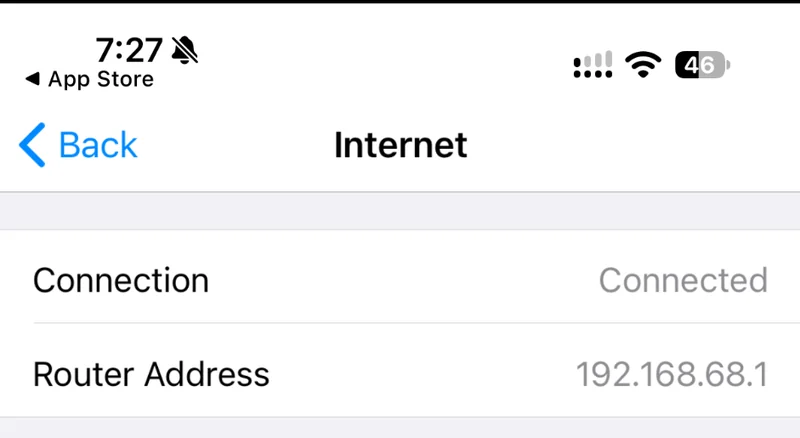
- Tap the information (i) button beside the connected network.
- Look for the Router field.
- Note the router address shown.
This address often identifies the local network gateway.
Step 2: Open the Router’s Management Interface
If you own or administer the router:
- Open Safari.
- Enter the router’s management address or use its official companion app.
- Sign in using your administrator credentials.
- Navigate to the connected-device or wireless-client section.
Different manufacturers use different labels, such as:
- Connected Devices
- Client List
- Wireless Clients
- Network Map
- Device Details
Use your router manufacturer’s official instructions if you’re unsure where to find this information.
Security reminder: Only sign in to routers you own or are authorized to administer. Never share administrator passwords publicly.
Step 3: Find Your iPhone
Look for your iPhone in the router’s client list.
Some routers show the iPhone’s device name, while others display a generic name or network identifier.
If you cannot identify it, check your iPhone’s Wi-Fi settings and compare the connection details with the router’s device information.
Remember that iPhones can use private Wi-Fi addresses, so the displayed hardware address may differ from what you expect.
Step 4: Check the Band or Channel
Open your iPhone’s connection details in the router interface.
Look for labels such as:
Band: 2.4 GHz
Band: 5 GHz
Band: 6 GHz
Some routers display the wireless channel instead of the band.
If the router clearly reports the active band, that is useful evidence of the current connection.
What if your router doesn’t show the band?
Not every router provides detailed client information.
Some only show device names, IP addresses, and connection status.
In that situation, try the router manufacturer’s app or consult its documentation.
Don’t assume the band from signal strength alone.
Also remember that a modern router may automatically move your iPhone between bands as conditions change.
Method 2: Use Apple’s AirPort Utility Wi-Fi Scanner
Apple provides a free iPhone app called AirPort Utility.
Although its primary purpose is managing Apple’s AirPort networking equipment, it also includes a Wi-Fi scanning feature.
The scanner can help identify nearby wireless networks and their channels.
Step 1: Install AirPort Utility
- Open the App Store.
- Search for AirPort Utility.
- Make sure the developer is Apple.
- Install the application.
You can find it directly here:
AirPort Utility on the App Store
Step 2: Enable Wi-Fi Scanner
On supported iOS versions:
- Open Settings.
- Tap Apps.
- Find AirPort Utility.
- Enable Wi-Fi Scanner, if the setting is available.
On older iOS versions, the app’s settings may appear directly in the main Settings list.
If required, grant the appropriate permissions for scanning.
Step 3: Scan Nearby Wi-Fi Networks
- Open AirPort Utility.
- Tap Wi-Fi Scan.
- Start scanning.
- Allow nearby networks to appear.
- Locate your home network’s name.
- Review the channel information.
The app may display the same network name more than once when multiple access points or wireless radios use that name.
Step 4: Understand the Wi-Fi Channels
For common US 2.4 GHz networks, channels 1 through 11 are used.
Common 5 GHz channels include 36, 40, 44, 48, 149, 153, 157, and 161.
For example:
- Channel 6 generally indicates a 2.4 GHz radio in a conventional dual-band scan.
- Channel 36 indicates a 5 GHz radio.
- Channel 149 also indicates a 5 GHz radio.
However, interpreting channels becomes more complicated with 6 GHz networks because channel numbers can overlap across bands.
You need the frequency or band information, not only the channel number, to identify 6 GHz reliably.
Important limitation of AirPort Utility
A Wi-Fi scan shows nearby networks. It does not necessarily show which radio your iPhone is currently using.
For example, the scanner might list your router’s 2.4 GHz and 5 GHz radios under the same network name.
That does not prove whether your iPhone is currently connected to the first or second radio.
The app also may not display every 6 GHz network or provide complete modern Wi-Fi 7 diagnostics.
Use your router’s connected-client information when you need to verify the actual connection band.
Method 3: Check Whether Your Router Uses Separate Wi-Fi Names
Some wireless routers broadcast different network names for different frequency bands.
For example, a router might use:
- HomeWiFi-2.4G
- HomeWiFi-5G
- HomeWiFi-6G
If you know these names correspond to separately configured bands, your iPhone’s connected network name can provide a straightforward answer.
How to check
- Open Settings.
- Tap Wi-Fi.
- Find the network with the checkmark.
- Read its name.
- Compare that name with your router’s configured network names.
If you’re connected to a verified 5 GHz-only network, your iPhone is using that band.
What if both bands share the same name?
Many modern routers use one network name for multiple frequency bands.
This is normal.
The router may automatically select an appropriate band through band-steering features.
A network name alone cannot tell you which frequency is currently active.
Should you separate your Wi-Fi networks?
Not necessarily.
Apple recommends using the same network name across supported Wi-Fi bands for better reliability and compatibility.
Separating networks can interfere with some automatic connection behavior.
If you only need to identify the current frequency, check the router’s client information before changing network names.
Avoid reconfiguring a working network simply to determine the band.
Can You Check Wi-Fi GHz Directly in iPhone Settings?
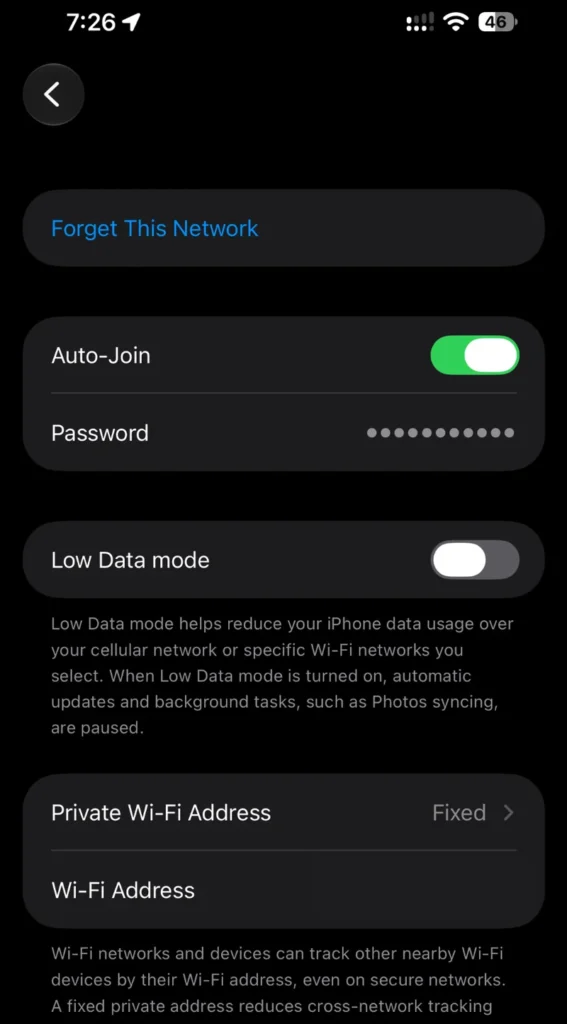
For ordinary personal Wi-Fi connections, iOS does not generally provide a dedicated setting showing:
Connected Frequency: 2.4 GHz / 5 GHz / 6 GHz
Under Settings > Wi-Fi > Information, you can usually review details such as the connected network, IP configuration, DNS, and router address.
Some newer iPhones may also display settings related to Wi-Fi 6E or other network features.
However, those options should not be mistaken for a live frequency readout.
Does the Wi-Fi icon tell you the band?
No.
The Wi-Fi icon indicates wireless connectivity and approximate signal strength.
It does not identify whether the connection uses 2.4 GHz, 5 GHz, or 6 GHz.
Does a speed test reveal the Wi-Fi frequency?
No.
A speed test measures network performance, not the exact radio band.
A fast result might suggest favorable wireless conditions, but it does not prove the iPhone is using 5 GHz or 6 GHz.
Similarly, a slow 5 GHz connection may perform worse than a good 2.4 GHz connection.
Actual performance depends on the router, interference, distance, broadband speed, and other conditions.
Does iPhone 17 Pro Support 6 GHz Wi-Fi?
Yes, the iPhone 17 Pro supports Wi-Fi 7.
Wi-Fi 7 can operate using 2.4 GHz, 5 GHz, and 6 GHz frequencies.
However, the 6 GHz band is not available in every country.
Apple explains that regional regulations determine whether compatible devices can use this spectrum.
What do you need for 6 GHz Wi-Fi?
You’ll need:
- A compatible iPhone.
- A suitable Wi-Fi 6E or Wi-Fi 7 router or access point.
- The appropriate router configuration.
- Permission to use 6 GHz Wi-Fi in your region.
- A working network connection.
If any requirement is missing, the iPhone may use 2.4 GHz or 5 GHz instead.
Why might an iPhone use 5 GHz instead of 6 GHz?
Possible explanations include:
- The router does not support 6 GHz.
- The region restricts 6 GHz operation.
- The 6 GHz signal is too weak.
- Network compatibility settings favor another band.
- The router selects a different connection automatically.
A capable iPhone does not need to use 6 GHz all the time.
On some Wi-Fi 7 networks, Multi-Link Operation can also complicate the idea of a single active frequency because supported equipment may use multiple links.
2.4 GHz vs. 5 GHz vs. 6 GHz: Which Is Better?
The best frequency depends on your location, router, and intended use.
| Feature | 2.4 GHz | 5 GHz | 6 GHz |
|---|---|---|---|
| General coverage | Often longest | Moderate | Often shorter |
| Potential performance | Lower | High | High |
| Interference | Often crowded | Usually less crowded | Additional spectrum |
| Older-device support | Broad | Broad | Newer devices |
| Typical use | Range and smart devices | Everyday high-speed use | Compatible modern networks |
These are general characteristics, not guaranteed performance ratings.
A properly configured 5 GHz network may outperform a poor 6 GHz connection.
Likewise, 2.4 GHz may remain usable at a distance where 5 GHz or 6 GHz reception becomes unreliable.
Best band for video streaming
A reliable 5 GHz or 6 GHz connection can work well for high-quality streaming.
However, the most important factor is consistent performance, not simply selecting the highest frequency.
Best band for a large house
The 2.4 GHz band may provide better reach in areas farther from the router.
A mesh Wi-Fi system or additional access points may offer a better long-term solution than forcing every device onto 2.4 GHz.
Best band for smart-home accessories
Many smart plugs, bulbs, and other inexpensive smart-home devices support only 2.4 GHz.
This can create setup challenges when a phone and router use multiple bands under one network name.
Check the device manufacturer’s setup instructions before changing router settings.
How to Connect an iPhone to 2.4 GHz Instead of 5 GHz
You cannot normally select a frequency band directly from a dedicated iPhone Wi-Fi band menu.
Your router determines which networks and radios are available.
If your router broadcasts separate 2.4 GHz and 5 GHz network names, you can manually select the 2.4 GHz network.
Steps
- Open Settings > Wi-Fi.
- Find the router’s dedicated 2.4 GHz network.
- Tap the network name.
- Enter its password if required.
- Wait for the connection to complete.
If only one network name appears, your router may be using automatic band selection.
Check the router’s configuration or manufacturer’s documentation.
Do not disable 5 GHz or 6 GHz permanently just to connect one accessory unless the manufacturer specifically recommends that configuration.
Why Does My iPhone Keep Switching Between Wi-Fi Bands?
Modern routers can use band steering to choose an appropriate wireless connection.
As you move around your home, signal strength and interference conditions may change.
Your iPhone may therefore use another band or access point.
This is not automatically a problem.
However, repeated connection interruptions may indicate weak coverage, interference, or a router configuration issue.
What should you check?
Start with the basics:
- Move closer to the router.
- Test whether other devices have the same problem.
- Confirm the router’s firmware is current.
- Check for excessive interference.
- Review the router’s band-steering settings if you administer it.
If your iPhone disconnects repeatedly, read our iPhone Wi-Fi Keeps Disconnecting guide for more targeted troubleshooting.
If the phone stays connected but cannot load websites, use our iPhone Connected to Wi-Fi but No Internet guide.
These problems require different fixes from simply identifying the Wi-Fi frequency.
Common Mistakes When Checking iPhone Wi-Fi GHz
Mistake 1: Confusing 5G with 5 GHz
5G refers to a generation of cellular network technology.
5 GHz refers to a Wi-Fi radio frequency band.
They are completely different things.
Seeing 5G in the cellular status area does not mean your Wi-Fi connection uses 5 GHz.
Mistake 2: Assuming Wi-Fi 6 always means 6 GHz
Wi-Fi 6 is a wireless networking standard.
Ordinary Wi-Fi 6 can operate over 2.4 GHz and 5 GHz.
Wi-Fi 6E extends supported operation into the 6 GHz band.
Wi-Fi 7 can also support 6 GHz on compatible equipment.
The generation number and frequency are not interchangeable.
Mistake 3: Assuming a router’s advertised bands are your current band
A router supporting three frequency bands doesn’t prove your iPhone is using all three.
Check the connected-device information for the actual connection details.
Mistake 4: Using a speed test as proof
Download speeds cannot reliably identify the active Wi-Fi frequency.
Mistake 5: Changing router settings unnecessarily
Renaming networks, disabling bands, or resetting your router can affect other household devices.
Identify the current setup before making changes.
Apple generally recommends using consistent network names and compatible security settings across supported router bands.
Frequently Asked Questions
How do I know if my iPhone is connected to 2.4 GHz or 5 GHz?
The most reliable approach is to check your router’s connected-device information for the iPhone’s active band. If your router uses separate verified network names, the connected SSID can also identify the band.
Can I see Wi-Fi GHz in iPhone Settings?
The standard iPhone Wi-Fi screen does not normally show a simple live 2.4 GHz, 5 GHz, or 6 GHz label. It provides network details, including the router address, which you can use to access your router’s management interface.
How do I check Wi-Fi frequency on iPhone without a third-party app?
Use your router’s companion app or management webpage. You can often find your iPhone’s connection band in its device details without installing a separate Wi-Fi scanner.
Is Apple’s AirPort Utility free?
Yes. AirPort Utility is a free Apple app available through the App Store. Its Wi-Fi scanning feature can help inspect nearby wireless channels where supported.
Can AirPort Utility confirm my iPhone’s current Wi-Fi band?
Not by itself. Its Wi-Fi scanner identifies nearby access points and channels, but it does not necessarily report which radio your iPhone is currently connected to.
Does iPhone 17 Pro support 6 GHz Wi-Fi?
Yes, it supports Wi-Fi 7 and can use 6 GHz with compatible networking equipment where regional regulations permit.
How do I force my iPhone to use 2.4 GHz?
If your router provides a separate 2.4 GHz network, select that network in Settings > Wi-Fi. Otherwise, you may need router-specific configuration. There is no universal iPhone switch that forces all connections onto 2.4 GHz.
Is 5 GHz Wi-Fi always faster than 2.4 GHz?
No. Although 5 GHz often supports higher performance, distance, walls, interference, and router capabilities influence actual speeds.
Does changing Wi-Fi frequency improve battery life?
Not necessarily. Battery use depends on signal quality, data activity, radio conditions, and other factors. Selecting a particular frequency does not guarantee improved battery life.
Why does my router show the same Wi-Fi name for all bands?
Many modern routers use a shared network name so devices can connect automatically to an appropriate band. Apple recommends consistent SSIDs across supported bands for better compatibility.
What if my iPhone doesn’t support 6 GHz?
It can continue using compatible 2.4 GHz or 5 GHz Wi-Fi networks. A 6 GHz-capable router does not mean every connected device must support that band.
Final Thoughts
Understanding how to check your wifi ghz on iphone is useful when troubleshooting connectivity, setting up smart-home devices, or comparing wireless performance.
For a reliable answer, begin with your router’s connected-device details.
Apple’s AirPort Utility can provide additional information about nearby Wi-Fi networks and channels, while separately named networks may help identify the band when configured that way.
Remember that iPhone Wi-Fi settings don’t normally display the exact active frequency directly.
You also don’t need to force your iPhone onto the highest available GHz band. A stable, appropriately configured connection matters more than frequency alone.
Official References
- Apple: Manage Wi-Fi settings on iPhone
- Apple: Recommended Wi-Fi router settings
- Apple: Wi-Fi 7 availability on Apple devices
- Apple: Use Wi-Fi 6E or Wi-Fi 7 networks
- Apple AirPort Utility on the App Store
Last reviewed: November 20, 2026. Wi-Fi band availability and router interfaces vary by manufacturer, device, and region.