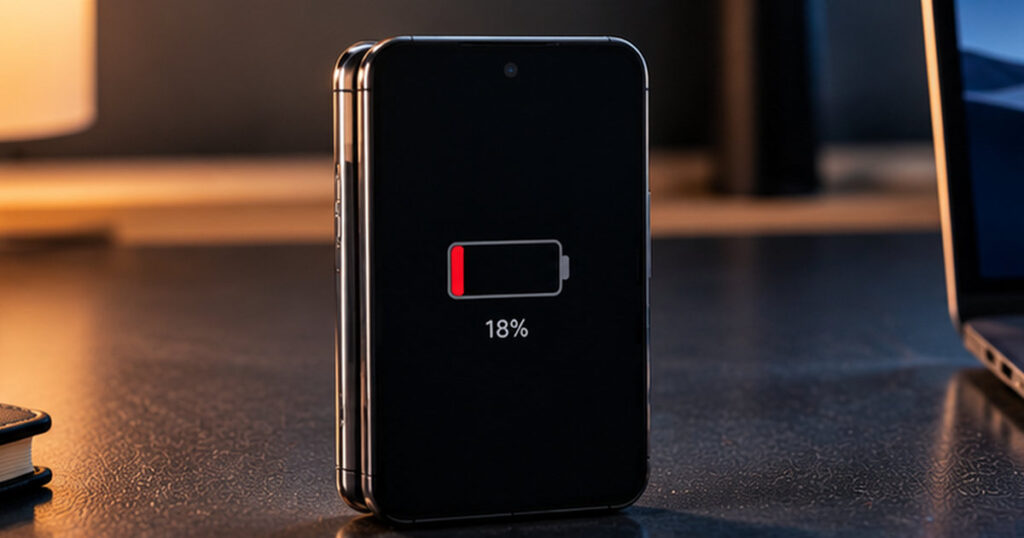
Is your iPhone Duo battery draining fast, even when you’re not using it much? Maybe your new foldable iPhone loses charge overnight, drops several percentage points during basic tasks, or runs out of power sooner than you expected.
The iPhone Duo is different from traditional iPhones. It features a large 7.6-inch inner display, a 5.4-inch outer display, and a dual-battery design built to support folding, multitasking, and demanding applications.
Apple advertises all-day battery life, but actual performance depends on your screen brightness, apps, cellular connection, and how you use the two displays.
Fortunately, you can investigate most battery problems without resetting your iPhone or deleting personal information.
In this guide, we’ll explain 11 practical fixes for iPhone Duo battery draining fast, including iOS 27.1 battery settings, Adaptive Power, background activity, and battery loss overnight.
Table of Contents
Quick Answer
If your iPhone Duo is losing battery unusually quickly, start with these checks:
- Open Settings → Battery and identify the biggest power consumers.
- Allow recently completed setup or updates to finish background processing.
- Confirm Adaptive Power is enabled.
- Use Low Power Mode when you need longer battery life.
- Reduce unnecessary screen brightness and Always-On activity.
- Review how StandBy uses the display.
- Limit unnecessary background app activity.
- Check location services and notifications.
- Investigate weak cellular coverage and 5G settings.
- Update apps, restart, and check for iOS updates.
- Check Battery Health and seek support if the drain continues.
Don’t immediately factory reset the phone. Battery problems are often easier to investigate by identifying the application or system activity responsible.
Why Is My iPhone Duo Battery Draining Fast?
Several factors can affect battery life on Apple’s first foldable iPhone.
The most important difference is the Duo’s display system.
Unlike a conventional iPhone, the Duo offers a large inner display designed for multitasking, entertainment, and productivity.
Using the larger screen at high brightness for long periods can increase energy consumption.
Running two applications side by side may also increase power use depending on what those applications are doing.
Other possible causes include:
- Background processing after initial setup.
- Apps downloading or synchronizing large amounts of data.
- High screen brightness.
- Extended Always-On or StandBy activity.
- Poor cellular reception.
- Continuous location tracking.
- Frequent notifications.
- Streaming, gaming, and video recording.
- Software problems affecting a particular application.
- Unexpected hardware or battery faults.
An important distinction is whether the battery drains during active use or while the phone is sitting idle.
A phone losing power while recording high-resolution video is experiencing a different workload from one losing substantial battery while completely unused.
The first step is identifying which situation applies to you.
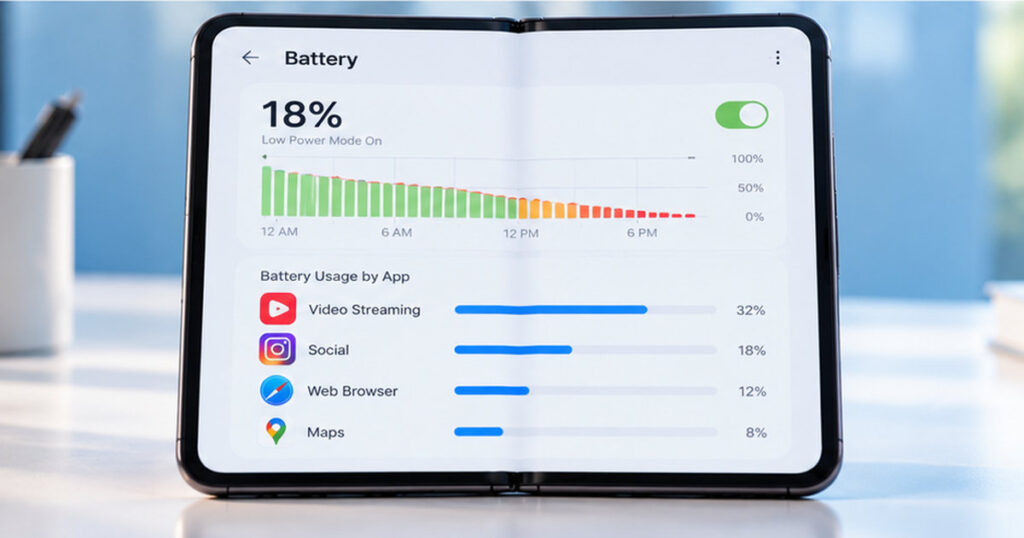
1. Check Battery Usage
Before changing settings, find out where the battery power is going.
Apple provides a detailed battery-usage screen in iOS 27.1.
To check:
- Open Settings.
- Tap Battery.
- Review the Daily Usage section.
- Tap View All Battery Usage.
- Select the day you want to examine.
- Scroll to App and System Activity.
- Review which applications used the most power.
You may see information about on-screen activity, background activity, cellular coverage, and notifications.
For example, if YouTube accounts for substantial battery use after several hours of video playback, that may be expected.
However, if an app you barely opened shows an unusually large amount of background activity, it deserves attention.
Look for changes across several days instead of relying on one percentage.
Tip: The app with the highest percentage isn’t necessarily malfunctioning. It may simply be the application you used most.
If you’re experiencing iPhone Duo battery draining fast, this battery report should guide the rest of your troubleshooting.
2. Allow Setup to Finish
If you recently purchased the iPhone Duo, transferred information from another iPhone, or installed a software update, battery life may temporarily be different from your long-term experience.
Your device may still be performing background tasks.
These can include:
- Downloading applications.
- Synchronizing iCloud Photos.
- Restoring content from a backup.
- Completing software-update tasks.
- Processing and organizing information.
Apple explains that some background work continues after installing iOS updates and can temporarily affect battery life and temperature.
Here’s what to do:
- Open Settings → Battery.
- Look for battery Insights or suggestions.
- Check whether an ongoing iOS update is mentioned.
- Allow background processing to finish.
- Recheck battery performance over the following few days.
If you recently restored thousands of photos or downloaded many applications, consider that activity when evaluating battery consumption.
You don’t need to disable important iCloud services just to save power.
However, if unusually heavy battery consumption continues after setup finishes, investigate the next steps.
3. Enable Adaptive Power
The iPhone Duo supports Apple’s Adaptive Power feature.
According to Apple, Adaptive Power is enabled by default on the iPhone Duo.
It uses on-device intelligence to predict when additional battery savings may be useful.
Adaptive Power can make small adjustments such as lowering screen brightness, limiting background activity, and adjusting performance when appropriate.
To check the setting:
- Open Settings.
- Tap Battery.
- Select Power Mode.
- Find Adaptive Power.
- Make sure it is enabled.
Adaptive Power can also automatically activate Low Power Mode when the battery reaches 20%.
The feature operates in the background, so you generally don’t need to manage it throughout the day.
It also avoids managing performance during certain demanding tasks, such as camera use and games running with Game Mode.
Important: Adaptive Power is designed to extend battery life, not repair a damaged battery or faulty application.
If your iPhone Duo battery draining fast problem continues, examine whether another process is consuming unusually large amounts of energy.
4. Use Low Power Mode
When you need more battery life immediately, Low Power Mode is one of Apple’s most practical tools.
It reduces power consumption by adjusting several system behaviors.
These can include:
- Reducing certain background activities.
- Limiting some visual effects.
- Temporarily pausing some automatic tasks.
- Reducing display brightness.
- Limiting the display refresh rate to 60Hz on ProMotion models.
To enable it:
- Open Settings.
- Tap Battery.
- Select Power Mode.
- Turn on Low Power Mode.
The battery indicator should change to yellow when the feature is active.
You can also add Low Power Mode to Control Center for easier access.
Low Power Mode is useful when you’re traveling, working away from a charger, or expecting unusually heavy usage.
However, some features may operate more slowly while it is enabled.
Apple also automatically disables Low Power Mode after the battery charges to its specified threshold.
You can enable it again whenever needed.
Low Power Mode is safe to use, but it doesn’t identify the cause of abnormal battery drain.
5. Reduce Display Power Use
The display is one of the most important components affecting smartphone battery consumption.
This is particularly relevant to the Duo because it has two different screen sizes.
The inner 7.6-inch display provides more room for video, gaming, and multitasking.
However, using a larger display at high brightness for extended periods can increase energy consumption.
Try these adjustments.
Lower Brightness
Open Control Center and reduce brightness to a comfortable level.
You don’t need to use extremely low brightness. Simply avoid keeping the screen brighter than necessary.
Enable Auto-Brightness
- Open Settings.
- Select Accessibility.
- Tap Display & Text Size.
- Find Auto-Brightness.
- Turn it on if it is disabled.
Auto-Brightness allows your iPhone to adjust screen brightness based on surrounding light.
Review Auto-Lock
- Open Settings.
- Select Display & Brightness.
- Tap Auto-Lock.
- Choose a suitable shorter interval.
If your screen frequently stays on after you stop using it, reducing Auto-Lock time may help.
Check Always-On Display
The Duo supports Always-On display technology.
If you don’t need the Lock Screen to remain visible, try turning it off.
Open Settings → Display & Brightness and disable Always On Display.
You can also choose whether wallpapers and notifications appear on the Always-On screen.
These adjustments are particularly worth testing when your battery report shows extensive screen-on activity.
6. Review StandBy Settings
The iPhone Duo introduces an updated StandBy experience.
Apple explains that the Duo can enter StandBy using either its outer or inner display, including situations where the device is not charging.
This can be useful when you want to display a clock, calendar, photographs, or widgets.
However, keeping a screen active for extended periods may contribute to battery use.
If your iPhone Duo battery is draining fast overnight, check whether StandBy or Always-On features are keeping a display visible.
To review StandBy:
- Open Settings.
- Look for StandBy.
- Review the available display preferences.
- Choose a shorter display-on duration if offered.
- Disable StandBy if you don’t use it.
Exact options can vary depending on the device and installed software.
You don’t need to stop using StandBy completely.
Instead, determine whether the convenience of a persistent display is worth the additional energy consumption in your situation.
If battery life improves when StandBy is disabled, you have identified a useful setting to adjust.
If battery consumption remains unchanged, continue investigating.
7. Limit Background Activity
Applications sometimes continue performing work when they aren’t visible.
This can be useful for refreshing content, synchronizing information, or preparing updates.
However, unnecessary background activity can contribute to battery consumption.
Open Settings → Battery and look for applications with unusually high background use.
Then review Background App Refresh:
- Open Settings.
- Tap General.
- Select Background App Refresh.
- Review the list of applications.
- Disable background refresh for apps that don’t require it.
For example, an application you rarely open might not need to refresh its content continuously.
Be selective.
Navigation apps, messaging services, and other important applications may need background functionality for certain tasks.
Also remember that disabling Background App Refresh does not stop every background process. Some functions use separate system services.
If an application is using excessive battery and also crashing, our iPhone Apps Keep Crashing guide explains how to troubleshoot it safely.
Avoid deleting apps before confirming that important data is backed up.
8. Check Location and Alerts
Location services and frequent notifications can contribute to battery usage, particularly when applications repeatedly wake the device or request location updates.
Start with location permissions.
- Open Settings.
- Tap Privacy & Security.
- Select Location Services.
- Review the apps listed.
- Check which applications have permission to access your location.
For apps that don’t require continuous tracking, consider selecting While Using the App instead of Always.
However, retain permissions needed for navigation, emergency services, location sharing, and other important functions.
Next, review your notifications.
Open Settings → Notifications and look for applications that send frequent, unnecessary alerts.
Reducing unimportant alerts may help prevent repeated screen wake-ups.
Don’t disable critical notifications from banking applications, security tools, or important communication services just to reduce battery use.
Focus on activity that you genuinely don’t need.
9. Check Cellular and 5G
Weak cellular reception can increase power consumption.
When an iPhone struggles to maintain a stable cellular connection, it may spend additional energy searching for or communicating with a network.
This can be especially noticeable when traveling or spending time in areas with poor signal coverage.
In the United States, your experience may vary depending on your location and cellular provider, including AT&T, Verizon, or T-Mobile.
If your battery drains much faster when you’re away from Wi-Fi, investigate your cellular connection.
To review 5G settings:
- Open Settings.
- Tap Cellular.
- Select Cellular Data Options.
- Open Voice & Data.
- Select 5G Auto, if available.
Apple explains that 5G Auto can help conserve battery power by switching between supported network modes when faster 5G performance isn’t necessary.
You can also compare battery usage at home on stable Wi-Fi with usage in a location with poor reception.
If the battery drains particularly quickly during travel, cellular conditions may be contributing.
Avoid repeatedly resetting all network settings merely to improve battery life.
A network reset removes saved connection settings and is generally unnecessary unless you have an actual connectivity problem.
10. Update Apps and iOS
Software updates can include bug fixes, compatibility improvements, and changes affecting device behavior.
This is particularly important for a newly introduced device like the iPhone Duo.
Third-party developers may release updates to improve support for the larger display, multitasking, and other features.
Update Your Apps
- Open the App Store.
- Tap your account picture.
- Select App Updates.
- Install available updates for relevant apps.
- Restart an affected application if necessary.
Focus especially on applications appearing in your Battery Usage report.
Check for iOS Updates
- Open Settings.
- Tap General.
- Select Software Update.
- Check for an available compatible release.
- Back up important information before installing a major update.
The iPhone Duo ships with iOS 27.1.
If a newer software version becomes available, review its release information.
Remember that installing an update can temporarily increase background processing.
It may take some time for battery consumption to settle.
Restart Your iPhone
If a particular app or system process appears stuck, a normal restart is another reasonable troubleshooting step.
Turn off the iPhone using the available power controls, wait briefly, and turn it on again.
Then recheck your battery report.
A restart can help with temporary issues, but it is not a guaranteed battery-drain solution.
If you also use another iPhone running an earlier version of iOS 27, our iOS 27.0.1 Battery Drain guide covers that separate software version.
11. Check Battery Health
If your iPhone Duo battery draining fast issue continues despite the previous checks, examine the condition of the battery.
Apple provides battery health information in Settings.
To check:
- Open Settings.
- Tap Battery.
- Select Battery Health.
- Review the available battery condition information.
- Look for any service recommendations.
On a newly purchased iPhone Duo, the battery should not ordinarily have substantial age-related capacity loss.
However, battery health alone cannot explain every problem.
A device can display normal battery health while an application, system process, or hardware issue causes unusual power consumption.
If you notice severe overheating, unexpected shutdowns, charging failures, or very rapid discharge during minimal activity, seek professional assistance.
Do not attempt to open, modify, or replace the Duo’s internal batteries yourself.
Its foldable construction and dual-battery arrangement require appropriate tools and service procedures.
For persistent problems, contact Apple Support or an Apple Authorized Service Provider.
Battery Draining Overnight?
Overnight battery drain is one of the most frustrating problems because you’re not actively using the phone.
If you notice significant battery loss while the Duo is idle, start with the Battery Usage report.
Check for:
- Unusually high background app activity.
- Poor cellular coverage.
- Ongoing downloads or syncing.
- Location services used extensively overnight.
- Frequent notifications.
- Extended display or StandBy activity.
Then compare battery usage across more than one night.
For example, record the battery percentage before bed and again when you wake up.
Also note whether the phone was connected to Wi-Fi, whether it was charging, and whether any background tasks were running.
Avoid using a single night as proof of a defective battery.
However, repeated large losses during genuinely minimal activity deserve investigation.
If you recently transferred data to the Duo, allow the initial setup processes to finish before making a final judgment.
Battery Draining While Closed?
You might expect the iPhone Duo to use very little power when folded shut.
However, closing the phone doesn’t mean every application and wireless service stops running.
The outer display can still be active, while background processes, notifications, cellular connectivity, and system services continue to consume energy.
If battery life seems unusually short when the phone is folded:
- Check Battery Usage.
- Review background app activity.
- Check Always-On Display.
- Review StandBy settings.
- Investigate cellular reception.
- Compare battery consumption during similar periods of use.
It’s also worth remembering that Apple’s video playback figures differ depending on which display is used.
The outer screen and inner screen have different power demands and viewing characteristics.
A difference in battery life between the two usage modes is not automatically evidence of a fault.
Battery Draining After iOS 27.1?
The iPhone Duo launches with iOS 27.1.
If you notice increased battery consumption after installing a later software update, first check whether background update processing is still underway.
Apple explains that some tasks continue after an iOS update has finished installing.
These tasks can temporarily affect battery life.
Open Settings → Battery and review any available insights.
Allow several days for post-update processes to settle when appropriate.
Then compare your battery performance with the previous days.
If battery drain continues, identify the affected applications and check whether new app or iOS updates are available.
Don’t assume that every battery problem following an update was caused by the update itself.
Other changes, such as a new app, poor cellular reception, or altered usage patterns, may also explain the difference.
How Long Should the Battery Last?
Apple advertises several battery-life figures for the iPhone Duo.
According to Apple’s official specifications, the device supports up to:
- 31 hours of video playback using the inner display.
- 44 hours of video playback using the outer display.
- 24 hours of usage per charge in Apple’s mixed-display usage measurement.
These are Apple’s stated maximums under its testing conditions, not guaranteed results for every owner.
Your actual battery life depends on what you’re doing.
For example, running demanding games, recording high-resolution video, using navigation, or multitasking at high brightness may consume significantly more power than reading messages.
When evaluating the device, compare similar activities rather than expecting every application to achieve the same battery life.
The most useful question is whether your iPhone’s battery consumption appears reasonable for the work it is performing.
Does Split View Drain Battery?
The iPhone Duo supports Split View, allowing compatible applications to appear side by side.
Using two applications simultaneously can increase power consumption, especially when both perform demanding tasks.
For example, watching streaming video while using another resource-intensive application may consume more energy than viewing a static document.
However, Split View does not automatically mean battery life will be poor.
The effect depends on the applications, background tasks, screen brightness, and overall workload.
If battery consumption rises noticeably during multitasking, compare it with using the same apps individually.
There’s no need to disable multitasking permanently.
Instead, use the Battery report to determine whether the additional workload matters for your daily usage.
Should You Factory Reset?
Usually, no.
A factory reset is not an appropriate first response to unexplained battery drain.
It erases local information and requires you to set up the phone again.
It also does not guarantee that a battery or hardware problem will disappear.
Before considering any reset:
- Check Battery Usage.
- Update relevant apps.
- Review Adaptive Power and Low Power Mode.
- Investigate display activity and cellular coverage.
- Check Battery Health.
- Contact Apple Support if the problem remains unexplained.
If Apple Support recommends a reset as part of a documented troubleshooting procedure, ensure you have a current backup first.
Avoid resetting your iPhone repeatedly in pursuit of a specific battery percentage.
Frequently Asked Questions
Why is my iPhone Duo battery draining fast?
Possible reasons include high display brightness, demanding applications, background processing, weak cellular reception, and frequent screen activity. Use Settings → Battery to identify the main sources of power consumption before changing settings.
Does iPhone Duo support Adaptive Power?
Yes. Apple confirms that Adaptive Power is supported and enabled by default on iPhone Duo. You can review it under Settings → Battery → Power Mode.
Does the larger inner screen use more battery?
A larger illuminated display can consume more energy, particularly at high brightness. Actual power use also depends on the content, refresh rate, applications, and other conditions.
Why does battery drain overnight?
Background syncing, location activity, poor cellular coverage, notifications, or display features may contribute to overnight battery use. Check the Battery Usage report for activity during the period.
Does Low Power Mode damage the battery?
No. Low Power Mode is an Apple feature designed to reduce power consumption. It temporarily changes some performance and background behaviors but does not damage battery health.
Should I disable Adaptive Power?
Generally, there’s no need. Adaptive Power is designed to extend battery life automatically. Leave it enabled unless you have a specific reason to change its behavior.
Does Split View use more battery?
It can, especially when two demanding apps run simultaneously. However, the effect varies with the applications and how you use them.
Can a software update fix battery drain?
Sometimes. Updates may address relevant bugs or compatibility problems. However, installing an update is not guaranteed to resolve unexplained battery consumption, and post-update processing can temporarily increase power use.
Will replacing the battery fix the problem?
Only when the battery itself is responsible. On a new iPhone Duo, substantial age-related battery degradation would not normally be expected. Investigate software and usage conditions first, and seek professional diagnosis for possible hardware faults.
Final Thoughts
If your iPhone Duo battery draining fast problem is making it difficult to get through the day, start with Apple’s built-in Battery Usage report.
Find out whether the power is being consumed by the display, background applications, cellular conditions, or other system activity.
Then make targeted changes.
Adaptive Power and Low Power Mode can help extend battery life. Adjusting Always-On Display, reviewing StandBy, and limiting unnecessary background activity may also be useful.
If the problem started immediately after setup or an update, allow background processes time to finish.
Most importantly, don’t reset your phone or replace its battery without understanding the problem first.
The iPhone Duo’s foldable design introduces new ways to use a smartphone, but the basic troubleshooting principle remains the same: identify what’s consuming power, change one setting at a time, and compare the results.
If severe or unexplained battery drain continues, contact Apple Support for further diagnosis.
Official References
- Apple: Introducing iPhone Duo
- Apple Support: If Your iPhone Battery Drains Too Quickly
- Apple Support: Understand Battery Usage and Health
- Apple Support: Save Battery Life With Power Modes
- Apple Support: Keep the iPhone Display On Longer
Updated October 22, 2026. Guidance is based on Apple’s published specifications and iOS 27 documentation. Availability of individual settings may vary by software version.