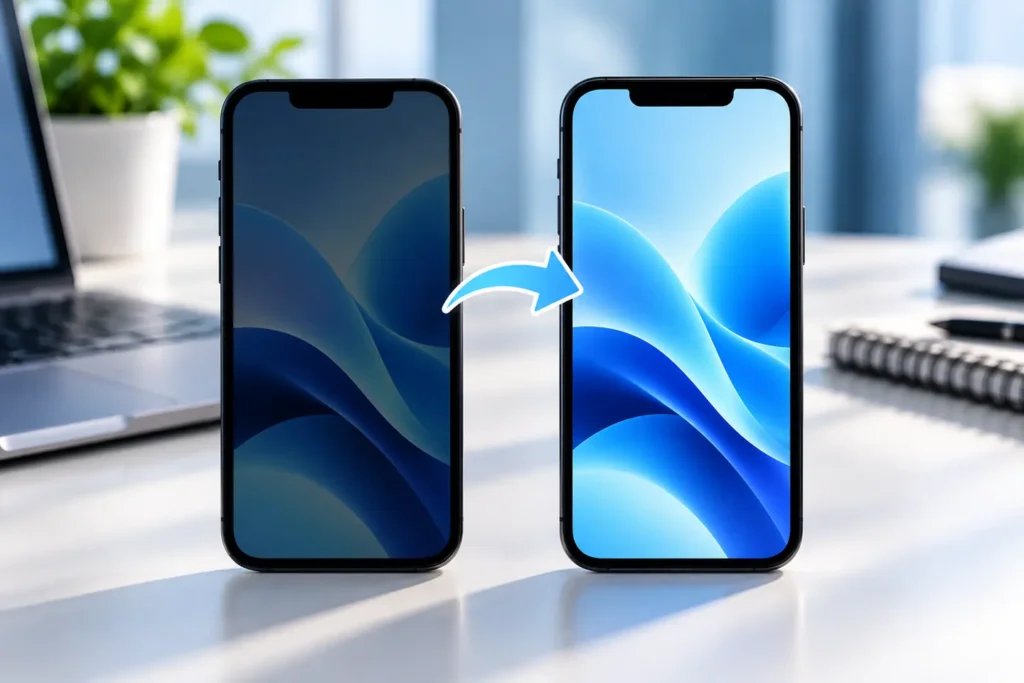
Does your iPhone screen keep dimming even when you’ve turned the brightness all the way up? Maybe the display suddenly becomes darker while you’re watching videos, playing games, browsing Safari, or using your phone outdoors.
Sometimes the brightness slider moves by itself. Other times, the screen stays unusually dark even though the slider is already at maximum.
The good news is that unexpected dimming doesn’t always mean your iPhone has a damaged display. Features such as Auto-Brightness, Low Power Mode, and Attention Aware can affect screen behavior. Your iPhone may also reduce brightness automatically when it gets too warm.
In this guide, we’ll explain 12 practical fixes for an iPhone screen that keeps dimming, including what to do when Auto-Brightness is already turned off.
Table of Contents
Quick Answer: How to Stop iPhone Screen Dimming
If your iPhone screen keeps dimming unexpectedly, try these steps first:
- Open Control Center and increase the brightness slider.
- Go to Settings → Accessibility → Display & Text Size.
- Find Auto-Brightness and turn it off temporarily to test.
- Check Settings → Battery for Low Power Mode or other power-saving features.
- Turn off Reduce White Point if it’s making bright colors appear too dark.
- If your iPhone feels unusually warm, stop demanding activities and allow it to cool naturally.
- Restart the device if the behavior continues.
Important: If your iPhone is overheating, its maximum brightness can be reduced automatically even when Auto-Brightness is off. Turning the brightness slider up may not override that protection.
Why Does My iPhone Screen Keep Dimming?
An iPhone uses several different systems to control how bright its display looks.
Some adjust actual display brightness. Others change colors, reduce bright areas, or turn down the screen before it locks.
The most common causes are:
- Auto-Brightness reacting to surrounding light.
- Overheating during gaming, charging, navigation, or video recording.
- Low Power Mode reducing energy consumption.
- Adaptive Power making small brightness adjustments.
- Reduce White Point lowering the intensity of bright colors.
- True Tone or Night Shift changing screen appearance.
- Auto-Lock dimming the screen before it turns off.
- Attention Aware not detecting that you’re looking at the device.
- Always-On display dimming the Lock Screen.
- A temporary software issue or a hardware problem.
The first step is identifying when the brightness changes.
If the slider moves on its own, investigate Auto-Brightness.
If the screen becomes dark while the slider stays near maximum, investigate overheating, accessibility settings, and power management.
If the screen dims only when you stop touching it, investigate Auto-Lock and Attention Aware.
1. Adjust Brightness Manually
Start by checking the simplest possibility: the brightness level itself.
Your iPhone allows you to adjust brightness using Control Center or the Settings app.
Using Control Center
- Unlock your iPhone.
- Swipe down from the top-right corner on iPhones with Face ID.
- On older Home-button models, swipe up from the bottom of the screen.
- Find the vertical brightness slider with the sun icon.
- Drag the slider upward.
- Close Control Center and watch for further dimming.
Using Settings
- Open Settings.
- Tap Display & Brightness.
- Move the brightness slider toward the right.
- Observe whether the display responds normally.
If the brightness increases and remains stable, you may not need any further troubleshooting.
But if the screen dims again without your input, continue with the next fix.
Tip: Watch whether the brightness slider moves automatically. That detail helps distinguish sensor-based brightness adjustments from other display problems.
2. Check Auto-Brightness Settings
Auto-Brightness is one of the most common explanations when your iPhone screen keeps dimming.
Your iPhone includes an ambient light sensor that measures the lighting around you.
When Auto-Brightness is enabled, the device adjusts its screen brightness according to those conditions.
For example, the screen may become darker in a dim room and brighter outdoors.
This is normal behavior, but it can sometimes feel too aggressive.
How to turn off Auto-Brightness
- Open Settings.
- Select Accessibility.
- Tap Display & Text Size.
- Scroll to the bottom.
- Find Auto-Brightness.
- Turn it off temporarily.
- Set a comfortable manual brightness level.
Use the iPhone for a while and check whether the unwanted changes stop.
If they do, Auto-Brightness may have been responsible.
Should you leave Auto-Brightness off?
Not necessarily.
Apple recommends using Auto-Brightness to help conserve battery life. Leaving it disabled can increase power consumption, especially if you keep the display very bright.
If the automatic adjustment seems inaccurate, Apple also suggests turning Auto-Brightness off and then back on.
That can be worth trying before permanently disabling the feature.
3. Let Your iPhone Cool Down
One of the most important reasons an iPhone screen keeps dimming even at full brightness is excessive heat.
Your iPhone has built-in thermal protection that can reduce display brightness when its internal temperature rises.
Apple confirms that when an iPhone gets too warm, the display may dim or turn black and its maximum available brightness can decrease.
This is especially relevant during:
- Playing graphics-intensive games.
- Recording long videos.
- Using GPS navigation in direct sunlight.
- Charging wirelessly in a warm environment.
- Streaming high-quality video.
- Running demanding tasks while charging.
What to do if your iPhone is hot
- Stop the game, recording, or demanding activity.
- Move your iPhone away from direct sunlight.
- Disconnect charging accessories if it’s safe and practical.
- Remove a case if it is trapping heat.
- Let the device rest in a cooler, well-ventilated environment.
- Test the brightness after its temperature returns to normal.
Apple designs iPhones for use in ambient temperatures from 32°F to 95°F (0°C to 35°C).
Avoid placing your phone in a refrigerator, freezer, or directly against an ice pack. Extreme temperature changes and moisture can cause additional problems.
If thermal protection is responsible, normal maximum brightness should return after the iPhone cools sufficiently.
Important: There’s no recommended setting that safely overrides the iPhone’s thermal brightness protection.
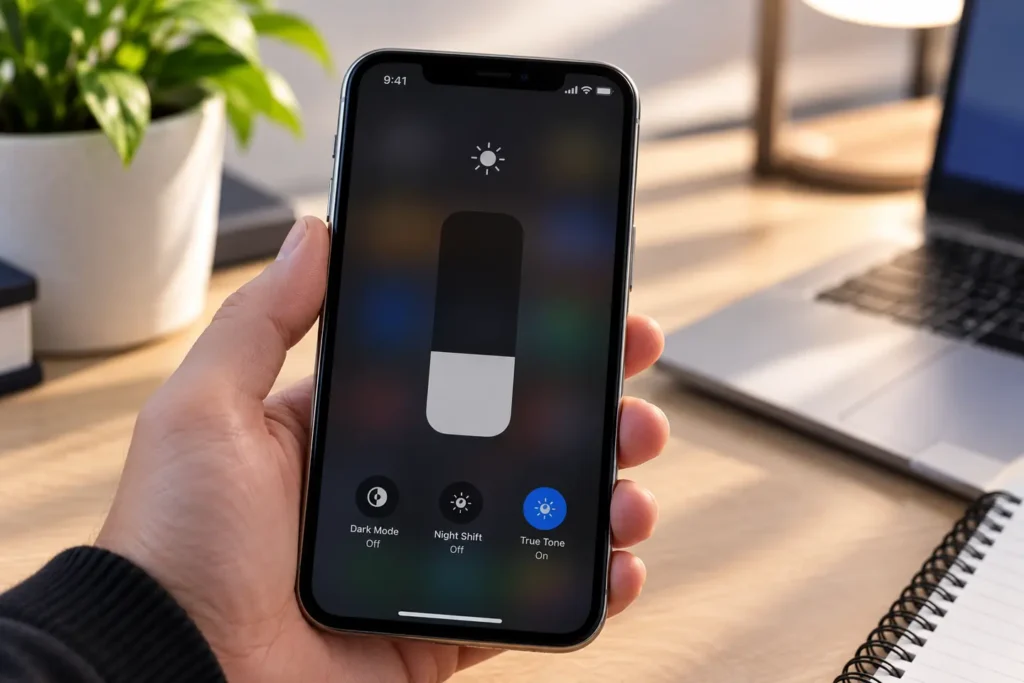
4. Check True Tone and Night Shift
Sometimes your iPhone doesn’t actually reduce brightness as much as it appears to.
Instead, the display’s color and white balance change.
Two Apple features can affect the appearance of the screen.
True Tone
True Tone adapts the display’s color and intensity to match the lighting around you.
Depending on your surroundings, it can make whites appear warmer or cooler.
To test:
- Open Settings.
- Tap Display & Brightness.
- Find True Tone, if available.
- Turn it off temporarily.
- Compare the display with True Tone enabled and disabled.
True Tone is designed to make colors appear more natural, not to serve as the main automatic brightness control.
Night Shift
Night Shift changes the screen toward warmer colors, especially at night.
To review it:
- Open Settings → Display & Brightness.
- Tap Night Shift.
- Check whether a schedule is enabled.
- Turn it off temporarily to compare.
- Restore your preference afterward.
If your screen looks yellow, warm, or less vivid rather than simply darker, True Tone or Night Shift may explain the change.
Neither feature should be confused with thermal dimming or Auto-Brightness.
5. Check Low Power Mode and Adaptive Power
Battery-saving features can also affect how bright your display appears.
Apple confirms that Low Power Mode reduces display brightness and changes certain background activities to conserve energy.
If the battery icon appears yellow, Low Power Mode is active.
Check Low Power Mode
On iPhone 15 and later models:
- Open Settings.
- Tap Battery.
- Select Power Mode.
- Turn off Low Power Mode temporarily.
On iPhone 14 and earlier models:
- Open Settings.
- Tap Battery.
- Turn off Low Power Mode.
Now compare the brightness.
You don’t need to keep Low Power Mode disabled permanently. It can be useful when battery life matters more than maximum performance.
Check Adaptive Power
Some newer iPhone models also support Adaptive Power.
According to Apple, this feature can make small brightness adjustments and limit background activity to extend battery life.
If your device supports it:
- Open Settings → Battery → Power Mode.
- Find Adaptive Power.
- Temporarily disable it for comparison.
- Observe whether the unexpected dimming continues.
The available settings depend on your iPhone model and iOS version.
If changing a power feature resolves the behavior, decide whether you prefer consistent brightness or additional battery savings.
6. Turn Off Reduce White Point
If your iPhone stays dark even when the brightness slider is high, check Reduce White Point.
This accessibility feature reduces the intensity of bright colors.
It can make the display appear noticeably darker without necessarily changing the main brightness slider.
To check:
- Open Settings.
- Select Accessibility.
- Tap Display & Text Size.
- Scroll to Reduce White Point.
- Check whether it is enabled.
- Turn it off temporarily.
- Compare the display brightness.
If Reduce White Point was enabled at a high intensity, disabling it may immediately make the display look brighter.
However, this feature can be helpful for people who find bright screens uncomfortable.
If you intentionally use it, consider adjusting the intensity rather than switching it off permanently.
Check accessibility shortcuts
If the screen becomes darker after you triple-click the Side button, you may have configured an Accessibility Shortcut that changes display settings.
Review Settings → Accessibility → Accessibility Shortcut.
Only change a shortcut if you recognize it and don’t need its current function.
7. Check the Zoom Low Light Filter
Another less obvious source of an unusually dim display is the Low Light filter inside the iPhone’s Zoom accessibility feature.
This setting can make the screen appear darker, even when the regular brightness slider is relatively high.
To investigate:
- Open Settings.
- Tap Accessibility.
- Select Zoom.
- Check whether Zoom is enabled.
- Look for Zoom Filter.
- If the filter is set to Low Light, change it to None for testing.
- Compare the display.
If Zoom itself isn’t needed, you can turn it off.
On a device where Zoom is active, Apple’s three-finger gestures can also control its display behavior.
If you depend on Zoom for accessibility, avoid disabling the entire feature unless you’re comfortable doing so.
The goal is to determine whether the Low Light filter explains why the screen appears too dark.
8. Adjust Auto-Lock Settings
Does your iPhone screen dim shortly before turning off?
That may be normal Auto-Lock behavior rather than a brightness malfunction.
Apple explains that iPhone can dim the display and eventually lock after a period of inactivity.
To review the timeout:
- Open Settings.
- Tap Display & Brightness.
- Select Auto-Lock.
- Review the available time intervals.
- Choose a longer interval if appropriate.
For example, if the iPhone dims quickly while you’re reading something without touching the screen, a longer Auto-Lock period may be more comfortable.
Keep in mind that a longer Auto-Lock setting can increase battery consumption.
It may also leave sensitive information visible for longer if you put your phone down.
If Auto-Lock is stuck at 30 seconds, check Low Power Mode. That feature can impose a shorter automatic lock interval.
Important: Auto-Lock affects dimming related to inactivity. It won’t solve thermal brightness reduction during active gaming or charging.
9. Review Attention Aware Features
On iPhones that support Face ID, Apple’s Attention Aware features can help the device determine whether you’re looking at the screen.
When the feature is enabled and the iPhone detects your attention, it can keep the display from dimming while you’re looking at it.
If that detection isn’t working as expected, you may notice the screen dimming during reading or other hands-free activities.
To check:
- Open Settings.
- Tap Face ID & Passcode.
- Enter your device passcode.
- Find Attention Aware Features.
- Check whether it is enabled.
- If it’s disabled and you want this behavior, turn it on.
- Test whether the screen remains visible while you’re looking at it.
Also make sure the front camera and sensor area aren’t blocked by accessories or dirt.
Attention Aware isn’t available on every iPhone, including models without the required TrueDepth camera.
Privacy note: Attention Aware is separate from the main brightness sensor and isn’t required for ordinary brightness adjustments.
10. Understand Always-On Display Dimming
If your screen becomes darker only after you lock your iPhone, you may be seeing normal Always-On display behavior.
On supported models, Always-On display keeps a dimmed version of the Lock Screen visible while the phone is locked.
Apple explains that the display can become completely dark under certain conditions, including when the device is face down, obstructed from view, or using Low Power Mode.
To check:
- Open Settings.
- Tap Display & Brightness.
- Find Always On Display, if supported.
- Review whether it is enabled.
- Turn it off temporarily if you want to compare the behavior.
If the screen dims only when locked but becomes bright again after you wake and unlock the phone, Always-On behavior may be working as designed.
This is not the same as the active display suddenly becoming dark during gaming, reading, or using an app.
For a related explanation of Always-On and StandBy behavior, see our iPhone StandBy Mode Not Working guide.
11. Restart Your iPhone and Check for Updates
If your iPhone screen keeps dimming and none of the previous settings explain it, restart the device.
A restart can help clear temporary software behavior without deleting personal data.
Restart an iPhone with Face ID
- Press and hold the Side button and either Volume button.
- Wait for the power-off slider.
- Drag the slider to turn off your iPhone.
- Wait approximately 30 seconds.
- Press and hold the Side button until the Apple logo appears.
- Unlock the phone and test the brightness.
For iPhones with a Home button, use the normal power-off procedure for that model.
Check for an iOS update
- Open Settings.
- Select General.
- Tap Software Update.
- Check whether a compatible update is available.
- Back up important data.
- Install an appropriate update if necessary.
If the dimming happens in only one app, test another app at the same brightness level.
For example, compare the Home Screen, Safari, and the app where the problem occurs.
If the issue is isolated to one app, review its video, display, or power settings before making system-wide changes.
A software update may fix a temporary issue, but it cannot override thermal safety limits or repair damaged display hardware.
12. Check for Hardware or Sensor Problems
If your screen continues to dim unexpectedly, it’s worth investigating whether the device has a hardware-related issue.
Possible areas of concern include the ambient light sensor, display assembly, or other internal components.
However, unexpected dimming alone doesn’t prove that something is physically damaged.
Try this controlled comparison:
- Let the iPhone return to a normal temperature.
- Turn off Low Power Mode temporarily.
- Check Reduce White Point and Zoom Low Light.
- Set a comfortable manual brightness level.
- Turn Auto-Brightness off temporarily.
- Test the screen in a well-lit room.
- Compare brightness while using several different apps.
If the display continues to fluctuate or remains unusually dark, contact Apple Support or an authorized service provider.
Tell the technician whether:
- The brightness slider moves automatically.
- The display dims only while hot.
- The problem began after a drop, liquid exposure, or repair.
- The behavior appears in every application.
- The iPhone has a replacement display.
A professional assessment can help distinguish a sensor, display, or software-related problem.
Avoid factory-resetting the entire device simply because the brightness changes. The earlier steps are more appropriate first.
iPhone Screen Keeps Dimming Even With Auto-Brightness Off
If you’ve turned Auto-Brightness off and the screen still becomes darker, investigate causes that operate independently of the ambient light sensor.
The most important possibility is overheating.
Apple explains that iPhone thermal protection can reduce display brightness and maximum available brightness.
Next, check Low Power Mode, Adaptive Power, and Reduce White Point.
You should also inspect the Zoom Low Light filter and determine whether the dimming occurs shortly before Auto-Lock.
Turning Auto-Brightness off doesn’t disable every other feature capable of changing your display’s appearance.
iPhone Screen Dims Even at Maximum Brightness
A screen that remains dark with the brightness slider at maximum needs a different approach from a slider that moves automatically.
First, check whether the iPhone feels hot.
If it does, allow it to cool naturally.
Next, open Settings → Accessibility → Display & Text Size and check Reduce White Point.
Review the Zoom Low Light filter if necessary.
Then compare the screen after temporarily turning off battery-saving settings.
If none of these changes make a difference, the problem may require additional diagnosis.
Don’t attempt to force maximum brightness while your iPhone is reducing it for thermal protection.
iPhone Screen Keeps Dimming While Gaming
Gaming can place a significant load on the iPhone’s processor and graphics hardware.
That produces heat.
If you’re playing a demanding game at high brightness, particularly while charging, the iPhone may become warm enough for its thermal protection system to reduce display brightness.
Try the following:
- Stop playing and let the device cool.
- Avoid gaming in direct sunlight.
- Disconnect charging accessories when appropriate.
- Lower demanding in-game graphics settings if available.
- Reduce unnecessary background activity.
- Test the game again at a comfortable brightness.
If brightness returns after the iPhone cools, that points toward heat as a contributing factor.
Avoid using third-party tools that promise to override thermal safeguards.
iPhone Screen Keeps Dimming While Watching Videos
If screen dimming happens only during video playback, first determine whether it’s actual display brightness or a visual change in the content.
Different video scenes naturally contain different brightness levels.
HDR content can also look different from ordinary video.
Compare the same display brightness in Safari, Photos, and the affected video application.
If the issue only occurs when video scenes contain intense flashes or bright effects, review supported display accessibility settings, including Reduce Bright Effects under Accessibility → Display & Text Size.
If the entire screen becomes darker after prolonged playback and the iPhone feels warm, investigate overheating instead.
For a problem that occurs only in one app, check the application’s updates and playback settings.
Frequently Asked Questions
Why does my iPhone screen keep dimming by itself?
Common causes include Auto-Brightness, overheating, Low Power Mode, display accessibility settings, and automatic screen locking. The cause depends on when and how the brightness changes.
How do I stop my iPhone from automatically dimming?
Start by reviewing Auto-Brightness under Settings → Accessibility → Display & Text Size. Also check Auto-Lock, Low Power Mode, and accessibility brightness filters.
Why does my iPhone screen dim even with Auto-Brightness turned off?
Auto-Brightness is only one brightness control. Thermal protection, battery-saving features, Reduce White Point, Zoom Low Light, and Auto-Lock can affect the display separately.
Why is my iPhone screen dark with brightness at 100%?
The iPhone may be reducing its maximum brightness because of heat, or an accessibility setting may be changing the apparent brightness. If these are ruled out, consider getting the display inspected.
Does Low Power Mode make an iPhone screen dimmer?
Yes. Apple lists reduced display brightness among the changes made by Low Power Mode to conserve battery life.
Why does my iPhone screen dim when it gets hot?
Your iPhone uses thermal management to protect its components. When the device becomes too warm, it may lower maximum screen brightness until it cools.
Does True Tone cause the iPhone to dim?
True Tone changes display color and intensity to suit ambient lighting. It can affect how bright the screen appears, but it isn’t the same as Auto-Brightness or thermal brightness reduction.
Why does my iPhone screen dim after 30 seconds?
Auto-Lock may be set to a short interval, especially when Low Power Mode is enabled. Review Settings → Display & Brightness → Auto-Lock.
Can I stop thermal dimming permanently?
You shouldn’t try to bypass thermal protection. Reduce heat-producing conditions and let the device cool. Persistent dimming at normal temperatures deserves further investigation.
Will restarting my iPhone fix dimming problems?
Restarting may help with temporary software behavior, but it won’t repair hardware damage or override heat-related brightness protection.
Final Thoughts
If your iPhone screen keeps dimming, don’t assume the display is damaged.
Start with Auto-Brightness, then check the brightness slider, Low Power Mode, Reduce White Point, and Auto-Lock.
If the display becomes dark during gaming, navigation, charging, or other demanding activities, pay particular attention to temperature. Heat-related dimming is an intentional protective feature.
If the screen remains unusually dark at a normal temperature and the problem affects every app, consider contacting Apple Support for a more detailed assessment.
The most effective solution is to identify which feature or condition is changing your display rather than switching off unrelated settings.