Is your MacBook battery draining fast after updating to macOS Golden Gate 27.2.1? Maybe the charge drops faster than before, or your MacBook gets warm during simple tasks. You might also notice battery loss while the lid is closed.
Apple released macOS 27.2.1 on November 9, 2026. The release includes bug fixes and security updates, but Apple has not identified a widespread battery-drain defect in its release notes. Background activity, apps, display settings, and battery condition can all affect runtime.
This guide explains 10 practical MacBook battery fixes. Start with the built-in tools, then check sleep behavior, charging, and battery health.
Table of Contents
Quick Answer
Open System Settings → Battery and review recent usage. Then open Activity Monitor → Energy to check which apps use the most power. If the problem began after an update, look for temporary indexing or syncing before changing several settings at once.
If the Mac becomes unusually hot during light use, shuts down unexpectedly, or shows Service Recommended, arrange further support rather than relying on battery-saving tips alone.
Why Is My MacBook Battery Draining Fast?
Battery life depends on what your Mac is doing. A bright screen, video calls, heavy browser tabs, or connected devices can use more power. Background downloads and cloud syncing can use energy even when no app window is open.
Start by finding when the battery drops:
- While working: Check active apps, screen brightness, and attached devices.
- While idle or asleep: Check apps that prevent sleep and network-wake settings.
- After a software update: Look for indexing, syncing, and app updates.
- Even during light tasks: Review Battery Health and charging behavior.
These clues help you choose the right fix rather than trying every setting.
macOS 27.2.1 Battery Drain After an Update
Some Macs do extra work after an update. Spotlight may refresh its file index. Photos, iCloud Drive, and apps may also sync or process data. This can temporarily raise energy use.
To check Spotlight activity:
- Open Activity Monitor from Applications → Utilities.
- Click CPU and search for
mds,mds_stores, ormdworker. - Check whether those processes remain busy and whether their activity falls over time.
- If indexing is legitimate, let it finish when practical. Avoid force-quitting system processes.
You can also open Activity Monitor → Energy to identify active apps. Compare similar workdays in System Settings → Battery before deciding that the update caused the change.
If battery life remains poor after background activity settles, follow the ten checks below. See our Mac Spotlight troubleshooting guide if Spotlight itself is not working.
Fix 1: Review MacBook Battery Usage History
The Battery screen helps show when your Mac uses the most energy. This is the best first check because it doesn’t change any settings.
- Open Apple menu → System Settings → Battery.
- Review Last 24 Hours and Last 10 Days if those charts are available.
- Compare Battery Level, Energy Usage, and Screen On Usage.
- Look for a large drop during work, charging, or sleep.
Compare days with similar use. A day of video editing will consume more power than a day of writing. The graph won’t always identify which app is responsible, so use Activity Monitor for that.
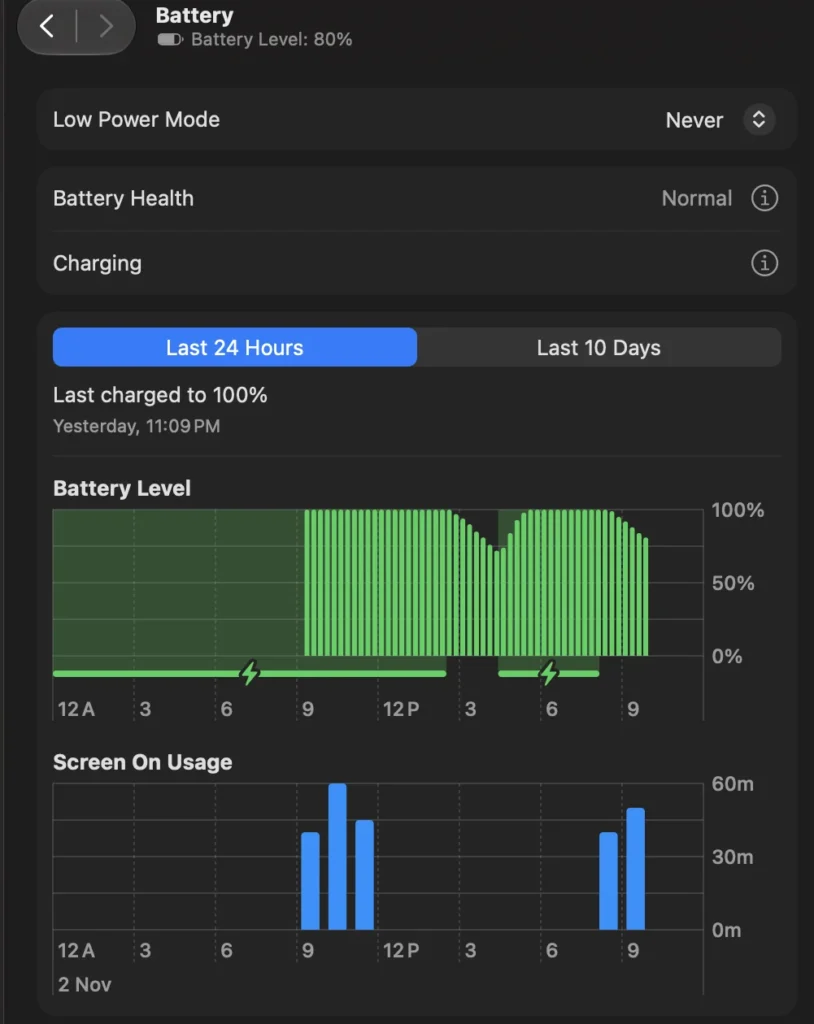
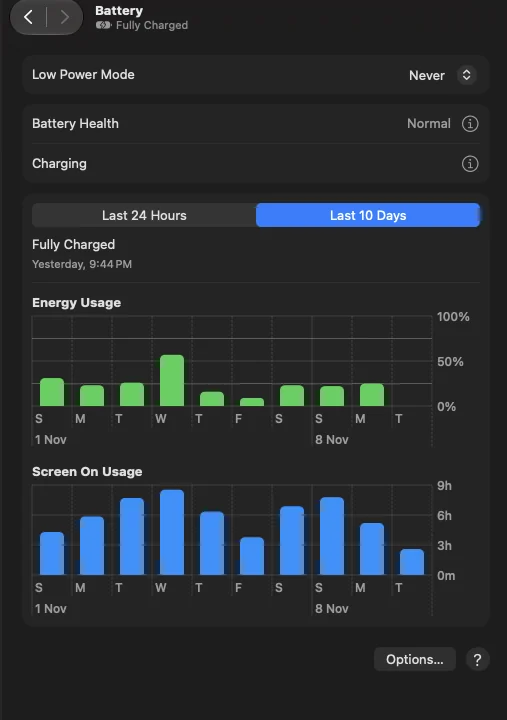
Apple explains the charts in its Battery Usage History guide.
Fix 2: Find Energy-Hungry Apps in Activity Monitor
An app may be doing more work than expected. The Energy tab helps you spot it without guessing.
- Press Command + Space, type Activity Monitor, and open it.
- Click Energy.
- Sort by Energy Impact and look for apps with sustained high values.
- Check 12 hr Power and Preventing Sleep if those columns appear.
- Save your work, then quit or update an app that stays unusually active.
Energy Impact is a relative measure, not the percentage of battery used. A brief spike during a video call or file export can be normal. Pay more attention to an app that remains busy after you stop using it.
Don’t force-quit unfamiliar macOS processes. They may be needed for system tasks.
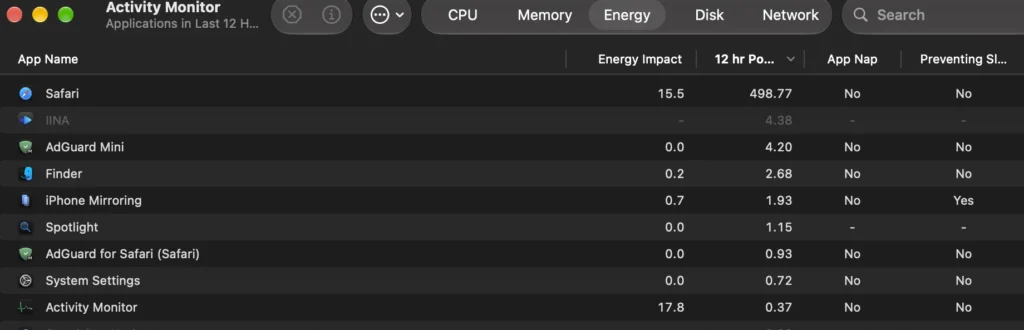
Read Apple’s Activity Monitor Energy guide for details about the columns.
Fix 3: Enable Low Power Mode
Low Power Mode can extend battery life by reducing energy use. It is useful for browsing, email, reading, and writing.
- Open System Settings → Battery.
- Find Low Power Mode or Energy Mode.
- Select the low-power option for battery use if your Mac offers it.
- Compare battery life during a similar workload.
The wording differs by Mac model and macOS version. Low Power Mode may reduce performance in demanding tasks, so switch back when you need full speed. You do not need to keep it on all the time.
Apple describes supported modes in About Power Modes on Mac.
Fix 4: Reduce Brightness and Screen-On Time
The display uses power whenever it is on. Lowering brightness and shortening the idle timeout can help.
- Open System Settings → Displays and choose a comfortable brightness.
- Enable automatic brightness if your Mac supports it and it works well for you.
- Open System Settings → Lock Screen.
- Shorten the display-off delay while using the battery, if that option is available.
Keep the screen readable. You don’t need to make it uncomfortably dim to save power.
Fix 5: Review Background Apps and Login Items
Some apps start automatically and continue running in the background. Cloud tools and security software may need that access, but unused apps do not.
- Go to System Settings → General → Login Items & Extensions.
- Review apps that open at login and apps allowed to run in the background.
- Disable only items you recognize and don’t need.
- Use Activity Monitor → Energy to see whether the change helps.
Browsers can also use energy through active video, heavy websites, and extensions. Close tabs you no longer need. Avoid disabling backups, security tools, or other important services without checking what they do.
Fix 6: Disconnect Unused External Devices
USB drives, docks, monitors, and phones charging from your Mac can increase power use. External screens may also increase graphics activity.
- Safely eject external storage before unplugging it.
- Disconnect accessories you don’t need for the next test.
- Use the Mac for a similar period and compare battery use.
- Reconnect accessories one at a time if the result improves.
If a connected screen is also giving you trouble, see our MacBook External Monitor Not Detected guide.
Fix 7: Check Syncing, Downloads, and Updates
Large downloads, iCloud Photos, cloud storage, and software updates can keep your Mac busy. These tasks often explain a temporary increase in battery use.
Check for active downloads or sync indicators. If an important task is still running, let it finish when possible. For software updates, open System Settings → General → Software Update and review any available compatible release.
Don’t repeatedly restart your Mac to stop legitimate background work. If network failures are part of the problem, use our MacBook Wi-Fi Not Working guide instead of changing network settings just to save battery.
Fix 8: Investigate Battery Drain During Sleep
A MacBook should use much less energy while asleep. If charge drops overnight, check whether an app or accessory is keeping it awake.
- Open Activity Monitor → Energy.
- Look at Preventing Sleep for unexpected apps.
- Open System Settings → Battery → Options, if available, and review Wake for network access.
- Disconnect nonessential accessories before an overnight comparison.
- Note the battery percentage before sleep and after waking.
Some apps legitimately prevent sleep during a download or other active task. If you depend on remote access or shared services, don’t disable their network-wake features without understanding the effect.
One overnight test isn’t conclusive. Repeat it under similar conditions if the result is unusual.
Fix 9: Check Battery Health and Cycle Count
An older battery holds less energy than a new one. Even if the software is working normally, that can shorten battery life.
- Open System Settings → Battery.
- Find Battery Health and review the condition and capacity information shown.
- If macOS displays Service Recommended, consider a professional battery assessment.
- For more detail, hold Option, open the Apple menu → System Information, and select Power to find Cycle Count where available.
Cycle count is only one clue. It doesn’t tell you exactly how many hours the battery will last. Also, charging limits or Optimized Battery Charging may affect the starting charge percentage without indicating rapid drain.
See Apple’s battery service guidance.
Fix 10: Check the Charger and Know When to Get Help
A power problem while the Mac is plugged in is different from normal battery drain while unplugged.
Use a compatible charging adapter and cable. If the percentage falls while plugged in, check whether the Mac says it’s charging and whether the adapter provides enough power for your workload.
For charging-specific problems, see MacBook Not Charging? 12 Proven Fixes.
Contact Apple Support if the Mac shuts down unexpectedly, runs unusually hot during light tasks, or keeps losing charge after the basic checks. A swollen, leaking, or visibly damaged battery is a safety concern. Stop using and charging the Mac, and seek professional help. Don’t attempt to puncture or compress the battery.
Quick Diagnosis by Symptom
- Drains while browsing: Check Energy Impact, active tabs, and brightness.
- Drains overnight: Check Preventing Sleep, network wake, and accessories.
- Drains after an update: Check Spotlight activity and syncing.
- Drains with an external display: Try a comparison without the display.
- Battery falls while charging: Check the adapter, cable, and charging status.
- Short runtime during light tasks: Review Battery Health and app activity.
These are starting points, not definite diagnoses.
Frequently Asked Questions
Does Low Power Mode damage a MacBook battery?
No. It is a built-in Apple feature meant to reduce energy use. It may reduce performance during demanding work.
How much battery loss overnight is normal?
There is no single percentage for every MacBook. Battery age, sleep duration, connected devices, and background activity all matter. Repeated large drops deserve investigation.
Does keeping a MacBook plugged in damage its battery?
Modern MacBooks include charging-management features that help reduce battery aging. Heat and battery chemistry still matter. Use the appropriate charger and review the charging options available on your Mac.
Does macOS 27.2.1 cause MacBook battery drain?
Apple has not identified a widespread battery-drain defect in its macOS 27.2.1 release notes. If the problem started after updating, check background activity and compare your energy use before blaming the update.
Why is my MacBook Air M1 battery draining quickly?
The same checks apply to an M1 MacBook Air: examine Battery Usage, Energy Impact, brightness, and Battery Health. The cause may be an app, syncing, or the battery’s condition rather than the processor itself.
Should I downgrade macOS to fix battery drain?
Not as a first step. Downgrading can be disruptive and may require erasing or restoring data. Start with the built-in diagnostics, app updates, and battery checks.
Final Takeaway
If your MacBook battery is draining fast, start with System Settings → Battery and Activity Monitor → Energy. Those tools can show when battery life is dropping and which apps may be involved.
After an update, look for temporary indexing and syncing. Then review brightness, accessories, and sleep behavior. If drain persists during light use, check Battery Health and contact Apple Support when necessary.
The goal is to fix the actual cause rather than disable useful Mac features without a clear reason.