Is Mac Mail stuck downloading messages, even though your internet connection seems fine? You open Apple Mail, but the download indicator keeps running, new emails don’t appear, or the app seems to take forever to synchronize your inbox.
Sometimes Mail displays a message such as “Downloading Messages” without making noticeable progress. In other cases, messages appear on Gmail, iCloud, or Outlook’s website but never arrive in the Mail app on your Mac.
This can happen because of a server connection problem, an account authentication issue, limited email storage, or a local mailbox problem.
The good news is that you don’t need to delete your email account or reinstall macOS immediately.
In this guide, we’ll explain 10 practical ways to fix Mac Mail stuck downloading messages, starting with simple checks and moving to more advanced troubleshooting.
Quick Fix: What to Do When Mac Mail Is Stuck Downloading Messages
If Apple Mail won’t finish downloading emails, start with these steps:
- Check that your Mac can access the internet.
- Sign in to your email provider’s website and look for the missing messages.
- Quit and reopen the Mail app.
- Check whether your email account is online.
- Open Window → Activity to inspect downloading progress.
- Use Window → Connection Doctor to investigate server problems.
- Check your account settings and available storage.
- Rebuild the affected mailbox if messages remain missing.
If the problem continues, install available macOS updates and consider contacting your email provider.
Important: Don’t delete local Mail files, reset your email account, or remove a mailbox before confirming that your important messages are backed up.
Table of Contents
Why Does Apple Mail Get Stuck Downloading Messages?
Apple Mail communicates with email servers to retrieve messages, synchronize folders, and download attachments.
Depending on the account, it may use IMAP, Exchange, or another supported connection method.
Several things can interrupt this process:
- Unstable Wi-Fi or internet connectivity.
- Temporary Gmail, Outlook, iCloud, or other provider outages.
- An expired login session or rejected email password.
- An email account that has gone offline.
- A large mailbox that takes time to synchronize.
- Limited storage on the email server.
- A damaged or inconsistent local mailbox database.
- A large or slow email attachment download.
- Software issues following a macOS update.
The message “Downloading Messages” doesn’t identify the exact cause by itself.
For example, Mail could be trying to download thousands of messages from an account you’ve recently added. That situation is different from Mail repeatedly failing to connect to a server.
The following troubleshooting steps help distinguish those problems.
1. Check Your Mac’s Internet Connection
An unreliable network connection is one of the first things to rule out when Mac Mail is stuck downloading messages.
Even if your Mac appears connected to Wi-Fi, the internet connection may not be working correctly.
Try these checks:
- Open Safari or another web browser.
- Visit a website you don’t normally use.
- Check whether the page loads properly.
- Try visiting your email provider’s website.
- If the connection is unstable, reconnect to your Wi-Fi network.
- Open Apple Mail and check whether downloading resumes.
If Safari also struggles to load websites, troubleshoot the network before changing Mail settings.
You can also test a different trusted connection, such as your phone’s hotspot, if available.
If Mail works on another network, the original network or its configuration may be contributing to the problem.
For additional troubleshooting, read our MacBook WiFi Not Working guide.
What to expect: If your network connection is responsible, restoring stable internet access may allow Mail to continue synchronizing.
If other websites load normally but Mail remains stuck, move to the next step.
2. Check Your Email Provider Using Webmail
Before changing Apple Mail settings, find out whether the missing messages are available on your email provider’s server.
This is an important diagnostic step recommended by Apple.
Follow these steps:
- Open Safari.
- Visit the website for your email provider.
- Sign in to your email account.
- Open the inbox.
- Check whether the messages you’re expecting are present.
- Try opening one of the messages.
- Return to Apple Mail and compare the results.
Common webmail services include:
If the messages appear in webmail but not in Apple Mail, that suggests the messages are available on the server while your Mac isn’t displaying or retrieving them correctly.
If the messages are missing from webmail too, investigate the provider account, folders, filters, or server status.
You should also check for service interruptions.
For iCloud Mail, visit Apple System Status.
For Gmail or Microsoft 365, check the appropriate official service status information.
Remember: Successfully opening webmail confirms that the account can be accessed through a browser. It doesn’t guarantee that Apple Mail’s connection is configured correctly.
3. Quit and Reopen Apple Mail
A temporary Mail app issue can sometimes interrupt downloading.
Before changing account information, try restarting the application.
Here’s how:
- Click Mail to make it the active application.
- From the menu bar, select Mail → Quit Mail.
- Alternatively, press Command + Q.
- Wait a few seconds.
- Reopen Mail from the Dock or Applications folder.
- Select your Inbox.
- Check whether new messages begin appearing.
If Mail is completely frozen and won’t quit normally, you can use Force Quit.
To do that:
- Press Option + Command + Escape.
- Select Mail.
- Click Force Quit.
- Reopen the app.
Force quitting should only be used when the application is unresponsive. An unsaved draft or other unfinished action may be lost.
For a very large mailbox, allow some time after reopening for synchronization to continue.
If restarting Mail resolves the problem, no additional changes are necessary.
Otherwise, check whether the account itself is online.
4. Make Sure Your Mail Account Is Online
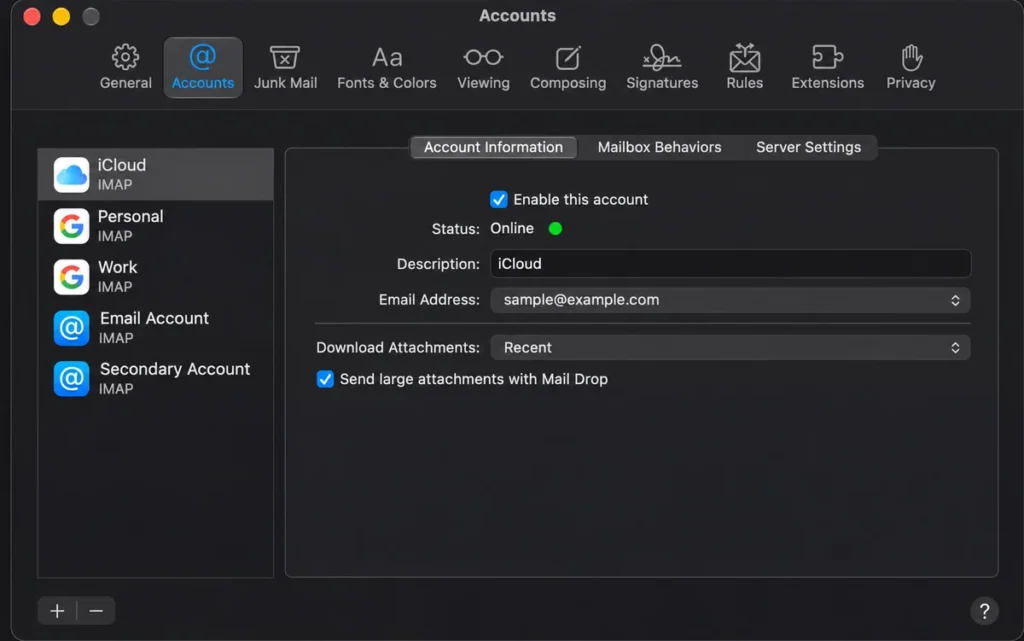
Apple Mail can show an account as unavailable even while your browser works normally.
You may notice a warning symbol, a lightning bolt, or another status indicator beside an account or mailbox.
Check the account status:
- Open the Mail app.
- Locate the sidebar.
- Select the affected email account.
- Look for a warning or offline status icon.
- Click the icon if one appears.
- Read the status message.
If Mail provides an option to bring the account online, use it.
You can also select Mailbox → Get New Mail or click the Get Mail button in the toolbar to request new messages.
Next, inspect the account settings:
- Open Mail → Settings.
- Click Accounts.
- Select the affected account.
- Check whether the account is enabled.
- Review any connection or account-status warnings.
For supported account types, an Enable this account option may appear in Account Information.
If the account is disabled, re-enable it only if you intend to use it.
If Mail says the server is unavailable, don’t repeatedly enter passwords without first checking whether the provider is experiencing an outage.
What this tells you: An offline account may explain why synchronization has stopped, even though the rest of your Mac works normally.
5. Use Mail Activity and Connection Doctor
Apple Mail includes tools that can help identify stalled transfers and connection problems.
These are especially useful when Mail keeps showing a download status but doesn’t explain why.
Check Mail Activity
Follow these steps:
- Open Apple Mail.
- Click Window in the menu bar.
- Select Activity.
- Review the activities listed in the window.
- Look for downloads or synchronization tasks that don’t appear to progress.
You can also use the Control + Command + 0 keyboard shortcut to display the Mail Activity window.
If Mail is downloading a large number of messages after adding an account, an active transfer may be expected.
However, if it repeatedly stalls or displays an error, investigate the server connection.
Run Connection Doctor
- In Apple Mail, click Window.
- Select Connection Doctor.
- Allow Mail to test the configured server connections.
- Review the status of the affected account.
- Look for an error or failed login message.
Connection Doctor can help distinguish an authentication failure from a network or server problem.
A successful result doesn’t guarantee that every mailbox will synchronize perfectly, but it helps rule out some connection issues.
If the test fails, contact your provider with the exact error rather than guessing server settings.
Privacy tip: Connection Doctor screenshots can reveal account addresses and server details. Hide this information before sharing or publishing screenshots.
6. Check Your Email Account and Login Settings
An outdated password or interrupted authentication session can prevent Mail from downloading messages.
This may happen after changing a Gmail, Outlook, or other account password.
Check the account:
- Open System Settings on your Mac.
- Select Internet Accounts.
- Choose the affected email account.
- Look for a warning or request to sign in again.
- Complete any legitimate authentication prompt.
- Confirm that Mail is enabled for that account.
- Reopen Apple Mail.
You can also inspect account information under Mail → Settings → Accounts.
If your provider uses two-factor authentication, you may need to complete an authorization process.
Some account types require provider-specific authentication methods.
Avoid changing incoming or outgoing mail server details unless you have confirmed the correct values with your provider.
Incorrect server settings may introduce additional problems.
Apple’s official guide, If Mail on your Mac keeps asking for your password, explains how account credentials can affect Mail.
If the password works on the provider’s website but Mail continues to reject it, the problem may involve the application’s authentication session rather than the password itself.
7. Check Available Email and Mac Storage
Limited storage can interfere with email synchronization or make downloading large messages difficult.
Two different storage limits matter:
Email account storage: The space your provider allows you to use for messages and attachments.
Mac storage: The available space on your computer for local application data and downloaded content.
Check email account storage
- Open Mail.
- Locate your email account in the sidebar.
- Control-click the mailbox.
- Select Get Account Info, if available.
- Review the storage information reported for the account.
You can also check storage through the provider’s website.
If your email storage is full, consider archiving or deleting unnecessary messages after backing up anything important.
Check Mac storage
- Open System Settings.
- Select General.
- Click Storage.
- Review the available space.
If your Mac is nearly full, remove unnecessary downloads or other files you no longer need.
Don’t manually delete files from Mail’s Library folders as a routine storage fix.
Important: Freeing storage is useful when a quota or disk-space limitation exists. It won’t necessarily resolve every message-download problem.
8. Check Whether Large Attachments Are Delaying Mail
Sometimes messages arrive normally, but Apple Mail continues downloading attachment data.
This can make synchronization appear stuck even when the email text is already available.
Large documents, images, and other attachments may take longer to download, particularly on slower networks.
Check attachment settings:
- Open Mail.
- Click Mail → Settings.
- Select Accounts.
- Choose the affected account.
- Open Account Information.
- Find Download Attachments, if available.
- Review the selected option.
Depending on the account and macOS version, you may see options such as All, Recent, or None.
These settings determine how certain attachments are downloaded automatically.
If you suspect attachments are the issue, you can test a less aggressive automatic-download option.
Keep in mind that changing this setting affects attachment availability. It doesn’t stop Mail from synchronizing message information altogether.
If the messages themselves aren’t appearing, focus on connection, authentication, or mailbox issues instead.
For guidance on these options, see Apple’s Mail Account Information settings.
9. Rebuild the Affected Mailbox
If messages are visible through webmail but not properly displayed in Apple Mail, rebuilding the affected mailbox may help.
Apple provides a built-in Rebuild command to update the messages in a mailbox.
This can be useful when messages are missing, displayed incorrectly, or not appearing in search results.
Before rebuilding:
Make sure your important messages are stored safely.
For an IMAP or Exchange mailbox, rebuilding can temporarily remove locally downloaded messages while Mail retrieves them again from the server.
If you use a POP account or have important messages stored only under On My Mac, back up your mail before attempting more extensive repairs.
To rebuild a mailbox:
- Open Apple Mail.
- Find the affected mailbox in the sidebar.
- Select the mailbox.
- Click Mailbox in the menu bar.
- Choose Rebuild.
- Allow Mail to refresh the mailbox.
- Check whether the missing messages return.
Depending on the number of messages and your internet connection, the mailbox may take time to populate again.
Avoid repeatedly triggering Rebuild while synchronization is underway.
Apple documents this option in its Mail mailbox management guide.
When should you use this fix?
Rebuilding is most relevant when the server contains your emails but Apple Mail’s local mailbox is incomplete or inconsistent.
If webmail is also unavailable, a rebuild probably isn’t the correct first step.
10. Update macOS and Restart Your Mac
If Apple Mail continues downloading messages indefinitely, check whether your Mac has an available system update.
Apple Mail is included with macOS, and system updates can include application fixes and compatibility improvements.
Check for an update:
- Click the Apple menu.
- Open System Settings.
- Select General.
- Click Software Update.
- Check for an update compatible with your Mac.
- Back up important information.
- Install the update if appropriate.
- Restart your Mac if required.
- Open Mail and test again.
If you’re already running the latest supported macOS version, try a normal Mac restart.
A restart may resolve temporary app, network, or system-process issues.
However, it won’t repair a problem caused by an expired provider account or missing emails on the server.
For additional system troubleshooting, our MacBook Keeps Restarting guide explains how to investigate unexpected restarts, a separate issue that can interrupt active applications.
What if Mac Mail Still Won’t Download Messages?
If you’ve tried the appropriate fixes and the problem continues, you may need help from your email provider or Apple Support.
Before contacting support, gather the following information:
- Your macOS version.
- The email provider involved.
- Whether the problem affects one account or all accounts.
- Any error shown by Connection Doctor.
- Whether the messages are accessible through webmail.
- Whether downloading fails only with certain attachments.
Should you remove and re-add the account?
Apple lists removing and re-adding an email account as a possible final troubleshooting option.
However, this requires care.
For server-based accounts, the messages stored on the server are generally available after the account is added again, but messages stored only on your Mac may not be restored automatically.
Before removing an account:
- Verify that important messages exist in webmail.
- Back up locally stored emails and drafts.
- Check whether the account is also used for contacts or calendars.
- Confirm that you know the correct sign-in credentials.
- Review any work or school account requirements.
Don’t remove the account if you’re uncertain about where your emails are stored.
For Apple-supported account troubleshooting, consult Apple’s Mail connection guide.
Mac Mail Stuck Downloading Messages From Gmail
If the problem affects Gmail specifically, first open Gmail in your browser.
Check whether your newest messages appear there.
If Gmail works in the browser:
- Open System Settings → Internet Accounts.
- Select your Google account.
- Check for an authentication warning.
- Verify that Mail is enabled.
- Open Apple Mail.
- Use Connection Doctor if downloading still fails.
Google may require you to complete an updated authentication process after a password or account-security change.
Avoid manually changing Gmail server settings unless Google instructs you to do so.
Also check whether only one Gmail mailbox is affected or whether the entire account is failing.
That distinction helps determine whether the issue concerns a mailbox or the account connection.
Mac Mail Stuck Downloading Messages From iCloud
If your iCloud Mail messages won’t download, start by checking Apple’s service status.
Then:
- Open iCloud Mail in a browser.
- Verify that new messages appear.
- Open System Settings on your Mac.
- Select your Apple Account.
- Review iCloud Mail settings.
- Check whether the Mail app reports an account error.
- Review your iCloud storage if you suspect a quota problem.
If iCloud Mail works in your browser but Apple Mail remains stuck, focus on the Mac’s account connection and local mailbox state.
Don’t sign out of your entire Apple Account as an early troubleshooting step.
Signing out can affect other iCloud services and is unnecessary for many Mail problems.
Mac Mail Stuck Downloading Messages After an Update
If the problem began immediately after a macOS update, check whether the account still works online before attempting a rebuild.
Also determine whether Mail is downloading a large amount of data after the update.
If the Mail Activity window shows progress and new messages are gradually appearing, additional synchronization may be taking place.
If the download repeatedly fails or Connection Doctor shows an error, don’t assume waiting will resolve the problem.
There is no universal waiting period that guarantees a mailbox will recover.
Use the appropriate troubleshooting step based on what you observe.
Frequently Asked Questions
Why is my Mac Mail stuck downloading messages?
Possible causes include network instability, server outages, account authentication failures, storage limits, attachment downloads, or problems with locally stored mailbox information. Check webmail and Mail’s connection status first.
How do I stop Apple Mail from downloading messages forever?
First check Window → Activity to see what’s happening. Then inspect the affected account and run Connection Doctor. If the server has the messages but Mail doesn’t display them correctly, rebuilding the mailbox may help.
Will rebuilding Mail delete my emails?
Rebuilding an IMAP or Exchange mailbox can temporarily remove locally downloaded messages while Mail retrieves them again from the server. Verify that important messages are available online and back up local-only data before proceeding.
Why does Gmail work in my browser but not on my Mac?
Your Gmail account may be functioning normally while Apple Mail has an authentication, synchronization, or local mailbox problem. Review Internet Accounts and Connection Doctor.
Why is Apple Mail downloading thousands of messages?
When adding an email account, restoring data, or updating a mailbox, Mail may need to synchronize a large collection of messages. Check the Activity window to see whether downloads are progressing.
Can large attachments make Apple Mail appear stuck?
Yes, downloading large attachments can take additional time and make message activity appear slow. Review attachment settings and test whether message text is available separately.
Should I delete my Apple Mail cache manually?
Not as a routine first step. Manually deleting Mail database or Library files can introduce problems and may risk local-only data. Use Apple’s documented troubleshooting options instead.
Should I remove and re-add my email account?
Only after safer troubleshooting steps have failed and you’ve confirmed that your important messages are backed up or stored on the provider’s server.
Final Thoughts
If Mac Mail is stuck downloading messages, begin by checking the connection and confirming that the emails exist in webmail.
Next, restart Mail, check account status, and use Activity and Connection Doctor to identify the problem.
If only a particular mailbox is affected, rebuilding it may help restore the local message list.
If the issue involves authentication or the email provider, correct that problem before making changes to your Mac.
Most importantly, avoid deleting accounts, caches, or locally stored messages without verifying your backups.
Following these steps should help you narrow down why Apple Mail isn’t downloading messages and choose a safer, more appropriate solution.