Want to share your Google Calendar with your family, coworkers, or friends without sending individual event invitations every time? Maybe you want someone to see your availability, help manage appointments, or collaborate on a shared schedule.
If you’re wondering how to share a Google Calendar on iPhone, you can now manage calendar sharing directly through the Google Calendar app.
Google allows you to share calendars with specific people or groups and choose what they can see or change. You can give someone access to view your schedule, allow them to edit events, or grant more extensive calendar-management permissions.
You can also stop sharing whenever you want.
However, sharing an entire Google Calendar is different from inviting someone to a single event or displaying your Google Calendar in Apple’s built-in Calendar app.
In this guide, we’ll explain how to share Google Calendar on iPhone, choose the correct permissions, invite people to individual events, and fix common calendar-sharing problems.
Quick Answer: How to Share a Google Calendar on iPhone
Follow these four steps:
- Open Google Calendar on your iPhone, tap Menu → Settings, and select the calendar you want to share.
- Under Shared with, tap Add people or groups.
- Enter the recipient’s name or email address and choose the appropriate sharing permission.
- Tap Save to send the calendar-sharing invitation.
The recipient receives an email containing a link to access the shared calendar.
Important: You must own the calendar or have permission to manage its sharing settings. Work or school administrators may also restrict sharing.
These instructions follow Google’s official guide to sharing a calendar on iPhone and iPad.
Table of Contents
Can You Share a Google Calendar Directly from iPhone?
Yes.
Google Calendar supports sharing an existing calendar with specific people or groups through its iPhone app.
This means you don’t necessarily need a computer to grant another person access to your schedule.
However, you need to distinguish between two applications:
Google Calendar: Google’s own calendar application, which provides the sharing controls described in this article.
Apple Calendar: The built-in iPhone Calendar app, which can display events from Google, iCloud, Outlook, and other supported accounts.
Seeing your Google events inside Apple Calendar doesn’t mean that Apple’s app offers the same Google Calendar permission-management controls.
For the simplest experience, use Google’s official Calendar app.
If the sharing controls aren’t available on your iPhone, you can also manage them through Google Calendar on a computer.
How to Share a Google Calendar on iPhone
Let’s go through the complete process.
Before starting, make sure you’re signed in to the Google Account associated with the calendar you want to share.
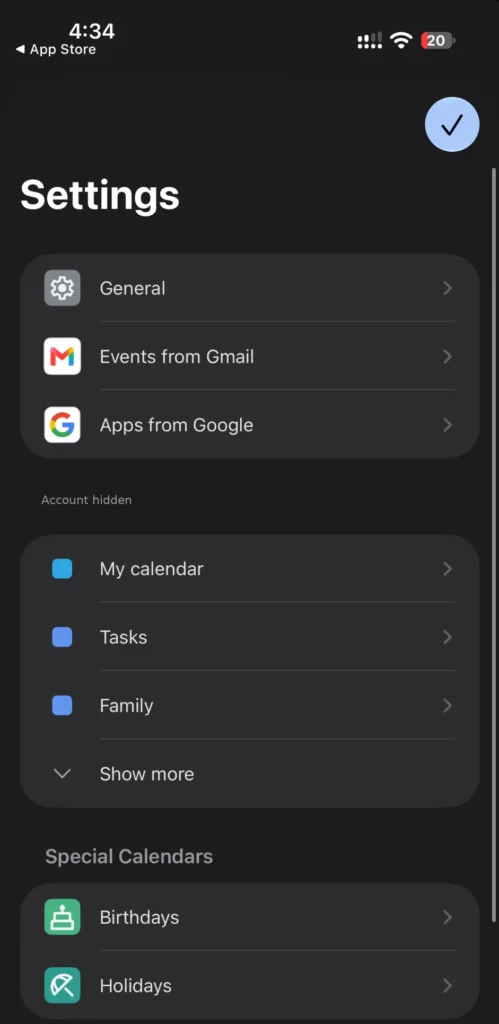
Step 1: Open Google Calendar Settings
- Open the Google Calendar app on your iPhone.
- Tap the Menu button in the upper-left corner.
- Select Settings.
- Find the calendar you want to share.
- Tap its name.
- Look for the Shared with section.
If you manage several Google Accounts, verify that you’ve selected the correct calendar.
For example, you might have a personal calendar, a work calendar, and a separate schedule for shared activities.
Each calendar can have different access permissions.
Step 2: Add People or Groups
Once you’ve opened the correct calendar:
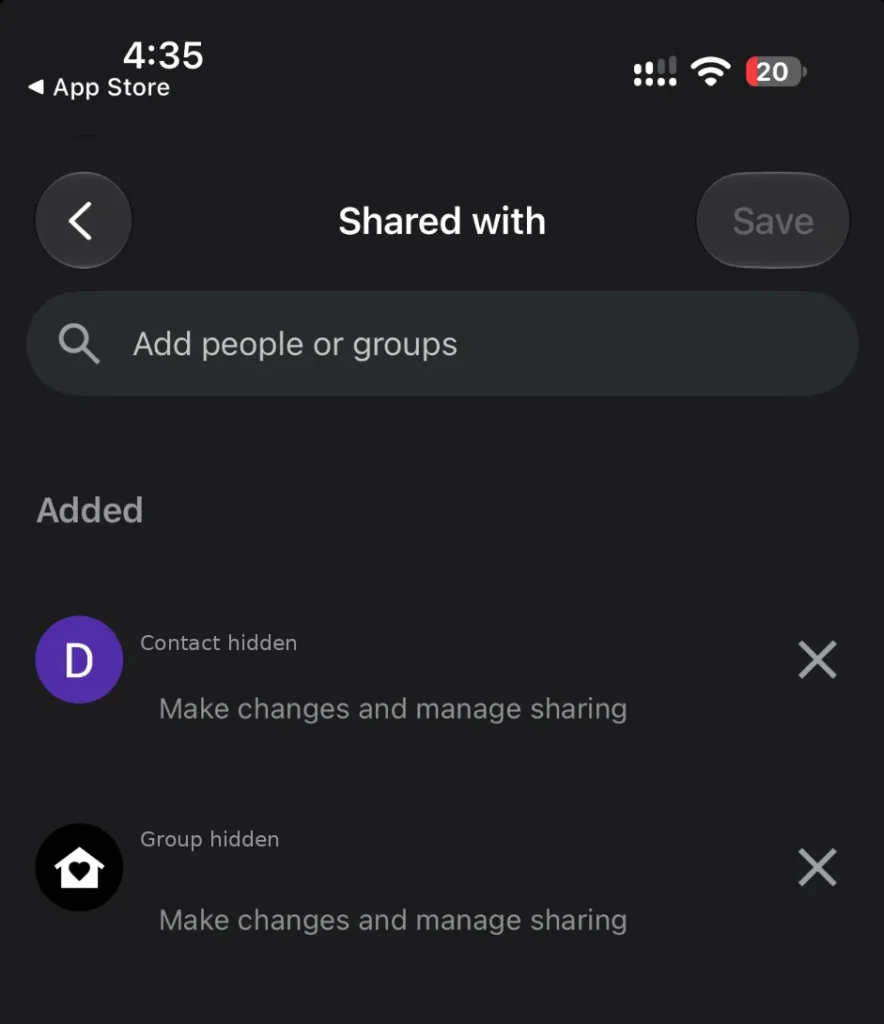
- Find Shared with.
- Tap Add people or groups.
- Enter the recipient’s name or email address.
- Select the correct person or Google group.
- Add additional recipients if necessary.
Be careful when selecting recipients.
Sharing a calendar can reveal information about your schedule, depending on the permission you choose.
If you’re sharing a work calendar, make sure the recipient is authorized to access that information.
Step 3: Choose the Right Sharing Permission
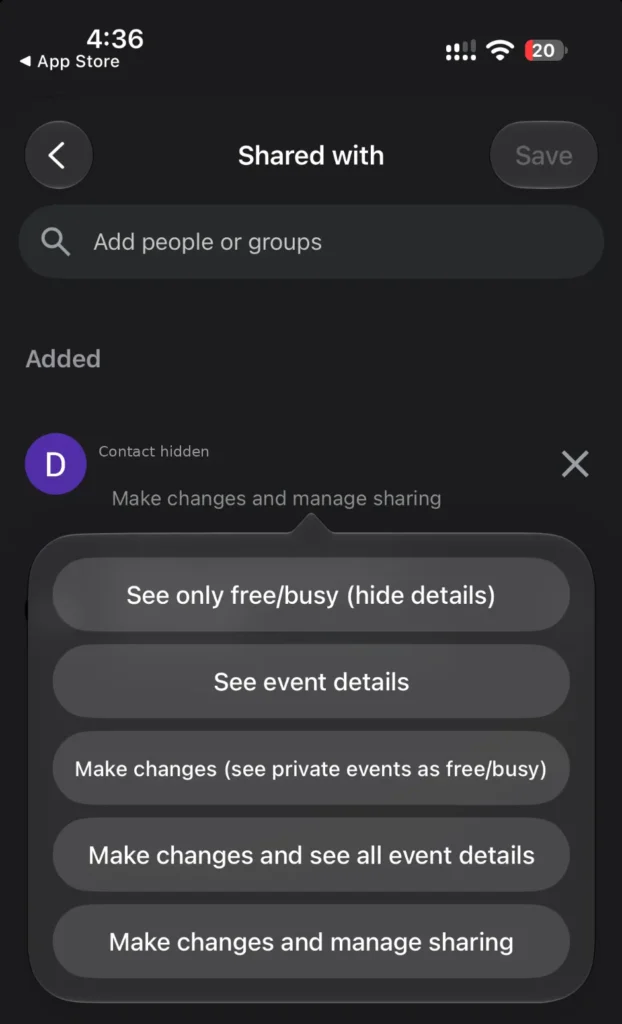
Google Calendar lets you control what another person can see or do.
This is one of the most important parts of the process.
You should choose the least amount of access necessary for the intended purpose.
See Only Free/Busy (Hide Details)
This allows the recipient to see when you’re busy without revealing the names or details of your events.
For example, someone arranging a meeting could see that you’re unavailable between 2 PM and 3 PM without seeing the meeting’s title or description.
Best for: Sharing your availability without exposing private appointments.
See Event Details
This allows the recipient to view event information, including titles, times, locations, and descriptions.
It is useful when someone needs to follow your schedule but doesn’t need permission to change it.
Best for: Family schedules, shared activity planning, or viewing a team calendar.
Make Changes
Depending on the available permission option, Google can allow recipients to modify events while limiting access to certain private-event details.
Google Calendar also offers a more extensive permission called Make changes and see event details.
With editing access, the recipient can modify supported calendar events.
Best for: Someone who actively helps manage the schedule.
Make Changes and Manage Sharing
This grants extensive control over the calendar.
The recipient can manage calendar events and sharing permissions.
This is not an appropriate choice for someone who only needs to view your availability.
Best for: Trusted collaborators who genuinely need calendar-administration access.
For a detailed explanation, see Google’s calendar permission guide.
Step 4: Save and Send the Invitation
After choosing the recipient and permission:
- Review the email address.
- Verify the selected calendar.
- Confirm the permission level.
- Tap Save.
Google sends a calendar-sharing invitation by email.
The recipient needs to follow the invitation link to add the calendar.
Once the calendar is available to them, they can view or manage it according to the permissions you’ve granted.
If they don’t see the invitation, ask them to check their inbox and spam folder.
How to Share Google Calendar Using a Computer
Although Google’s iPhone app supports calendar sharing, the desktop interface is another useful option.
It also provides access to advanced settings and calendar-management features.
You can use Safari on a MacBook, Chrome on Windows, or another supported desktop browser.
Steps
- Open Google Calendar in your browser.
- Sign in to the correct Google Account.
- Find My calendars in the left sidebar.
- Point to the calendar you want to share.
- Click the three-dot More button.
- Select Settings and sharing.
- Find the Shared with section.
- Click Add people and groups.
- Enter the recipient’s email address.
- Choose the appropriate permission.
- Click Send.
Insert optional genuine Screenshot 4 here: Google Calendar sharing controls in Safari on Mac.
The recipient receives an email invitation.
This method is also useful if your Google Calendar app doesn’t show the sharing controls you expect.
For official desktop instructions, see Google Calendar sharing on a computer.
How to Share Only One Google Calendar Event on iPhone
What if you don’t want someone to access your entire calendar?
You can invite them to a single event instead.
This is often the better option when arranging a meeting, appointment, class, or family gathering.
How to Invite Someone to an Event
- Open the Google Calendar app.
- Find or create the event.
- Open the event’s editing screen.
- Tap Add guests.
- Enter the recipient’s name or email address.
- Tap Done.
- Save the event.
Google sends an invitation email.
The recipient can respond using the available RSVP options, usually Yes, No, or Maybe.
You can invite people who don’t use Google Calendar, provided they have a valid email address.
Calendar Sharing vs Event Invitations
These features have different purposes.
Calendar sharing: Gives ongoing access to a calendar according to the selected permissions.
Event invitation: Invites someone to participate in a particular event without automatically sharing your complete calendar.
For a one-time meeting, an event invitation is generally sufficient.
For ongoing collaboration, sharing a calendar may be more convenient.
Google provides additional instructions in its event invitation guide for iPhone.
How to Share a Google Calendar with Family Members
Google Calendar can help families coordinate appointments, school activities, holidays, and other plans.
You have two main approaches.
Option 1: Share an Existing Calendar
Open Google Calendar’s sharing settings.
Add the family member’s Google Account or other supported recipient information.
Choose the appropriate permission.
For example, if they only need to check upcoming appointments, See event details may be sufficient.
If you want them to create and edit events, grant the corresponding editing permission.
Option 2: Use a Separate Family Calendar
Instead of sharing your personal calendar, you can create a separate calendar for shared family activities.
Google supports family calendars for eligible Google family groups.
These can help keep shared appointments separate from personal events.
Depending on the calendar and account configuration, family members may have editing access.
Review the available permissions carefully.
Why a Separate Calendar May Be Better
Your personal calendar may contain private appointments or work-related information.
A separate shared calendar makes it easier to decide what information belongs in the collaborative schedule.
For example, you could create a calendar called Family Activities and use it exclusively for events everyone needs to know about.
This provides a clearer separation between private and shared information.
How to Create a New Shared Google Calendar
You may prefer creating a separate calendar rather than sharing your primary one.
Google’s desktop interface supports creating additional calendars.
Steps
- Open calendar.google.com on a computer.
- Click Settings.
- Find Add calendar.
- Select Create new calendar.
- Enter a name.
- Add a description if desired.
- Set the appropriate time zone.
- Click Create calendar.
- Open its sharing settings.
- Add the people you want to share it with.
You can then use the shared calendar to organize events.
Can You Create a New Google Calendar in the iPhone App?
Google’s documentation directs users to the computer interface for creating new calendars.
Once the new calendar exists, it can appear in the Google Calendar app when you’re signed in to the correct account.
You can then create events in that calendar according to your permissions.
This is different from sharing an existing calendar through the iPhone app.
How to Stop Sharing a Google Calendar on iPhone
Calendar sharing isn’t permanent.
If you no longer want someone to access your calendar, you can remove their permission.
Steps
- Open the Google Calendar app.
- Tap Menu → Settings.
- Select the shared calendar.
- Find Shared with.
- Locate the person you want to remove.
- Tap the available Remove control beside their name.
Once access has been removed, they should no longer have the same access to that calendar.
However, removing permission doesn’t necessarily erase information that they previously copied or saved.
Can You Change Permission Without Removing Someone?
Yes, when supported by the calendar settings.
You can adjust the recipient’s access level instead of completely removing them.
For example, you could change someone from editing access to viewing access.
Use the calendar’s sharing settings to review and modify the permission.
You can also manage these permissions from Google Calendar’s desktop interface.
How to View a Google Calendar Someone Shared with You
If another person shares a Google Calendar with you, Google sends an invitation email.
To access it:
- Open the invitation email.
- Find Open Calendar or the relevant invitation link.
- Tap it.
- Follow the instructions to add the calendar.
Once added, the shared calendar should become available in Google Calendar.
Show the Shared Calendar on iPhone
- Open the Google Calendar app.
- Tap Menu.
- Look for the shared calendar in the calendar list.
- Make sure its checkbox or visibility control is enabled.
If the calendar isn’t visible, confirm that you’re signed in to the Google Account that received the invitation.
Google also notes that subscribing to an entirely new calendar through its app can require using a computer browser, even though accepting a sharing invitation can be done through email.
For more details, see Google’s guide to subscribing to shared calendars.
Can You Share Google Calendar with an iPhone User Who Uses Apple Calendar?
Yes, but there are some differences.
Google Calendar and Apple’s built-in Calendar app can work with the same Google Account.
However, the sharing permission is managed through Google Calendar, not simply by enabling Google synchronization in Apple Calendar.
Add Google Calendar to Apple Calendar
To display your Google events in Apple’s Calendar app:
- Open Settings.
- Tap Apps → Calendar.
- Select Calendar Accounts.
- Choose Add Account if your Google Account isn’t already configured.
- Select Google.
- Sign in.
- Enable Calendars.
- Open Apple’s Calendar app.
- Tap Calendars and select the Google calendars you want to display.
The exact settings labels can vary by iOS version.
Does Syncing Mean the Calendar Is Shared?
No.
Syncing allows the same account’s events to appear across supported devices and applications.
Sharing grants another person permission to access a calendar.
These are separate functions.
If your Google appointments aren’t appearing in Apple Calendar, see our iPhone Calendar Not Syncing guide.
That guide covers Google Account integration, calendar visibility, and syncing problems.
Google Calendar Sharing Permissions Explained
Choosing the right permission is important for privacy and collaboration.
If Someone Only Needs to Know When You’re Available
Use See only free/busy (hide details).
This allows them to see occupied time slots without reading ordinary event descriptions.
If Someone Needs to Read Your Schedule
Use See event details.
This can be appropriate when a family member or colleague needs to see specific meetings or appointments.
If Someone Needs to Update Events
Use a suitable Make changes permission.
Be aware that editing access is more powerful than viewing access.
Recipients may be able to modify important events.
If Someone Needs Administrative Control
Use Make changes and manage sharing only when you fully trust the recipient.
This grants access to manage other people’s calendar permissions.
It’s generally unnecessary for ordinary scheduling.
Privacy tip: If your calendar contains confidential appointments, consider sharing a separate calendar rather than your main personal one.
Why Can’t I Share My Google Calendar on iPhone?
If you can’t find the sharing controls, there are several possible explanations.
1. You’re Using Apple’s Calendar App
Apple Calendar can display Google events, but that isn’t the same as Google’s calendar-sharing interface.
Open the official Google Calendar app instead.
2. You’re Not the Calendar Owner
You can only manage sharing for calendars you own or have permission to share.
If someone else owns the calendar, ask them to grant the appropriate permission.
3. Your Work or School Account Restricts Sharing
Google Workspace administrators can control sharing permissions.
For example, an organization may limit sharing with people outside its domain.
If you’re using a managed account, contact your administrator rather than trying to bypass the restriction.
4. You’ve Selected a Calendar That Doesn’t Support the Action
Not every calendar in your list is necessarily a calendar you own.
Some are subscriptions, public calendars, birthday calendars, or calendars shared with you.
Their management controls can differ.
Verify that you’re selecting a calendar you own or are authorized to manage.
5. Your Google Calendar App Needs Updating
Open the App Store and check for an available update.
If the expected options remain unavailable, use the desktop Google Calendar interface to check the calendar’s sharing settings.
6. Your Internet Connection Isn’t Working
Google Calendar requires a connection to Google’s services when sending sharing invitations or changing permissions.
If other websites also fail to load, fix the network connection first.
Our iPhone Connected to Wi-Fi but No Internet guide explains how to troubleshoot a connected Wi-Fi network that doesn’t provide internet access.
Google Calendar Invitation Not Received? Try These Fixes
If you’ve shared your calendar but the recipient hasn’t received an invitation, try the following.
Check the Email Address
Confirm that you entered the intended recipient’s correct email address.
A typo can prevent the invitation from reaching the right person.
Ask Them to Check Spam
Calendar invitations may occasionally be filtered into spam or another mailbox folder.
Ask the recipient to search for Google Calendar messages.
Remove and Reinvite the Recipient
Google recommends removing someone from the calendar’s sharing list and adding them again if the invitation doesn’t arrive.
Only do this after confirming the email address.
Check the Recipient’s Account
The recipient should sign in to the Google Account associated with the invitation when applicable.
A calendar shared with one account may not appear under a different account.
Confirm That Email Is Working
If the invitation email itself isn’t arriving and the recipient is experiencing broader email problems, investigate their email service.
If you’re using Apple’s Mail app, our Mail App Not Working on iPhone guide provides related account and synchronization checks.
Can You Make a Google Calendar Public?
Yes, Google Calendar supports public sharing for calendars where the feature is available.
However, public sharing is different from sharing with selected people.
A public calendar may become discoverable or accessible more broadly.
That makes it unsuitable for many personal schedules.
When Is Public Sharing Appropriate?
Public sharing may be useful for:
- Public event calendars
- Community schedules
- Published class or activity calendars
- Public holiday and event listings
When Should You Avoid It?
Don’t publicly share a calendar containing:
- Private appointments
- Personal contact details
- Confidential meetings
- Sensitive locations
- Information that shouldn’t be accessible to strangers
For most personal and family calendars, sharing with specific trusted people is safer.
If you need a public calendar, use Google’s official public calendar management guide.
Is Google Calendar Sharing Free?
Google Calendar’s ordinary calendar-sharing functionality is available with personal Google Accounts.
You don’t need a paid Google Workspace subscription simply to share a personal calendar with someone.
However, certain enterprise administration, organizational policies, and advanced Workspace features are different.
For normal personal scheduling, the standard sharing controls are usually sufficient.
Frequently Asked Questions
How do I share a Google Calendar on iPhone?
Open Google Calendar, tap Menu → Settings, select your calendar, open Shared with, and tap Add people or groups. Choose a permission and tap Save.
Can I share a Google Calendar without a computer?
Yes. Google’s current iPhone app supports sharing existing calendars with specific people and groups, provided you have the necessary permissions.
Can I share Google Calendar with someone who uses Android?
Yes. Google Calendar sharing isn’t restricted to iPhone users. The recipient can access the shared calendar through a compatible Google Calendar experience.
Can I share my Google Calendar with someone who doesn’t use Gmail?
You can invite people to events using their email addresses, even when they don’t use Google Calendar. For ongoing calendar access, the recipient may need to follow Google’s account and subscription instructions.
How do I share only one Google Calendar event?
Open or create the event, tap Edit, choose Add guests, enter the recipient’s email address, and save the event.
Can someone edit my Google Calendar if I share it?
Only if you grant a permission that allows editing. View-only permissions don’t provide ordinary event-editing rights.
Can I share my Google Calendar without showing private details?
Yes. Use See only free/busy (hide details) to let someone check your availability without exposing ordinary event titles or descriptions.
Can I create a shared Google Calendar directly on iPhone?
Google’s documentation directs users to the computer interface for creating additional calendars. After creating one, you can use it through the Google Calendar app.
How do I stop sharing my Google Calendar?
Open Google Calendar settings, select the shared calendar, find the person’s name under Shared with, and use Remove.
Why isn’t the Shared with option appearing?
You may be using Apple Calendar, viewing a calendar you don’t own, using an account with sharing restrictions, or looking at an unsupported calendar type.
Will someone know if I remove their calendar access?
Their access to the calendar will change. Don’t assume that removing access is invisible, since the recipient may notice the calendar is unavailable.
What’s the difference between sharing and syncing Google Calendar?
Sharing grants someone access to a calendar. Syncing keeps calendar information updated across connected applications or devices.
Final Thoughts
Learning how to share a Google Calendar on iPhone is straightforward once you understand where Google places its sharing controls.
Open the Google Calendar app, select the calendar you own, add the intended recipients, and choose the appropriate permissions.
For simple availability sharing, use free/busy access. For collaboration, grant editing permissions only when necessary.
You can also invite someone to an individual event without sharing your entire calendar.
If the iPhone app doesn’t provide the required controls, use Google Calendar on your computer.
Most importantly, remember that sharing access and calendar synchronization are different functions.
For the best combination of convenience and privacy, share only the calendar information each recipient actually needs.