Wondering how to remove a contact photo on iPhone without deleting the person’s entire contact information? Maybe an old picture keeps appearing when someone calls, you want to replace a photo with initials, or your own Contact Poster is showing when you call other people.
Apple provides several ways to change how contact photos and posters appear, but the exact options depend on the contact and your iOS version.
On recent iPhones, you can edit a contact photo, replace it with a monogram, manage saved Contact Posters, or disable sharing of your own photo and name.
However, removing a photograph and stopping Contact Poster sharing are different actions.
In this guide, we’ll explain how to remove or replace contact photos on iPhone, delete saved Contact Posters when the option is available, and fix pictures that keep returning.
These instructions apply to recent iPhones, including the iPhone 17 Pro running iOS 27.
Quick Answer: How to Remove a Contact Photo on iPhone
To remove or replace a saved contact’s photo:
- Open the Contacts app.
- Find the person whose picture you want to remove.
- Tap their name.
- Select Edit.
- Tap the existing contact photo or its editing control.
- Look for a photo removal option, or choose Monogram to replace the photo with initials.
- Tap Done to save.
On some iOS versions, the photo editor offers a direct removal option. On others, replacing the photograph with a monogram or another neutral avatar may be the simplest approach.
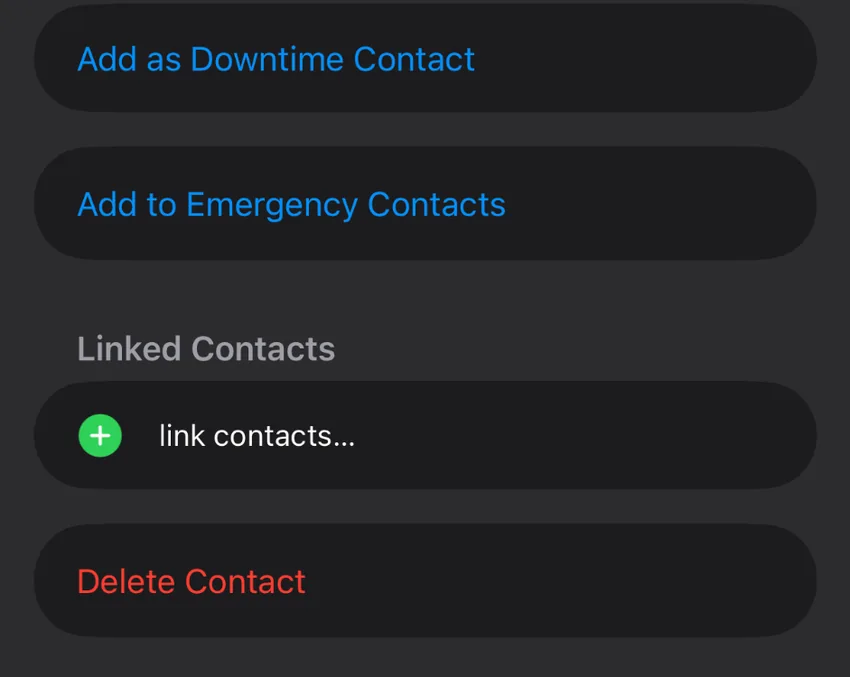
Important: Don’t tap Delete Contact to remove a photograph. That option deletes the contact card, including its saved phone numbers and other information.
If your goal is to stop sharing your own photo with other people, open:
Contacts → My Card → Edit → Contact Photo → Name & Photo Sharing
Turn off sharing.
Apple explains the available controls in its official guide to editing contact photos and posters.
Table of Contents
Contact Photo vs Contact Poster: What’s the Difference?
Before making changes, it’s helpful to understand the difference between the two features.
What Is a Contact Photo?
A contact photo is the image associated with a person’s saved contact information.
It may appear in:
- The Contacts app
- Messages conversations
- Phone-related contact screens
- FaceTime
- Other applications that use your saved contacts
A contact photo can be a photograph, Memoji, emoji, or monogram, depending on the available options.
What Is a Contact Poster?
A Contact Poster is a larger, customizable design associated with a contact.
It can include a photograph, personalized background, name styling, and other visual elements.
Apple introduced Contact Posters as a way to customize how people appear during supported calling and messaging experiences.
Why Does the Difference Matter?
Changing a saved contact’s small photo doesn’t necessarily remove every Contact Poster design associated with that person.
Similarly, turning off sharing of your own poster doesn’t necessarily delete the poster stored on your iPhone.
The correct method depends on what you’re trying to accomplish.
Method 1: Remove or Replace Another Person’s Contact Photo
If you’re trying to remove an old or unwanted picture from someone else’s contact, start in the Contacts app.
Steps to Edit a Contact Photo
- Open Contacts.
- Search for the person’s name.
- Tap their contact card.
- Select Edit.
- Tap the existing image or the photo-editing option.
- Review the available photo controls.
- Remove the image if a removal control is offered, or select a replacement.
- Save the changes.
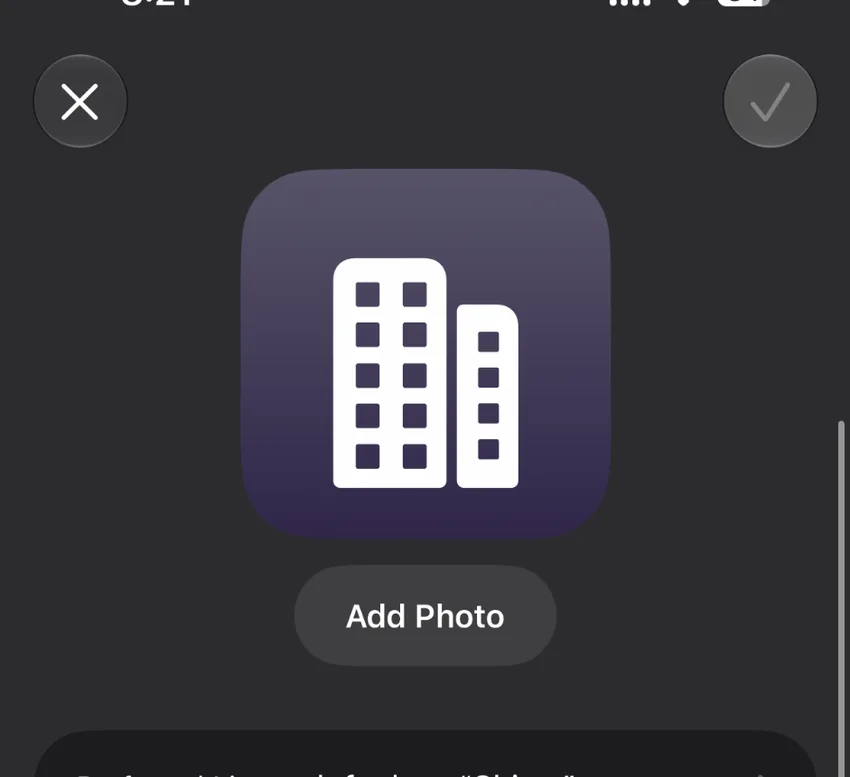
The available controls can vary depending on whether the contact is stored in iCloud, Google Contacts, Exchange, or another account.
Some contacts may also use an image shared by their owner.
What Happens After You Change the Photo?
The image displayed for that person on your iPhone should update.
However, editing the photo stored in your Contacts app doesn’t automatically change the person’s image on their own device.
It also doesn’t normally send them a notification announcing that you’ve edited their picture.
Does This Delete the Contact?
No.
Changing or replacing a photo doesn’t normally remove the contact’s phone number, email address, or saved information.
This is why photo editing is preferable to deleting and recreating the entire contact.
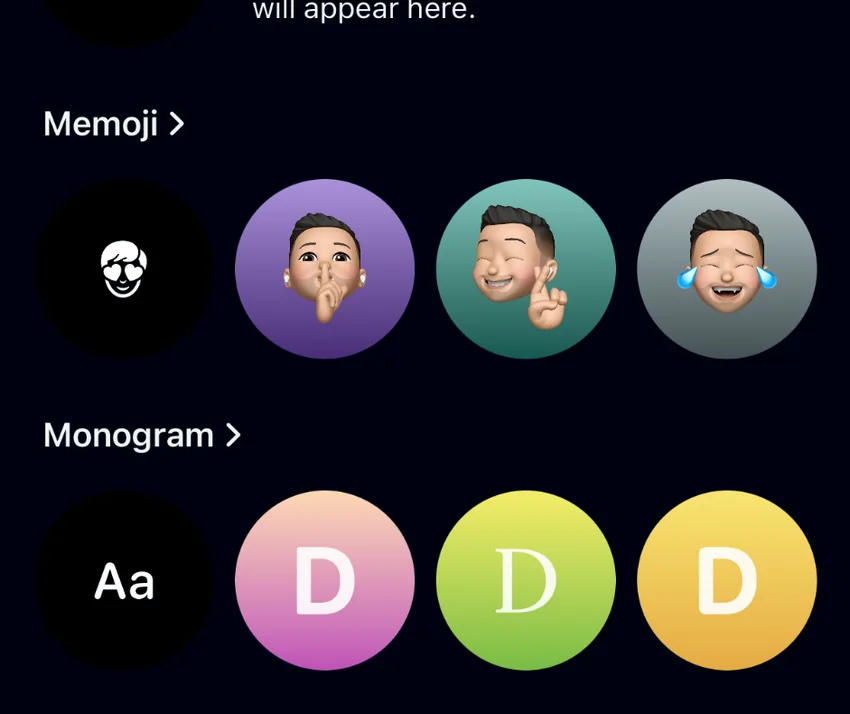
Replace a Contact Photo with Initials
Sometimes the simplest solution is to use a monogram instead of a photograph.
A monogram displays initials or a neutral design rather than a personal picture.
How to Use a Monogram
- Open the contact in Contacts.
- Tap Edit.
- Open the contact photo editor.
- Look for Monogram among the available choices.
- Select the monogram option.
- Choose an available background or style.
- Tap Done to save.
This is useful when you don’t want a photograph attached to someone’s contact information.
Is a Monogram the Same as Deleting a Photo?
Not exactly.
Replacing a photograph with initials changes the avatar displayed in the contact card.
The original photograph may still exist elsewhere, such as the Photos library or a synchronized account.
A monogram is therefore a practical alternative when your goal is to stop displaying the image rather than erase every copy.
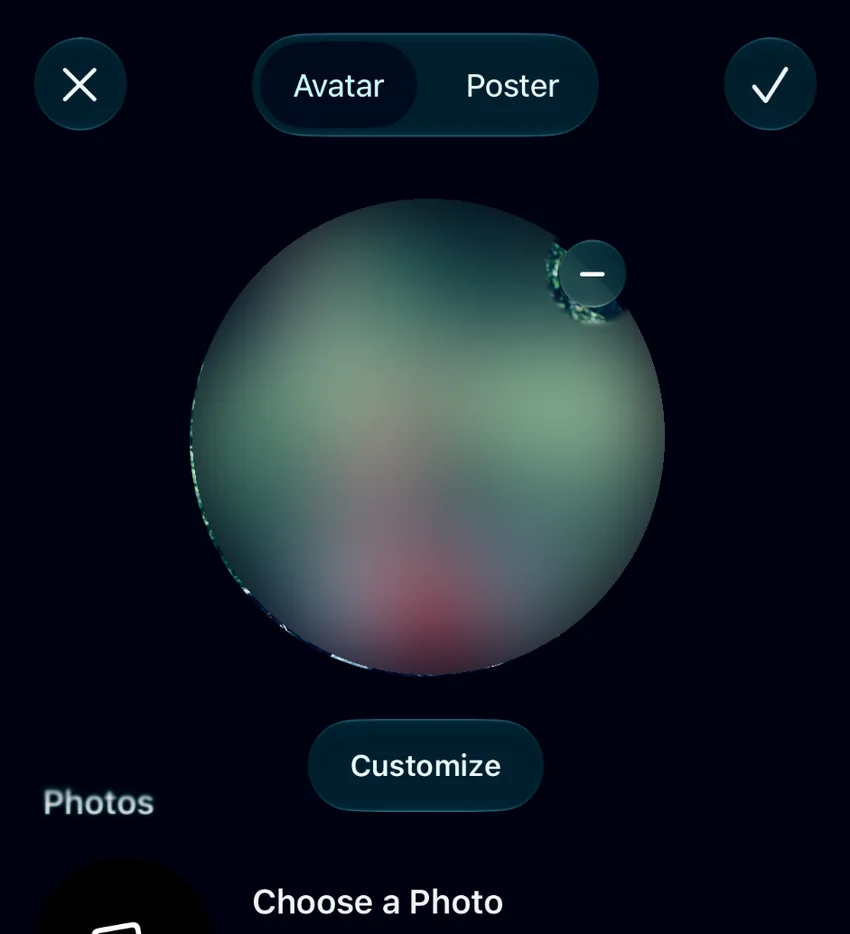
Method 2: Remove a Contact Poster on iPhone
If the unwanted image is a large Contact Poster, you’ll need to manage the poster rather than only the small contact avatar.
For your own Contact Poster, use My Card.
How to Edit Your Contact Poster
- Open Contacts.
- Tap My Card.
- Select Edit.
- Tap your contact photo at the top.
- Open the available poster selection or customization interface.
- Choose the poster you want to edit.
- Select Customize when available.
- Make your changes and save.
You can replace a photograph with a different design or use a monogram if supported.
How to Delete a Saved Contact Poster
Some iOS versions provide a hidden deletion control inside the saved-poster gallery.
Try the following:
- Open the Contact Poster editor.
- Browse the saved poster designs.
- Find the poster you want to remove.
- Swipe upward on its preview.
- Look for the trash-can icon.
- Tap it if available.
- Confirm the deletion.
If the option doesn’t appear, your iOS version or current editing interface may use a different control.
Apple documents the supported poster-editing entry point, while the swipe-up deletion gesture is described in independent iOS tutorials.
Don’t delete a poster you want to keep simply to test the feature.
Does Deleting a Poster Remove It from Everyone’s Phone?
Not necessarily.
Removing a saved poster from your iPhone doesn’t guarantee that other people lose copies they previously saved or accepted.
If your goal is privacy, you should also review your Name & Photo Sharing setting.
Method 3: Stop Sharing Your Contact Photo
What if you want to prevent your own contact picture or poster from being offered to others?
You don’t necessarily need to delete the image.
Apple provides a separate sharing control.
How to Turn Off Name & Photo Sharing
- Open Contacts.
- Select My Card.
- Tap Edit.
- Tap your contact photo.
- Find Name & Photo Sharing.
- Turn it off.
This stops the normal sharing behavior associated with that setting.
What Does Contacts Only Mean?
When sharing is enabled, Contacts Only allows your updated name and image to be offered automatically through supported experiences to people in your contacts.
It doesn’t mean every person on the internet can access your poster.
What Does Always Ask Mean?
Always Ask lets you decide whether to share your information when the relevant sharing opportunity occurs.
This option may be preferable when you want to retain photo sharing but control it more carefully.
Does Disabling Sharing Delete Existing Photos?
No.
Turning off Name & Photo Sharing doesn’t remotely delete images that other people have already accepted, copied, or stored.
It controls how your device shares updated contact information going forward.
For Apple’s instructions, see its guide to sharing your name and contact image.
Method 4: Fix a Contact Photo That Keeps Coming Back
Sometimes you change a contact photo, save your changes, and later discover that the old image has returned.
There are several possible explanations.
1. The Contact Exists in Multiple Accounts
You may have saved the same person in:
- iCloud Contacts
- Google Contacts
- Outlook or Exchange
- Another synchronized address book
Different copies of a contact may contain different pictures.
If the iPhone displays linked information from more than one source, it can be difficult to determine which copy controls the visible photo.
Check the contact’s account information before editing it repeatedly.
2. The Person Is Sharing an Updated Photo
Someone may share their own contact photo or poster through Apple’s supported contact-sharing features.
Your device may offer to update the image associated with that person.
If an old or unwanted image returns, check whether a shared contact picture is involved.
3. Contacts Aren’t Syncing Correctly
Changes made on one device may not immediately appear on another.
If your contacts aren’t synchronizing normally, the photo may appear inconsistent across devices.
For account and synchronization troubleshooting, see our iPhone Contacts Not Syncing guide.
4. The Contact Is Managed by Your Workplace
Some work or school accounts restrict editing.
For example, an organization may control contact information through a managed directory.
If the photo cannot be changed, confirm whether the contact is editable before making further changes.
5. The Photo Wasn’t Saved
Some editing interfaces require you to confirm changes on more than one screen.
After modifying the picture, tap the available Done or confirmation controls.
Then reopen the contact to check whether the change was retained.
How to Remove a Contact Photo from Messages on iPhone
The Messages app can display photos or avatars associated with your saved contacts.
If you want a particular person’s photo to stop appearing in Messages, changing their saved contact image may help.
What Should You Do?
- Open the person’s contact card.
- Edit their photo.
- Replace it with initials or another neutral avatar.
- Save the changes.
- Return to Messages and check the conversation.
Remember that a contact avatar and the actual message content are different things.
Changing a contact photo doesn’t hide incoming text messages.
What If You Want to Hide Message Previews?
To protect the text shown in notifications, open:
Settings → Notifications → Messages → Show Previews
Choose the appropriate privacy setting, such as When Unlocked or Never, when available.
If Messages notification behavior is also causing problems, consult our iPhone Notifications Not Working guide.
That guide covers notification permissions, Focus settings, and other alert-related problems.
Does Removing a Contact Photo Delete the Original Picture?
Not necessarily.
The image displayed by a contact card may originate from a photo stored in the Photos library, a synced contact database, or a picture shared by another person.
Changing the contact avatar doesn’t automatically delete the source image from every location.
For example, if you selected a photograph from your Photos library and later replaced the contact avatar with initials, the original photograph may remain in Photos.
What If the Photo Is Stored in iCloud?
Deleting photographs from iCloud Photos is a separate action from editing a contact card.
If you use iCloud Photos, deleting an image from the Photos library can synchronize that deletion across supported devices.
Don’t delete the original picture merely to remove it from Contacts unless you’re certain you no longer need it.
If your photo library isn’t updating normally between devices, see our iCloud Photos Not Syncing on iPhone guide.
Why Can’t I Remove a Contact Photo on iPhone?
If you cannot find a removal option, there are several things to check.
The Editor Doesn’t Offer Delete Photo
Not every contact editor displays the same commands.
Try selecting Monogram instead.
This often accomplishes the practical goal of removing the visible photograph.
The Contact Is Read-Only
Certain synchronized or managed contacts may not allow editing from the iPhone Contacts app.
Review the source account and its permissions.
You’re Editing the Wrong Contact
If the same person appears in multiple address books, you may be editing a different saved record.
Look for linked contacts or duplicate entries.
You’re Trying to Remove Your Own Poster from Another Person’s Phone
You cannot reliably erase an image previously saved by another person simply by changing your own contact photo.
Turning off sharing prevents normal future sharing but doesn’t guarantee removal from other devices.
The Photo Changes Back After Saving
Check synchronization and account sources before repeatedly replacing the image.
If appropriate, update the relevant contact record through its provider’s official interface.
Is It Better to Delete or Replace a Contact Photo?
For most people, replacement is safer and easier.
Choose Replacement When:
- You want to use initials.
- You dislike an old photograph.
- You want a neutral contact avatar.
- You want to preserve the person’s phone number and other information.
Choose Poster Deletion When:
- You have multiple saved poster designs.
- You want to remove an unwanted design.
- Your iPhone provides a supported poster deletion control.
Choose Sharing Controls When:
- You don’t want your own picture offered automatically to other people.
- You want to approve photo sharing individually.
- You want to keep your poster locally without sharing updates.
These actions address different needs.
Frequently Asked Questions
How do I remove a contact photo on iPhone?
Open Contacts, select the person, tap Edit, and open the photo editor. Use the available removal option or replace the photograph with Monogram.
Can I remove a contact photo without deleting the contact?
Yes. Editing the image doesn’t ordinarily delete the person’s saved phone number or other contact information.
How do I change a contact photo back to initials?
Open the contact photo editor, select Monogram when available, customize it, and save the contact.
How do I remove my Contact Poster on iPhone?
Open Contacts → My Card → Edit → your photo. In the saved poster gallery, you may be able to swipe up on a design and select the trash icon.
Can I stop sharing my photo when I call someone?
You can disable Name & Photo Sharing in your own contact settings. However, this doesn’t guarantee removal of images other people already saved.
Will someone know if I remove their contact photo?
Editing the locally saved photo doesn’t ordinarily send that person a notification.
Why does my old contact photo keep returning?
Possible causes include multiple account copies, linked contacts, synchronization behavior, or updated images shared by the contact.
Does removing a contact photo delete text messages?
No. Editing a saved contact picture doesn’t ordinarily remove Messages conversations.
Can I remove a contact photo in iOS 27?
Yes, you can edit and replace contact photos in iOS 27. The exact removal and poster-management controls may differ from earlier versions.
Can a Google contact photo be changed on iPhone?
Often, yes, if the synced contact is editable. However, account settings and synchronization behavior may affect whether your changes are saved.
Does deleting a contact photo remove it from iCloud Photos?
Not automatically. The contact avatar and the photograph stored in your photo library may be separate items.
Do I need to reset my iPhone to remove a contact photo?
No. A reset isn’t necessary for ordinary contact-photo editing.
Final Thoughts
Now you know how to remove a contact photo on iPhone without deleting the person’s contact card or losing important information.
For another person’s contact, the simplest approach is usually to open Contacts, edit the image, and replace it with initials or another neutral avatar.
For your own Contact Poster, use the poster editor to change or remove saved designs when the relevant option is available.
If privacy is your main concern, turn off Name & Photo Sharing or choose Always Ask.
And if an old contact picture keeps returning, check linked contacts and synchronized accounts before changing more settings.
The safest approach is to change only the photo or sharing setting you need, while keeping the underlying contact information intact.