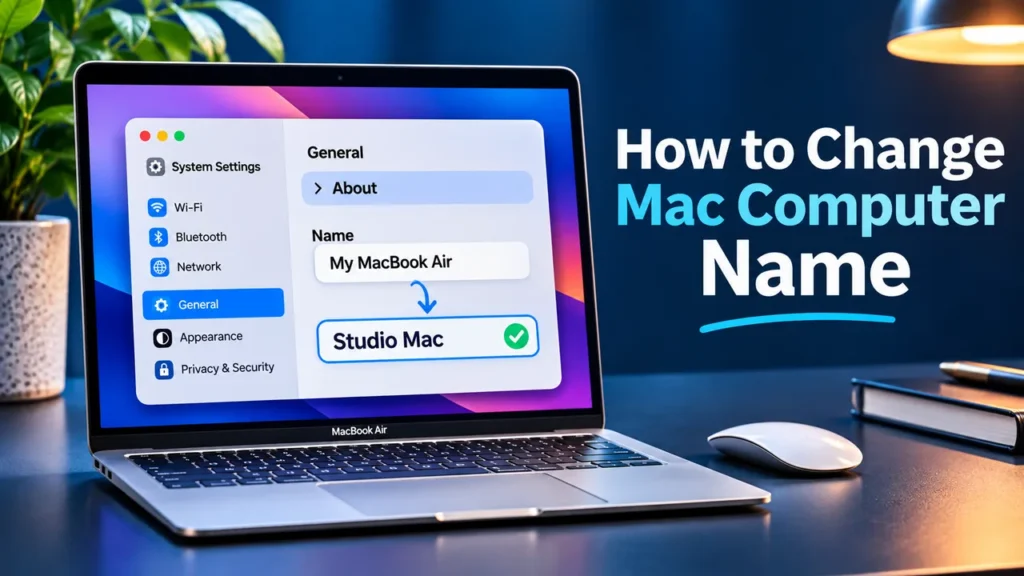
Want to rename your MacBook Air, MacBook Pro, iMac, or Mac mini? Learning how to change Mac computer nametakes less than a minute, and you don’t need to reset your computer or reinstall macOS.
Maybe your Mac still displays an old owner’s name, has a generic name such as “MacBook Air,” or appears under the wrong name when sharing files with other devices.
Fortunately, macOS lets you change your computer name directly through System Settings.
However, your Mac actually uses several different names, including its computer name, local hostname, and login username. Changing one doesn’t necessarily change the others.
In this guide, we’ll explain how to rename your Mac in seven easy steps, update its local network name, change the name shown when sharing files, and troubleshoot problems if the new name doesn’t appear.
These instructions cover macOS 27, Tahoe, Sequoia, Sonoma, Ventura, and older macOS versions.
Quick Answer: How to Change Mac Computer Name
To change your Mac computer name:
- Click the Apple menu () in the top-left corner.
- Select System Settings.
- Click General in the sidebar.
- Select About.
- Find the Name field.
- Click the existing computer name and enter your preferred name.
- Press Return to finish, then confirm the new name appears.
That’s it. Your Mac now has a new computer name.
For most users, no restart is necessary.
Apple confirms these steps in its official guide to changing a Mac computer name.
Important: Renaming your Mac does not change your user account name, login password, Apple Account, or personal files.
Table of Contents
What Is Your Mac Computer Name?
Your Mac computer name is a human-readable label that identifies the device.
For example, a Mac might have a name such as:
- My MacBook Air
- Office Mac
- Studio Mac
- Living Room iMac
- Work MacBook Pro
This name can help distinguish your Mac from other computers, especially when several Apple devices are connected to the same network.
The name may be used by local network discovery and supported sharing services.
Why Would You Change Your Mac Computer Name?
There are several common reasons.
You purchased a used Mac. The computer might still display a name associated with its previous owner.
You have multiple Macs. Distinct names help you recognize the correct device.
You use file sharing. A meaningful computer name makes it easier to identify your Mac on a local network.
You want better privacy. Some default device names contain a person’s name, which you might prefer not to display.
You want to organize your devices. You may prefer descriptive names such as Office Mac or Travel Mac.
Renaming your Mac is a normal macOS personalization option.
You don’t need to create another user account or change your Apple Account information to do it.
How to Change Mac Computer Name in macOS 27 and Newer Versions
On modern macOS releases, the computer name is managed from the About section of System Settings.
These instructions apply to supported Macs running macOS 27 and other recent versions, including Tahoe, Sequoia, Sonoma, and Ventura.
Step 1: Open the Apple Menu
Click the Apple logo in the upper-left corner of the screen.
A menu containing system commands will appear.
Step 2: Select System Settings
Click System Settings.
The application displays the main configuration controls for your Mac.
Step 3: Open General
In the sidebar, scroll until you find General.
Click it to reveal additional system options.
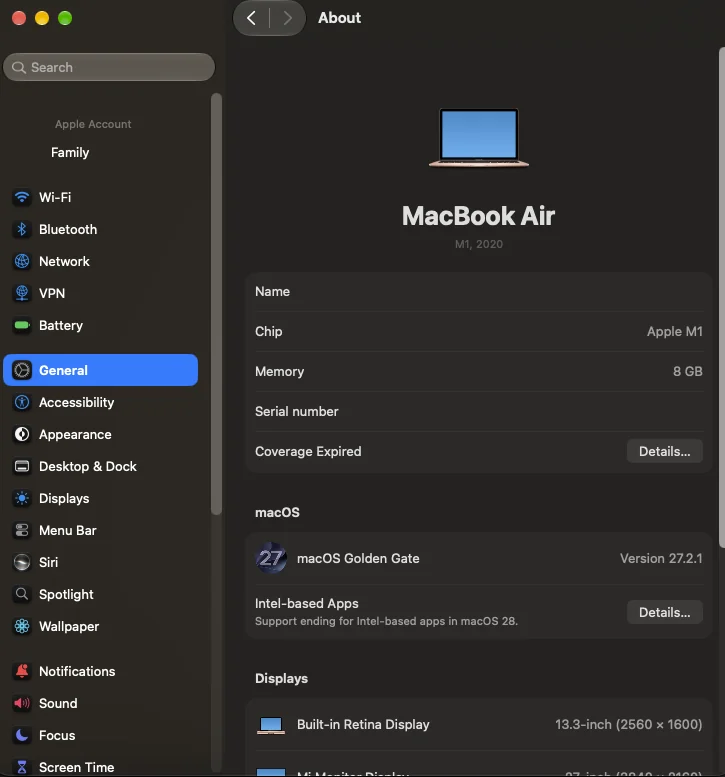
Step 4: Select About
Click About.
This section displays information about your computer, including its model, macOS version, and name.
Step 5: Find the Name Field
Look for Name.
The current computer name should appear alongside it.
For example, you might see:
My MacBook Air
Step 6: Enter a New Computer Name
Click the current name.
Replace it with the name you want to use.
For example:
Studio Mac
You don’t need to use your real name or the exact model of your computer.
Choose a name you can easily recognize.
Step 7: Save and Verify the New Name
Press Return after entering the name.
Check that the Name field displays your replacement.
You can close System Settings afterward.
The computer name normally changes without requiring a restart.
How to Confirm the Change Worked
Open System Settings → General → About again.
Look at the Name field.
If your new name appears, the change was saved.
You can also check the corresponding local network name under General → Sharing.
If another device still shows the previous name, it may need to rediscover your Mac.
Apple also explains how to find your Mac’s computer name and network address.
How to Change Mac Computer Name on Older macOS Versions
If your Mac uses macOS Monterey 12 or an earlier release, you’ll usually find System Preferences rather than System Settings.
The computer-name option is also in a different location.
Steps for Older Macs
- Open the Apple menu.
- Select System Preferences.
- Click Sharing.
- Find the Computer Name field.
- Remove the existing name.
- Enter your preferred computer name.
- Press Return or click outside the field to finish.
Your Mac should now use the new computer name.
Why Is the Setting Different?
Apple redesigned the macOS settings interface beginning with macOS Ventura.
Older macOS versions placed the computer-name field directly inside Sharing preferences.
More recent versions use General → About.
If an online tutorial tells you to open Sharing but you cannot find the Computer Name field, it may be describing an older macOS version.
Don’t change unrelated sharing settings just to rename the computer.
Mac Computer Name vs. Local Hostname: What’s the Difference?
This is an important distinction.
Your Mac uses several identifiers, and they don’t all mean the same thing.
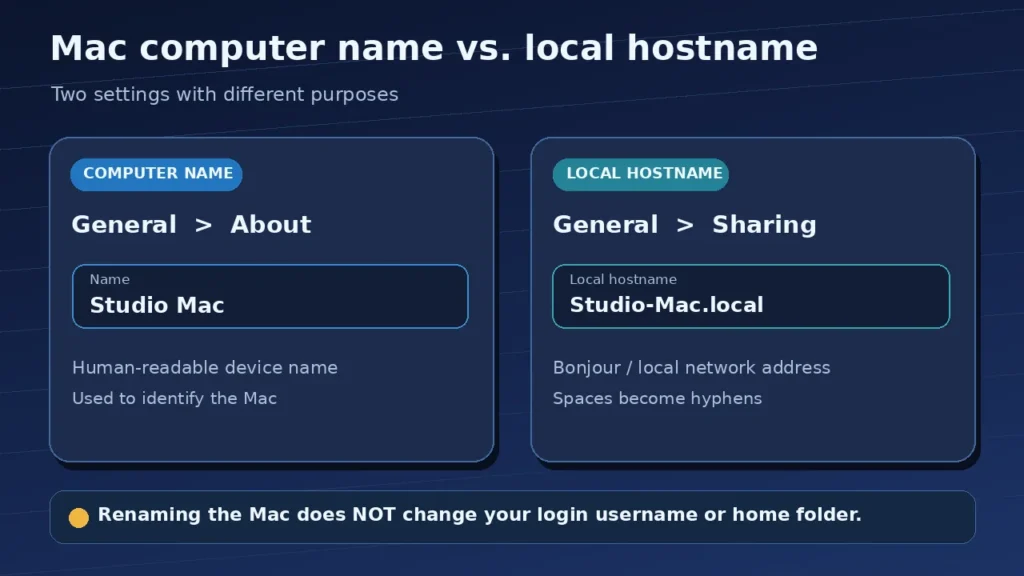
1. Computer Name
The computer name is a friendly label for your Mac.
For example:
Studio Mac
You can view or edit it through:
System Settings → General → About → Name
It’s intended to make the computer recognizable.
2. Local Hostname
Your Mac also uses a local hostname for Bonjour-compatible network services.
For example:
Studio-Mac.local
Apple explains that the local hostname is generally derived from your computer name, with spaces replaced by hyphens and .local appended.
You can find it through:
System Settings → General → Sharing
3. Login Username
Your Mac’s login username identifies a user account.
It is separate from the computer name.
For example, you might have:
- Computer name: Studio Mac
- Local hostname: Studio-Mac.local
- Account short name: alex
Changing the computer name doesn’t rename the account short name or the user’s home folder.
Important: Don’t try to rename your home folder or user account just because you want a different computer name. Account renaming is a separate operation that requires additional precautions.
How to Change the Local Hostname on Mac
If you want to change the name other computers use to reach your Mac on the local network, check its local hostname.
Steps
- Open the Apple menu.
- Select System Settings.
- Click General.
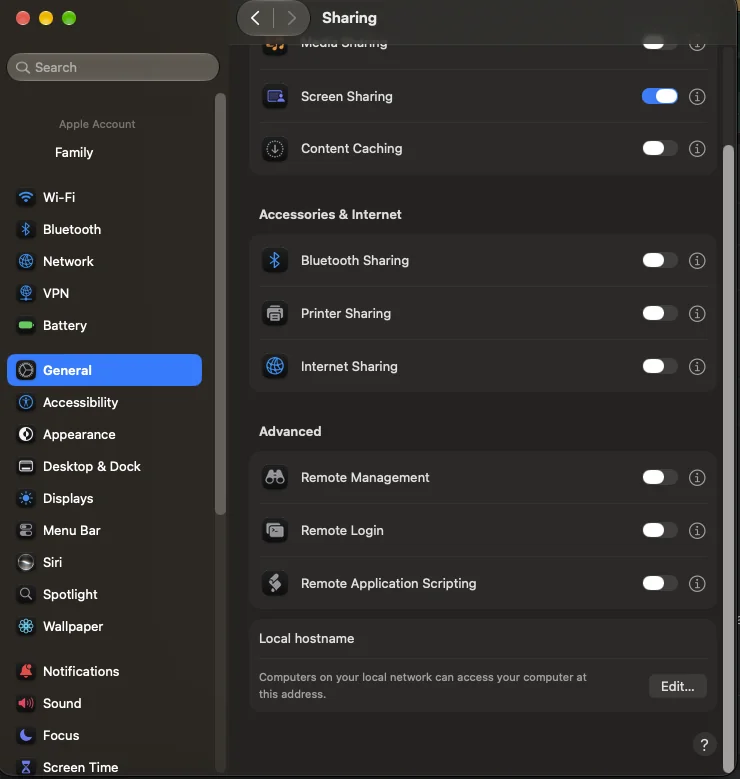
- Select Sharing.
- Scroll to the bottom of the Sharing window.
- Find Local hostname.
- Click Edit.
- Enter your preferred local hostname.
- Click OK.
For example, you could use:
Studio-Mac
The resulting local network name would be:
Studio-Mac.local
What Makes a Good Local Hostname?
Use a short, recognizable name.
Letters, numbers, and hyphens are sensible choices.
Avoid unnecessary spaces or punctuation when entering a local hostname manually.
If your existing local hostname already matches the computer name appropriately, there’s usually no reason to change it.
Do You Need to Change Both Names?
Not always.
If you only want a different label for your Mac, changing the computer name is usually enough.
If you’re troubleshooting network discovery or want a specific .local address, review the local hostname separately.
Apple’s computer name and hostname documentation explains both settings.
How to Change Mac Computer Name for AirDrop
If your Mac displays an unexpected device name when sharing files through AirDrop, changing its computer name may help.
Steps
- Open System Settings.
- Select General → About.
- Change the Name field.
- Press Return.
- Open Finder.
- Select AirDrop.
- Check whether the device is discoverable as expected.
Keep in mind that AirDrop identification can also involve contact information and device discovery behavior.
Changing the computer name doesn’t guarantee that another person will see exactly that text in every AirDrop situation.
If the issue involves unsuccessful transfers rather than the displayed name, see our AirDrop Not Working Between iPhone and Mac troubleshooting guide.
That article covers AirDrop connectivity problems separately.
How to Change Mac Name Using Terminal
Most users should use System Settings.
However, macOS also provides a command-line method for checking or changing the computer name.
This can be useful for administrators and advanced users who already work with Terminal.
Check the Current Computer Name
- Open Terminal.
- Enter:
scutil --get ComputerName- Press Return.
Terminal displays the current computer name.
Change the Computer Name
To set a new name, enter:
sudo scutil --set ComputerName "Studio Mac"Replace Studio Mac with your preferred name.
You may be prompted to enter an administrator password.
Terminal doesn’t display password characters while you type.
Press Return to submit the command.
Verify the Name
Run:
scutil --get ComputerNameThe new name should appear.
What About the Local Hostname?
You can inspect it with:
scutil --get LocalHostNameIf you genuinely need to set a specific local hostname, the corresponding command is:
sudo scutil --set LocalHostName "Studio-Mac"Don’t include .local as part of the value entered in this example.
Important Precautions
These commands are for users who understand administrative Terminal operations.
Avoid copying unknown scripts that modify multiple system settings.
Don’t change the separate system HostName merely because the computer name looks wrong. It serves a different purpose and is not normally necessary for a simple rename.
For everyday use, System Settings → General → About is the easier option.
How to Fix Mac Computer Name Not Changing
Occasionally, a new computer name doesn’t appear where you expect it.
The issue may involve a different name field, a previously customized local hostname, or a device that hasn’t refreshed its network discovery information.
Fix 1: Confirm You Changed the Correct Field
Open System Settings → General → About.
Check the Name field.
If the new name appears there, your computer name has been changed.
If another application still displays something different, it may be using the local hostname or another identifier.
Fix 2: Check the Local Hostname
Open System Settings → General → Sharing.
Look for the Local hostname section.
If it has an older or customized value, review whether it should be updated.
Don’t change the hostname unless you understand how the Mac is being accessed on the network.
Fix 3: Check for Duplicate Names
Apple explains that if two Macs have the same name on a local network, macOS may add a number to one of the local network names.
For example, you could see a modified name ending in (2) or another numeric suffix.
Choose a distinct computer name to reduce confusion.
Fix 4: Restart Your Mac
If the name isn’t updating in another app or device, a normal restart may help refresh the environment.
- Save your work.
- Open the Apple menu.
- Select Restart.
- Wait for the Mac to start.
- Check the computer name again.
A restart isn’t normally required just to rename a Mac, but it can be useful while troubleshooting.
Fix 5: Check Network Discovery
If another Mac can’t find the renamed computer, first make sure both devices are using the expected network.
Check their Wi-Fi connections and relevant sharing services.
If your MacBook is having a connection problem, our MacBook WiFi Not Working guide covers network troubleshooting.
Don’t reset the entire network configuration simply because an old computer name remains visible temporarily.
Fix 6: Check Organization Restrictions
If you use a work or school Mac, your organization may control the computer name.
Device-management software may also restore a naming convention.
If your computer is managed, ask the administrator before changing the name through Terminal or attempting other workarounds.
Why Does My Mac Computer Name Have a Number After It?
You might notice a name such as:
Studio Mac (2)
This can happen when a computer name conflicts with another device name on the network.
Apple documents automatic numbering for duplicate local network names.
What Can You Do?
Check whether another Mac is using the same name.
If several Macs are called MacBook Air, consider changing them to distinct names.
For example:
Office Mac
Travel Mac
Home iMac
The goal is to make each device easy to identify.
Don’t remove or reconfigure network devices unnecessarily.
Does Changing Your Mac Name Change Your Login Name?
No.
Your computer name and login account name are separate.
For example, changing your device name from:
Alex's MacBook Air
to:
Studio Mac
doesn’t change your login username or password.
It also doesn’t rename your home folder.
Your Apple Account remains the same.
If you only need to rename the computer, don’t modify account settings.
If you need to update your login password, our How to Change Password on Mac guide explains that process separately.
Will Changing the Mac Name Affect Files and Applications?
An ordinary computer-name change doesn’t erase your documents, photos, or installed applications.
It also doesn’t require formatting the drive or reinstalling macOS.
However, the computer name may be used by other devices or network services to identify your Mac.
For example, a previously saved network shortcut may still refer to an older local hostname.
If another device cannot reconnect after a rename, check the current hostname and the saved connection settings.
Don’t assume you need to rebuild your user account.
Should You Use Your Real Name as Your Mac Computer Name?
That’s a personal choice, but a neutral name can be helpful for privacy.
For example, a default name might contain your first and last name.
Depending on sharing and network discovery settings, some device-identification information may be visible to other devices.
A name such as Work MacBook or Studio Mac can be easier to recognize without exposing personal details.
Choose something memorable but not overly identifying.
Avoid including sensitive information such as your full address, phone number, or account credentials.
How to Change MacBook Air and MacBook Pro Names
MacBook Air and MacBook Pro use the same modern macOS computer-name settings.
For a MacBook Air with an Apple M-series processor:
Apple menu → System Settings → General → About → Name
The same route applies to supported modern MacBook Pro models.
You don’t need different instructions just because your Mac uses Apple silicon rather than an Intel processor.
The macOS version determines the interface, not simply the MacBook model.
Older MacBooks using macOS Monterey or earlier may use System Preferences → Sharing instead.
Frequently Asked Questions
How do I change my Mac computer name?
Open System Settings → General → About, select the current Name field, type the new name, and press Return.
How do I rename my MacBook Air?
Use Apple menu → System Settings → General → About → Name. Enter your preferred computer name and confirm it appears.
Does changing Mac computer name change the username?
No. The computer name identifies the device, while the login username belongs to a user account. They’re separate settings.
Can I change my Mac name without restarting?
Yes. Renaming your Mac through System Settings normally takes effect without a restart. Some network clients may need to refresh their connections.
How do I change my Mac name for AirDrop?
Change the computer name under System Settings → General → About. The name used for AirDrop identification may also depend on contacts and discovery behavior.
Why does my Mac have a name ending in (2)?
macOS can add a numeric suffix to distinguish devices with identical names on the local network.
What is the difference between a Mac computer name and local hostname?
The computer name is a readable device label. The local hostname identifies the Mac through Bonjour-compatible network services, typically using a .local name.
Does renaming my Mac delete any data?
No. An ordinary computer-name change doesn’t remove personal files, applications, or user accounts.
Can I change my Mac name using Terminal?
Yes. Advanced users can run sudo scutil --set ComputerName "New Name" and verify the result with scutil --get ComputerName.
Why is my Mac name still showing the old one?
Another device or application may have cached the previous name, or it may be displaying the local hostname instead of the computer name. Check both settings.
Can I rename my MacBook Pro and iMac the same way?
Yes, if both use a recent macOS version with System Settings. Older macOS versions use System Preferences → Sharing.
Can a work Mac prevent computer-name changes?
Yes. An organization’s management configuration may restrict or restore device naming settings. Contact your administrator if the Mac is managed.
Final Thoughts
Learning how to change Mac computer name is straightforward on modern macOS.
Open System Settings, choose General → About, and replace the current Name field with your preferred name.
For most users, that’s all that’s required.
If you’re changing how other computers find your Mac on the network, check the separate local hostname under General → Sharing.
Remember that renaming the computer doesn’t change your login username, Apple Account, home folder, or personal files.
Choose a clear, recognizable name, verify the change, and use Apple’s built-in settings rather than unnecessary system-modification tools.
Last reviewed: November 13, 2026.