YouTube not working on Android? Maybe videos won’t play, the app keeps crashing, or you’re staring at a loading circle that never disappears. Sometimes YouTube opens normally but shows a black screen, stops buffering halfway through a video, or displays a “Something went wrong” message.
These problems can affect Google Pixel, Samsung Galaxy, Motorola, OnePlus, and other Android phones.
Fortunately, you can often fix YouTube without reinstalling Android, deleting personal files, or resetting your phone.
This guide explains 10 practical ways to fix YouTube not working on Android, starting with simple connection checks and moving toward more advanced app troubleshooting.
Quick Answer: How to Fix YouTube Not Working on Android
If YouTube isn’t working on your Android phone, start with these steps:
- Check whether other websites and apps can access the internet.
- Switch between Wi-Fi and mobile data.
- Force stop YouTube and reopen it.
- Restart your Android phone.
- Clear the YouTube app cache.
- Update YouTube through Google Play Store.
These are good starting points for a YouTube app that freezes, crashes, buffers continuously, or refuses to load videos.
YouTube’s official streaming troubleshooting guide also recommends checking app updates, restarting your device, switching networks, and clearing the app cache.
Table of Contents
Why Is YouTube Not Working on Android?
There isn’t one explanation for every YouTube problem.
Common causes include:
- An unstable Wi-Fi or mobile data connection.
- Temporary problems with the YouTube application.
- Outdated app software.
- Conflicting or corrupted cached files.
- VPN, DNS, or content-filtering problems.
- Background data restrictions.
- An Android software problem.
- A temporary issue with YouTube’s service.
The symptoms can help narrow down the cause.
If videos buffer continuously, check your internet connection first. If the application closes immediately, focus on app updates, restarting, and cache management.
If YouTube doesn’t work on any of your devices, the problem may not be with your Android phone.
Let’s work through the fixes in order.
1. Check Whether YouTube or Your Internet Connection Is the Problem
Before changing any Android settings, determine whether YouTube is the only application having trouble.
Open Chrome or another browser on your phone.
Visit a familiar website and check whether it loads normally.
Next, open another internet-dependent application, such as Gmail or Google Maps.
If other applications also fail to load online content, your connection deserves attention.
If everything else works, try opening youtube.com in your phone’s browser.
Compare the results:
YouTube works in Chrome but not in the app: The problem may involve the installed YouTube application or its settings.
YouTube fails in both Chrome and the app: Investigate the connection, network filtering, or a possible service problem.
YouTube fails on several devices: Check whether the problem affects your network or YouTube itself.
This comparison helps you avoid unnecessary changes to an otherwise working Android phone.
2. Switch Between Wi-Fi and Mobile Data
If YouTube videos won’t load or keep buffering, try another internet connection.
YouTube requires a functioning connection for most online playback.
A phone may show a strong Wi-Fi signal even when the connected network has limited or interrupted internet access.
How to test your connection
- Open Settings on your Android phone.
- Select Network & internet on a Google Pixel, or Connections on many Samsung phones.
- Turn off Wi-Fi temporarily.
- Make sure mobile data is enabled.
- Open YouTube and play a video.
- If it works, reconnect to Wi-Fi and test again.
You can reverse this test by switching from mobile data to a reliable Wi-Fi connection.
If YouTube works on one connection but not another, the problem is more likely connected to the network than the YouTube application.
Try restarting your router if your Wi-Fi connection is affected. You can also move closer to the router to reduce signal problems.
Mobile data charges may apply when streaming over your cellular connection.
Tip: If you’re using another phone’s hotspot as your internet connection, our Android Hotspot Not Working guideexplains how to troubleshoot unstable hotspot connections.
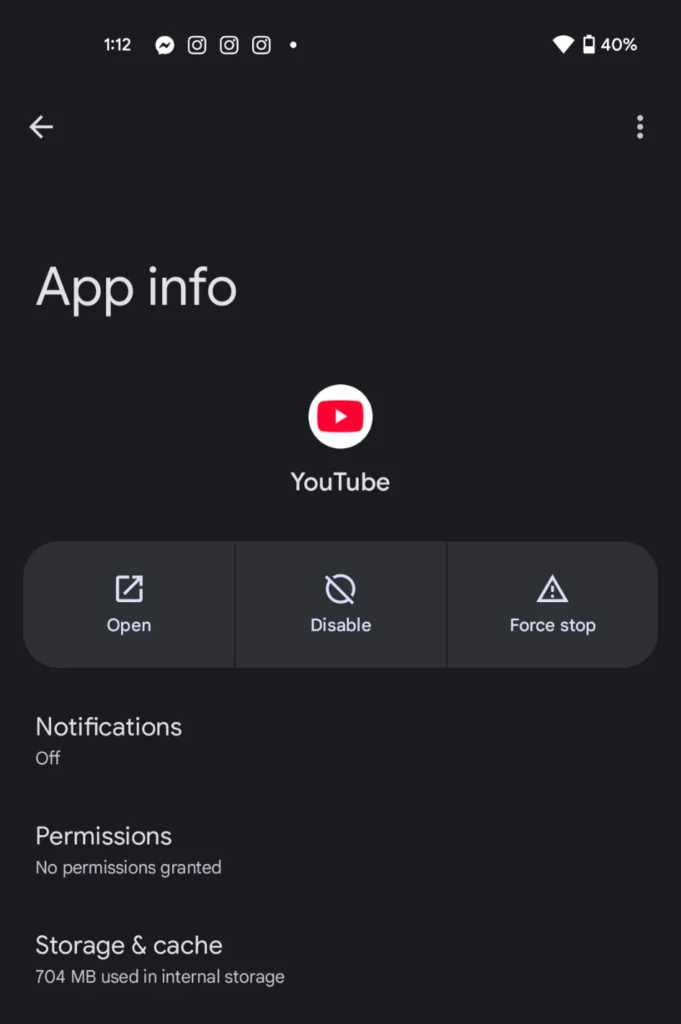
3. Force Stop YouTube and Reopen It
Sometimes YouTube becomes unresponsive because of a temporary application problem.
Closing the app and restarting it can resolve these situations.
However, if YouTube continues freezing or crashing, Android provides a Force stop option.
How to force stop YouTube on Google Pixel
- Open Settings.
- Tap Apps.
- Select See all apps if necessary.
- Find and tap YouTube.
- Select Force stop.
- Confirm if prompted.
- Return to your Home Screen.
- Open YouTube again.
On a Samsung Galaxy phone, you can usually open Settings → Apps → YouTube → Force stop.
You can also press and hold the YouTube icon and select App info on many Android devices.
Force stopping YouTube normally doesn’t delete your subscriptions, uploaded videos, or Google Account.
It simply stops the running application until you launch it again.
If YouTube now opens and plays videos properly, no further troubleshooting is needed.
If the app crashes again, continue to the next fix.
4. Restart Your Android Phone
A normal restart can resolve temporary problems affecting applications and background services.
Restarting is particularly useful when YouTube stops responding after an update or behaves strangely alongside other apps.
Steps
- Save any unfinished work in other applications.
- Open your phone’s power menu.
- Tap Restart.
- Allow Android to restart completely.
- Unlock your phone.
- Open YouTube.
- Try playing the same video again.
On many recent Google Pixel phones, you can press Power + Volume Up to open the power menu.
On Samsung devices, the power control may appear in Quick Settings or through the supported side-button combination.
The exact method depends on your phone model.
A normal restart doesn’t erase photos, messages, or installed applications.
If YouTube works afterward, the problem may have been temporary.
5. Clear the YouTube App Cache
If YouTube is not working on Android even after restarting your phone, clearing its cache is a useful next step.
Android applications store temporary files to improve performance.
Sometimes these files may become outdated or cause unexpected behavior.
Clearing YouTube’s cache removes its temporary cached files without requiring you to delete the entire application.
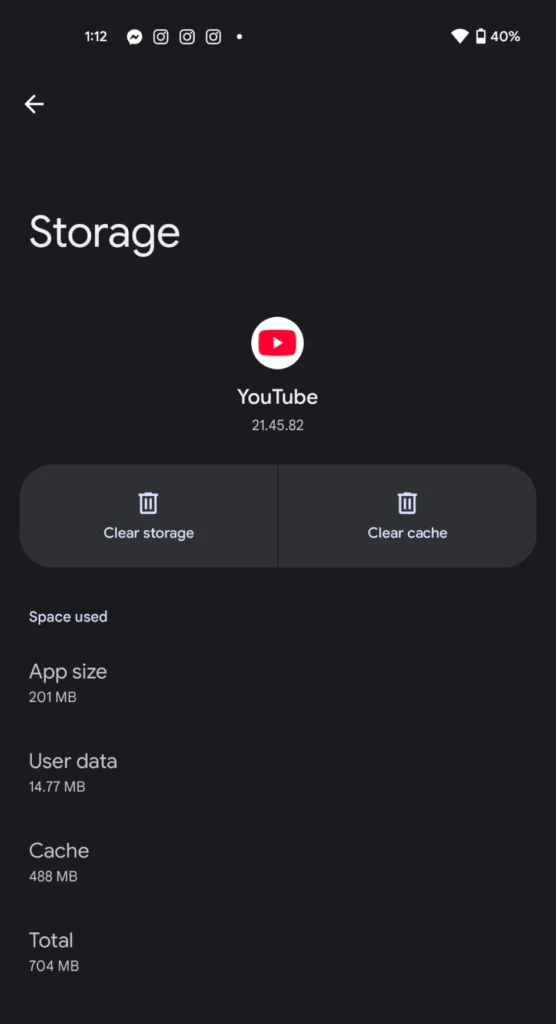
How to clear YouTube cache on Google Pixel
- Open Settings.
- Tap Apps.
- Select See all apps if needed.
- Choose YouTube.
- Tap Storage & cache.
- Select Clear cache.
- Return to your Home Screen.
- Open YouTube and test playback.
On many Samsung Galaxy phones, the path is Settings → Apps → YouTube → Storage → Clear cache.
YouTube’s own support documentation recommends clearing the cache when Android videos keep buffering or fail to load.
Does clearing YouTube cache delete subscriptions?
No. Clearing the application cache doesn’t delete subscriptions or videos saved to your YouTube account.
Your Google Account information remains associated with your account.
However, YouTube may need to rebuild temporary files the next time you use it.
Important: Clear cache and Clear storage are different options.
Clearing storage is more disruptive and can remove local application data, settings, and downloaded offline content. We’ll cover that option later.
6. Update the YouTube App
An outdated YouTube application may experience bugs or compatibility problems.
Google regularly distributes application updates through Google Play Store.
If YouTube keeps crashing, shows unusual errors, or refuses to play videos, check whether an update is available.
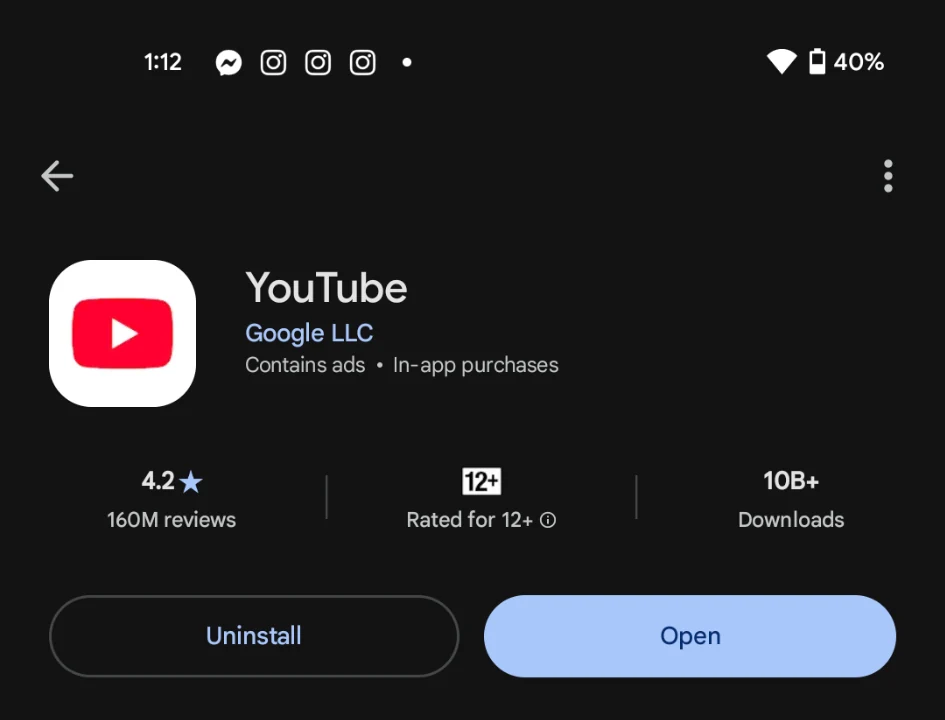
How to update YouTube on Android
- Open Google Play Store.
- Search for YouTube.
- Open the official YouTube app listing.
- Look for the Update button.
- If Update appears, tap it.
- Allow the installation to finish.
- Reopen YouTube.
If the button says Open instead of Update, Google Play isn’t currently offering an update for your installed app.
You can also check available updates through Play Store → Profile picture → Manage apps & device.
For additional instructions, see our How to Update Google Play Store guide, which also explains how to update individual Android applications.
What if Google Play Store won’t open?
If you cannot access the Play Store to update YouTube, troubleshoot the Play Store first.
Our Google Play Store Not Opening guide covers application crashes, loading problems, and common Play Store errors.
Avoid downloading unofficial YouTube APK files from unfamiliar websites just to obtain a newer version.
The official Play Store is the preferred source for normal application updates on supported Android devices.
7. Check YouTube’s Mobile Data and Battery Restrictions
Android includes settings that control how applications use mobile data and battery power.
Some restrictions may affect background activity, notifications, downloads, or other app functions.
These settings are less likely to explain every foreground playback problem, but they’re worth reviewing if YouTube behaves differently on mobile data or when Battery Saver is enabled.
Check YouTube’s mobile data access
On many Google Pixel phones:
- Open Settings.
- Tap Apps.
- Select YouTube.
- Open Mobile data & Wi-Fi, if available.
- Review the application’s data permissions.
- Check whether background data is restricted.
The exact menu may differ depending on your Android version.
On Samsung devices, related options may appear under Settings → Apps → YouTube → Mobile data.
If YouTube has been restricted, restore only the permissions necessary for the behavior you’re troubleshooting.
Check Data Saver
On many Google Pixel phones:
- Open Settings.
- Select Network & internet.
- Tap Data Saver.
- Check whether Data Saver is enabled.
- Temporarily disable it for testing if appropriate.
- Reopen YouTube.
If the problem disappears, review your preferred Data Saver settings rather than leaving everything unrestricted.
Check Battery Saver
Battery Saver can limit some background operations.
Temporarily turn it off and test YouTube.
You shouldn’t need to disable battery protection permanently for normal video playback.
If your main problem is missing YouTube notifications rather than video playback, see our separate Android Notifications Not Showing guide.
8. Check VPN, Private DNS, and Network Filtering
Some Android users configure a VPN, custom DNS provider, or network-level content blocker.
These tools can improve privacy or filter unwanted traffic, but a connection problem or incorrect configuration may interfere with certain applications.
If YouTube stopped working immediately after installing or changing one of these services, consider a controlled test.
Test a VPN connection
- Open your VPN application.
- Check whether the VPN is currently connected.
- If the VPN belongs to you and you can safely disconnect it, do so temporarily.
- Reopen YouTube.
- Try playing the same video.
- Restore the VPN connection after testing.
If YouTube works only when the VPN is disconnected, check the VPN provider’s settings, server status, or support instructions.
Review Private DNS
On Google Pixel and many Android phones, you can review Private DNS under Settings → Network & internet → Private DNS.
Check whether a custom DNS provider is configured.
If you intentionally use one, verify that it is functioning correctly.
Do not permanently disable workplace security tools, managed VPNs, or protective filters without authorization.
Network filtering isn’t the explanation for every YouTube failure. Only investigate it when the symptoms or recent settings changes point toward it.
9. Check Android Updates and Date & Time Settings
Sometimes the YouTube application is functioning correctly, but the phone’s software or network-related settings require attention.
Installing a supported Android update may resolve compatibility problems or known system bugs.
Check for Android updates
On many Google Pixel phones:
- Open Settings.
- Select System.
- Tap Software updates.
- Choose System update.
- Check whether an update is available.
- Follow the onscreen instructions if an appropriate update is offered.
On Samsung Galaxy phones, look under Settings → Software update → Download and install.
Back up important information before performing a major Android update.
If your phone is already using the latest supported software, move on.
Check automatic date and time
Incorrect device time can interfere with certain online connections and account services.
On a Google Pixel, open Settings → System → Date & time.
Confirm that your date, time, and time zone are correct. Use automatic time settings when available and appropriate.
On Samsung phones, date and time settings are generally found under General management.
Don’t manually change the clock to an incorrect time to force YouTube to work.
After reviewing these settings, reopen YouTube and test another video.
10. Reset YouTube App Data or Reinstall Updates as a Last Resort
If YouTube still won’t work, the problem may involve local application data or a problematic app installation.
This step is more disruptive than clearing the cache.
Only proceed after trying the earlier fixes.
Option A: Clear YouTube app storage
On many Google Pixel phones:
- Open Settings.
- Tap Apps.
- Select YouTube.
- Tap Storage & cache.
- Choose Clear storage or Clear data.
- Read the confirmation message carefully.
- Confirm only if you’re comfortable removing local application data.
- Reopen YouTube and set it up again if prompted.
Warning: Clearing storage may remove downloaded offline videos, reset local settings, and require account setup again. Make sure important downloads can be restored before continuing.
Your subscriptions and uploaded videos associated with your Google Account aren’t normally deleted by clearing an app’s local storage.
Option B: Reinstall YouTube or uninstall its updates
Some Android phones include YouTube as a preinstalled system application.
On those phones, you may not be able to remove the application completely.
Instead, the device may offer Uninstall updates.
If this option is available:
- Open Settings → Apps → YouTube.
- Look for the three-dot menu.
- Check whether Uninstall updates is available.
- Review the confirmation carefully.
- Remove updates only if necessary.
- Open Google Play Store.
- Update YouTube to the latest available version.
If YouTube is a normally uninstallable application on your device, you can uninstall and reinstall it through the official Play Store instead.
These advanced steps can remove local data and offline downloads, so don’t use them as your first solution.
Google’s official Android app troubleshooting guide also explains force stopping, clearing app data, updating, and reinstalling applications.
YouTube Videos Keep Buffering on Android
If YouTube opens normally but videos frequently pause, focus on playback quality and connection stability.
Try the following:
- Open a YouTube video.
- Tap the video player’s settings icon.
- Select Quality.
- Choose a lower available resolution, such as 360p or 480p.
- Play the video again.
A lower resolution generally requires less bandwidth.
If buffering improves at a lower resolution, the connection may not be consistently fast enough for your previous quality setting.
You can also compare Wi-Fi with mobile data or test YouTube closer to your router.
Avoid changing several network settings simultaneously. Testing one thing at a time makes it easier to identify the cause.
YouTube Shows a Black Screen on Android
A black video screen doesn’t always mean your Android display is damaged.
First, check whether the problem affects one video or every video.
If the audio continues but the picture remains black, restart the application and try another video.
Next, clear YouTube’s cache and check for an available app update.
If the entire YouTube interface is black or unresponsive, try opening the YouTube website in Chrome.
If videos display normally in Chrome, focus on the installed application rather than assuming the phone’s screen needs repair.
Avoid performing a factory reset for a single black-screen problem.
YouTube Keeps Crashing After an Android Update
If YouTube started crashing immediately after an Android update, begin with the application itself.
Check Google Play Store for a YouTube update that may improve compatibility.
Then force stop YouTube and restart your phone.
If the problem continues, clear the app cache.
Only consider clearing storage or reinstalling updates after the simpler troubleshooting steps fail.
If several unrelated applications are also crashing, the problem may be broader than YouTube.
Check Android system updates and the device manufacturer’s support information.
YouTube Works but Has No Sound
Sometimes YouTube videos play correctly but produce no audio.
Before changing app storage or reinstalling the application, perform a few basic checks.
- Play a YouTube video.
- Increase your phone’s media volume.
- Check whether Bluetooth headphones or speakers are connected.
- Disconnect an external audio device temporarily.
- Test sound in another application.
- Restart YouTube if the sound still doesn’t work.
If other applications also have no audio, investigate Android audio output settings rather than treating the problem as YouTube-specific.
If only one YouTube video has no sound, try another video before changing your device settings.
Frequently Asked Questions
Why is YouTube not working on my Android phone?
Possible reasons include a weak internet connection, temporary application problems, outdated YouTube software, cached files, or network filtering. Start by checking your connection, restarting YouTube, and clearing the app cache.
Why is YouTube not playing videos even though my internet works?
Your connection may work for basic browsing but still struggle with video streaming. Try changing networks, reducing video quality, updating YouTube, and clearing its cache.
Will clearing YouTube cache delete my videos?
Clearing the app cache doesn’t delete videos uploaded to your YouTube account or your subscriptions. It primarily removes temporary files. Clearing app storage is different and may remove locally downloaded videos and settings.
Why does YouTube keep saying “Something went wrong”?
This message can appear during temporary playback, connectivity, application, or service problems. Try reopening the app, switching networks, restarting the phone, and updating YouTube.
Does YouTube work on Google Pixel and Samsung phones?
Yes. The YouTube application is available on supported Google Pixel, Samsung Galaxy, and many other Android devices. The troubleshooting principles are similar, although settings menu names can differ.
Should I factory reset my Android phone if YouTube isn’t working?
No. A factory reset is not appropriate as an early troubleshooting step for one malfunctioning application. Try safer options first, including checking your connection, updating YouTube, restarting, and clearing its cache.
Final Thoughts
If YouTube is not working on Android, the best approach is to identify whether the issue involves your internet connection, the YouTube application, or the device itself.
Start by testing another connection, force stopping YouTube, and restarting your phone.
If videos still won’t play, clear the YouTube cache and install any available app updates.
For persistent problems, check network restrictions, Android updates, and application data.
Most routine YouTube playback problems don’t require a factory reset or complicated system changes.
If the issue continues across multiple devices and working internet connections, check YouTube’s official support resources or report the problem through the application’s Help and feedback options.