Is your iPhone home button not working, even though the rest of your phone seems fine? Maybe pressing the button does nothing, the familiar click or vibration has disappeared, or you can no longer return to the Home Screen.
This problem can affect older iPhones with Home buttons, including the iPhone SE (1st, 2nd and 3rd generations), iPhone 7, iPhone 8 and earlier models.
Sometimes the problem is caused by a case blocking the button, dirt around its edge, a temporary software issue or an accessibility setting. In other cases, the button itself or its internal connection may need professional repair.
The good news is that you don’t necessarily have to stop using your iPhone while investigating the problem.
This guide explains 8 safe ways to troubleshoot an iPhone Home button that isn’t working, including Apple’s built-in on-screen replacement.
Quick Answer: How to Fix an iPhone Home Button Not Working
Try these steps in order:
- Remove any case or screen protector that could interfere with the Home button.
- Gently clean around the button using a soft, lint-free cloth.
- Turn on AssistiveTouch to get a virtual Home button.
- Restart the iPhone using the correct method for your model.
- Check Home Button click-speed and haptic settings where available.
- Determine whether only Touch ID is malfunctioning.
- Install an available compatible iOS update if the iPhone remains usable.
- Contact Apple Support if the button is physically damaged or still unresponsive.
Important: If your Home button stopped working after a drop, liquid exposure or screen replacement, a hardware problem is more likely. Avoid aggressive cleaning or attempting to pry the button out.
Table of Contents
Why Is My iPhone Home Button Not Working?
Before trying to fix the problem, identify exactly what happens when you press the button.
The Home Button Doesn’t Respond
If pressing the Home button doesn’t return you to the Home Screen, the phone may not be registering button input.
Possible causes include interference from an accessory, a temporary system problem or hardware failure.
The Home Button Doesn’t Click or Vibrate
The iPhone 7, iPhone 8 and later Home-button models, including the second- and third-generation iPhone SE, use a solid-state Home button with haptic feedback rather than a traditional moving click mechanism.
If the familiar haptic response disappears, it could involve the button, haptic system or another hardware component.
Older models, including the original iPhone SE, have a mechanically moving Home button.
Touch ID Doesn’t Recognize Your Finger
If pressing the button works normally but your fingerprint isn’t recognized, you may be dealing with a Touch ID problem rather than a Home-button navigation failure.
These two symptoms require different troubleshooting.
Also, if your screen stops responding to taps and gestures, see our iPhone Touchscreen Not Working guide before assuming the Home button has failed.
1. Remove Your Case and Check the Home Button
Start with the simplest possible explanation.
A poorly fitted case, thick screen protector or trapped debris may interfere with the area around the Home button.
Apple recommends checking for protective accessories that might block a button before arranging repair.
Here’s what to do:
- Remove your iPhone case carefully.
- Inspect the area surrounding the Home button.
- Check whether a screen protector overlaps the button or its surrounding ring.
- Look for visible damage or trapped debris.
- Press the button gently and test whether it responds.
If removing the case restores normal operation, the accessory may have been interfering with the button.
Replace it with one that fits your exact iPhone model.
Do not press harder than normal to force an unresponsive button to work.
For Apple’s recommended checks, refer to its official button troubleshooting guidance.
2. Clean Around the Home Button Safely
Dirt, skin oils and residue can accumulate around frequently used controls.
Careful external cleaning may help when the button is obstructed.
Follow these steps:
- Disconnect charging cables and accessories.
- Turn off the iPhone if you can.
- Take a clean, soft, lint-free cloth.
- Gently wipe the button and surrounding surface.
- Remove visible residue without pushing material into the button’s edges.
- Test the button again after turning on your iPhone.
Avoid using sharp objects, needles or excessive pressure around the Home button.
Do not pour rubbing alcohol or cleaning liquid into the button opening.
What if cleaning doesn’t help?
A damaged Home button or internal connection cannot be repaired simply by wiping its surface. Continue with the software and accessibility checks below.
3. Turn On AssistiveTouch to Replace the Home Button
If your physical iPhone Home button is not working, AssistiveTouch is one of the most useful immediate solutions.
This built-in accessibility feature places a movable control on your screen. It lets you perform actions that would otherwise require physical buttons.
How to Enable AssistiveTouch
- Open Settings.
- Tap Accessibility.
- Select Touch.
- Tap AssistiveTouch.
- Turn on AssistiveTouch.
A floating button should appear on your display.
Tap it to open the menu, then select Home to return to the Home Screen.
You can also ask Siri to turn on AssistiveTouch if Siri is available and your iPhone can respond.
Make AssistiveTouch Work Like a Home Button
You can make the floating button more convenient:
- Open Settings → Accessibility → Touch → AssistiveTouch.
- Find Single-Tap.
- Choose Home.
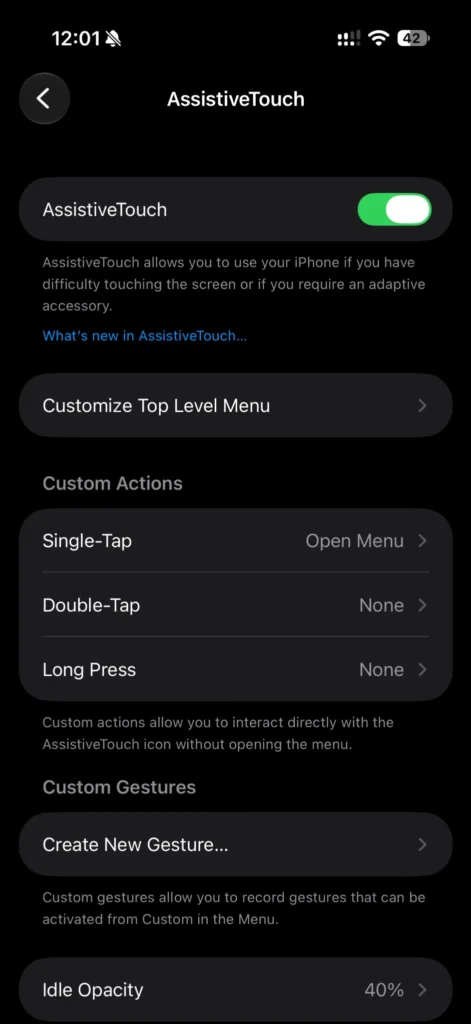
Now, a single tap of the floating AssistiveTouch button can take you directly to the Home Screen.
You can customize other actions for double-tapping or long-pressing.
AssistiveTouch can also open Control Center. If those controls aren’t responding correctly, see our iPhone Control Center Not Working guide.
For more details, read Apple’s official AssistiveTouch instructions.
Remember: AssistiveTouch is an accessibility workaround. It does not physically repair a damaged Home button or restore a defective Touch ID sensor.
4. Restart Your iPhone Using the Correct Method
A temporary software problem can sometimes interfere with button behavior.
Restarting your iPhone is a reasonable troubleshooting step, especially when the issue appeared suddenly.
Restart Normally
If your screen still responds:
- Press and hold the Side button, or Top button on certain older models, until the power-off slider appears.
- Drag the slider to turn off the iPhone.
- Wait approximately 30 seconds.
- Turn the phone back on.
- Test the Home button again.
If the iPhone is frozen, the force-restart method depends on your model.
iPhone 8, iPhone SE (2nd or 3rd Generation)
- Quickly press and release Volume Up.
- Quickly press and release Volume Down.
- Press and hold the Side button.
- Release it when the Apple logo appears.
iPhone 7 or iPhone 7 Plus
- Press and hold Volume Down and the Side button together.
- Keep holding until the Apple logo appears.
- Release both buttons.
iPhone 6s, Original iPhone SE and Older Models
These models generally require holding the Home button together with the Side or Top button to force restart.
If the Home button is completely nonfunctional, that combination may not work. Don’t keep forcing the damaged button. Try a normal shutdown if possible, or seek support.
A force restart does not ordinarily erase your personal files.
If the Home button works after restarting but repeatedly fails later, further troubleshooting is still worthwhile.
5. Check Home Button Accessibility Settings
Sometimes a Home button still works, but double-clicks or triple-clicks aren’t recognized as expected.
This may be a timing or accessibility configuration issue.
Adjust Home Button Click Speed
On supported models and iOS versions:
- Open Settings.
- Select Accessibility.
- Tap Home Button.
- Find Click Speed.
- Choose Slow or Slowest.
- Test the button again.
This makes it easier for the iPhone to recognize slower double-click and triple-click sequences.
It will not repair a completely dead hardware button.
If triple-clicking fails specifically when using Guided Access, our iPhone Guided Access Not Working guide explains how to review the shortcut and session settings.
Check Home Button Haptic Feedback
Some Home-button iPhones offer a Home Button Haptic option.
Where available:
- Open Settings → Accessibility → Home Button.
- Look for Home Button Haptic.
- Try an available feedback setting.
- Test how the button feels.
If the option is unavailable on your model, skip this step.
Changing haptic settings adjusts the feedback experience. It cannot repair a failed Taptic Engine, button assembly or internal connection.
Apple explains these accessibility options in its Home Button settings guide.
6. Check Whether Touch ID Is the Real Problem
On supported models, the Home button also contains the Touch ID fingerprint sensor.
However, Home navigation and fingerprint recognition are not the same function.
If the Home button takes you back to the Home Screen but doesn’t recognize your fingerprint, try the following.
- Make sure your finger and the Touch ID sensor are clean and dry.
- Remove any case or protector that covers the sensor or surrounding ring.
- Open Settings → Touch ID & Passcode.
- Enter your passcode.
- Check whether iPhone Unlock is enabled.
- Confirm that at least one fingerprint is enrolled.
- Test another enrolled finger or try adding a new fingerprint if the option is available.
There are also situations when iOS requires your passcode rather than Touch ID, such as after restarting the iPhone.
That behavior does not automatically indicate a sensor failure.
If Touch ID is unavailable, grayed out or repeatedly fails setup, Apple says service may be required.
See Apple’s Touch ID troubleshooting instructions.
7. Check for a Compatible iOS Update
If the Home button began behaving unusually after a software issue, checking for an update can help rule out known system problems.
Use this option only if your iPhone is otherwise responsive.
- Open Settings.
- Select General.
- Tap Software Update.
- Check whether a compatible update is available.
- Review the update details.
- Back up your iPhone before making significant changes.
- Install the update using Apple’s normal instructions.
Older iPhone models do not support every new iOS release. The latest compatible version depends on your device.
An update may fix a software-related problem, but it cannot physically repair a broken Home button.
Don’t factory-reset your iPhone as an early troubleshooting step.
Erasing the device can remove personal data and is unlikely to solve a physically damaged button.
8. Arrange Professional Repair if the Button Still Doesn’t Work
If you’ve completed the safe checks and the Home button still doesn’t respond, professional diagnosis may be necessary.
This is especially important if:
- The button stopped working after a drop.
- You notice visible physical damage.
- The failure began immediately after a screen replacement.
- The button never responds, even after restarting.
- Touch ID and Home-button functions fail together.
- The haptic feedback has disappeared and other hardware symptoms are present.
Be Careful With Home Button Replacements
On Touch ID iPhones, the fingerprint sensor is associated with device security hardware.
Replacing the original Home button with an arbitrary third-party part may not restore Touch ID, and on some models may also affect normal Home-button functionality.
This makes DIY replacement more complicated than replacing a conventional mechanical button.
If preserving Touch ID matters to you, discuss repair options with Apple or a qualified authorized repair provider before replacing the button assembly.
Apple’s official button troubleshooting guidance recommends repair when a button remains damaged, intermittent or unresponsive after basic checks.
Before arranging service, back up your iPhone if possible.
How to Use an iPhone Without a Working Home Button
You can continue using many Home-button iPhones without pressing the physical button, provided the display and other required controls still work.
AssistiveTouch can provide an on-screen Home action and access to several common functions.
You can also customize AssistiveTouch gestures and menu actions for easier navigation.
However, a virtual Home button does not restore Touch ID hardware or guarantee access to every function requiring authentication.
If the issue is actually missing apps rather than a failed Home button, see our iPhone Apps Disappeared from Home Screen guide.
Frequently Asked Questions
Why is my iPhone Home button not working suddenly?
A sudden failure may involve a temporary software issue, accessory interference, debris or hardware damage. Remove interfering accessories, clean the exterior gently, restart the iPhone and test the button again.
How do I get a Home button on my iPhone screen?
Go to Settings → Accessibility → Touch → AssistiveTouch and turn it on. You can assign the Home action to the floating button’s Single-Tap setting.
Can I fix an iPhone SE Home button that isn’t working?
Sometimes. The iPhone SE’s Home button may respond after cleaning, accessory removal, a restart or an appropriate settings adjustment. A damaged button assembly may require professional repair.
Why doesn’t my iPhone Home button click anymore?
The iPhone 7, iPhone 8 and newer Home-button models use haptic feedback instead of a traditional moving mechanical click. A missing haptic sensation may require further hardware diagnosis.
Can I restart my iPhone without the Home button?
Yes, on many models. The iPhone 8 and second- and third-generation iPhone SE use Volume Up, Volume Down and Side button inputs for force restarting. The iPhone 7 uses the Side button and Volume Down. Older models may require a functioning Home button for force restart.
Will replacing the Home button fix Touch ID?
Not necessarily. Touch ID involves security-related hardware pairing. A generic replacement button may not restore fingerprint recognition, even if some navigation functionality returns.
Do newer iPhones have a Home button?
Many newer iPhones use swipe gestures and Face ID rather than a front Home button. This guide primarily covers models equipped with a physical Home-button control.
Final Thoughts
If your iPhone home button is not working, start with the simplest possible checks: remove interfering accessories, clean around the button and restart the device.
For immediate access to Home-button functions, Apple’s AssistiveTouch feature provides a useful on-screen alternative.
If double-clicks or triple-clicks fail, review accessibility settings. If fingerprint recognition alone is affected, troubleshoot Touch ID separately.
However, persistent failure after physical damage or a previous repair may require professional service.
Most importantly, avoid forcing the button, pouring cleaning liquid around it or erasing your iPhone without a clear reason.
With the right checks, you can identify whether the issue is likely related to settings, temporary software behavior or hardware that needs repair.